
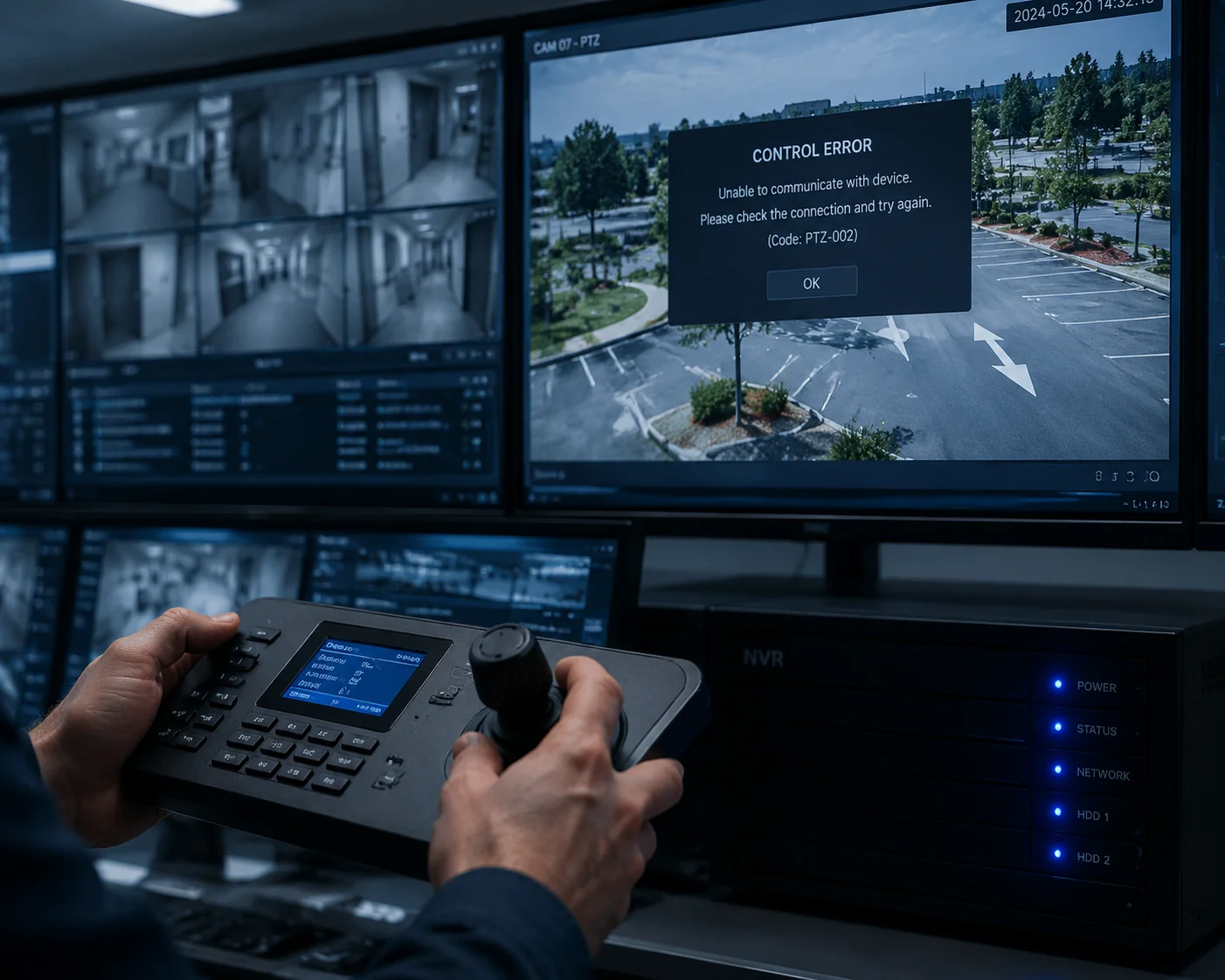
I have seen this problem too many times. A client installs a brand-new PTZ camera, connects it to the NVR, gets a live image — but the joystick does nothing. No pan. No tilt. No zoom.
Most NVR-PTZ control failures are not hardware problems. They come from protocol mismatches — the NVR and the camera speak slightly different “dialects” of ONVIF or use incompatible PTZ command modes. At Loyalty-Secu, our R&D team solves these bugs by capturing the NVR’s command packets, identifying the exact mismatch, and releasing a targeted firmware patch.
In this article, I will walk you through the four most common reasons why NVR-PTZ control breaks down. I will also show you exactly how our factory diagnoses and fixes these compatibility bugs — and what you can do on-site before you even call us.
Table of Contents
Is the PTZ Control Failure Caused by a Non-Standard ONVIF Implementation or a Port Conflict?
I get this question from integrators almost every week. They assume ONVIF means universal compatibility. It does not. ONVIF is a framework, not a guarantee.
In most cases, PTZ control failure comes from a non-standard ONVIF implementation — not a port conflict. The NVR and camera may both carry the ONVIF label, but they often support different profiles, different PTZ command modes, or different authentication methods. Port conflicts are less common but still worth checking.
The ONVIF “Compatibility Illusion”
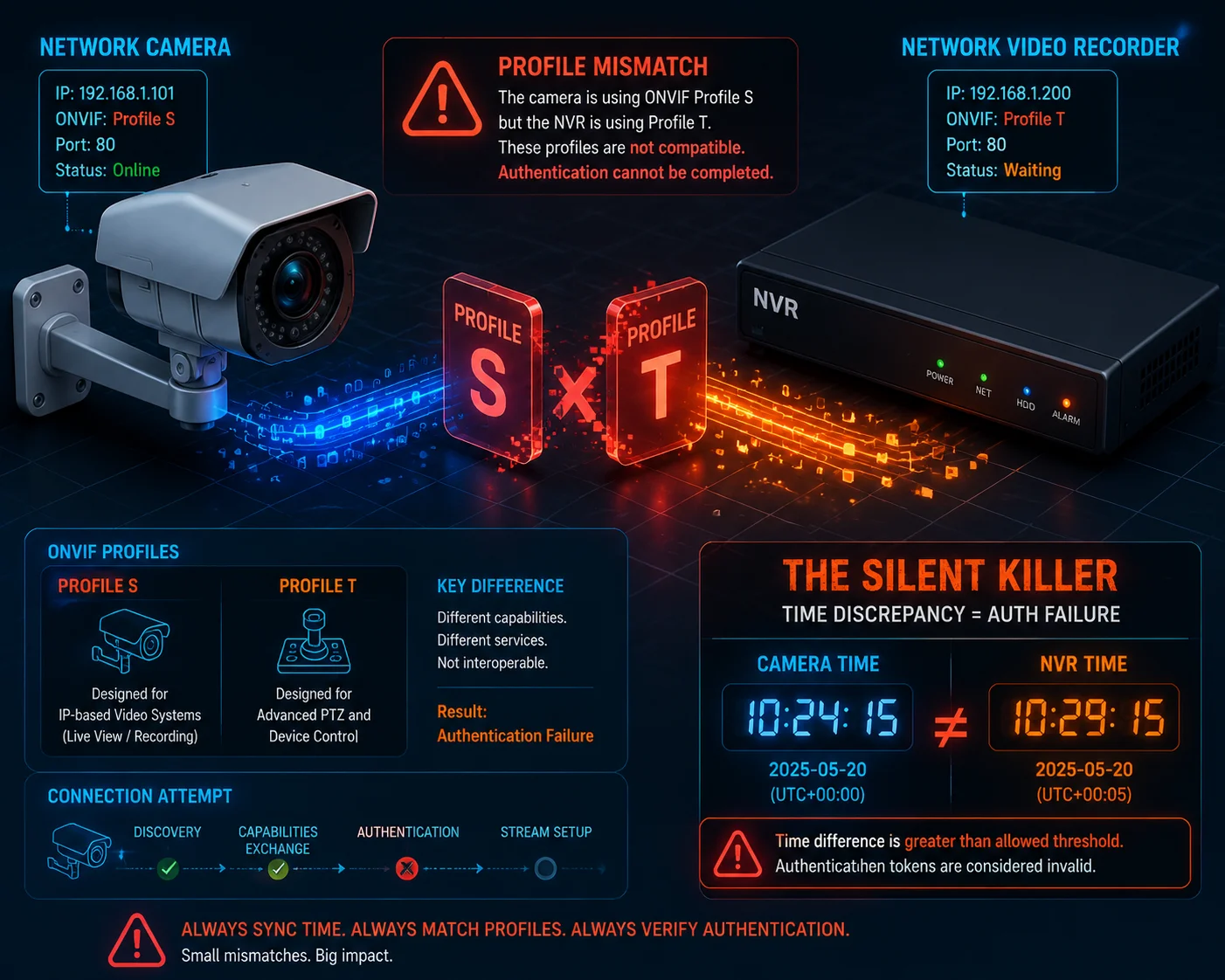
Here is the hard truth. Two devices can both pass ONVIF certification and still fail to work together. Why? Because ONVIF has multiple profiles, and each profile covers different features.
| ONVIF Profile | What It Covers | PTZ Support Level |
|---|---|---|
| Profile S | Video streaming, basic PTZ | Basic pan/tilt/zoom commands |
| Profile T | Advanced video streaming, H.265 | Enhanced PTZ with metadata |
| Profile G | Recording and storage | No direct PTZ control |
If your NVR only supports Profile S and your PTZ camera uses Profile T control logic, the video stream will work fine. But when you press the direction buttons, nothing happens. The NVR sends a command the camera does not recognize.
Three PTZ Command Modes — and Why They Clash
ONVIF defines three ways to move a PTZ camera:
- Continuous Move7: “Start moving right at speed 3.” The camera keeps moving until it gets a stop command.
- Relative Move8: “Move 5 degrees to the right from your current position.”
- Absolute Move9: “Go to position X=120, Y=45, Zoom=5.”
The problem? Not every NVR supports all three modes. And not every camera responds to all three modes the same way.
I have seen this exact scenario many times: an NVR sends a Relative Move command — “move 5 degrees right.” But the camera firmware only listens for Continuous Move commands. The camera receives the packet, cannot parse it, and silently drops it. No error message. No feedback. The operator just sees a frozen PTZ.
Port Conflicts — Less Common but Still Real
Port conflicts do happen, but they are rarer. The default ONVIF service port is 80 or 8080. Some NVRs also use these ports for their own web interface. When two services fight over the same port, the ONVIF discovery process breaks.
The fix is simple: change the camera’s ONVIF service port to something unique, like 8899. Then manually add the camera to the NVR using the new port number.
Authentication — The Silent Killer
This one catches even experienced engineers. Modern PTZ cameras require Digest Authentication3 for every single PTZ command. This authentication uses a time-based token. If the NVR’s system clock is off by more than 5 minutes compared to the camera’s clock, every token expires instantly. The camera rejects every command. The video stream still works because it was authenticated earlier. But new PTZ commands get blocked.
The fix? Enable NTP4 on both devices. Point them to the same time server. This single step solves about 80% of all ONVIF PTZ control issues I see in the field.
Can the Supplier Provide a Custom Firmware Patch if My NVR Uses a Proprietary PTZ Protocol?
This is a fair question — and the answer matters a lot when you are choosing a supplier. Not every factory can do this. Not every factory will do this.
Yes, a capable R&D-led manufacturer like Loyalty-Secu can provide custom firmware patches for proprietary PTZ protocols. Our engineers capture the NVR’s command structure, reverse-engineer the protocol differences, and build an adapter layer into the camera firmware. This is a standard part of our OEM/ODM service.
Why Proprietary Protocols Exist
Big NVR brands like Hikvision and Dahua use their own private protocols when connecting to their own cameras. These protocols are faster and more feature-rich than standard ONVIF. But they create a walled garden. When you connect a third-party PTZ camera, the NVR often tries the private protocol first. When that fails, it falls back to ONVIF — sometimes poorly.
How Our R&D Team Builds a Firmware Patch
Let me walk you through our actual process. This is not theory. This is what happens in our Shenzhen lab when a client like David sends us a compatibility ticket.
Step 1: Packet Capture
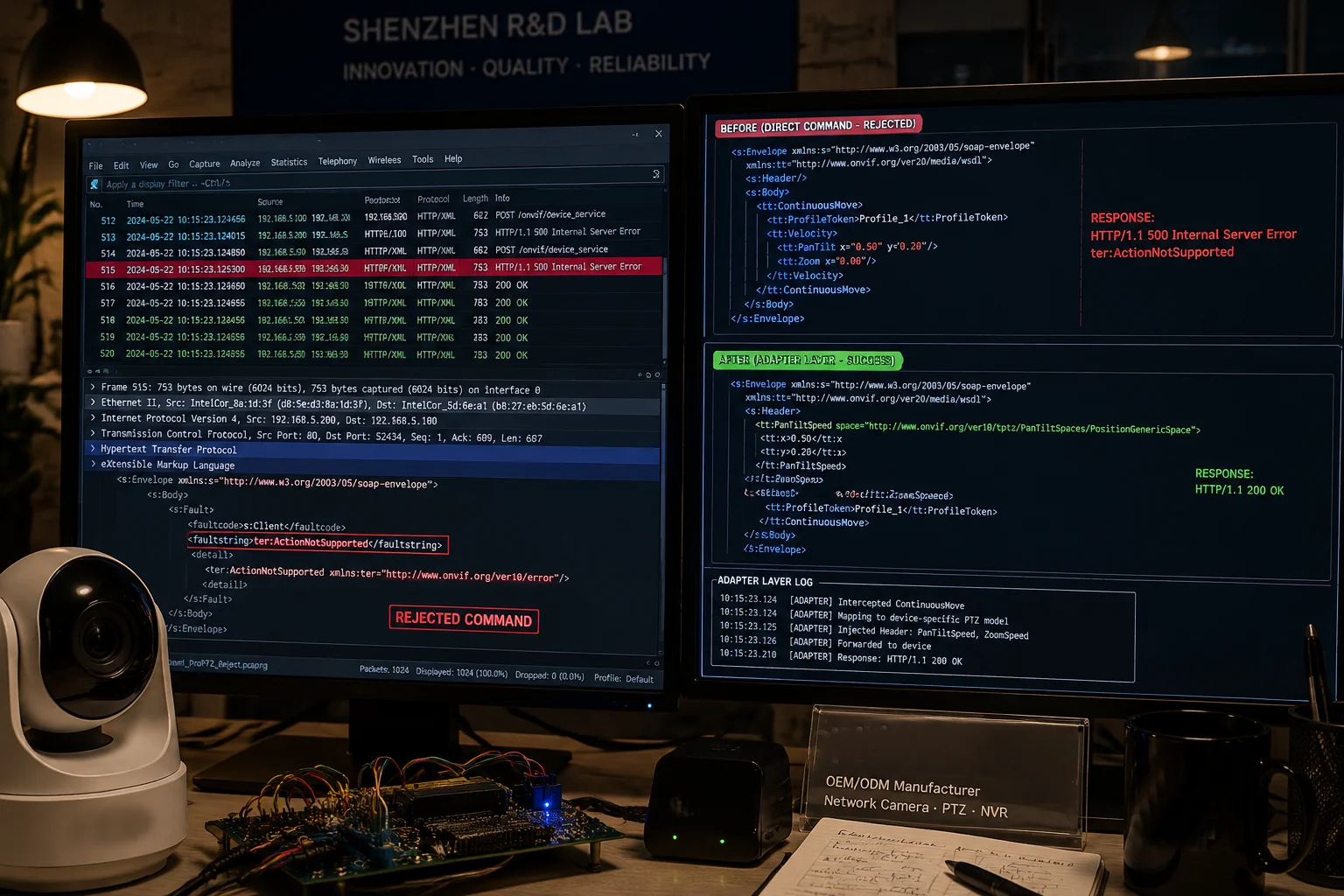
Our engineer connects the NVR and camera to the same network switch. They run Wireshark5 on a mirrored port. They capture every packet the NVR sends when the operator presses the PTZ buttons.
Step 2: XML Command Analysis
The captured packets contain SOAP/XML commands6. Our engineer reads the XML line by line. They look for:
- The PTZ service namespace
- The command type (Continuous, Relative, or Absolute)
- The speed and direction values
- The authentication headers
Step 3: Identify the Mismatch
Here is a real example. We once found that a major NVR brand sent the PanTilt namespace as http://www.onvif.org/ver20/ptz/wsdl — but our camera expected http://www.onvif.org/ver10/schema. One version number difference. That was enough to break everything.
| Item | NVR Sent | Camera Expected | Result |
|---|---|---|---|
| PTZ Namespace | ver20/ptz/wsdl | ver10/schema | Command rejected |
| Move Type | RelativeMove | ContinuousMove | No movement |
| Auth Method | WS-UsernameToken | Digest Auth | Auth failed |
Step 4: Build the Adapter Layer
Once we know the mismatch, our firmware team writes an adapter layer. This is a piece of code inside the camera firmware that acts as a translator. When the camera detects a specific NVR brand (by reading the User-Agent string in the HTTP header), it automatically switches to a compatibility mode that matches that NVR’s command habits.
This is not a hack. This is standard practice in professional surveillance manufacturing. We maintain a library of compatibility profiles for the most popular NVR brands worldwide.
Step 5: OTA Delivery
The patched firmware goes through our automated aging test — 72 hours of continuous operation. If it passes, we push it to the client as an OTA update or a downloadable file. The client does not need to open the camera or return it to China.
What to Ask Your Supplier
If your current supplier cannot do this, that tells you something important about their R&D depth. Here are the questions I recommend asking:
- “Do you have an in-house firmware team, or do you buy turnkey solutions from a chipset vendor?”
- “Can you provide a custom firmware build for my specific NVR brand within 2 weeks?”
- “Do you maintain a compatibility testing lab with major NVR brands?”
At Loyalty-Secu, the answer to all three is yes. We own our core board designs and our mold workshop. That vertical supply chain gives us full control over the firmware stack — from the bootloader to the ONVIF service layer.
How Do I Use the ONVIF Device Test Tool to Capture the Command Logs for Factory Analysis?
Many integrators do not know this tool exists. It is free. It is official. And it gives you the exact data our engineers need to diagnose your problem remotely.
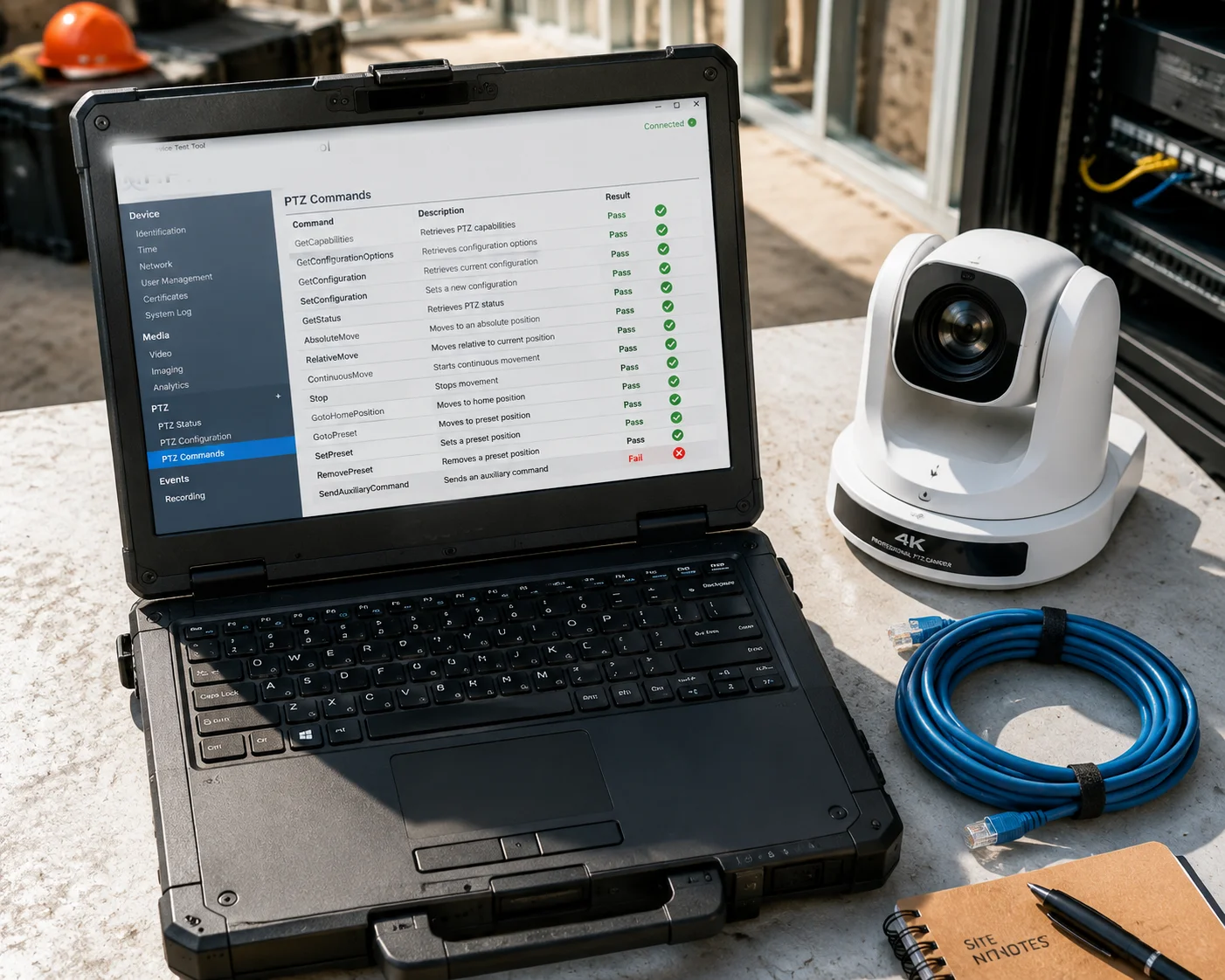
The ONVIF Device Test Tool1 is a free Windows application from onvif.org. You connect it to your PTZ camera, run the PTZ control tests, and export the command logs as XML files. Send those logs to your factory — our R&D team can pinpoint the exact failure point within hours, without needing physical access to your equipment.
Where to Get the Tool
Go to onvif.org and download the ONVIF Device Test Tool. It runs on Windows. Install it on a laptop that is on the same network as your PTZ camera.
Step-by-Step: Capturing PTZ Logs
Here is the exact process I walk my clients through:
Step 1: Connect to the Camera
Open the tool. Enter the camera’s IP address, ONVIF port, username, and password. Click “Device Discovery” to confirm the connection.
Step 2: Run the PTZ Tests
Navigate to the PTZ section in the left menu. The tool will list all available PTZ nodes. Run these tests one by one:
- GetNodes
- GetConfigurations
- ContinuousMove
- RelativeMove
- AbsoluteMove
- GotoPreset
- GotoHomePosition
Step 3: Check the Results
Each test shows a Pass or Fail result. More importantly, it shows the full XML request and response. This is gold for our engineers.
| Test Name | What It Checks | Common Failure Reason |
|---|---|---|
| GetNodes | Camera reports its PTZ capabilities | Node definition missing or incomplete |
| ContinuousMove | Camera responds to continuous motion | Speed range mismatch |
| RelativeMove | Camera responds to relative position | Translation values out of range |
| GotoPreset | Camera moves to a saved preset | Preset token format incompatible |
Step 4: Export and Send
Click “Save Log” to export the full session as an XML file. Email that file to your supplier’s engineering team. At Loyalty-Secu, you can send it directly to sales05@loyalty-secu.com — I will forward it to our R&D lab the same day.
Why This Matters for Remote Troubleshooting
In the old days, solving a compatibility bug meant shipping the camera back to China. That took weeks. It cost money. And it left a gap in the client’s security coverage.
With the ONVIF Device Test Tool, we skip all of that. The XML logs tell our engineers exactly what the camera supports, exactly what it responds to, and exactly where the handshake breaks. We can often build and deliver a firmware fix within 5 business days — without the camera ever leaving the job site.
I always tell my clients: this tool is your first line of defense. Before you call me, before you file a ticket, run the ONVIF test. If everything passes in the tool but fails on the NVR, we know the problem is on the NVR side. That saves everyone time and money.
A Note on “Pelco-D over IP”
Some integrators ask about using Pelco-D protocol as a fallback. Pelco-D was designed for RS-48510 serial connections — the old analog world. Some IP cameras do support “Pelco-D over IP” by wrapping the serial commands in TCP packets. But this is a workaround, not a solution. The command set is limited. You lose preset accuracy. You lose speed control granularity.
At Loyalty-Secu, we support Pelco-D over IP2 on most of our PTZ models for legacy NVR compatibility. But I always recommend fixing the ONVIF implementation first. It is the cleaner, more future-proof path.
Does the Camera Support “Pelco-D over IP” as a Fallback for Legacy NVR Compatibility?
Some projects still run on older NVRs that were built for the analog era. These NVRs understand Pelco-D. They do not understand ONVIF well — or at all.
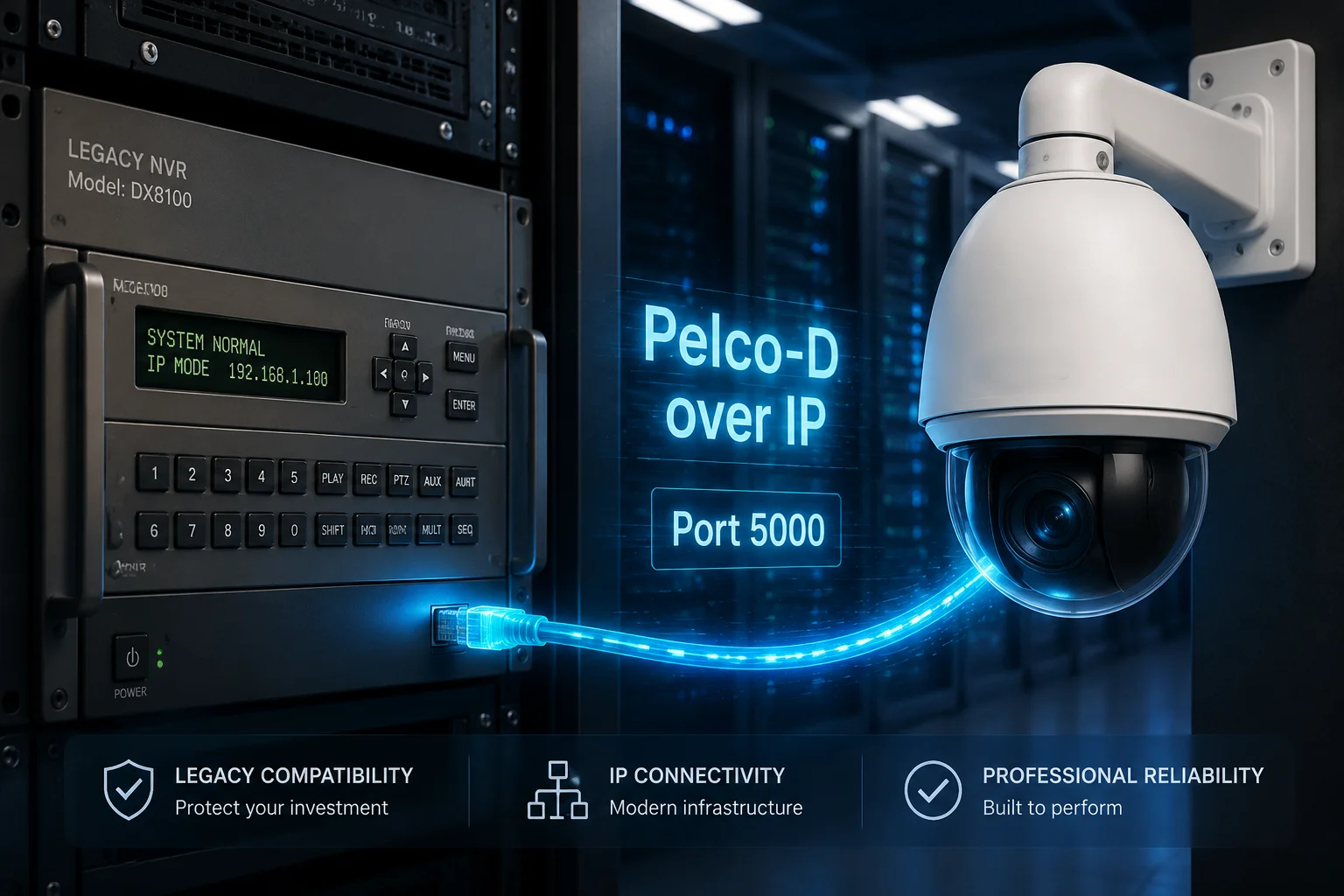
Yes, most Loyalty-Secu PTZ cameras support Pelco-D over IP2 as a fallback protocol. This allows legacy NVRs to send PTZ commands using the familiar Pelco-D command structure, wrapped in TCP/IP packets. It is not a perfect replacement for ONVIF, but it works reliably for basic pan, tilt, zoom, and preset recall.
What Is Pelco-D, and Why Does It Still Matter?
Pelco-D is a serial communication protocol created by Pelco (now part of Motorola Solutions) decades ago. It was the industry standard for controlling analog PTZ cameras over RS-485 wiring. The protocol is simple: each command is a 7-byte packet that tells the camera which direction to move, how fast, and when to stop.
Even today, thousands of installed NVRs and DVRs still use Pelco-D as their primary PTZ control method. When these systems get upgraded with IP cameras, the NVR operator expects the same Pelco-D commands to work. That is where “Pelco-D over IP” comes in.
How It Works in Practice
Instead of sending the 7-byte command over a physical RS-485 wire, the NVR wraps it in a TCP packet and sends it to the camera’s IP address on a designated port (usually port 5000 or 5001). The camera’s firmware unwraps the TCP packet, reads the Pelco-D bytes, and executes the movement.
Configuration Steps
- Log into the camera’s web interface.
- Go to Network > Advanced Settings > Serial Port (Virtual).
- Enable Pelco-D over IP.
- Set the protocol address (usually 1-255) to match the address configured on the NVR.
- Set the baud rate to match the NVR’s setting (typically 9600).
- Note the listening port (default: 5000).
- On the NVR, add the camera and select Pelco-D as the PTZ protocol. Enter the camera’s IP and the listening port.
Limitations You Should Know
Pelco-D over IP works. But it has real limitations compared to ONVIF PTZ control:
- No metadata feedback. The camera cannot report its current position back to the NVR. The NVR is “flying blind.”
- Limited speed steps. Pelco-D supports 64 speed levels. ONVIF supports continuous float values from 0 to 1. You get less precise speed control.
- No advanced features. Auto-tracking, patrol tours with dwell times, and 3D positioning (click-to-center on a map) are not available through Pelco-D.
- No encryption. Pelco-D commands are sent in plain text. There is no authentication. On a secure network this is fine, but on a public-facing network it is a risk.
When to Use It
I recommend Pelco-D over IP only in these situations:
- The NVR is a legacy system that cannot be upgraded or replaced.
- The project budget does not allow for a new NVR.
- The client only needs basic PTZ control — no auto-tracking, no smart features.
For every other situation, fix the ONVIF compatibility. It is worth the effort. If you are working with Loyalty-Secu, send us the NVR model number and the ONVIF test logs. We will handle the rest.
Conclusion
NVR-PTZ control failures are protocol problems, not hardware problems. The fix lives in the firmware. Work with a factory that owns its R&D stack — and can patch it fast.
1. Download the official ONVIF tool to capture PTZ command logs for factory analysis. ↩︎ 2. Learn about the legacy Pelco-D serial protocol and its adaptation for IP networks. ↩︎ 3. RFC specification for HTTP Digest Authentication, which is used by modern PTZ cameras for command security. ↩︎ 4. Network Time Protocol ensures clocks are synchronized, preventing authentication token expiration. ↩︎ 5. Network protocol analyzer used to capture and inspect PTZ command packets between NVR and camera. ↩︎ 6. SOAP/XML is the messaging protocol used in ONVIF for PTZ control commands. ↩︎ 7. ONVIF specification for ContinuousMove PTZ command, one of three motion modes. ↩︎ 8. ONVIF RelativeMove command moves the PTZ by a specified offset from its current position. ↩︎ 9. ONVIF AbsoluteMove command sends the PTZ to an exact predefined position. ↩︎ 10. RS-485 is the electrical standard used by legacy Pelco-D serial PTZ control. ↩︎