
I’ve watched too many integrators lose hours because their NVR treats a perfectly good AI alert as generic motion. It’s frustrating, and it’s avoidable.
To ensure your camera’s AI alerts (like person detection or line-crossing) show up as “Smart Events” on a third-party NVR, you need three things working together: ONVIF Profile T enabled, correct event namespace mapping, and proper linkage configuration on both the camera and the NVR side.

Below, I break down the exact steps and common failure points. Whether you’re integrating with Hikvision, Dahua, Milestone, or Synology, these principles apply across the board. Let’s get into it.
Table of Contents
Will My Hikvision or Dahua NVR1 Show the “Intrusion Alert” Icon Instead of Generic Motion?
I’ve seen this question come up on every project call with North American integrators. You set up a perfect AI rule, but the NVR just shows a plain motion flag.
Yes, your Hikvision or Dahua NVR can display the specific “Intrusion Alert” icon, but only if the camera sends the event using a protocol and format that the NVR understands. Without ONVIF Profile T and the correct event type mapping, the NVR defaults to treating everything as basic motion detection.
Why Profile S Is Not Enough
Most people assume that if their camera connects via ONVIF, everything will work. That’s only half true. ONVIF Profile S2 handles video streaming. It gets your live view and playback working. But it does not handle advanced event types.
Profile T is the standard that covers analytics and smart event subscriptions. When your NVR subscribes to a camera’s analytics service through Profile T, it can receive structured event data. This data tells the NVR exactly what happened — a person crossed a line, someone entered a zone, or a face was detected.
What Happens Without Profile T
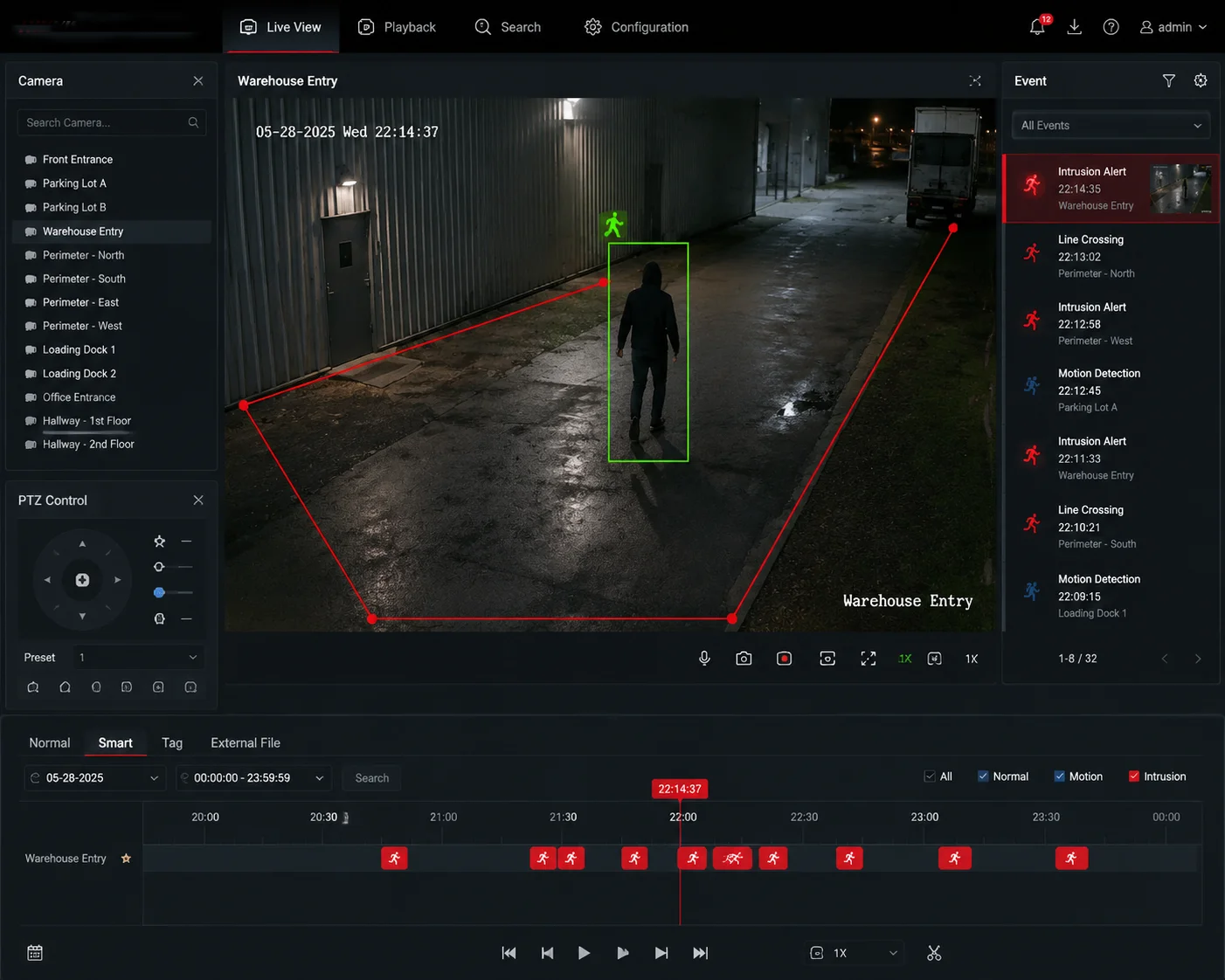
Without Profile T, the NVR falls back to the only event type it can understand from Profile S: motion detection. So your camera might be running advanced AI internally, but the NVR only sees a generic alarm. The timeline shows a green motion bar instead of a red smart event marker.
Step-by-Step Fix
Here’s what I tell every integrator who hits this wall:
- Log into the camera’s web interface.
- Go to Network > ONVIF.
- Create a dedicated ONVIF user with Administrator privileges.
- Set authentication to Digest/Password.
- Enable Metadata streaming on the same channel as your main video stream.
- On the NVR side, delete the camera and re-add it using the ONVIF protocol (not a private SDK).
Compatibility Check Table
| NVR Brand | Required Camera Setting | Expected Result |
|---|---|---|
| Hikvision | ONVIF Profile T + Compatibility Mode ON | Intrusion/Line-crossing icons appear in Smart Event menu |
| Dahua | ONVIF Profile T + “Common” event format | AI event types listed under Event > Smart Plan |
| Synology Surveillance Station3 | ONVIF Profile T + Metadata enabled | Event shows as “Analytics” in timeline |
Once you confirm the NVR can pull the camera’s smart event list (usually via a “Get Configuration” button), you know the protocol layer is working.
How Do I Map the Camera’s Internal AI Triggers to the Standard NVR Alarm Inputs?
This is where most integrations silently fail. The camera sends an alert, but the NVR doesn’t know what to do with it because the event “language” doesn’t match.
You map AI triggers to NVR alarm inputs by switching the camera’s event reporting format from “Private” to “ONVIF Standard” or “Common” mode. This forces the camera to send event codes in a universal XML namespace that third-party NVRs can parse and categorize correctly.
Understanding Event Namespaces
Think of event namespaces like languages. Your camera might call a perimeter breach PrivateAlarm/ZoneCross. But a Hikvision NVR expects to hear tns1:RuleEngine/FieldDetector/ObjectsInside. If the codes don’t match, the NVR ignores the event entirely or dumps it into a generic bucket.
The Namespace Mismatch Problem
Every camera manufacturer has their own internal naming system for AI events. This is fine when you use the same brand for both camera and NVR. But in mixed-brand systems, it creates a translation problem.
Here’s what typically goes wrong:
- The camera sends a proprietary event code.
- The NVR receives it but can’t find a matching rule in its event handler.
- The NVR either ignores it or logs it as “unclassified motion.”
- The integrator sees no smart event on the timeline and assumes the camera is broken.
How to Fix the Mapping
On our cameras, we built a “NVR Compatibility Mode”6 into the firmware. When you turn this on, the camera automatically adjusts its event output to match the syntax that major NVR brands expect.
Here’s the configuration path:
- Go to Event > Basic Event > Linkage Method.
- Change the reporting mode from “Private” to “Common” or “ONVIF Standard”.
- If targeting a specific NVR brand, enable “NVR Compatibility Mode” and select the brand from the dropdown.
- Save and reboot the camera.
Standard Event Code Reference
| AI Function | ONVIF Standard Code | What NVR Displays |
|---|---|---|
| Person Detection | tns1:RuleEngine/CellMotionDetector/Motion with Object=Human | Smart Motion (Person) |
| Line Crossing | tns1:RuleEngine/LineDetector/Crossed | Line Crossing Alert |
| Intrusion Detection | tns1:RuleEngine/FieldDetector/ObjectsInside | Intrusion Zone Alert |
| Face Detection | tns1:RuleEngine/FaceDetector/Detected | Face Event |
A Note on Milestone and Genetec
For higher-end VMS platforms like Milestone XProtect4 or Genetec Security Center5, the approach is slightly different. These platforms use a “Generic Event” receiver. You define a text string that the VMS listens for in the metadata stream. For example, you configure the VMS to trigger an alarm whenever it receives the string Object=Person in the analytics data.
This gives you more flexibility, but it also means more manual setup. I always recommend testing with a single camera first before rolling out across a full site.
Does the Camera Provide “Smart Metadata” That Allows for NVR-Side Post-Event Searching?
Post-event search is one of the biggest selling points for end users. But if the metadata isn’t structured right, the NVR can’t index it.
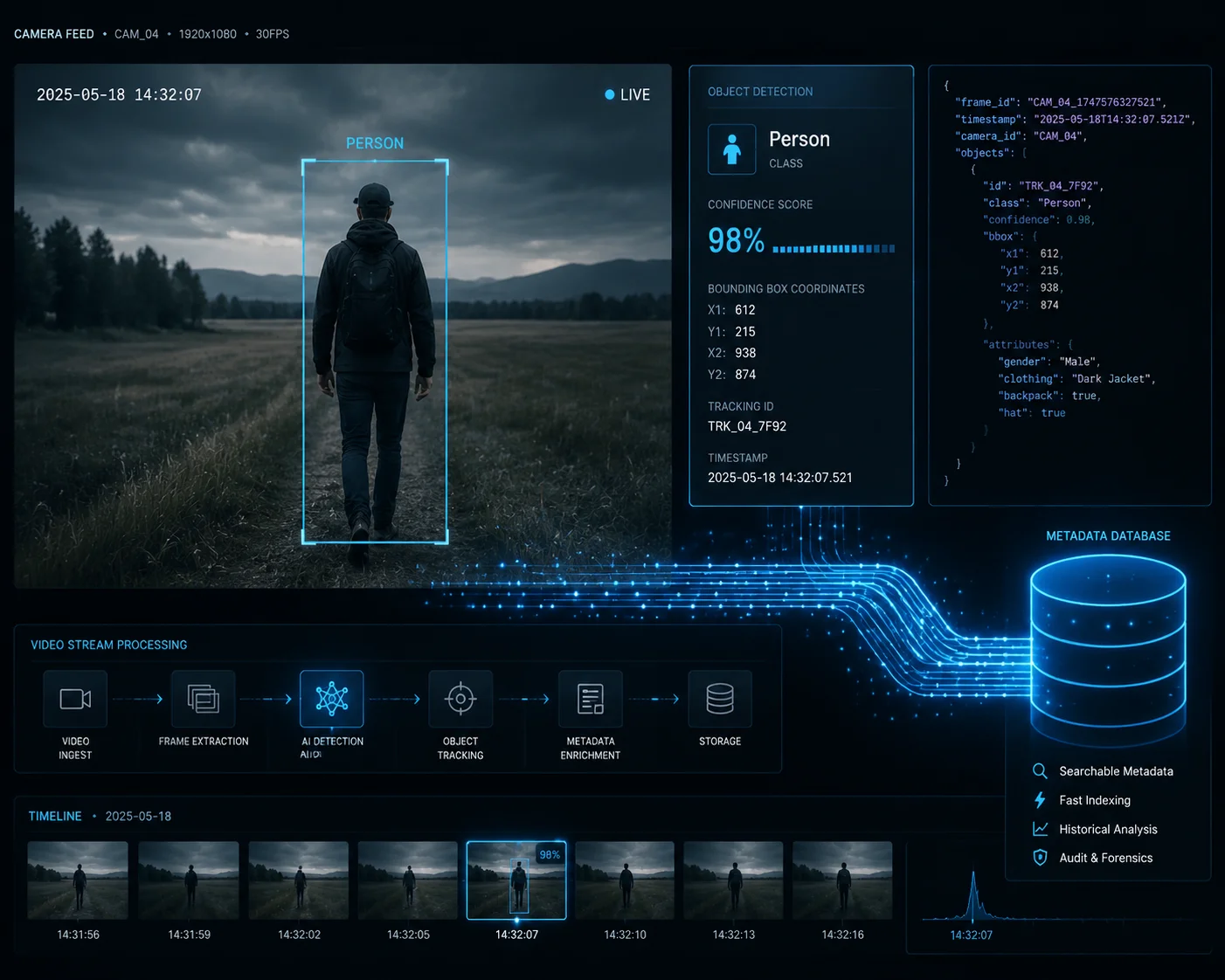
Yes, our cameras embed structured smart metadata — including object type, size, direction, and timestamp — directly into the video stream. This metadata allows compatible NVRs to perform post-event forensic searches like “show me all person events between 2am and 5am” without re-analyzing the footage.
What Is Smart Metadata?
Smart metadata is a separate data layer that travels alongside your video stream. It contains structured information about what the camera’s AI detected in each frame. This includes:
- Object classification (person, vehicle, animal)
- Bounding box coordinates
- Movement direction and speed
- Timestamp of detection
- Rule that was triggered
Why Metadata Matters for Search
Without metadata, an NVR can only search by time or by basic motion events. With metadata, the NVR can filter recordings by object type, behavior, or zone. This turns hours of manual review into a 30-second search.
How to Enable Metadata Streaming
On our cameras, metadata is transmitted as a sub-stream within the RTSP session. Here’s how to make sure it’s active:
- Go to Video/Audio > Video Stream.
- Find the Metadata toggle and set it to ON.
- Under Smart > AI Settings, confirm that “Upload to Platform” is enabled.
- On the NVR side, check that the metadata channel is being received. In most NVRs, this appears under Channel > Advanced > Metadata.
When Metadata Doesn’t Work
There are a few common reasons metadata fails to reach the NVR:
- Bandwidth limitation: Metadata adds roughly 50-100 Kbps to the stream. On 4G connections, this can be squeezed out during peak usage.
- Protocol mismatch: Some NVRs only accept metadata over ONVIF, not over RTSP. Check which protocol your NVR uses for event data.
- Firmware version: Older NVR firmware may not support metadata parsing. Always update to the latest version before troubleshooting.
Practical Tip for 4G Deployments
In solar-powered 4G setups8, I recommend setting the metadata upload interval to match your AI hold time. If your hold time is 10 seconds, the camera only sends one metadata packet per event, not one per frame. This keeps your 4G data usage predictable and prevents the modem from getting overwhelmed by rapid-fire XML exchanges.
Why Do Some NVRs Only Record “Continuous” Instead of “Event-Only” with Your Cameras?
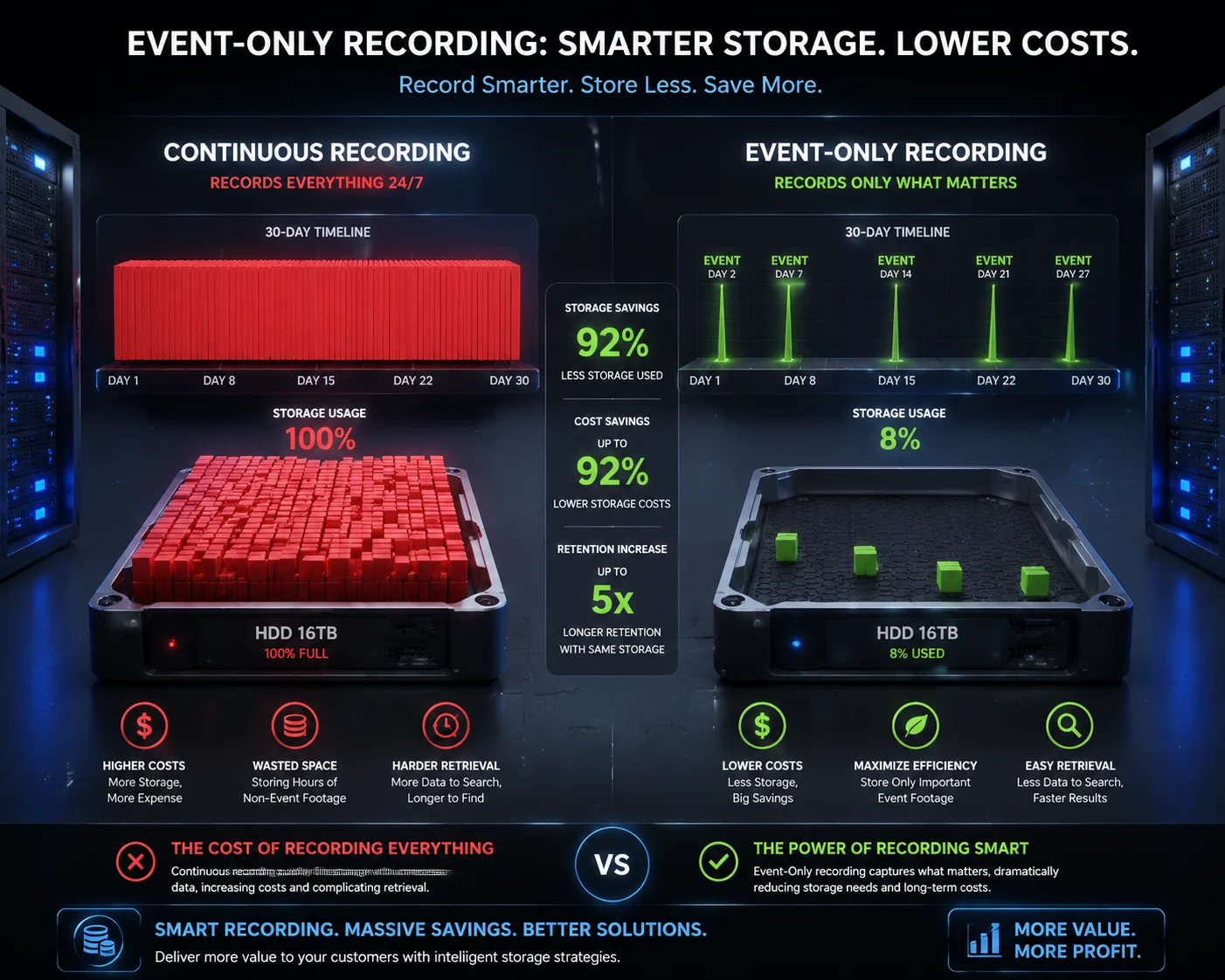
This one costs integrators real money. Continuous recording fills up hard drives fast, and clients blame the installer when storage runs out in two weeks instead of two months.
NVRs default to continuous recording when they can’t detect a valid event trigger from the camera. This usually happens because the NVR’s recording schedule is set to “Motion” instead of “Event,” or because the camera’s AI alerts are arriving on a metadata channel that the NVR’s recording engine isn’t monitoring.
The Recording Schedule Problem
Most NVRs have three recording modes:
- Continuous: Records 24/7 regardless of events.
- Motion: Records when pixel-change motion is detected.
- Event: Records when a specific smart event is triggered.
Here’s the trap: many integrators set the schedule to “Motion” thinking it covers AI events. It doesn’t. AI events and motion events are separate trigger types in most NVR architectures. If you only enable motion-triggered recording, the NVR ignores the AI event channel entirely.
The Correct Configuration Order
Getting event-only recording7 to work requires a specific sequence:
- Camera side: Configure your AI rule (draw the detection zone, set sensitivity).
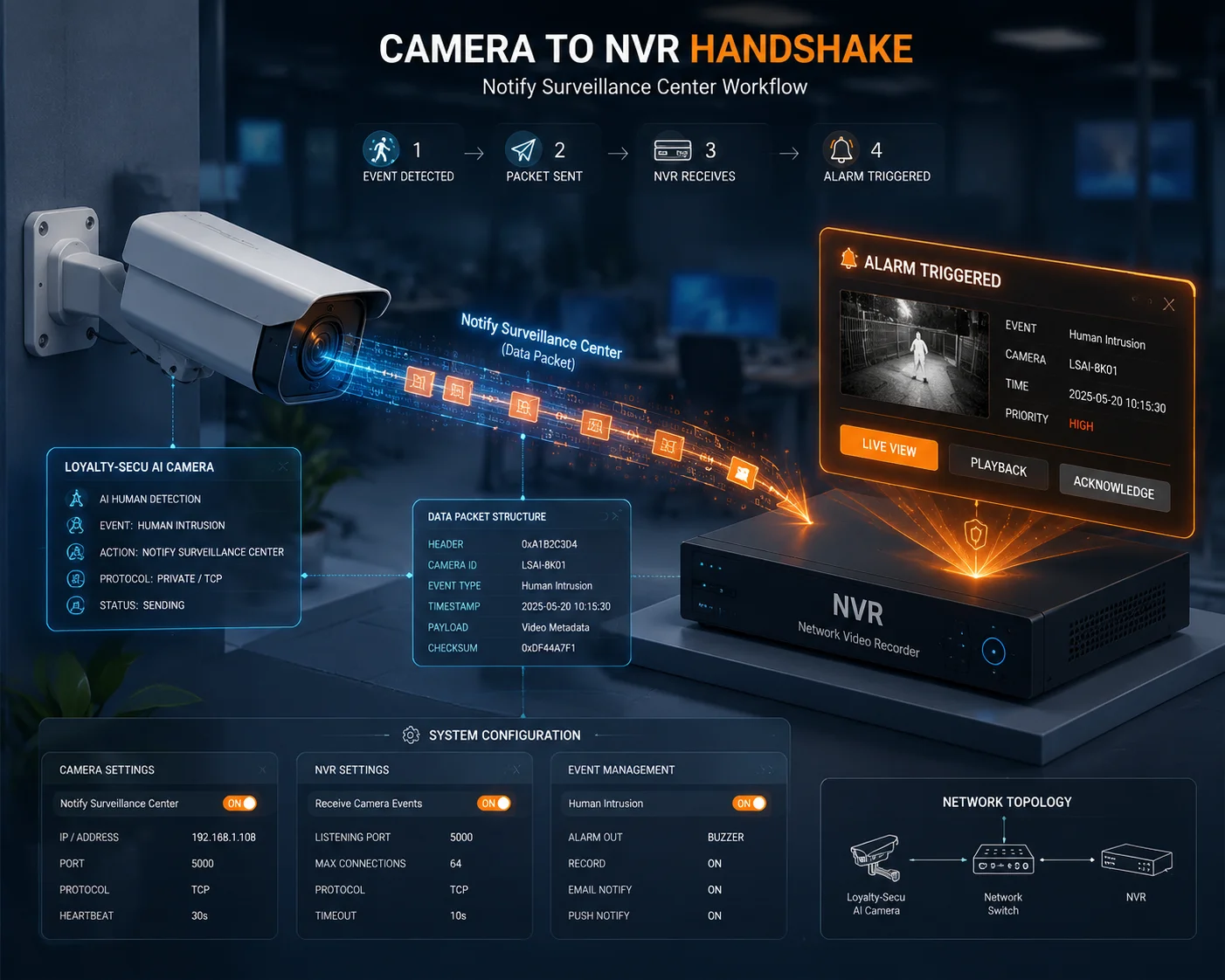
- Camera side: Under linkage, enable “Notify Surveillance Center” — this is the flag that tells the NVR an event happened.
- NVR side: Add the camera and go to Event > Smart Event > Get Configuration.
- NVR side: Under Storage > Recording Schedule, change the mode from “Motion” or “Continuous” to “Event”.
- NVR side: Link the specific smart event type to the recording action.
Why “Notify Surveillance Center” Is Critical
This single checkbox is the most overlooked setting in the entire workflow. Without it, the camera processes AI internally but never sends the trigger signal to the NVR. The camera knows an intrusion happened. The NVR does not.
I’ve seen experienced engineers spend days troubleshooting NVR recording issues, only to find this box was unchecked. It’s always the first thing I ask about.
Storage Savings Comparison
| Recording Mode | Daily Storage (per 4MP camera) | 30-Day Total | Use Case |
|---|---|---|---|
| Continuous (24/7) | ~40 GB | ~1.2 TB | High-security areas needing full coverage |
| Motion-Triggered | ~15-25 GB | ~450-750 GB | General surveillance with moderate activity |
| Event-Only (AI Smart) | ~3-8 GB | ~90-240 GB | Remote sites, solar/4G deployments |
For 4G solar deployments where bandwidth and power are limited, event-only recording is not just a preference — it’s a necessity. It extends battery life, reduces data consumption, and keeps storage manageable even with a small SD card or remote NVR.
Hold Time and False Trigger Prevention
One more thing: set your AI “Hold Time” to at least 5-10 seconds. This prevents the camera from sending dozens of triggers per minute during sustained activity (like a busy parking lot). Without a hold time, the NVR’s event log gets flooded, and some NVRs will actually drop events when the queue overflows.
Conclusion
Getting AI alerts recognized as smart events on third-party NVRs comes down to three things: enable ONVIF Profile T, match the event namespace, and configure both sides to talk the same recording language. Do these right, and your NVR timeline lights up with the exact event types your clients are paying for.
1. Dahua NVR product page with technical specifications. ↩︎ 2. Baseline ONVIF profile for video streaming; lacks advanced event support. ↩︎ 3. Synology’s VMS platform supporting ONVIF Profile T and smart event integration. ↩︎ 4. Milestone’s VMS that supports generic event receivers for custom metadata. ↩︎ 5. Unified security platform with event metadata integration capabilities. ↩︎ 6. Hikvision FAQ page that may mention compatibility mode settings (generic example). ↩︎ 7. Dahua’s explanation of smart recording modes including event-only based on AI triggers. ↩︎ 8. Best practices for remote solar/4G camera setups with bandwidth considerations. ↩︎