
You set up your PTZ camera in a remote field. Motion triggers an alert. But the email never arrives — because your camera can’t speak Gmail’s security language.
Yes, our PTZ cameras fully support SSL/TLS encryption for email alerts. This means you can connect to Gmail (port 4652, SSL) or Outlook (port 5873, TLS/STARTTLS) servers directly from the camera’s SMTP settings. The system handles modern encryption handshakes, so your alert emails won’t get blocked or rejected by today’s strict mail providers.
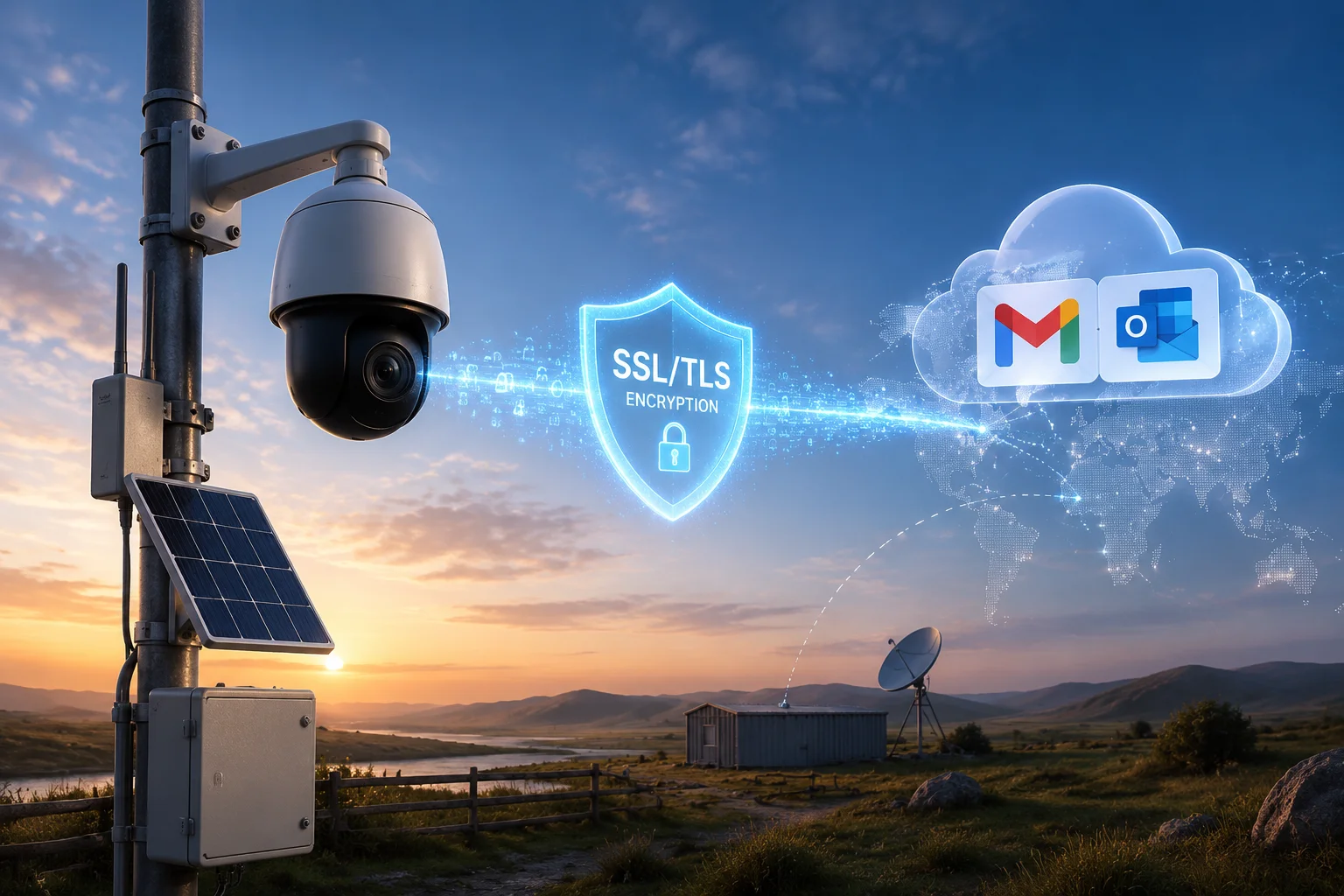
Below, I’ll walk you through the exact port settings, the App Password4 requirement, what happens when a send fails, and whether you can attach multiple snapshots in one burst email8. If you deploy cameras in off-grid or 4G environments, these details matter a lot.
Table of Contents
How Do I Configure the Port 465 or 587 Settings for Secure Gmail SMTP Access?
I’ve seen too many installers waste hours troubleshooting email alerts — only to find out the port was wrong. One small number makes the difference between a working alert and a silent camera.
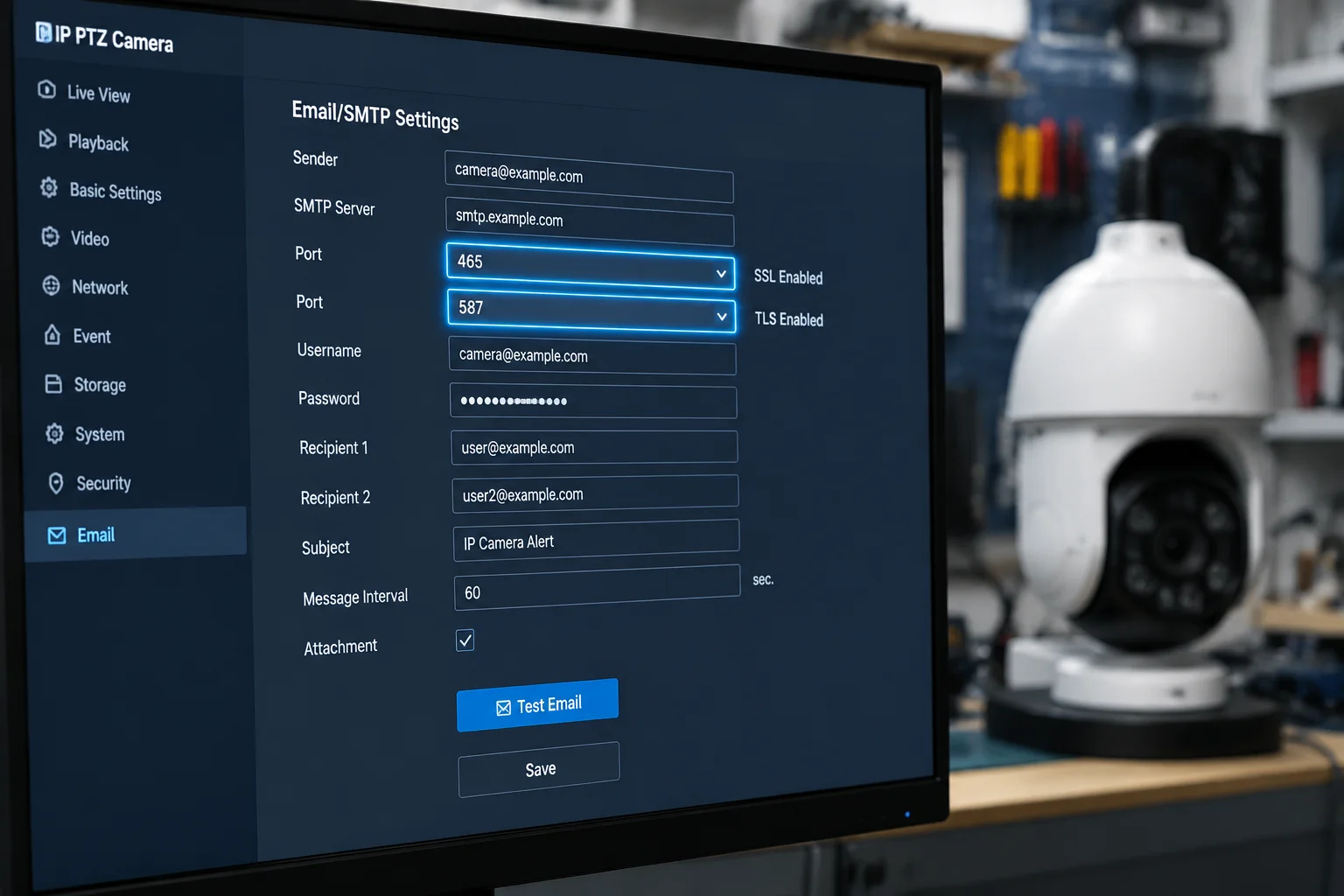
To configure secure Gmail SMTP access on your PTZ camera, go to the SMTP Settings page in the camera’s web interface. Set the server to smtp.gmail.com, choose SSL as the encryption mode, and set the port to 465. For TLS/STARTTLS connections, use port 587 instead. Save and send a test email to confirm.
Why Port Numbers Matter
Every email server listens on a specific port. Think of it like a door number on a building. If you knock on the wrong door, nobody answers. Gmail and Outlook each have their own preferred doors.
Port 25 is the old, unencrypted door. Gmail and Outlook closed that door years ago. Today, you only have two choices:
- Port 465 — This uses SSL. The connection is encrypted from the very first moment. Gmail has supported this for a long time, and it remains the most reliable option for cameras that don’t support STARTTLS negotiation.
- Port 587 — This uses TLS (also called STARTTLS). The connection starts as plain text, then immediately upgrades to encrypted. Outlook and Office 365 require this port.
Step-by-Step Configuration for Gmail
Here is what I recommend you do:
- Log into your camera’s web interface.
- Navigate to Network → Email / SMTP Settings.
- Enter the following values:
| Field | Value |
|---|---|
| SMTP Server | smtp.gmail.com |
| Encryption | SSL |
| Port | 465 |
| Username | Your full Gmail address (e.g., alerts@gmail.com) |
| Password | Your 16-digit App Password (not your login password) |
| Sender Address | Same as your username |
| Recipient Address | The email where you want to receive alerts |
- Click Test Email.
- Check your inbox within 10 seconds.
What If Port 465 Doesn’t Work?
Some older camera firmware versions only support TLS, not pure SSL. In that case, switch to port 587 and select TLS or STARTTLS as the encryption mode. Gmail accepts both.
A Common Trap on 4G Networks
If your camera connects through a 4G SIM card, the SSL handshake can fail silently. The reason is simple: 4G adds extra packet overhead. The default MTU (Maximum Transmission Unit) of 1500 bytes is too large. The encrypted packets get fragmented, and the handshake times out.
The fix is easy. Go to Network → TCP/IP Settings and change the MTU to 1380. This gives enough room for the 4G encapsulation headers. I’ve seen this single change fix email failures on dozens of field deployments in Texas and Alberta.
Also, set your DNS to 8.8.8.8 (Google DNS) or 1.1.1.1 (Cloudflare). Many 4G carriers assign slow or unreliable DNS servers by default. If the camera can’t resolve smtp.gmail.com to an IP address, the email will never leave the device.
Can the Camera Handle the “App Password” Security Layer Required by Modern Email Providers?
You type your Gmail password into the camera. You click test. It says “Authentication Failed.” You double-check the password. It’s correct. But Gmail still rejects it. This is frustrating, and it happens to almost everyone the first time.
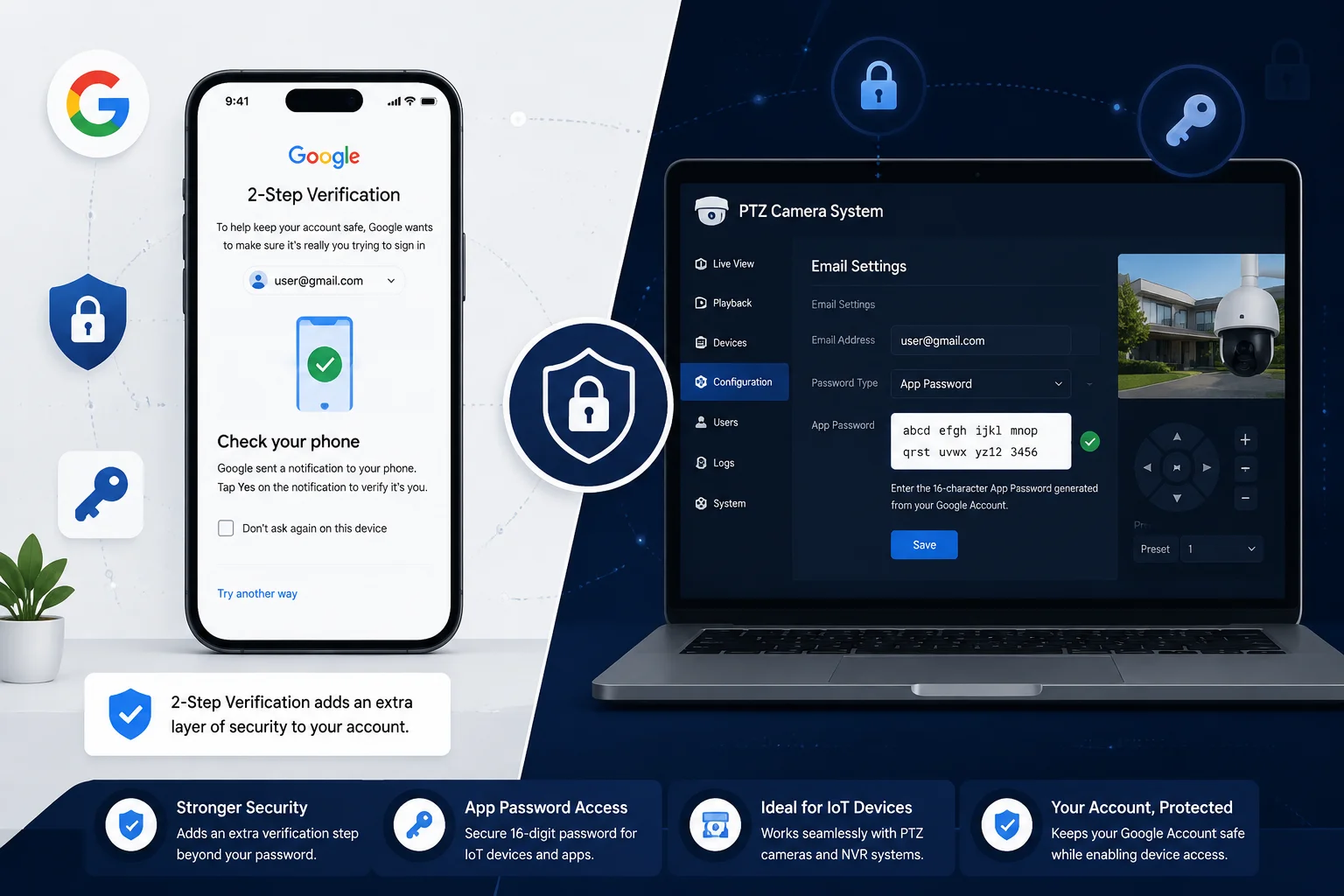
Yes, our cameras fully support App Passwords. Gmail and Outlook now require App Passwords when two-factor authentication (2FA) is enabled on your account. You generate a 16-character App Password from your Google or Microsoft account settings, then paste it into the camera’s SMTP password field. The camera treats it like a normal password — no extra configuration needed.
Why Your Regular Password Won’t Work
Google and Microsoft made a big security change a few years ago. They stopped allowing “less secure apps” to log in with just a username and regular password. This affects every device that sends email — including security cameras, NVRs, and IoT sensors.
The logic is simple. Your Gmail password protects your entire Google account — email, drive, photos, payment info. Google doesn’t want a $200 camera sitting in a field to hold that master key. So they created App Passwords. An App Password is a one-time, 16-character code that only works for SMTP. Even if someone intercepts it, they can’t use it to log into your Gmail account, read your emails, or change your settings.
How to Generate a Gmail App Password
Here is the exact process:
- Go to myaccount.google.com.
- Click Security in the left menu.
- Under “How you sign in to Google,” make sure 2-Step Verification5 is turned ON. If it’s off, you must enable it first. Google won’t show the App Password option without 2FA.
- After enabling 2FA, go back to the Security page.
- Search for App Passwords (or visit
myaccount.google.com/apppasswords). - Select Other (Custom name) and type something like “PTZ Camera Site A.”
- Click Generate.
- Google will show you a 16-character code like
abcd efgh ijkl mnop. - Copy this code. Remove the spaces. Paste it into your camera’s SMTP password field.
- Click Test Email.
How to Generate an Outlook / Microsoft App Password
The process is similar:
- Go to account.microsoft.com/security.
- Click Advanced security options.
- Turn on Two-step verification if it’s not already on.
- Scroll down to App passwords.
- Click Create a new app password.
- Microsoft will display a password. Copy it and paste it into your camera.
Important Notes for System Integrators
| Scenario | What Happens | Solution |
|---|---|---|
| Regular password used, 2FA is ON | Authentication fails | Generate and use an App Password |
| Regular password used, 2FA is OFF | Google blocks “less secure app” access | Enable 2FA, then generate App Password |
| App Password used, 2FA is ON | Email sends successfully | No action needed |
| App Password revoked in Google account | Email stops sending | Generate a new App Password and update the camera |
One thing I always tell my clients: document every App Password you generate. If you manage 50 cameras across 10 sites, and each one uses a different Gmail App Password, you need a record. When a camera gets replaced, you’ll need to enter the password again — or generate a new one.
Also, App Passwords don’t expire on their own. But if you ever turn off 2FA on your Google account, all App Passwords are automatically revoked. Every camera linked to that account will stop sending emails instantly. Keep 2FA on.
Will I Receive a Notification If the Email Alert Fails to Send Due to a Network Timeout?
You trust your camera to send you an alert when something happens. But what if the alert itself fails? What if the 4G signal drops right when an intruder walks into frame? You’d never know you missed it.
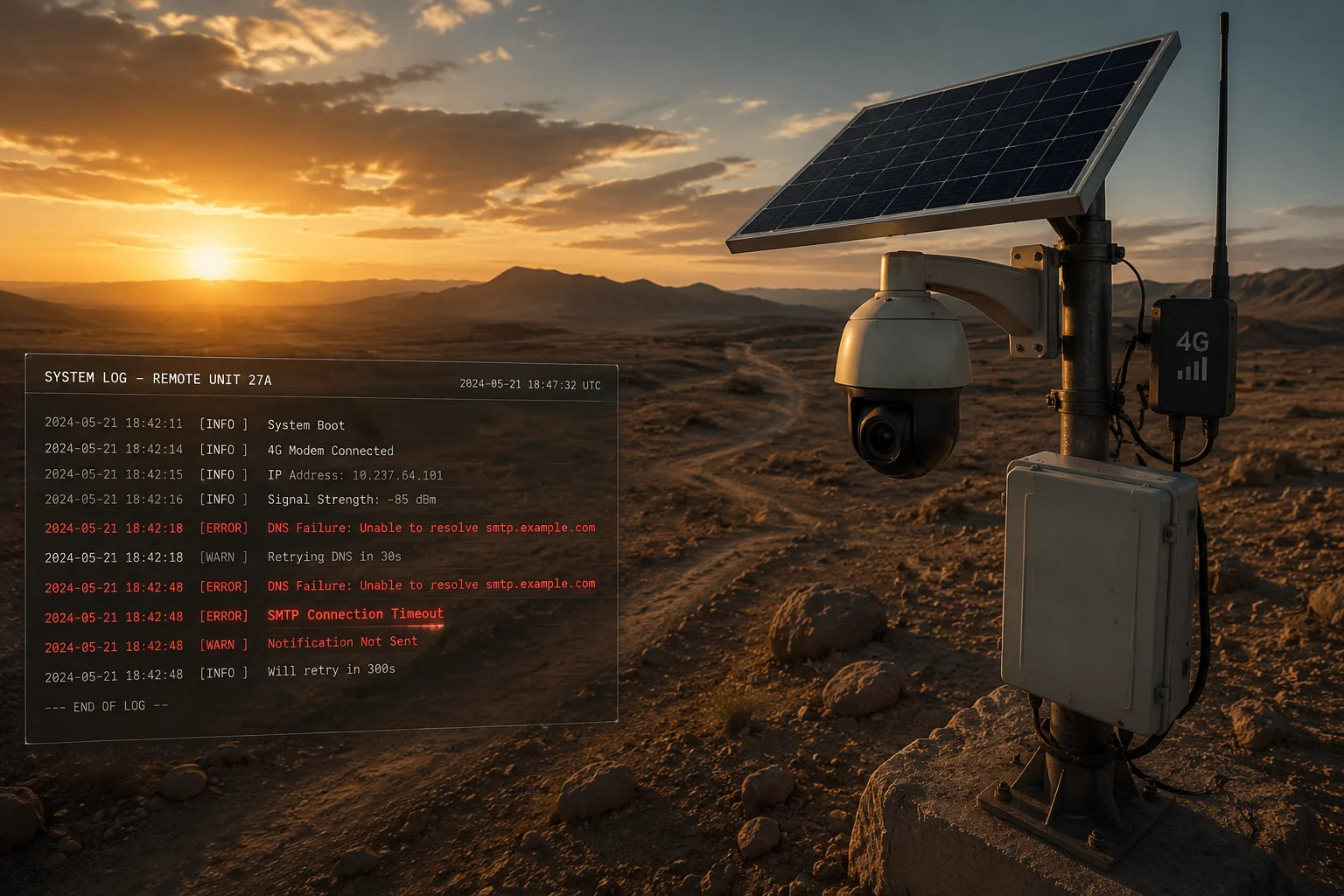
Our cameras provide feedback when an email fails to send. On the local interface and web dashboard, you’ll see an error log entry indicating the SMTP send failure, including the reason — such as network timeout, DNS resolution failure, or authentication error. However, the camera cannot send you a remote push notification about a failed email, because the very network path needed to notify you is the one that failed.
Understanding the Failure Loop Problem
This is a real engineering challenge, and I want to be honest about it. If the camera can’t send an email because the network is down, it also can’t send you a message saying “I couldn’t send the email.” It’s a circular problem. The notification about the failure needs the same network that caused the failure.
So how do you protect yourself against silent failures?
Three Layers of Protection
Layer 1: Local Error Logging
Every failed SMTP attempt is recorded in the camera’s system log. You can access this log through the web interface under Maintenance → Log. The log will show:
- Timestamp of the attempt
- SMTP server address
- Error type (timeout, auth failure, DNS error, connection refused)
- Number of retry attempts
This is useful for troubleshooting after the fact, but it doesn’t help you in real time.
Layer 2: Heartbeat / Test Email Scheduling
Some of our firmware versions support a periodic “heartbeat” email. You can configure the camera to send a simple test email every hour, every 6 hours, or once a day. If you stop receiving the heartbeat, you know something is wrong. This is the most practical way to detect silent failures in remote deployments.
For example, if you set a daily heartbeat at 8:00 AM and you don’t receive it by 8:15 AM, you know to check the camera’s connectivity.
Layer 3: Dual-Path Alerting7
For critical sites, I always recommend not relying on email alone. Our cameras also support:
- FTP/SFTP upload — Snapshots and clips can be pushed to an FTP server as a backup.
- Push notification via mobile app — If the camera is connected to a cloud platform or P2P service, push notifications go through a different server path than SMTP.
- SD card local storage — Even if all network paths fail, the camera records to the onboard SD card. You won’t get a real-time alert, but the evidence is preserved.
What About SMTP Retry Logic6?
When an email fails due to a timeout, the camera doesn’t just give up. The typical retry behavior is:
| Attempt | Timing | What Happens |
|---|---|---|
| 1st attempt | Immediate | Camera tries to connect to SMTP server |
| 2nd attempt | 10 seconds later | Retry with same settings |
| 3rd attempt | 30 seconds later | Final retry |
| After 3 failures | Event logged | Camera marks the alert as “failed” in the log |
After three failed attempts, the camera stops trying for that specific event. But the next motion trigger will start a fresh cycle of attempts. So if the network comes back 2 minutes later and another motion event occurs, the new alert will send successfully.
The key takeaway: email alerting is best-effort, not guaranteed delivery. For mission-critical sites, always pair it with at least one backup method.
Does the Camera Support Sending Multiple Snapshots in a Single “Burst” Email Alert?
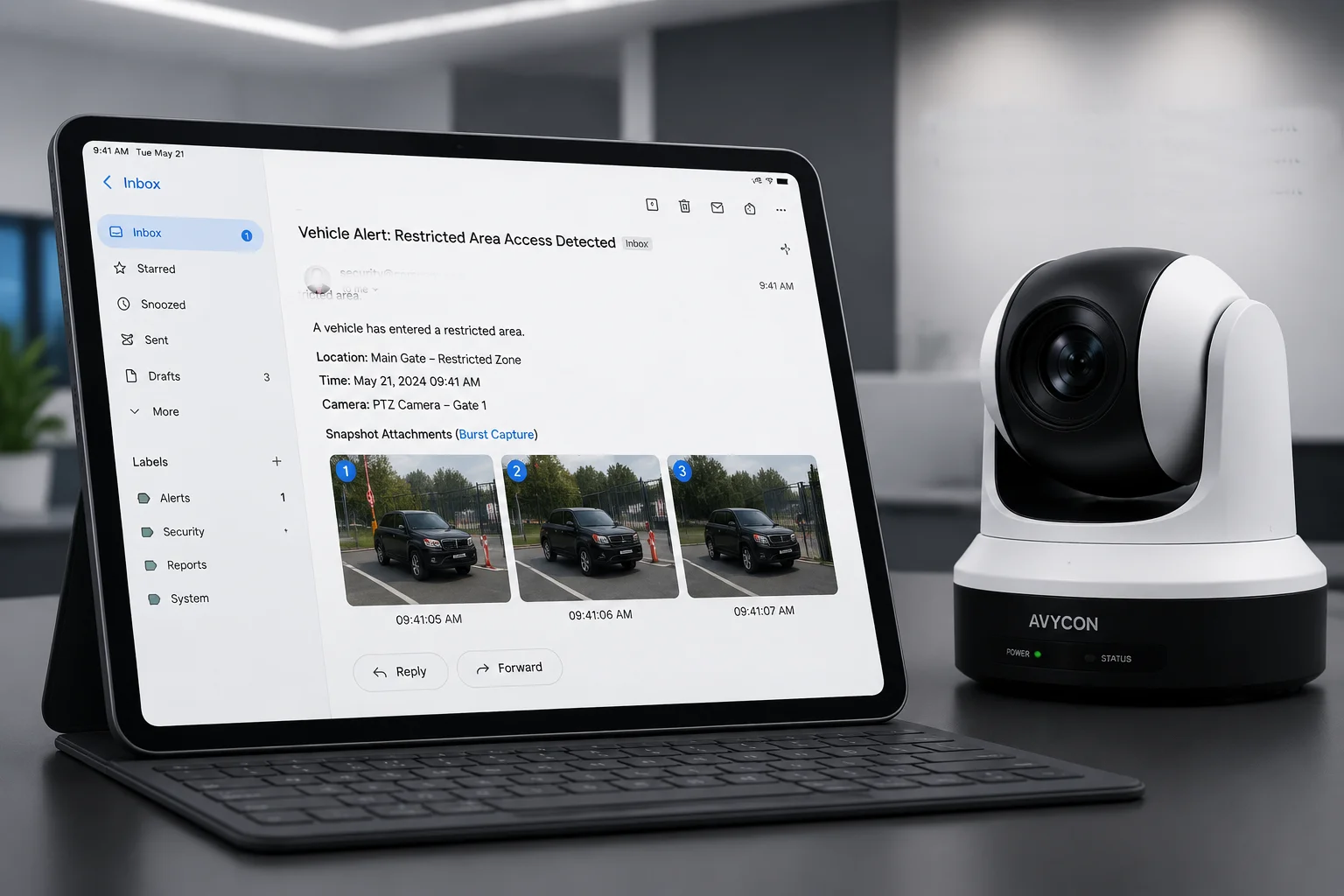
One snapshot might show a blurry figure. Three snapshots taken one second apart might show a face, a license plate, and a direction of movement. A single image is a clue. Multiple images are evidence.
Yes, our PTZ cameras support attaching multiple snapshots to a single email alert. You can configure the camera to capture a burst of 1 to 3 images (sometimes up to 5, depending on firmware version) when a motion or AI event triggers. All images are attached to one email as JPEG files, so you get a sequence of the event in your inbox without needing to log into the camera.
How Burst Email Works
When a motion event triggers, the camera doesn’t just grab one frame. It captures a rapid sequence. The typical flow looks like this:
- Event triggers (motion detection, human detection, vehicle detection, line crossing, etc.).
- Pre-capture buffer — The camera may include 1 frame from just before the trigger moment, if the pre-record buffer is enabled.
- Burst capture — The camera grabs 2-3 additional frames at roughly 1-second intervals.
- Email assembly — All captured frames are compressed as JPEG files and attached to a single SMTP email.
- Email sent — One email, multiple attachments.
Why This Matters for Off-Grid 4G Deployments
In a 4G solar-powered deployment, every byte counts. Sending 3 separate emails for 3 snapshots means 3 separate SMTP handshakes, 3 separate SSL negotiations, and 3 times the overhead. That drains battery and consumes cellular data.
Sending all 3 snapshots in one email means only one SMTP connection. One SSL handshake. One authentication. The total data usage is almost the same as sending the images, but the protocol overhead is cut by two-thirds.
Controlling Image Size for Reliable Delivery
Here’s where many installers make a mistake. They leave the snapshot resolution at the main stream — 4MP or even 8MP. A single 4MP JPEG can be 800KB to 1.5MB. Three of them in one email? That’s 3-4MB. Over a weak 4G connection with SSL encryption, that email might take 15-20 seconds to send. If the connection drops during that time, the entire email fails.
My recommendation for 4G sites:
- Set the email snapshot source to the sub-stream (D1 or 720p resolution).
- A sub-stream snapshot is typically 50-150KB.
- Three sub-stream snapshots in one email = 150-450KB total.
- This sends in 2-4 seconds, even on a weak 4G signal.
You still get enough detail to see what happened. And if you need the full-resolution image, it’s saved on the SD card or uploaded to FTP separately.
Burst Settings and AI Event Types
Not all events support the same burst count. Here’s a general guide:
| Event Type | Typical Burst Count | Notes |
|---|---|---|
| Basic Motion Detection | 1-3 snapshots | Configurable in email settings |
| Human Detection (AI) | 2-3 snapshots | Captures approach sequence |
| Vehicle Detection (AI) | 2-3 snapshots | Useful for plate capture at different angles |
| Line Crossing | 1-2 snapshots | Triggers at the crossing moment |
| Region Intrusion | 2-3 snapshots | Captures entry and movement within zone |
A Practical Tip
If you’re deploying cameras for a client who monitors email on a phone, keep the burst count at 2-3. More than that, and the email becomes heavy to load on mobile data. The goal is fast, actionable information — not a photo gallery.
Also, make sure the email subject line includes the camera name and event type. Our cameras support custom email subjects with variables like %Camera_Name% and %Event_Type%. When your client gets an email that says “Site A – North Fence – Human Detected,” they know exactly what happened and where, before they even open the attachments.
Conclusion
Our PTZ cameras support SSL/TLS encryption1, App Passwords, failure logging, and multi-snapshot burst emails — everything you need for reliable, secure email alerts over Gmail or Outlook, even on 4G networks.
1. Learn how SSL/TLS encrypts email connections between your camera and mail server. ↩︎ 2. Official Gmail SMTP settings – port 465 with SSL is recommended for cameras. ↩︎ 3. Outlook.com requires port 587 with TLS/STARTTLS for secure email sending. ↩︎ 4. How to generate and use App Passwords for devices that don’t support modern authentication. ↩︎ 5. Enabling 2FA is required before you can create an App Password for Gmail. ↩︎ 6. How SMTP clients typically retry failed deliveries to improve reliability. ↩︎ 7. Using multiple communication paths (email, FTP, push) to ensure alert delivery. ↩︎ 8. How to configure multi-snapshot email alerts for evidence sequences. ↩︎