
I’ve seen clients get hit with $300 overage bills because their 4G cameras burned through data with zero warning. That pain is 100% avoidable.
Yes, our Loyalty-Secu management app sends instant push notifications1 at both 80% and 90% of your monthly data cap. The 80% alert is a yellow warning that tells you to optimize. The 90% alert is a red warning that suggests switching to low-bitrate2 preview mode. You can also set custom thresholds3 to match your exact carrier plan.
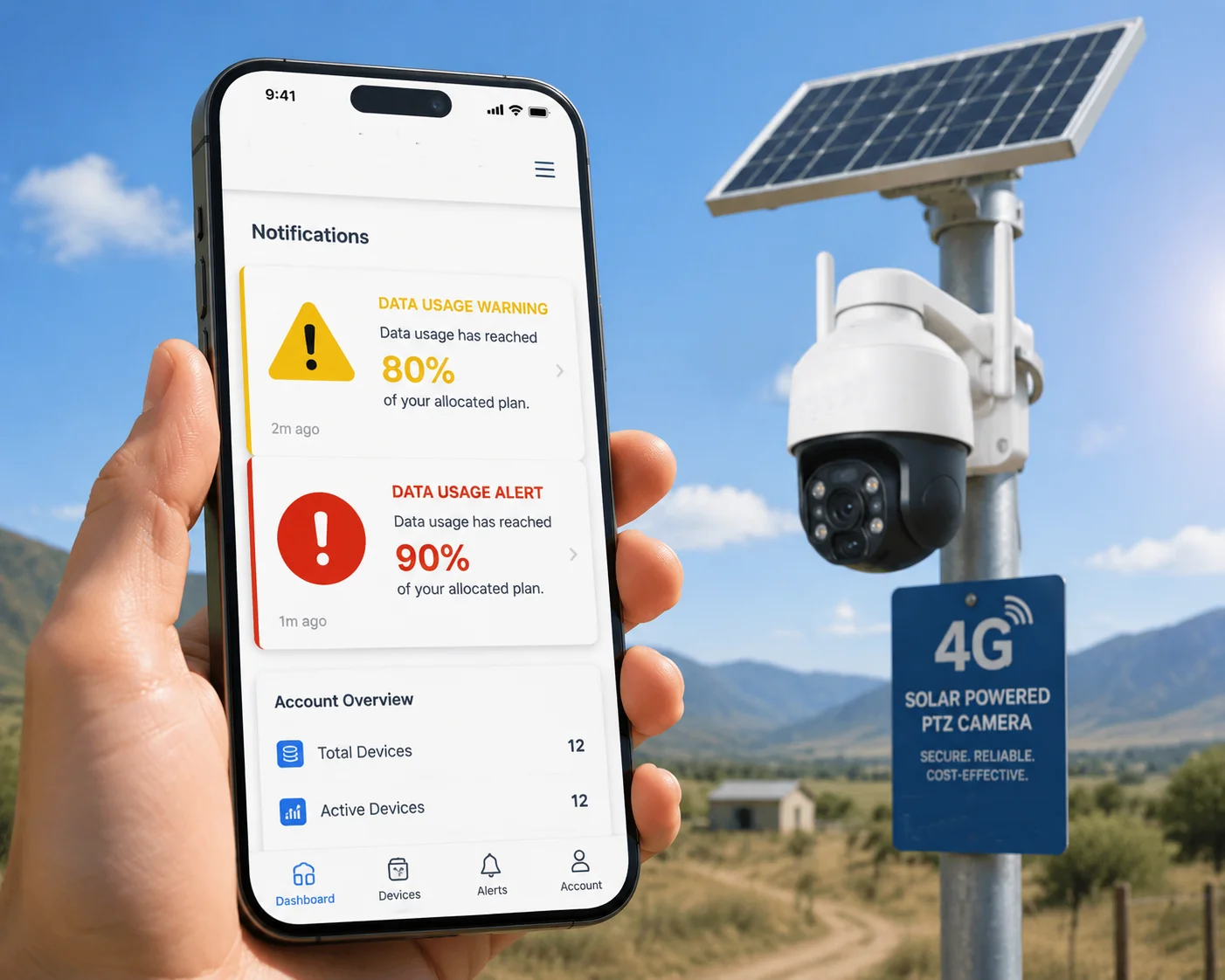
Below, I’ll walk you through every detail of how this system works — from custom thresholds and per-camera data tracking to carrier accuracy gaps and remote modem control. If you manage even one 4G camera in a remote location, this information will save you real money.
Table of Contents
Can I Customize the Notification Thresholds to Match My Specific Carrier Plan?
Not every carrier plan is the same. I’ve worked with clients on 10GB plans and others on 100GB plans. A fixed alert at 80% means nothing if the app doesn’t know your actual plan size.
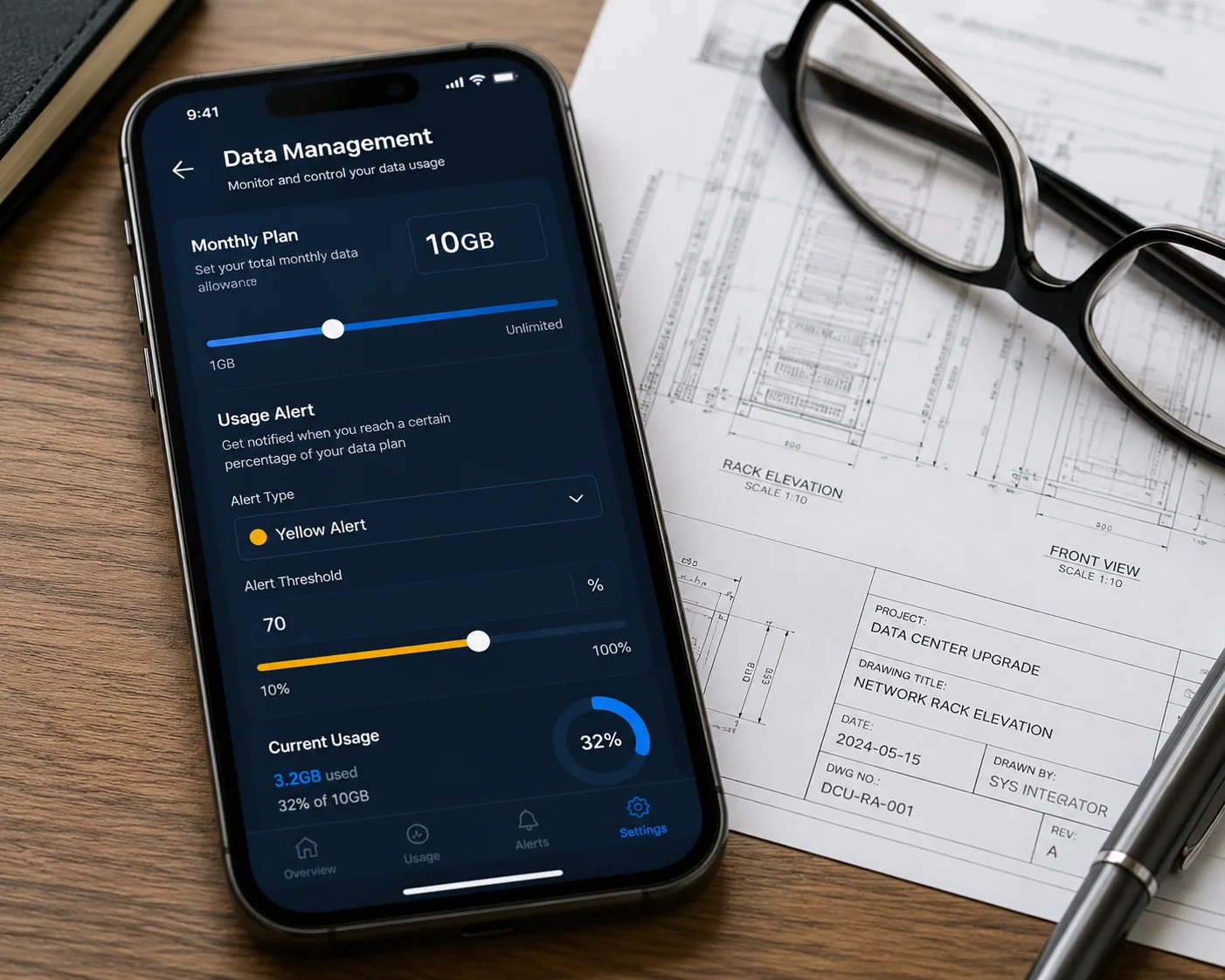
Yes, you can fully customize the notification thresholds inside the app. Go to the “Data Management” menu, enter your exact plan size (for example, 10GB or 20GB), and set your own alert points. Most of our B2B clients set their first alert at 70% instead of 80% to account for carrier reporting delays.
Why 70% Is Smarter Than 80% for Your First Alert
Here’s something most people don’t think about. Your carrier — whether it’s Verizon, T-Mobile, or AT&T — does not update your data usage in real time. There is a reporting delay. In my experience working with North American integrators, this delay is typically 3 to 6 hours. Sometimes it’s longer on weekends.
So what does this mean? When our app tells you that you’ve used 90% of your data, the real number might already be 95%. That’s why I always tell clients like David to set their first alert at 70%, not 80%. It gives you a bigger safety cushion.
How to Set Up Custom Thresholds — Step by Step
Here’s the process:
- Open the Loyalty-Secu app on your phone.
- Go to Settings > Data Management.
- Enter your SIM card’s monthly data cap (e.g., 20GB).
- Set Alert 1 at your preferred percentage (I recommend 70%).
- Set Alert 2 at a higher percentage (I recommend 85%).
- Enable “Auto-disable Data at 100%4“ as your safety net.
- Make sure “Allow Notifications” is turned on in your phone’s system settings for our app.
Recommended Threshold Settings by Plan Size
| Monthly Data Plan | Alert 1 (Yellow) | Alert 2 (Red) | Auto Kill-Switch |
|---|---|---|---|
| 5GB – 10GB | 60% | 80% | 100% |
| 10GB – 30GB | 70% | 85% | 100% |
| 30GB – 100GB | 75% | 90% | 100% |
| Unlimited (throttled) | 70% | 85% | Not needed |
For smaller plans, I recommend setting the first alert even lower. A 5GB plan gives you almost no room for error. One accidental 30-minute HD live view session can eat 1.5GB. That’s 30% of your entire month gone in half an hour.
Batch Configuration for Multi-Site Deployments
If you’re managing 50 or more cameras across different job sites — which is common for our system integrator clients — you don’t want to set thresholds one camera at a time. Our VMS/CMS platform5 lets you create a data policy template and push it to all devices at once. You pick the plan size, the alert points, and the kill-switch behavior. Then you apply it to a group. Done in two minutes.
This is especially useful when different sites have different carrier plans. You can create separate templates for each plan type and assign them accordingly.
Will the App Show Me Which Specific Camera Is Consuming the Most Data?
When you have 20 cameras across 5 sites, and your total data bill spikes, the first question is always: “Which camera caused this?” Without per-device tracking, you’re guessing.
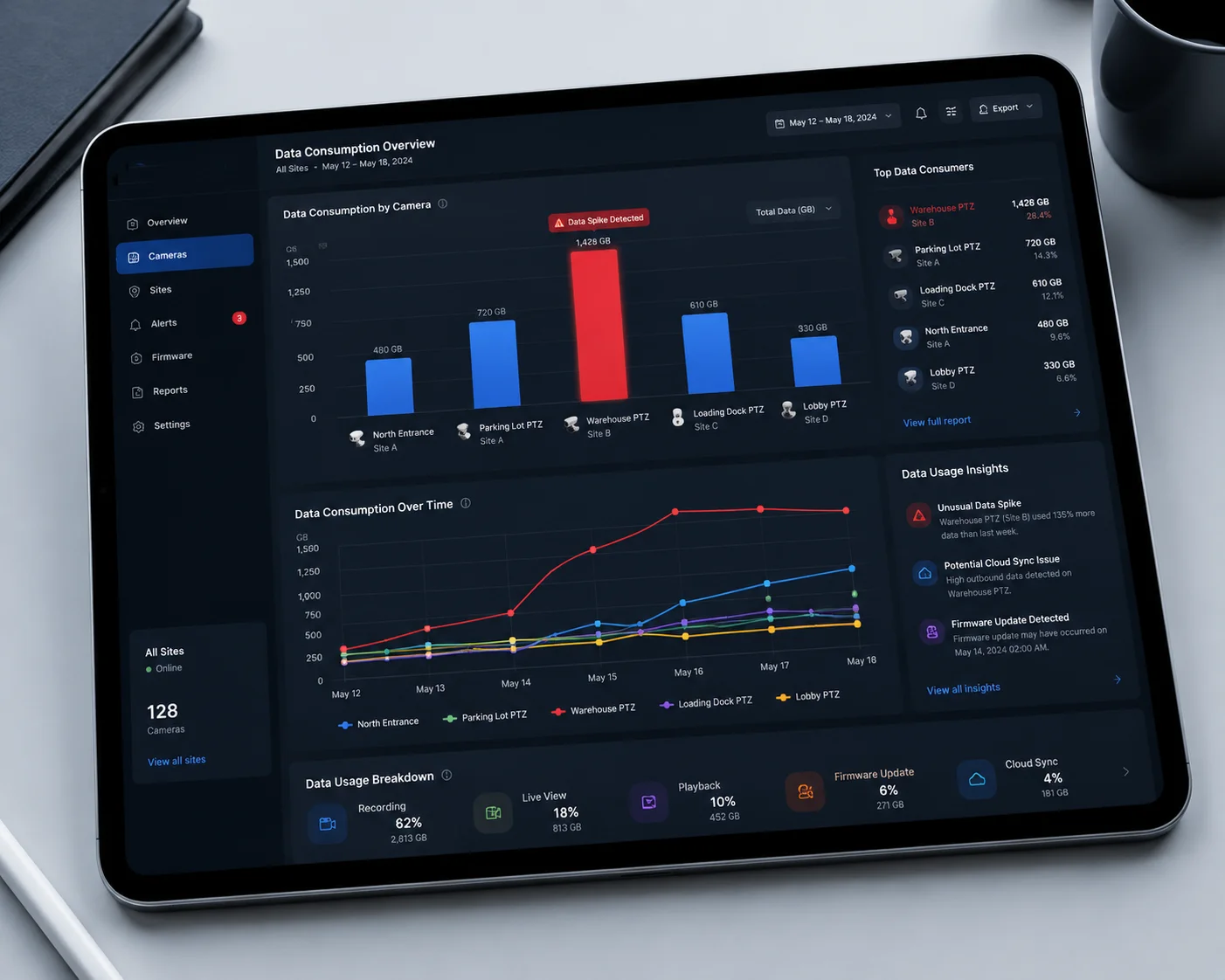
Yes, the app provides a per-camera data consumption breakdown. You can view daily, weekly, and monthly usage trends for each individual device. This makes it easy to identify which camera — or which site — is using the most data and why.
The Usual Suspects: What Causes Data Spikes
In my years of working with off-grid 4G deployments, I’ve seen the same patterns over and over. Certain conditions cause specific cameras to consume far more data than others. Here are the most common reasons:
Weak Signal = More Data
This one surprises people. You’d think a weak 4G signal would mean less data usage. But it’s the opposite. When the signal is weak, the camera’s modem has to reconnect frequently. Each reconnection involves handshake packets, authentication, and buffered data retransmission. A camera in a strong signal area might reconnect once a day. A camera in a weak signal area might reconnect 30 times a day. All those reconnections add up.
Hidden Data Consumers
Beyond live viewing, several background processes eat data silently:
| Data Consumer | Typical Usage | How to Control It |
|---|---|---|
| Firmware auto-update | 100MB – 500MB per update | Set to “Manual Only” |
| Cloud storage sync (full recording) | 2GB – 10GB per day | Sync alarm clips only |
| NTP time sync | Minimal (< 1MB/month) | No action needed |
| Heartbeat / keep-alive packets | 50MB – 150MB per month | Cannot disable (required) |
| HD live preview (main stream) | 1GB – 3GB per hour | Use sub-stream for routine checks |
| SD live preview (sub stream) | 200MB – 500MB per hour | Default for mobile viewing |
The biggest hidden killer is cloud storage sync6. If you set a camera to upload 24/7 recordings to the cloud over 4G, you will burn through any data plan in days. I always tell clients: only sync alarm-triggered clips. Record everything to the local SD card. Upload only the important events.
How to Read the Data Trend Chart
The app shows a bar chart for each camera. Each bar represents one day. You can tap any bar to see an hourly breakdown. Look for spikes. A spike at 2 AM usually means the camera was reconnecting repeatedly due to signal drops. A spike during business hours usually means someone was watching live video in HD mode.
If you spot a camera that consistently uses 3x more data than its neighbors, check two things first: signal strength (RSSI value7 in the app) and whether someone left the live view open on a desktop monitor.
How Accurate Is the App’s Internal Data Counter Compared to My Carrier’s Bill?
I’ve had clients call me and say: “Your app says I used 18GB, but Verizon says 22GB. Who’s right?” This is a fair question, and the answer matters when you’re trying to avoid overage fees.
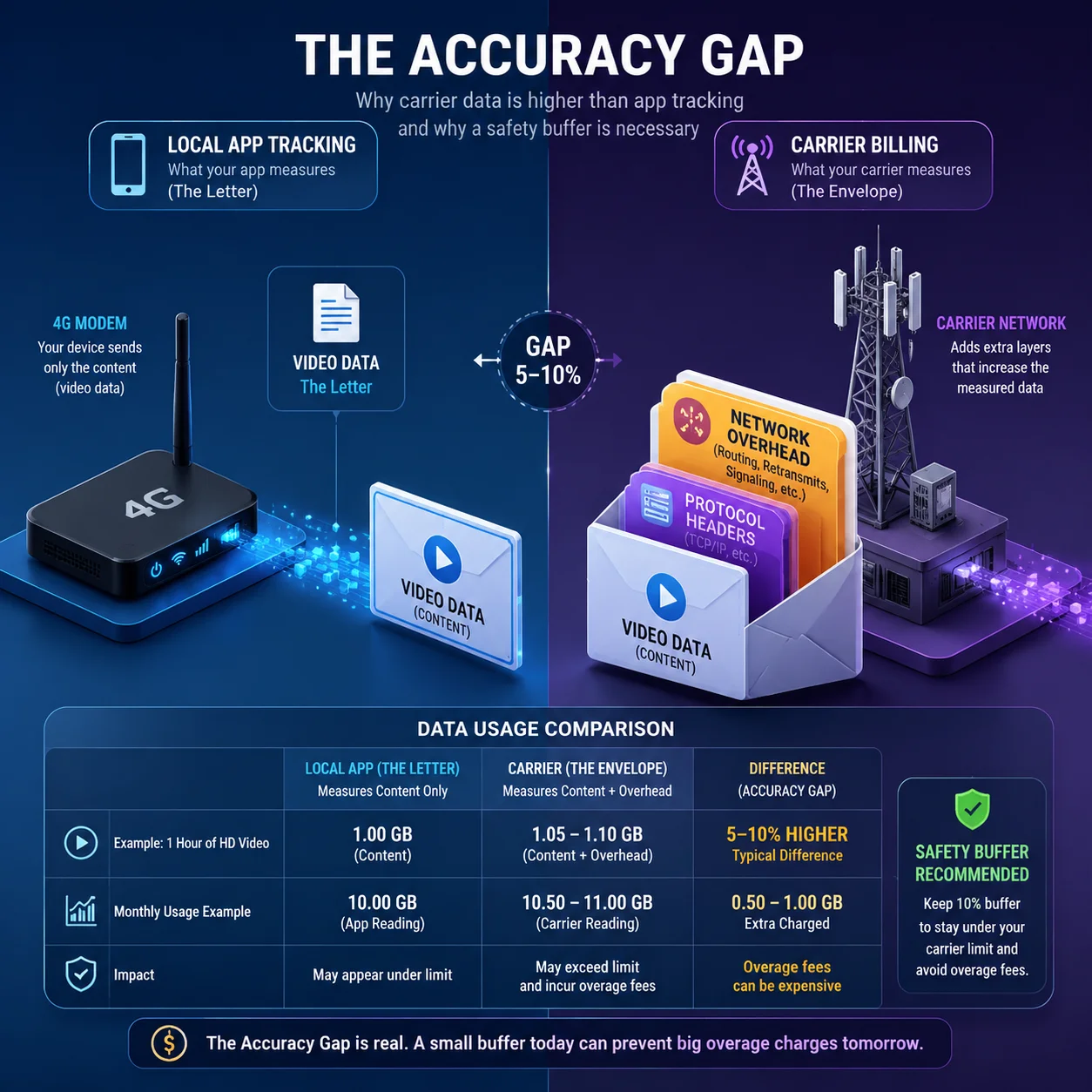
Our app’s internal counter tracks data at the modem level and is typically accurate within 5% to 10% of your carrier’s reported usage. The gap exists because carriers count network overhead, protocol headers, and retransmitted packets that our app does not see. Always treat the carrier’s number as the final truth for billing purposes.
Why the Numbers Never Match Exactly
Let me explain this in simple terms. When your camera sends a video packet over 4G, that packet gets wrapped in several layers of network protocol headers. Think of it like mailing a letter. The letter itself is your video data. But the envelope, the stamp, the address label — those all add weight. Your carrier charges you for the total weight, including the envelope. Our app only counts the letter.
On top of that, if a packet fails to deliver (which happens often on unstable cellular networks), the carrier still counts the failed attempt. Then it counts the retry. So one piece of video data might get billed twice by the carrier, but our app only sees it once.
The 3–6 Hour Reporting Lag
This is the other critical factor. Carriers do not update your usage dashboard in real time. There is a delay of 3 to 6 hours on average. During peak network congestion (evenings, holidays), this delay can stretch even longer.
Here’s why this matters for your alert system:
- Your app says you’re at 88% at 3:00 PM.
- Your carrier’s system still shows 82% because of the lag.
- In reality, by the time the carrier catches up, you might already be at 92%.
This is exactly why I push clients to set conservative alert thresholds. If you wait for the 90% alert to take action, you might already be past 95% in the carrier’s eyes.
Best Practice: Build in a Safety Margin
I recommend treating our app’s counter as a planning tool, not a billing tool. Use it to spot trends, identify problem cameras, and make daily decisions. But for billing protection, always set your kill-switch at a number that leaves room for the gap.
For example, if your plan is 20GB, set the auto-disable at 18GB in the app. That 2GB buffer covers the counting difference and the carrier lag. You’ll never get a surprise bill again.
| Scenario | App Shows | Carrier Shows | Real Usage (Estimated) |
|---|---|---|---|
| Normal conditions | 15.0 GB | 15.8 GB | ~16.0 GB |
| Weak signal area | 15.0 GB | 17.2 GB | ~17.5 GB |
| Frequent reconnections | 15.0 GB | 18.0 GB | ~18.5 GB |
The weaker your signal, the bigger the gap. Keep this in mind when deploying cameras in rural or mountainous areas.
Can I Remotely Disable the 4G Modem From the App to Save the Remaining Data?
It’s the 25th of the month. You’ve used 92% of your data. You still need your cameras to detect intruders for 5 more days. But you can’t afford to let anyone open a live view and burn the last 8%. What do you do?
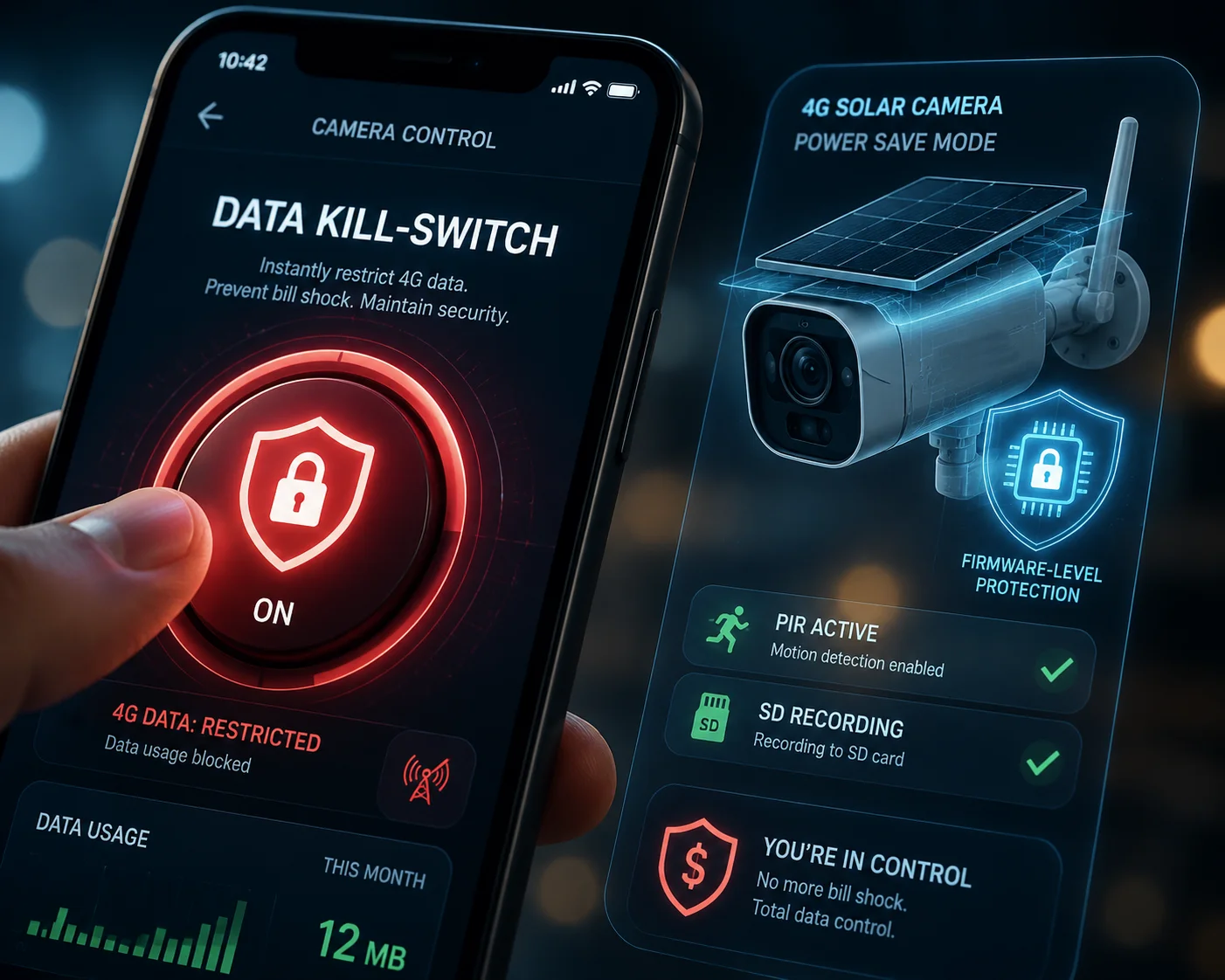
Yes, you can remotely disable the 4G data modem directly from the app. We call this the “Data Kill-Switch8.” You can trigger it manually at any time, or set it to activate automatically when usage hits 100%. Even in kill-switch mode, the camera keeps recording locally to the SD card and maintains a minimal heartbeat connection for alarm push notifications.
How the Kill-Switch Actually Works
When you activate the kill-switch — either manually or automatically — the camera’s firmware does not fully power off the 4G module. Instead, it enters a restricted mode. Here’s what changes:
- Live video streaming: Blocked. No one can open a live view.
- Cloud upload: Paused. No clips are sent to the cloud.
- Firmware updates: Blocked. No background downloads.
- Alarm push notifications: Still active. The camera maintains an ultra-low-bandwidth heartbeat connection (roughly 50KB per hour) that is enough to send a text-based alarm alert to your phone.
- Local recording: Continues normally. The camera keeps writing to the SD card.
This means your site is still protected. The camera still records. You still get alarm alerts on your phone. You just can’t watch live video until the new billing cycle starts — or until you manually lift the kill-switch.
Manual Override: When You Need to See the Feed Right Now
Let’s say it’s 11 PM on the 28th. Your camera sends you an alarm: “Person detected at Zone 3.” You need to see what’s happening. But the kill-switch is active.
In the app, you’ll see a button labeled “Emergency Data Override.” Tap it, and the app will restore full 4G connectivity for that specific camera for a limited window (default: 15 minutes). After 15 minutes, the kill-switch re-engages automatically. This way, you can respond to a real emergency without accidentally leaving the connection open all night.
Combining Kill-Switch With PIR-Triggered Transmission
For clients managing remote construction sites or farms, I recommend a hybrid strategy. When monthly usage crosses 90%, set the camera to “PIR-Only Transmission Mode.” In this mode:
- The 4G modem stays in sleep state.
- The PIR sensor remains active.
- When the PIR detects a warm body, the camera wakes the 4G modem, captures a 10-second clip, uploads it, and goes back to sleep.
This approach can stretch your remaining 10% of data across 5 to 7 days easily. Each PIR-triggered event uses roughly 5MB to 15MB depending on resolution. So even with 1GB remaining, you can handle 60 to 200 alarm events before running out.
Firmware-Level Protection Against Bill Shock
Beyond the app-level kill-switch, our camera firmware includes a hardware-level failsafe. Even if the app crashes, your phone dies, or you lose internet access to the management platform, the camera itself will cut data transmission when it reaches the programmed limit. This protection lives inside the device. It does not depend on the cloud or your phone. It’s a last line of defense that I built into the system specifically because I’ve heard too many horror stories about $500 overage bills from other brands that lacked this feature.
Conclusion
Data overage on 4G cameras is preventable. Set conservative alerts, use the kill-switch, track per-camera usage, and always leave a buffer for carrier lag. Your budget and your uptime both depend on it.
1. Understand how push notifications work on mobile devices to ensure reliable delivery. ↩︎ 2. Adjusting bitrate reduces data consumption while maintaining acceptable video quality. ↩︎ 3. Setting custom data usage thresholds gives you more control over when you are alerted. ↩︎ 4. Automatically stopping data at the cap prevents surprise overage charges. ↩︎ 5. Video Management Software (VMS) and Central Management Systems (CMS) help scale multi-site deployments. ↩︎ 6. Continuous cloud sync can consume huge amounts of data; only sync important events. ↩︎ 7. RSSI (Received Signal Strength Indicator) helps diagnose weak signal issues. ↩︎ 8. A kill-switch prevents data overage while keeping critical alarm notifications active. ↩︎