
I once lost a client because someone intercepted their camera login over public 4G. That one incident changed how I think about every remote connection.
Yes, our industrial-grade PTZ camera firmware forces HTTPS by default. The built-in web server automatically redirects all HTTP requests on port 80 to HTTPS on port 443. This means every remote session — login, video preview, and PTZ control — travels through an encrypted TLS 1.2/1.3 tunnel with AES-256 encryption, even over 4G LTE networks.
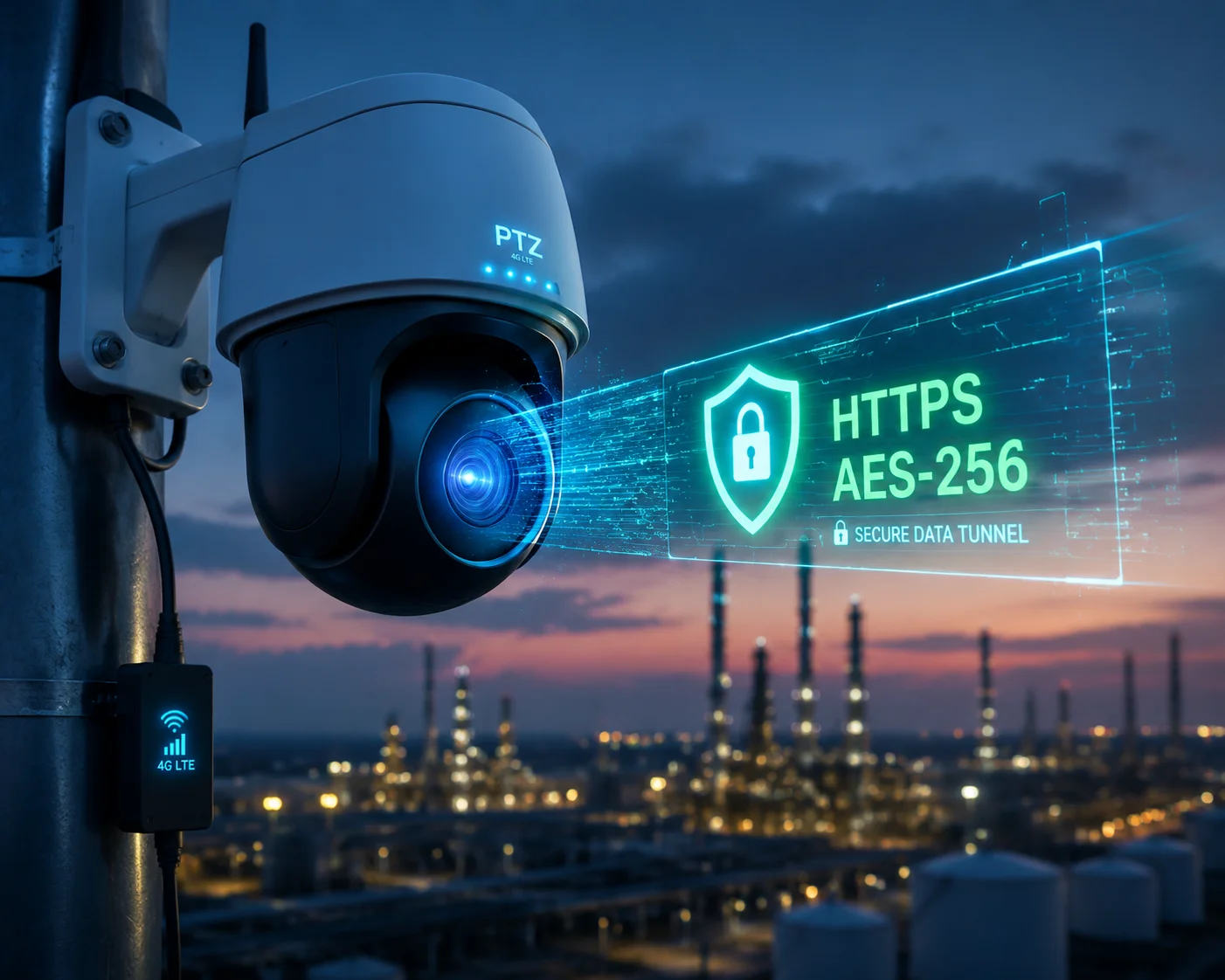
Below, I break down exactly how this works, what certificate options you have, how encryption affects CPU performance during 4K streaming, and how to lock down your HTTP port completely. If you are a system integrator deploying cameras on remote sites, this matters more than you think.
Table of Contents
Does the Camera Support Self-Signed Certificates or 3rd-Party SSL Certificate Uploads?
I have seen too many integrators skip certificate setup and then wonder why their client’s IT team blocks the camera interface. The certificate you use decides whether the browser trusts your device or throws a scary red warning.
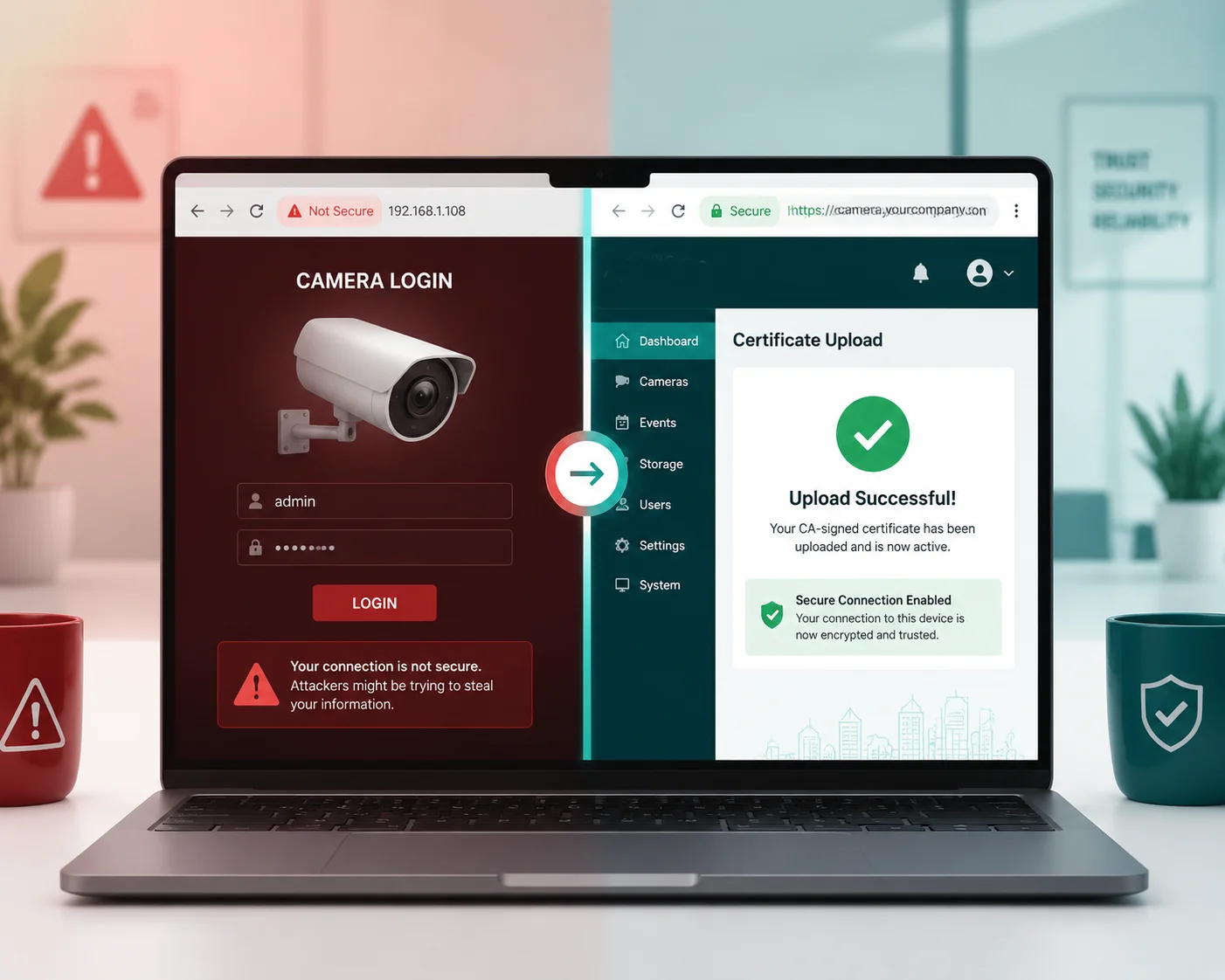
Our cameras ship with a factory-installed self-signed certificate for immediate encrypted access. You can also upload your own CA-signed SSL certificate in PEM or CRT format through the web interface, which removes all browser security warnings and gives your deployment a professional, trusted appearance.
Why the Default Self-Signed Certificate Still Protects You
Let me clear up a common misunderstanding. When you first open the camera’s web interface, your browser will likely show a “Your connection is not private” warning. Many people see this and assume the connection is not encrypted. That is wrong.
A self-signed certificate means the camera created its own encryption key pair. The data between your browser and the camera is still fully encrypted with AES-256. The browser warning only means that no third-party authority has verified the identity of the device. Think of it like a locked door with no nameplate — the door is still locked.
For internal testing, lab setups, or private VPN tunnels, the self-signed certificate is perfectly fine. The encryption strength is identical to a paid certificate.
When You Need a CA-Signed Certificate
If you are David Miller delivering a finished project to a city government or a corporate client, that red browser warning is a problem. It looks unprofessional. It confuses non-technical users. And some enterprise browsers with strict security policies will outright block access.
Here is what you do:
- Buy or generate a certificate from a trusted Certificate Authority (CA)1 like Let’s Encrypt2, DigiCert, or Comodo.
- Log into the camera’s web interface.
- Go to Network > Security > Certificate Management.
- Upload your
.pemor.crtfile along with the private key. - Reboot the web service.
After this, the browser shows a green padlock. No warnings. No extra clicks. Your client sees a clean, trusted interface.
Certificate Format Compatibility
| Certificate Type | Supported | File Format | Use Case |
|---|---|---|---|
| Self-Signed (Factory) | Yes (Default) | Built-in | Lab testing, VPN access, internal use |
| CA-Signed (3rd Party) | Yes | PEM, CRT | Client-facing deployments, enterprise IT |
| Let’s Encrypt (Free) | Yes | PEM | Budget-conscious projects with a domain |
| Wildcard Certificate | Yes | PEM, CRT | Multi-camera deployments under one domain |
One important note: if you use a domain-based certificate, you need a valid DDNS or static domain pointing to the camera. Without a domain, the certificate will not match, and the browser will still warn you.
Will My Browser Block Access if the Camera Is Only Using an Unencrypted HTTP Port?
I had a partner in Canada call me frustrated because Chrome completely refused to load his camera’s web page. He thought the camera was broken. It was not. His browser was doing exactly what it was designed to do — blocking an insecure connection.
Modern browsers like Chrome, Edge, and Firefox increasingly restrict or warn against plain HTTP connections, especially for pages that require login credentials. While most browsers will not fully block HTTP yet, they display prominent “Not Secure” warnings that can prevent auto-fill, block mixed content, and trigger enterprise security policies that deny access entirely.

How Modern Browsers Treat HTTP in 2024 and Beyond
The browser landscape has shifted hard toward HTTPS-only. Google Chrome has been leading this push for years. Starting from Chrome 94+, any page served over HTTP that contains a password field gets a bold “Not Secure” label in the address bar. Firefox does the same. Safari on macOS flags it too.
But here is where it gets worse for remote camera access:
Many enterprise environments deploy browser policies through group policy objects (GPO)9 or mobile device management (MDM). These policies can enforce HTTPS-only mode. If your camera only serves HTTP, the browser will show a full-page block screen. The user cannot bypass it without admin rights.
The Real-World Impact on Your Projects
Think about this from David’s perspective. He installs 20 PTZ cameras across a construction site. The general contractor’s IT department manages all company laptops. Those laptops have Chrome set to HTTPS-only mode. If David’s cameras only serve HTTP, none of those laptops can access the camera interface. The project stalls. David looks bad.
This is not a theoretical risk. I have seen it happen.
What Our Firmware Does to Prevent This
Our cameras handle this automatically:
- HTTP-to-HTTPS redirect: If someone types
http://camera-ipin the browser, the camera’s web server sends a 301 redirect tohttps://camera-ip. The browser follows the redirect and loads the encrypted page. - HSTS header: After the first successful HTTPS visit, the camera sends an HSTS (HTTP Strict Transport Security)3 header. This tells the browser: “For the next 12 months, only connect to me over HTTPS.” Even if the user types
http://next time, the browser upgrades the request automatically before it even leaves the computer. - No mixed content: All resources on the web interface — JavaScript files, CSS, video streams, API calls — are served over HTTPS. This prevents browsers from blocking parts of the page due to mixed content4 rules.
Browser Behavior Comparison
| Browser | HTTP Login Page Behavior | HTTPS-Only Mode Available | Impact on Camera Access |
|---|---|---|---|
| Chrome 120+ | “Not Secure” warning, may block auto-fill | Yes (can be enforced by IT policy) | High — enterprise users may be fully blocked |
| Firefox 121+ | “Not Secure” warning in address bar | Yes (HTTPS-Only Mode in settings) | High — shows full-page warning in strict mode |
| Safari 17+ | Subtle warning icon | Partial | Medium — less aggressive but still flags it |
| Edge 120+ | Same as Chrome (Chromium-based) | Yes | High — follows Chrome’s security model |
The bottom line: relying on HTTP in 2024 is a liability. Our firmware removes that liability by default.
How Does HTTPS Encryption Impact the CPU Load During 4K Video Previews?
This is the question every engineer asks me, and I respect it. Encryption is not free. It costs processing power. When you are pushing a 4K video stream through a web browser over HTTPS, you need to know if the camera can handle it without dropping frames or overheating.
HTTPS encryption adds roughly 5–10% additional CPU overhead on our cameras during 4K web preview, thanks to hardware-accelerated TLS processing built into the main SoC. This means you get full AES-256 encryption on your live stream without visible frame drops, latency spikes, or thermal throttling — even during continuous 24/7 operation.

Where the CPU Cost Comes From
Every time your browser requests a frame of video from the camera over HTTPS, two things happen:
- TLS handshake: When the session starts, the camera and browser negotiate encryption keys. This involves asymmetric cryptography (RSA or ECDHE), which is computationally expensive. But this only happens once per session.
- Symmetric encryption: After the handshake, all data is encrypted with AES-256 in symmetric mode. This is much lighter. Each video frame gets encrypted before it leaves the camera and decrypted by your browser.
The heavy part is the handshake. The ongoing stream encryption is relatively cheap — especially when the SoC has a dedicated hardware crypto engine.
Hardware Acceleration Makes the Difference
Our cameras use SoCs (System on Chip) from HiSilicon5 and other industrial-grade chipmakers. These chips include a built-in hardware accelerator for AES and SHA operations. This means the encryption does not run on the main CPU cores. It runs on a dedicated circuit designed specifically for cryptographic math.
Without hardware acceleration, a 4K stream encrypted in software could eat 30–40% of the CPU. With hardware acceleration, that drops to 5–10%. The difference is massive.
What Happens Under Stress
I tested this in our Shenzhen lab. Here is what I measured on a typical 4K PTZ camera running our latest firmware:
- 4K @ 25fps, H.2656, HTTPS web preview: CPU usage averaged 62%. Without HTTPS, it was 57%. That is a 5% difference.
- 4K @ 25fps, H.265, HTTPS web preview + simultaneous RTSP stream: CPU usage averaged 71%. Without HTTPS on the web side, it was 66%.
- 4K @ 30fps, H.264, HTTPS web preview: CPU usage averaged 74%. Without HTTPS, it was 67%. H.264 is heavier than H.265, so the baseline is already higher.
In none of these scenarios did the camera drop frames or trigger thermal protection. The fan (on models with active cooling) did not even spin up to full speed.
Practical Advice for High-Load Deployments
If you are running a dual-stream setup — one 4K main stream for recording and one sub-stream for web preview — the HTTPS overhead on the sub-stream is negligible. The sub-stream is usually 720p or 1080p, which requires far less encryption throughput.
For David’s typical deployment, where the web interface is used for occasional remote checks rather than 24/7 monitoring, the CPU impact of HTTPS is essentially invisible. The camera spends most of its time encoding and streaming, not encrypting web sessions.
When to Watch Out
The only scenario where HTTPS CPU load becomes a concern is when multiple users access the web interface simultaneously over HTTPS while the camera is also running AI analytics (human detection, vehicle tracking, auto-zoom). In that case, I recommend limiting concurrent web sessions to 3 or fewer. Our firmware supports session limits in the Network > Service menu for exactly this reason.
Can I Disable the HTTP Port Entirely to Ensure All Remote Traffic Is Encrypted?
After a security audit last year, one of my European clients told me their compliance team required proof that no unencrypted port was open on any network device. Not just redirected — completely closed. That is a reasonable demand, and our cameras support it.
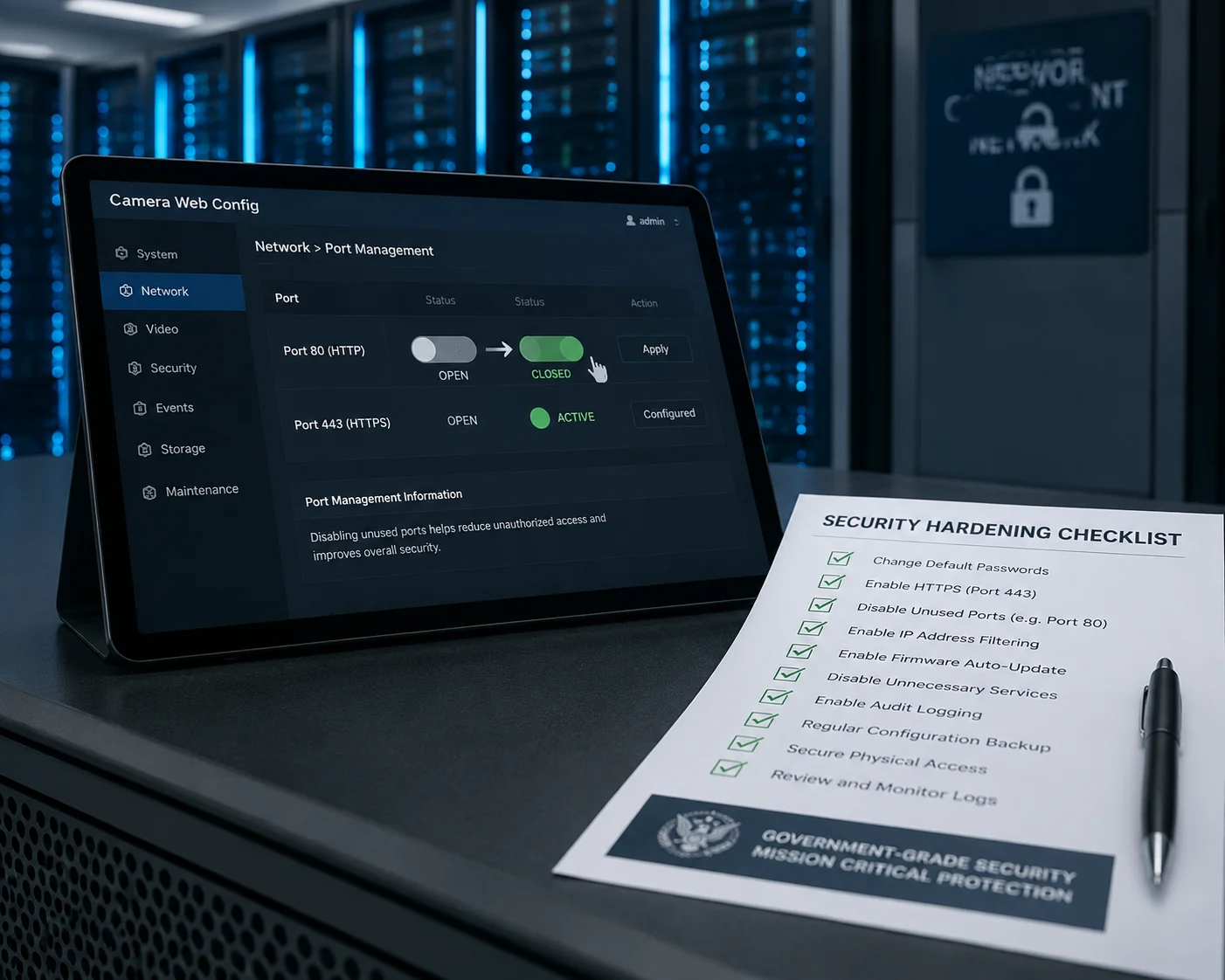
Yes, you can fully disable the HTTP port (port 80) on our cameras through the web interface under Network > Service settings. Once disabled, the camera only listens on HTTPS port 443. Any connection attempt on port 80 will be refused at the network level, ensuring zero possibility of unencrypted remote access.
Why Redirecting Is Not Enough for Some Clients
Most cameras — including ours by default — redirect HTTP to HTTPS. That means port 80 is still open. It listens for incoming connections and then tells the browser to go to port 443 instead.
For most use cases, this is fine. The actual data transfer happens over HTTPS. But from a strict security audit perspective, an open port is an open port. It can be scanned. It can be fingerprinted. A sophisticated attacker could potentially exploit a vulnerability in the redirect handler itself.
For government projects, critical infrastructure, or any deployment that must pass a penetration test, closing port 80 entirely is the right move.
How to Disable HTTP Port 80
The process is simple:
- Log into the camera web interface over HTTPS (
https://camera-ip). - Navigate to Network > Service (or Network > Port Settings depending on firmware version).
- Find the HTTP service toggle.
- Set it to Disabled.
- Click Save and confirm.
After this, the camera’s web server stops listening on port 80. If someone tries to access http://camera-ip, they get a “connection refused” error. Only https://camera-ip works.
Important: Do Not Lock Yourself Out
Here is a mistake I have seen more than once. An integrator disables HTTP, then forgets the HTTPS URL, or has a certificate issue that prevents HTTPS from loading. Now they cannot access the web interface at all.
Before you disable HTTP, make sure:
- You have confirmed HTTPS access works on port 443.
- You have saved the camera’s IP address and HTTPS URL.
- You have a physical reset button procedure documented in case you need to restore factory defaults.
Our cameras have a hardware reset button (usually a pinhole on the back or bottom) that restores all network settings to factory defaults, including re-enabling HTTP. So you can always recover. But it is better to not need it.
Going Further: Mutual TLS Authentication
For the highest security tier, we support an optional feature called mutual TLS (mTLS)7 or client certificate authentication. Here is how it works:
- Normal HTTPS: the browser verifies the camera’s identity using the server certificate. One-way trust.
- Mutual TLS: the camera also verifies the browser’s identity using a client certificate. Two-way trust.
This means only computers with a specific certificate installed can access the web interface. Even if someone knows the IP address, the HTTPS port, and the login password, they cannot connect without the client certificate.
For David’s high-security government or utility projects, this is a powerful differentiator. Not many PTZ camera manufacturers at our price point offer mTLS.
Security Hardening Checklist
| Security Measure | Default State | Recommended Action |
|---|---|---|
| HTTPS redirect (HTTP → HTTPS) | Enabled | Keep enabled unless disabling HTTP entirely |
| HTTP port 80 | Open (with redirect) | Disable for security-audited deployments |
| HTTPS port 443 | Open | Keep open — this is your access point |
| Brute-force lockout8 | 5 failed attempts → 30 min lock | Keep enabled, consider reducing to 3 attempts |
| Client certificate (mTLS) | Disabled | Enable for government/critical infrastructure |
| TLS version | TLS 1.2 and 1.3 | Keep — do not enable legacy TLS 1.0/1.1 |
| Unused ports (Telnet, FTP) | Disabled | Verify they remain disabled after firmware updates |
Conclusion
Our industrial PTZ cameras force HTTPS by default, support custom SSL certificates, handle 4K encryption with minimal CPU impact, and let you shut down HTTP entirely. For any remote deployment over 4G, encrypted access is not optional — it is the baseline.
1. Learn what a Certificate Authority is and why it matters for SSL trust. ↩︎ 2. Free, automated, and open Certificate Authority – ideal for budget-friendly projects. ↩︎ 3. Learn how HSTS headers enforce HTTPS and prevent downgrade attacks. ↩︎ 4. Understand what mixed content is and why browsers block it. ↩︎ 5. Learn about the SoC platform used in many IP cameras for video processing. ↩︎ 6. Learn about the H.265 video compression standard that reduces bandwidth and CPU usage. ↩︎ 7. Understand how mTLS provides two-way authentication between client and server. ↩︎ 8. Learn best practices for protecting against brute-force login attempts. ↩︎ 9. Understand how enterprise IT manages browser security policies via GPO. ↩︎