
I lose count of how many times my clients call me after a failed NVR integration. They plug in a third-party PTZ camera, and half the features just vanish.
When connecting to U.S. Hikvision or Dahua NVRs, private protocols outperform standard ONVIF in nearly every way. They unlock full AI alerts, faster PTZ response, two-way audio, and H.265+ deep compatibility. Always select the matching manufacturer protocol — not ONVIF — in the NVR’s “Add Camera” menu for the best results.
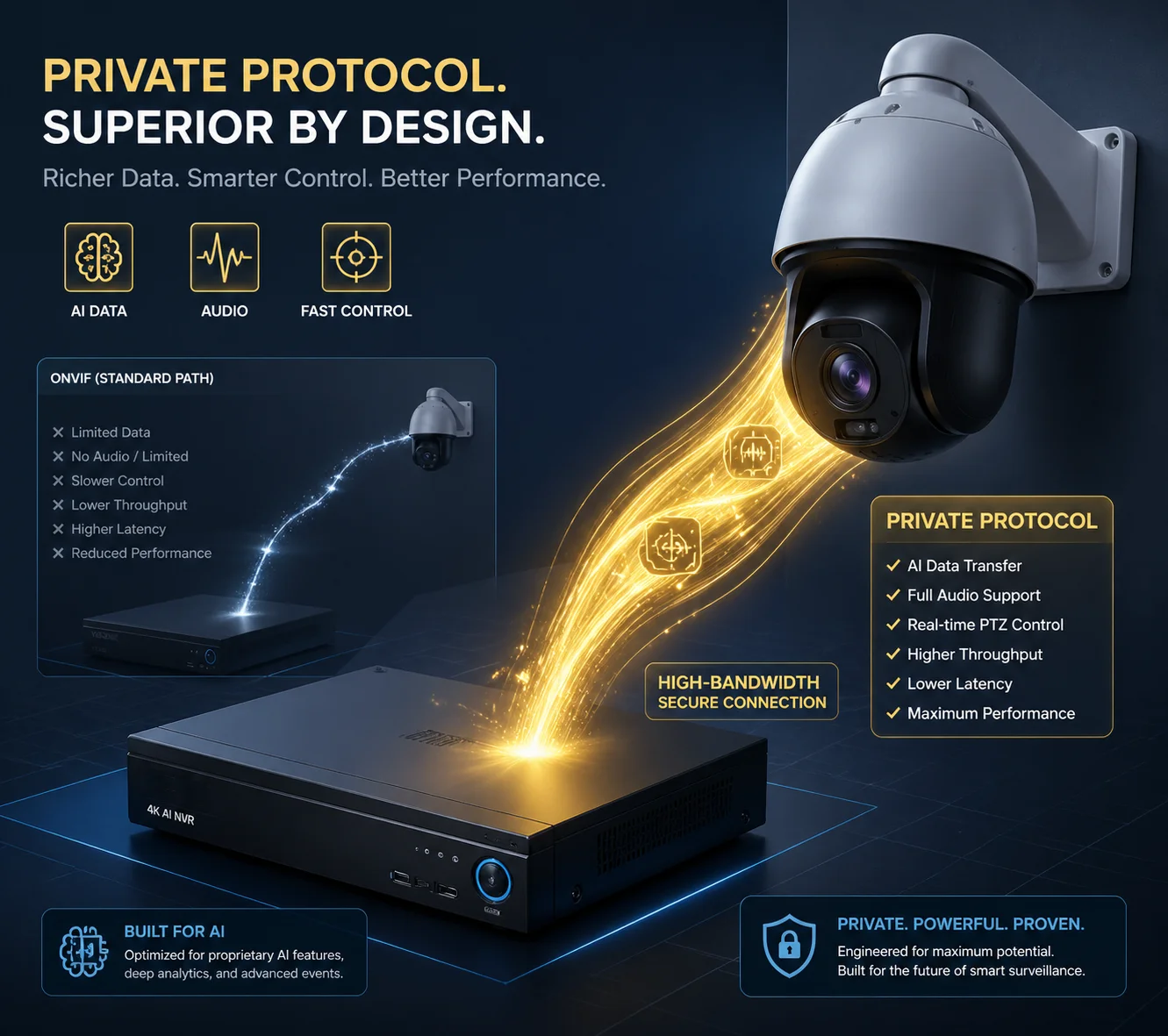
Below, I break down the most common questions I get from integrators like David Miller. He works across the U.S. and Canada. He installs our PTZ cameras on existing Hikvision and Dahua NVR systems every week. These answers come from real field experience, not spec sheets.
Table of Contents
Can I Use My Camera’s Smart AI Features (Human Detection) on a Dahua NVR?
I hear this question at least twice a week. A client buys our AI-powered PTZ camera, connects it to a Dahua NVR via ONVIF, and then wonders why human detection alerts never show up.
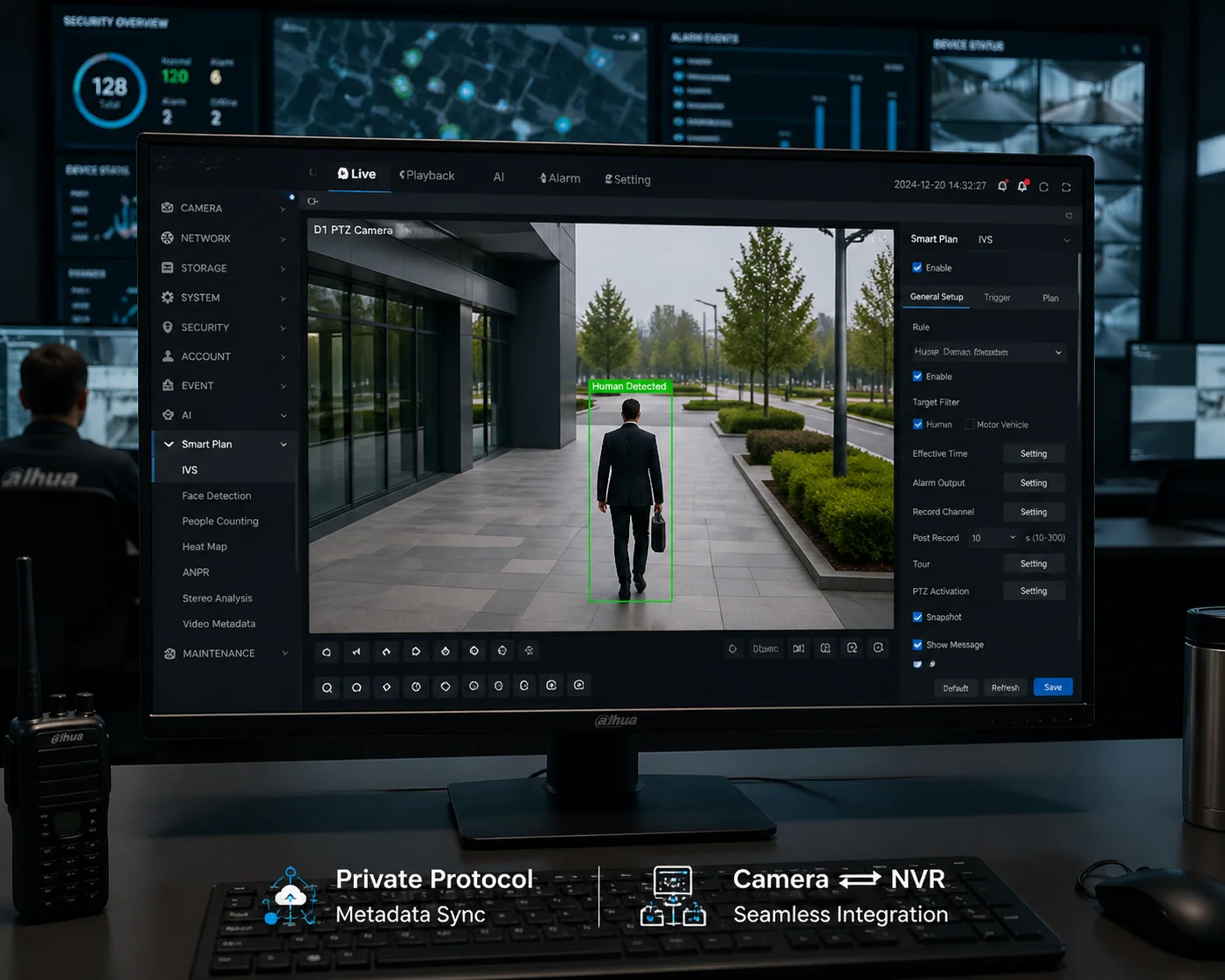
Yes, you can use smart AI features like Human Detection on a Dahua NVR — but only if you connect using the Dahua private protocol instead of ONVIF. ONVIF typically strips out AI metadata, so the NVR never receives the detection events from your camera.
Why ONVIF Drops AI Events
I need to explain something most salespeople won’t tell you. ONVIF 1 is a basic handshake standard. It was built for simple tasks: discover a camera, pull a video stream, and send basic PTZ commands. It was never designed to carry rich AI metadata 2 like human body bounding boxes, vehicle classification tags, or behavioral analysis events.
When you add our PTZ camera to a Dahua NVR using ONVIF, the NVR sees the video feed just fine. But it has no idea how to read the AI data our camera generates. The result? You get a live picture with zero smart alerts. Your client paid for AI features they can’t use.
How the Dahua Private Protocol Fixes This
Our firmware includes a built-in Dahua protocol emulator. When you select “Dahua” as the protocol type in the NVR’s channel setup, our camera speaks the same language as a native Dahua device. The NVR then receives AI event metadata directly. Human detection, vehicle detection, line-crossing alerts — they all sync to the NVR’s event log and push notifications.
Here is a quick comparison I share with my clients:
| Feature | ONVIF Connection | Dahua Private Protocol |
|---|---|---|
| Live Video Stream | ✅ Yes | ✅ Yes |
| Human/Vehicle Detection Alerts | ❌ No | ✅ Yes |
| AI Metadata Sync to NVR | ❌ No | ✅ Yes |
| Smart Search by Event Type | ❌ No | ✅ Yes |
| Push Notification to Mobile App | ❌ Unreliable | ✅ Full Support |
A Real-World Tip for Integrators
I always tell David the same thing. Before you leave the job site, open the Dahua NVR’s event settings. Make sure the channel tied to our camera shows “IVS” or Smart Plan 3 options. If those options appear, the private protocol handshake worked. If they don’t, go back to the channel setup and double-check you selected “Dahua” — not “Auto” or “ONVIF.” This one step saves you a second truck roll.
Also, check the “Private Protocol Authentication Mode” in the Dahua NVR’s network settings. On older Dahua NVR firmware, this may be set to “Security” mode by default. Switch it to “Compatibility” mode if our camera fails to register on the first try. This setting controls how strictly the NVR verifies third-party devices using its private protocol.
Will My Hikvision NVR Recognize the Plug-and-Play Features of My PTZ Camera?
I get frustrated when I see installers waste two hours on site trying to make a PTZ camera work with a Hikvision NVR. The camera connects, but preset tours don’t trigger, and the joystick feels sluggish.
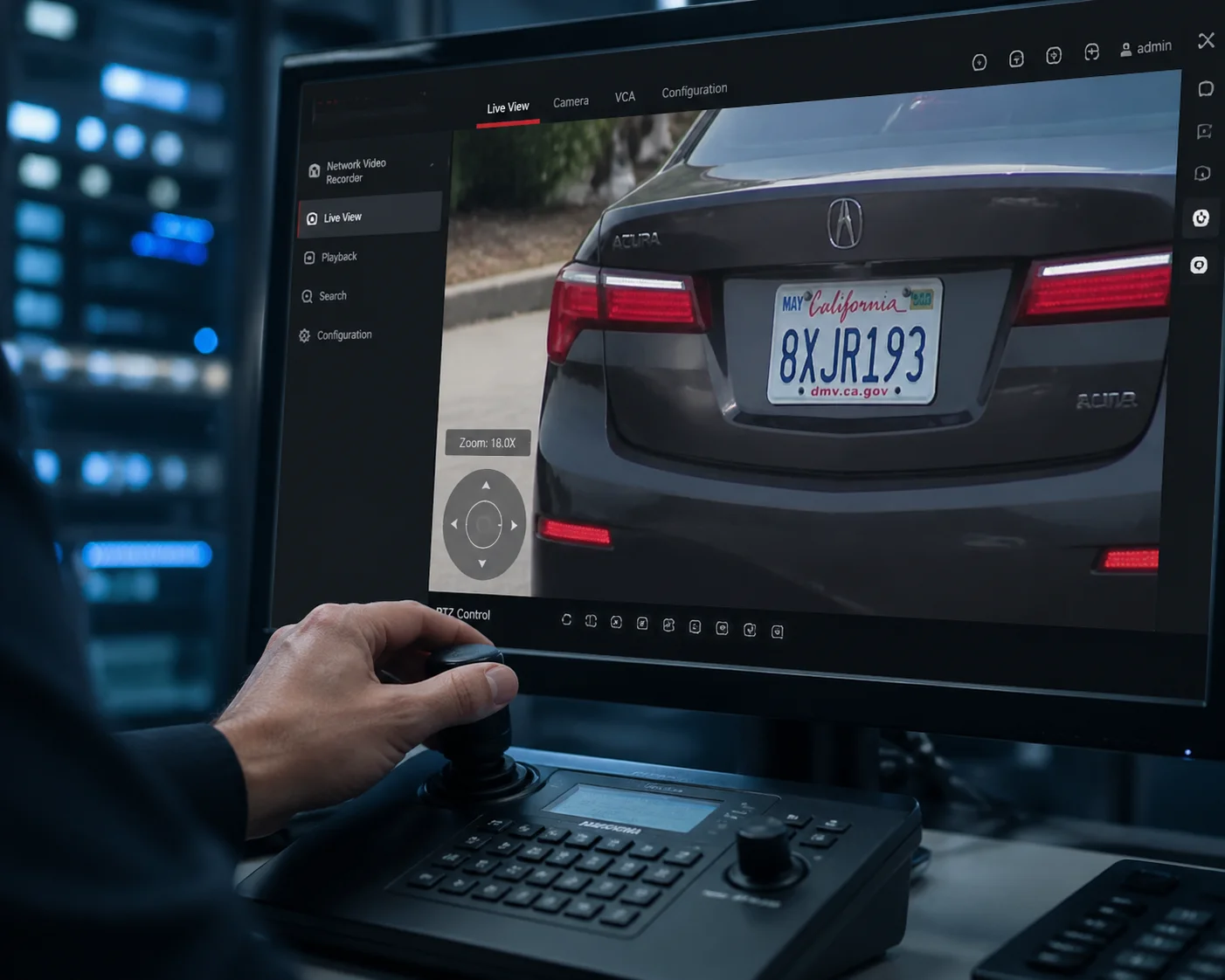
Yes, a Hikvision NVR can recognize plug-and-play PTZ features — but you must add the camera using the Hikvision private protocol (ISAPI/SDK), not ONVIF. This enables full preset recall, patrol tours, and millisecond-level PTZ control response directly from the NVR interface.
The Hidden Problem with ONVIF PTZ Control
ONVIF sends PTZ commands using XML-based SOAP messages 4 over HTTP. Every single pan, tilt, or zoom action requires a full XML request-response cycle. This adds noticeable delay — sometimes 200 to 500 milliseconds per command. For a basic fixed dome, you might not notice. But for a 40X optical zoom PTZ tracking a moving vehicle at 300 meters, that lag makes precise control impossible.
I have seen installers blame the camera for “slow response.” But the camera is fine. The bottleneck is the ONVIF command pipeline. It was not built for high-speed PTZ operations.
How Hikvision’s Private Protocol Solves This
Hikvision’s private protocol uses lightweight UDP-based control 5 packets instead of heavy XML envelopes. The result is near-instant PTZ response. When our camera connects via the Hikvision protocol, the NVR treats it like one of its own devices. Preset positions load in under 100 milliseconds. Patrol tours execute smoothly. Auto-tracking commands pass through without stutter.
Our firmware includes a Hikvision protocol emulator. So when the NVR queries the camera, it gets native-format responses. The NVR’s plug-and-play wizard picks up the camera automatically in most cases.
What You Unlock with Private Protocol on Hikvision NVRs
| PTZ Feature | ONVIF | Hikvision Private Protocol |
|---|---|---|
| Basic Pan/Tilt/Zoom | ✅ Yes (with lag) | ✅ Yes (instant) |
| Preset Position Recall | ⚠️ Partial (some presets fail) | ✅ Full Support |
| Patrol Tour Execution | ❌ Often fails | ✅ Full Support |
| Auto-Tracking Linkage | ❌ No | ✅ Yes |
| Two-Way Audio | ❌ Rarely works | ✅ Full Support |
| Remote Camera Config from NVR | ❌ No | ✅ Yes |
A Note on Firmware Versions
I want to flag something important. Hikvision firmware version 5.5.0 and later disables ONVIF by default. So if you try to add any third-party camera via ONVIF on a newer Hikvision NVR, you first need to manually enable ONVIF and create a dedicated ONVIF user account on the camera side. This extra step catches a lot of installers off guard. But if you use the Hikvision private protocol instead, you skip this hassle entirely. The NVR connects directly without needing any ONVIF configuration.
What Are the Limitations of Using ONVIF Instead of a Private Protocol for NVR Recording?
I used to recommend ONVIF as the “safe default” for cross-brand setups. I stopped doing that after too many failed deployments. ONVIF works, but it works at a basic level that often disappoints professional integrators.
ONVIF limits NVR recording by restricting codec negotiation (often breaking H.265+), disabling AI event triggers, removing two-way audio, and preventing remote camera configuration. For professional deployments, private protocols eliminate these gaps and deliver full feature access.
The Codec Problem: H.265+ Breakage
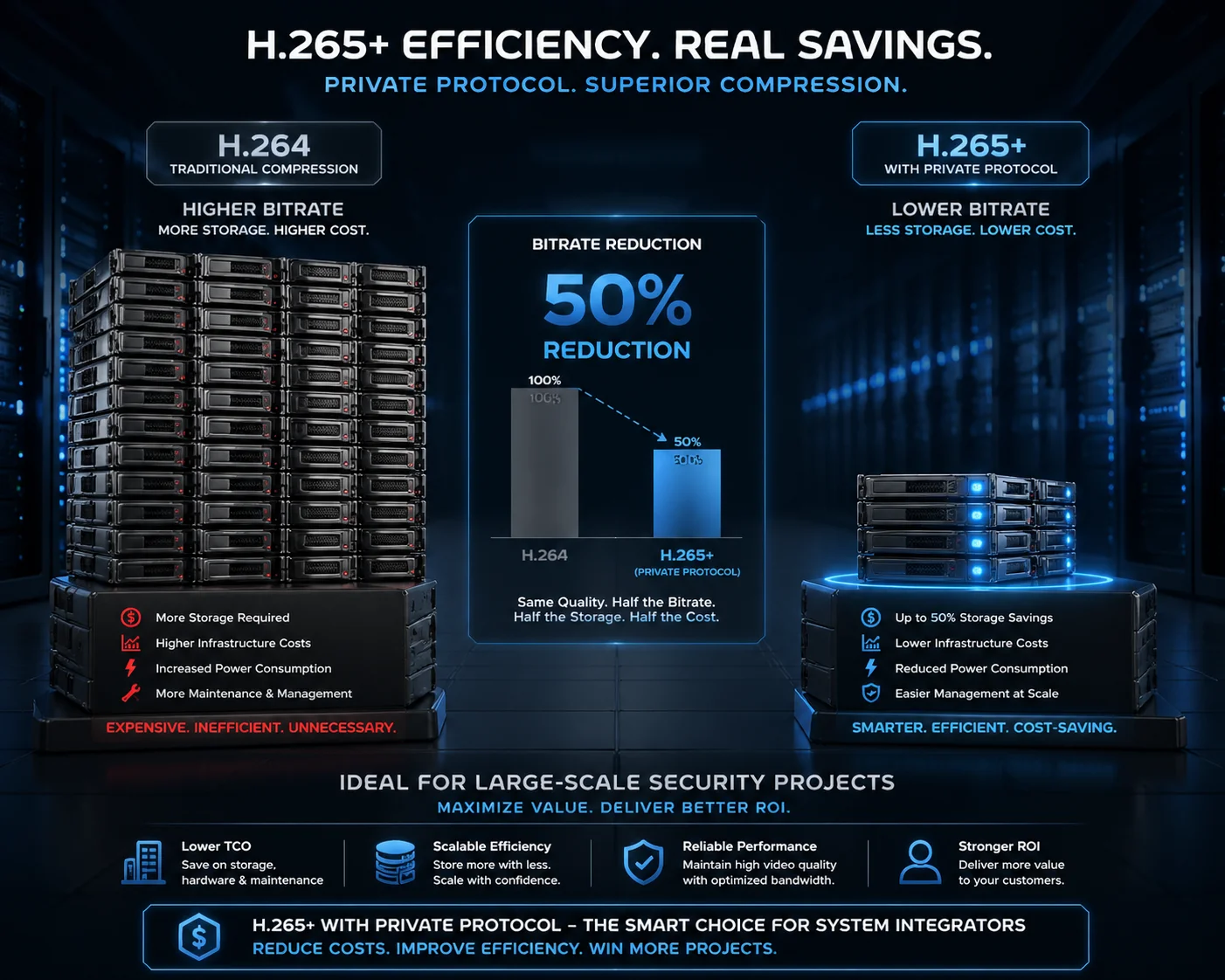
This is a big one. Many of our PTZ cameras support H.265+ 6 (also called Smart H.265 or H.265 Plus). This is an enhanced compression mode that cuts storage use by up to 50% compared to standard H.265. It works by analyzing scene complexity and dynamically adjusting bitrate frame by frame.
But here is the catch. ONVIF’s media profile negotiation doesn’t always recognize H.265+ as a valid codec option. When you add our camera via ONVIF, some Hikvision and Dahua NVRs fall back to standard H.265 or even H.264. I have seen cases where the NVR receives a corrupted stream because it tries to decode H.265+ frames using a standard H.265 parser. The result is green artifacts, frozen frames, or complete recording failure on that channel.
With the private protocol, the NVR and camera negotiate the codec correctly every time. H.265+ passes through cleanly. Your client saves 50% on hard drive costs. That matters when you’re recording 32 channels 24/7.
The Storage Math
Let me put some numbers behind this. I share this table with David whenever he plans a large project:
| Recording Mode | Bitrate (4MP @ 25fps) | Storage per Camera per Day | 32-Channel Monthly Storage |
|---|---|---|---|
| H.264 | ~6 Mbps | ~64 GB | ~61 TB |
| H.265 | ~3 Mbps | ~32 GB | ~30 TB |
| H.265+ (Private Protocol) | ~1.5 Mbps | ~16 GB | ~15 TB |
The difference between H.264 and H.265+ is massive. But you only get H.265+ if the protocol handshake supports it. ONVIF usually doesn’t.
Other ONVIF Limitations Worth Knowing
Beyond codecs, ONVIF has several other blind spots that affect daily use:
- No remote camera configuration. You cannot change our camera’s exposure, white balance, or IR settings from the NVR interface over ONVIF. You have to log into each camera’s web GUI separately.
- No two-way audio passthrough. ONVIF’s audio backchannel support is inconsistent across NVR brands. Private protocols handle this natively.
- No smart rule drawing. You can’t draw intrusion zones 7 or line-crossing rules on the NVR’s live view and push them to our camera via ONVIF. With private protocol, you can. The rules sync in real time.
- No firmware update from NVR. Hikvision and Dahua NVRs can push firmware updates to native-protocol cameras directly. ONVIF devices must be updated individually.
These aren’t edge cases. These are everyday tasks that integrators need on every project.
How Do I Resolve IP Address Conflicts When Connecting to a Multi-Channel NVR?
I once spent an entire afternoon on a video call helping a client troubleshoot a 16-channel NVR. Eight cameras showed up fine. The other eight kept dropping offline. The problem? Three cameras shared the same default IP address.
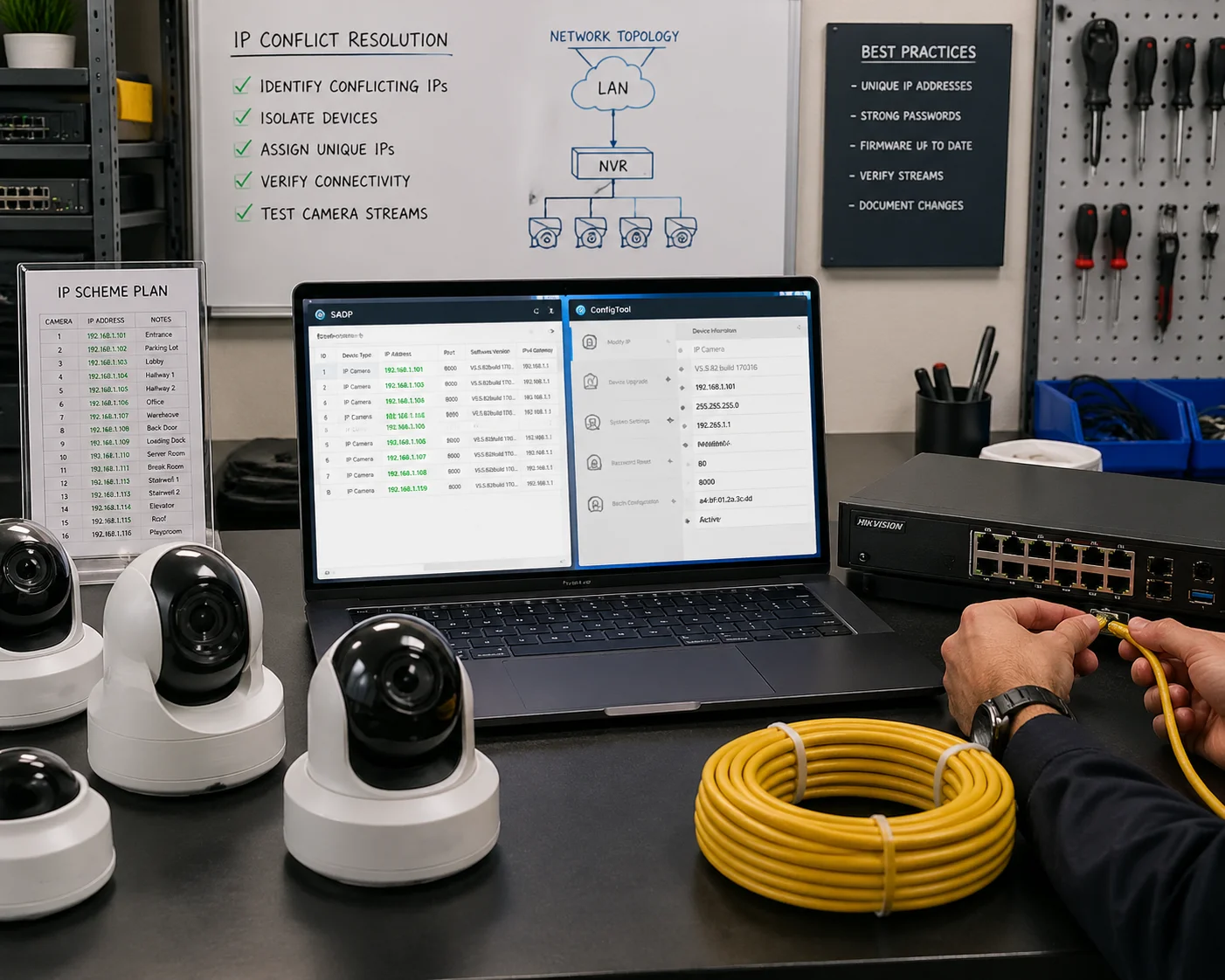
To resolve IP address conflicts on a multi-channel NVR, assign a unique static IP to each camera before connecting. Use the NVR’s built-in network scan tool or the manufacturer’s device manager software (like Hikvision’s SADP or Dahua’s ConfigTool) to detect and reassign conflicting addresses.
Why IP Conflicts Happen So Often
Most IP cameras ship from the factory with the same default IP address 8 — usually 192.168.1.64 or 192.168.1.108. When you unbox eight cameras and plug them all into the same PoE switch or NVR, they all try to claim the same address. The network gets confused. Some cameras appear online. Others flicker on and off. A few never show up at all.
I see this on almost every multi-camera project where the installer skips the initial IP setup step. It’s a simple problem with a simple fix, but it wastes hours if you don’t catch it early.
Step-by-Step Fix
Here is the process I recommend to every client:
- Connect one camera at a time. Plug in the first camera. Wait for it to boot (about 60 seconds).
- Use a discovery tool. Open Hikvision’s SADP Tool 9 or Dahua’s ConfigTool on a laptop connected to the same network. The tool will find the camera and show its current IP.
- Assign a unique IP. Change the camera’s IP to something unique within your subnet. For example, if your NVR is 192.168.1.100, assign cameras as 192.168.1.201, 192.168.1.202, and so on.
- Repeat for each camera. Plug in the next camera, discover it, reassign its IP. Do this for every unit before connecting them all to the NVR at once.
- Add cameras to the NVR. Once all cameras have unique IPs, use the NVR’s “Add Camera” menu. Select the correct protocol (Hikvision or Dahua — not ONVIF). Enter each camera’s IP, port, username, and password.
Subnet and Gateway Mistakes
I also see another common mistake. The camera and the NVR are on different subnets. For example, the NVR sits at 192.168.1.100 with a subnet mask 10 of 255.255.255.0, but the camera was assigned 192.168.2.50. They can’t talk to each other because they’re on different network segments.
Always make sure every device — NVR, cameras, and your laptop — shares the same subnet. If the NVR is on 192.168.1.x, every camera must also be on 192.168.1.x with the same subnet mask and gateway.
When to Use DHCP vs. Static IP
For small systems (4 to 8 cameras), static IPs are fine. You set them once and forget them. For larger systems (16 to 64 cameras), I recommend using the NVR’s built-in DHCP server if it has one. Hikvision and Dahua NVRs with PoE ports often assign IPs automatically to cameras connected via PoE. This eliminates manual IP conflicts entirely.
But here is a warning. If you use the NVR’s PoE DHCP and also connect cameras through an external switch, you can end up with two DHCP servers fighting on the same network. Disable one of them. I usually let the NVR handle DHCP for its PoE ports and assign static IPs to any cameras on external switches.
Conclusion
Private protocols beat ONVIF for real-world NVR integration. They unlock full AI, faster PTZ, and better compression. Always choose the matching manufacturer protocol.
1. Official site for the global standard in IP-based physical security product interoperability. ↩︎
2. Understanding how metadata improves searching and reporting in modern video surveillance systems. ↩︎
3. Technical guide for configuring AI analytics on Dahua NVR systems via Smart Plan. ↩︎
4. Explanation of the XML protocol used by ONVIF for device communication and messaging. ↩︎
5. Deep dive into why UDP is preferred for high-speed, real-time data transmission like PTZ control. ↩︎
6. Overview of Hikvision’s advanced video compression technology for bandwidth and storage savings. ↩︎
7. Definition and application of virtual intrusion zones in intelligent video monitoring. ↩︎
8. Comprehensive guide on how to configure and manage static IP addresses for network devices. ↩︎
9. Official download and instructions for the Search Active Device Protocol tool from Hikvision. ↩︎
10. Explanation of how subnet masks divide networks and allow devices to communicate. ↩︎