
If you run PTZ cameras8 over 4G in remote areas, you know the pain. The default video settings create lag that makes pan-tilt control feel broken. I spent months fighting this exact problem.
Yes, you can fully customize the GOP structure to achieve extreme low latency. By shortening the GOP length to match your frame rate, disabling B-Frames, and using Intra-Refresh encoding, you can cut streaming delay from several seconds down to under 300ms — even on unstable 4G connections.
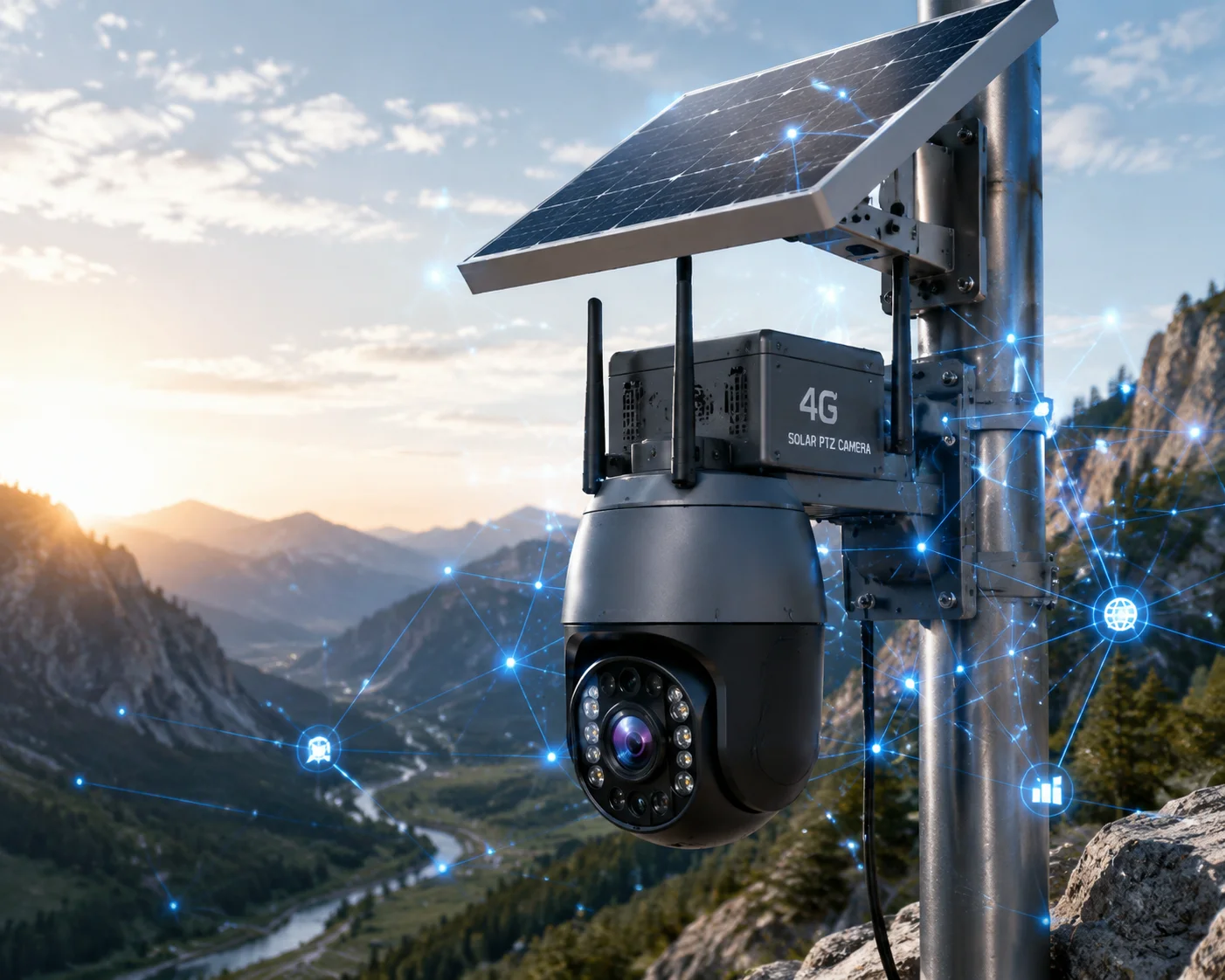
Below, I break down the four most common questions I get from system integrators about GOP tuning. Each answer includes real configuration values and the trade-offs you need to know before changing anything in the field.
Table of Contents
Will Setting a “GOP=1” (All I-Frames) Eliminate the Lag During High-Speed PTZ Panning?
I have tested GOP=1 on live 4G deployments. The result surprised me. It did reduce decode delay, but it also created a new bottleneck that made things worse in some cases.
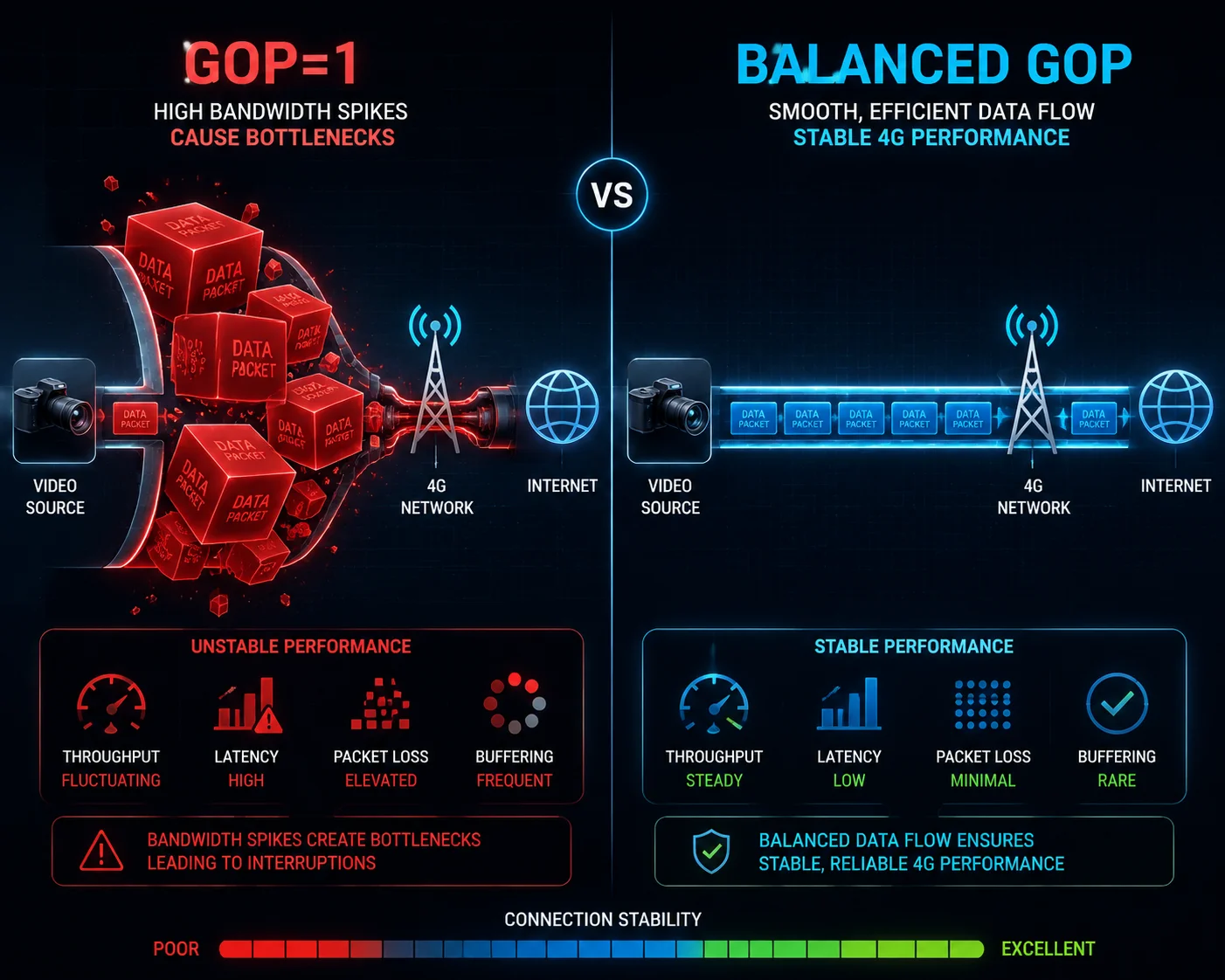
Setting GOP=1 will eliminate decode-side lag almost completely, but it will flood your 4G uplink with massive data bursts. On a stable connection, it works. On a weak or congested 4G cell, the bandwidth spike causes packet loss and creates even more stutter than a longer GOP.
Why GOP=1 Sounds Perfect in Theory
When every frame is an I-Frame1, the decoder never waits for a reference frame. If one packet is lost, the very next frame is a full picture. There is zero dependency between frames. This means:
- No error propagation (one lost packet cannot corrupt the next 2 seconds of video)
- Instant channel-switch time (the viewer sees a picture immediately)
- PTZ response feels direct and real-time
Why GOP=1 Fails on Real 4G Networks
Here is the problem. An I-Frame is typically 5 to 10 times larger than a P-Frame2. If your camera streams at 4 Mbps with a normal GOP of 25, switching to GOP=1 can push the required bandwidth to 15-25 Mbps. Most 4G9 uplinks in remote areas deliver 2-8 Mbps at best.
When the encoder pushes out frame after frame of full-size I-Frames, the 4G modem buffer fills up. Packets queue. Latency goes up, not down. You get the opposite of what you wanted.
The Practical Sweet Spot
Instead of GOP=1, I recommend setting GOP equal to your FPS value. This gives you one I-Frame per second.
| GOP Setting | Bandwidth Impact | Recovery Time After Packet Loss | Best Use Case |
|---|---|---|---|
| GOP = 1 | 5-10x increase | 0ms (instant) | Wired LAN only |
| GOP = FPS (25-30) | 1.3-1.5x increase | Max 1 second | 4G remote PTZ |
| GOP = 50-100 | Baseline | 2-4 seconds | Storage/recording |
When GOP=1 Actually Makes Sense
If your site has a dedicated 4G bonding unit (combining 2-4 SIM cards) with guaranteed 20+ Mbps uplink, then GOP=1 is viable. I have deployed this for highway monitoring projects where the client paid for premium data plans. For standard single-SIM solar deployments, it is overkill and counterproductive.
The real answer for PTZ panning lag is: GOP = FPS, B-Frames = 0, and enable Intra-Refresh. This combination gives you sub-500ms glass-to-glass latency without destroying your data budget.
How Much Extra 4G Data Will a Short GOP Structure Consume Compared to the Default?
Every client I work with asks this question before they change any settings. Data cost is real money, especially on remote solar sites where you pay per gigabyte. I always run the math with them before making changes.
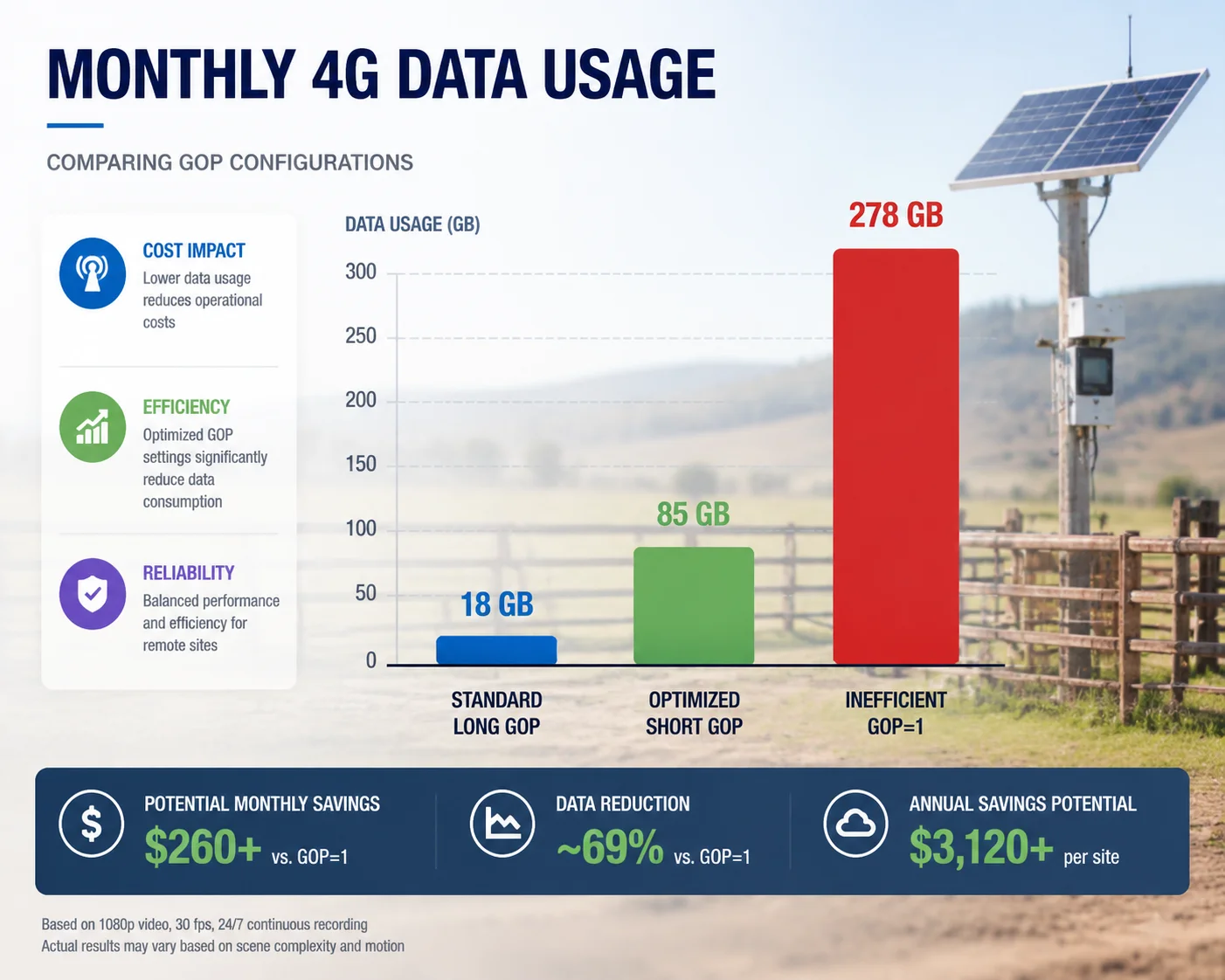
A short GOP (equal to FPS) will increase your monthly 4G data usage by approximately 30-50% compared to the default GOP of 50-100. For a typical 2 Mbps stream running 24/7, this means roughly 200-300 GB extra per month. The trade-off is worth it for active PTZ use, but you should use a dual-stream setup to control costs.
Understanding Why Shorter GOP Costs More Data
The math is simple. I-Frames carry the full picture data. P-Frames only carry the difference from the previous frame. When you increase the number of I-Frames, you increase the total data volume.
Here is a real example from a deployment I measured last year:
- Stream resolution: 1080p at 25 FPS
- Target bitrate (VBR): 2 Mbps average
- GOP = 100 (default): One I-Frame every 4 seconds. Monthly data = ~648 GB
- GOP = 25 (optimized): One I-Frame every 1 second. Monthly data = ~850-970 GB
The Real-World Data Cost Breakdown
| Configuration | Avg Bitrate | Monthly Data (24/7) | Monthly Data (12hr/day) | Extra Cost vs Default |
|---|---|---|---|---|
| GOP=100, B=2 | 1.8 Mbps | ~583 GB | ~291 GB | Baseline |
| GOP=25, B=0 | 2.5 Mbps | ~810 GB | ~405 GB | +39% |
| GOP=1 (All-I) | 8-12 Mbps | ~2,592-3,888 GB | ~1,296-1,944 GB | +345-567% |
How to Control Data Costs With Short GOP
There are three strategies I recommend to every integrator:
Strategy 1: Event-Driven Recording Do not stream 24/7 at short GOP. Use motion detection or AI triggers to activate the low-latency stream only when something happens. During idle periods, the camera can drop to 0.5 FPS or stop streaming entirely.
Strategy 2: Dual-Stream Architecture Run two streams simultaneously:
- Main Stream (for recording): GOP=100, 2 Mbps, H.265. This goes to your NVR or cloud storage.
- Preview Stream (for live PTZ control): GOP=25, 1 Mbps, H.264. This is what the operator sees in real-time.
Strategy 3: Dynamic GOP Switching Our firmware supports automatic GOP adjustment. When the operator opens the live view and starts PTZ control, the GOP drops to 15-25. When nobody is watching, it returns to 100. This alone can save 60-70% of the extra data cost.
A Note on H.265 vs H.264
H.2653 (HEVC) compresses I-Frames about 30-40% better than H.264. If your VMS supports H.265 decoding, always use it for the main stream. The bandwidth savings partially offset the cost of a shorter GOP. However, for the live preview stream, H.264 is often better because it decodes faster on the client side, which matters for latency.
Can I Set a Different GOP for the “Main Stream” and the “Preview Stream”?
This is one of the first things I configure on every camera we ship. Running a single stream for both recording and live viewing is a compromise that hurts both use cases. I always split them.
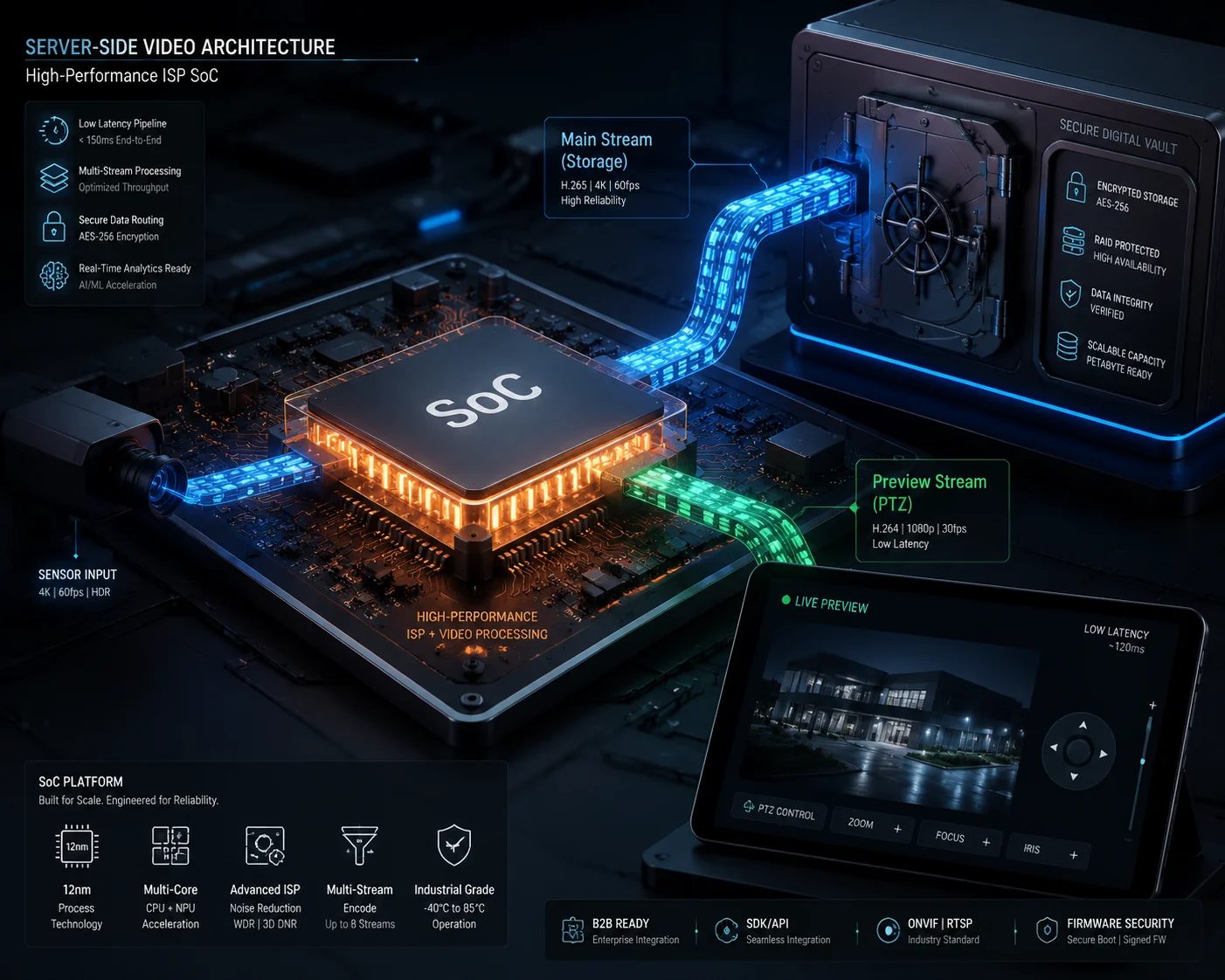
Yes, absolutely. Our cameras support independent encoding parameters for the Main Stream and the Sub/Preview Stream. You can set GOP=100 on the main stream for efficient storage, while running GOP=25 with zero B-Frames on the preview stream for real-time PTZ control. Each stream has its own encoder instance on the ISP chip.
How Dual-Stream Encoding Works on the Hardware Level
Modern surveillance SoCs (like the HiSilicon Hi3536 or similar chips we use) have multiple hardware encoding channels. Each channel operates independently. This means:
- The Main Stream encoder can run H.265, 4K resolution, GOP=100, with 2 B-Frames
- The Sub Stream encoder can run H.264, 720p or 1080p, GOP=25, with 0 B-Frames
- Neither stream affects the other’s performance
The ISP captures the full sensor image once, then feeds it to both encoders at their respective resolutions. There is no performance penalty for running two streams with different GOP settings.
Recommended Dual-Stream Configuration
| Parameter | Main Stream (Recording) | Preview Stream (Live PTZ) |
|---|---|---|
| Codec | H.265 | H.264 |
| Resolution | 4K or 1080p | 720p or 1080p |
| Frame Rate | 25 FPS | 25 FPS |
| GOP | 100 | 25 |
| B-Frames | 0-2 | 0 |
| Bitrate Mode | VBR5 with cap | CBR6 |
| Bitrate | 4-6 Mbps | 1-1.5 Mbps |
| Profile | Main | Baseline or Main |
Why This Matters for Your VMS Integration
Most professional VMS platforms (Milestone, Genetec, Blue Iris) can subscribe to different streams for different purposes. When an operator opens a camera in a grid view, the VMS pulls the sub stream. When they double-click to go full-screen or start PTZ control, it switches to the main stream or the optimized preview stream.
This is not just about saving bandwidth. It is about giving the right data to the right task:
- Recording needs: High resolution, high compression efficiency, long GOP for small file sizes
- Live viewing needs: Low latency, fast error recovery, short GOP for responsive control
- AI analytics needs: Consistent frame delivery, no B-Frame reordering delays
How to Configure This via ONVIF
If your VMS uses ONVIF Profile S4, you can set these parameters remotely through the media profile configuration. Each ONVIF media profile maps to one encoder instance. You create two profiles — one for recording, one for live — and assign different GOP values to each. Our cameras expose all GOP and B-Frame settings through the ONVIF interface, so you do not need to log into the camera’s web UI to make changes.
For integrators who use our SDK or CGI commands directly, the API call is straightforward. You specify the channel number (0 for main, 1 for sub) and set the IFrameInterval parameter independently for each.
Does the ISP (Image Signal Processor) Allow for “Zero-Delay” Frame Processing Modes?
I get this question from CTOs who have read about “zero-latency” encoding in the x264/x265 software encoder documentation. They want to know if the hardware ISP in our cameras can do the same thing. The answer is nuanced.
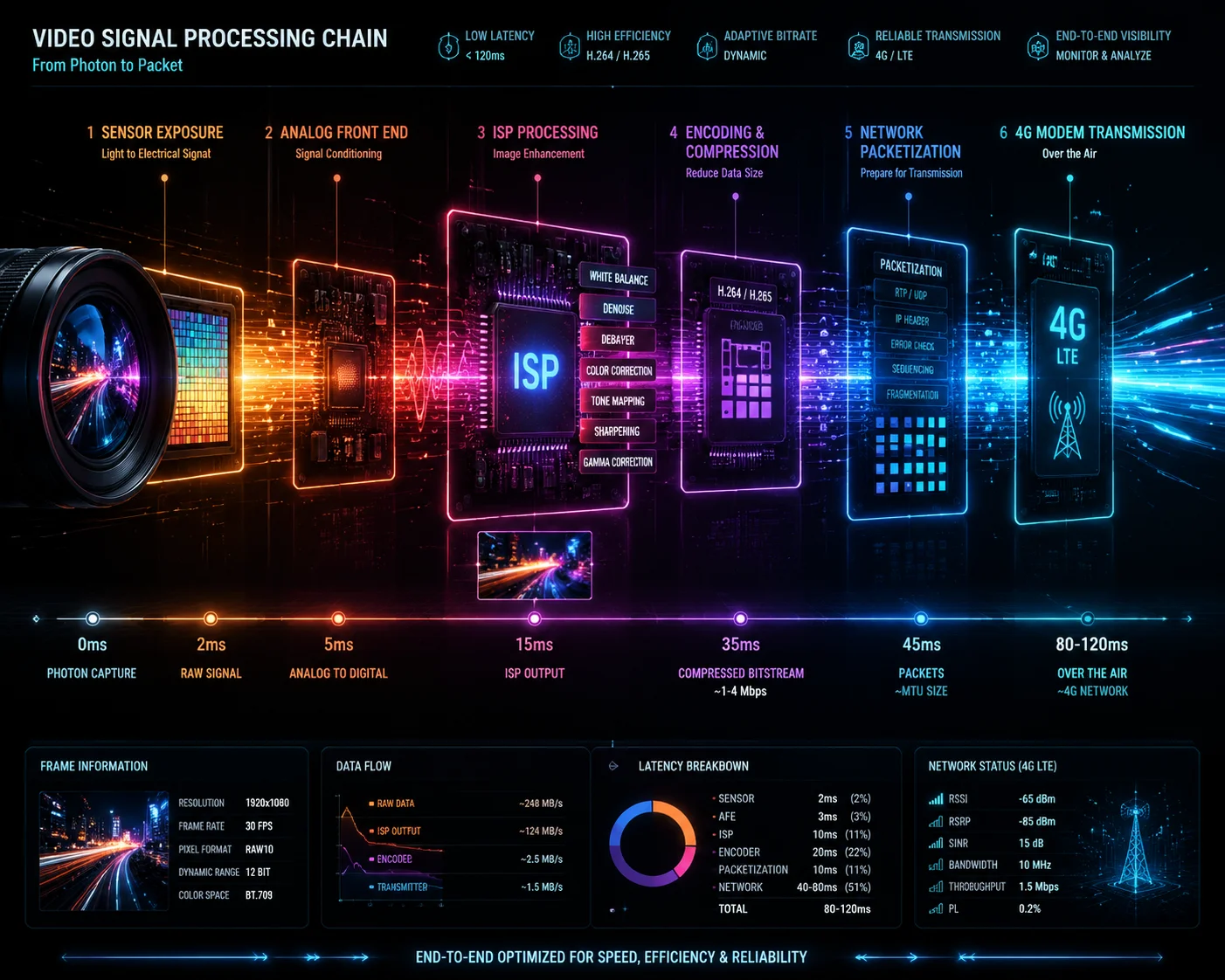
The ISP itself adds near-zero delay (under 5ms) to the image pipeline. The real latency lives in the encoder, the network buffer, and the decoder. Our ISP supports a “low-delay” mode that disables frame reordering and look-ahead analysis, bringing the encode-side latency down to a single frame period (40ms at 25 FPS). True “zero-delay” is physically impossible, but sub-100ms encode latency is achievable.
Breaking Down the Latency Chain
To understand what “zero-delay” means in practice, you need to see where time is spent in the full pipeline:
- Sensor exposure: 1-40ms (depends on shutter speed)
- ISP processing (demosaic, denoise, WDR): 3-8ms
- Encoder input buffering: 0-80ms (depends on B-Frame and look-ahead settings)
- Encoding one frame: 5-15ms
- Network packetization (RTP/RTSP): 1-5ms
- 4G modem buffer: 20-80ms
- Network transit: 30-100ms (depends on cell tower distance and routing)
- Jitter buffer on client: 40-200ms
- Decoder: 5-20ms
- Display render: 8-16ms (depends on monitor refresh rate)
The ISP controls steps 2 and partially step 3. When people say “zero-delay ISP mode,” they mean the ISP passes each frame to the encoder immediately after processing, without holding frames for temporal noise reduction or frame-stacking HDR.
What “Low-Delay Mode” Actually Disables
When you enable low-delay mode on our cameras, the following changes happen inside the ISP and encoder:
- Temporal 3D noise reduction: Reduced from 3-frame reference to 1-frame reference. This slightly increases image noise in dark scenes but saves 80ms of buffering.
- Frame reordering: Completely disabled. No B-Frames can be generated.
- Rate control look-ahead: Disabled. The encoder cannot “peek” at future frames to optimize bitrate allocation. This makes the bitrate less smooth but eliminates the look-ahead delay.
- WDR frame stacking: Switches from multi-frame HDR to single-frame digital WDR. Image quality in high-contrast scenes drops slightly, but no frames are held.
The Total Achievable Latency
With all optimizations enabled (low-delay ISP mode, GOP=FPS, B-Frame=0, minimal jitter buffer), here is what you can realistically achieve:
- On a wired LAN: 80-150ms glass-to-glass
- On stable 4G (strong signal): 200-400ms glass-to-glass
- On weak 4G (remote solar site): 400-800ms glass-to-glass
- On 4G with WebRTC transport: 150-300ms glass-to-glass (WebRTC handles jitter better than RTSP7)
When to Use Low-Delay Mode vs Normal Mode
Do not enable low-delay mode on every camera by default. It trades image quality for speed. For cameras that are purely for recording and playback (no live PTZ control needed), keep the normal ISP mode. The temporal noise reduction and multi-frame WDR produce noticeably better footage for evidence review.
Enable low-delay mode only on cameras where:
- An operator actively controls PTZ in real-time
- The camera feeds a live situational awareness display
- AI analytics require minimum latency for real-time alerts
Our firmware allows you to switch between modes via API call, so you can toggle low-delay mode on when an operator takes PTZ control and switch back to high-quality mode when they release it.
Conclusion
Customizing GOP structure is the single most effective way to reduce PTZ control lag over 4G. Set GOP equal to your FPS, disable B-Frames, and use dual-stream encoding to balance latency against data cost. If you need help configuring these parameters for your specific deployment, reach out to me at sales05@loyalty-secu.com.
1. Understand I-frames (keyframes) that contain full image data and are crucial for decoding. ↩︎ 2. Explore P-frames that carry only differences from previous frames, saving bandwidth. ↩︎ 3. Discover H.265 (HEVC) compression efficiency that can reduce bandwidth usage for I-frames. ↩︎ 4. Learn about ONVIF Profile S for streaming video and configuring encoding parameters remotely. ↩︎ 5. Understand Variable Bitrate (VBR) for efficient video encoding with bandwidth caps. ↩︎ 6. Learn about Constant Bitrate (CBR) for predictable bandwidth usage in live streaming. ↩︎ 7. Discover RTSP, the traditional streaming protocol used by IP cameras, and its latency trade-offs. ↩︎ 8. Learn about Pan-Tilt-Zoom cameras and their latency challenges over cellular networks. ↩︎ 9. Understand 4G network characteristics affecting video streaming latency and bandwidth. ↩︎