
I lost a project bid once because my alert video only showed a zoomed-in face — the client asked, “But where in the parking lot was this person?” That single missing context cost me the deal.
Yes, our PTZ camera system supports both PiP (Picture-in-Picture) overlay and synchronized split-screen display in alert videos.1 The wide-angle context and 40X zoomed detail work together through dual-stream recording with shared timestamps, and the PiP or split-screen rendering happens at the software client level to preserve full pixel quality from both lenses.2
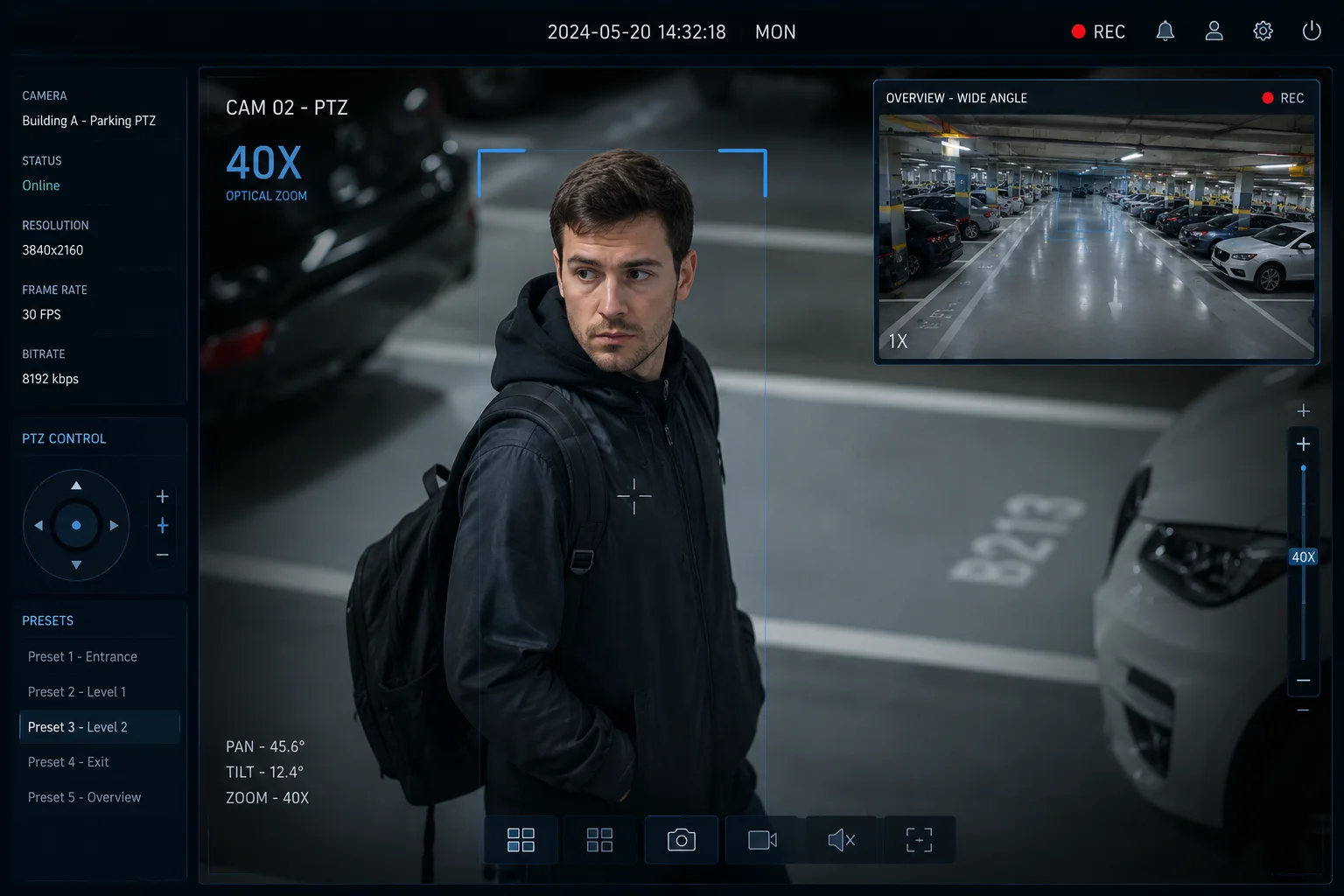
Below, I break down exactly how these two viewing modes work, what trade-offs exist for 4G bandwidth, and how you can configure them for your specific project needs. Let me walk you through each question I hear most from integrators like David Miller.
Table of Contents
Can I View the Wide-Angle Context and the 40X Zoomed Detail in a Single Synchronized MP4 File?
I get this question every week. Integrators want one file they can hand to police or show a client — not two separate clips they have to explain.
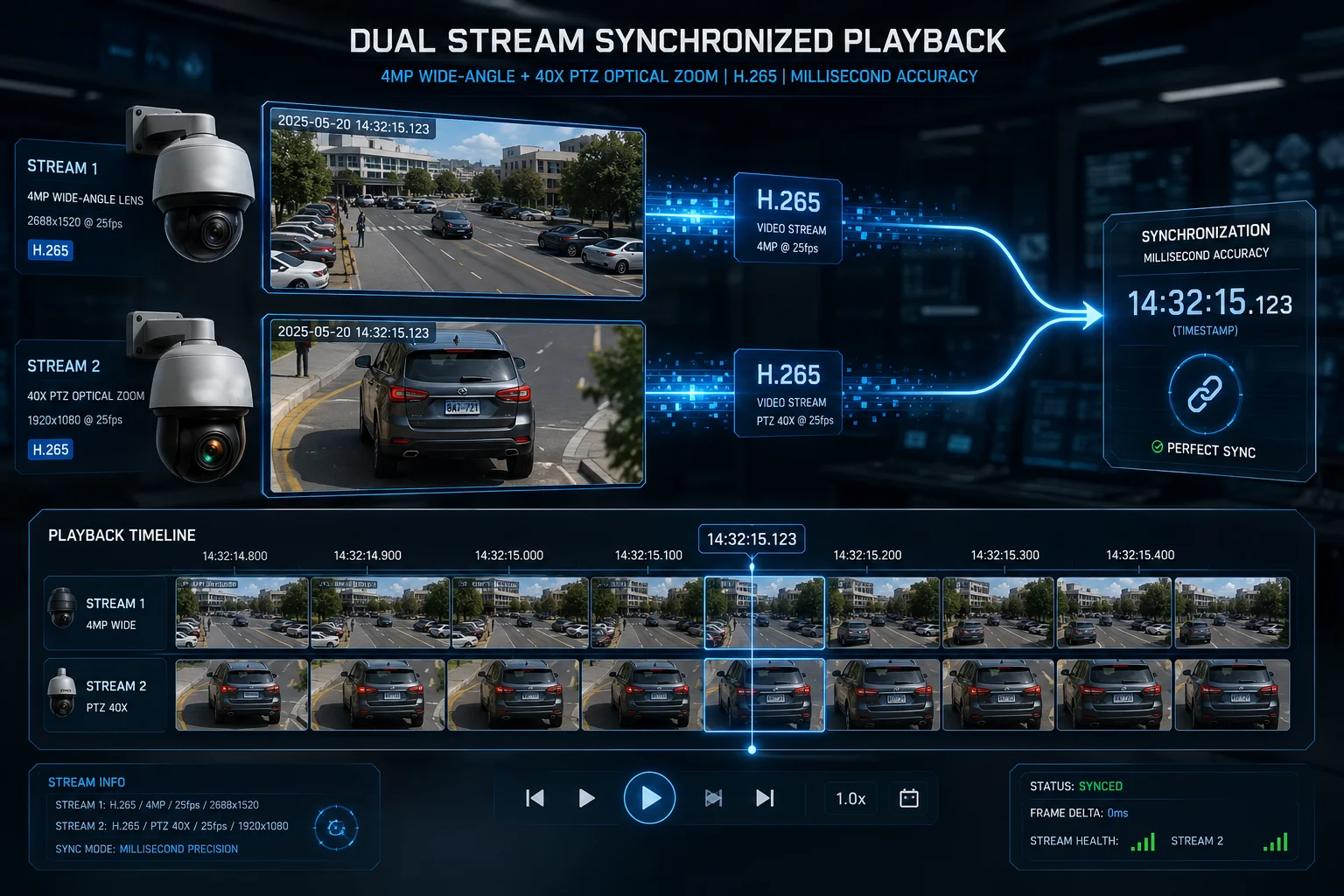
You can view both views in a single synchronized playback session, but by default, the camera records them as two separate MP4 files with identical timestamps. Our CMS software then merges them into one PiP or split-screen view during playback or export. A custom firmware option also allows hard-compositing both views into one file directly on the camera.
Why Two Files Instead of One?
The reason we default to two separate files is simple: pixel preservation. When you force a 40X optical zoom image and a wide-angle image into one frame, something has to shrink. The wide-angle thumbnail gets compressed down to maybe 320×240 pixels in a corner. That means you lose the ability to digitally zoom into the wide-angle view later during investigation.
With our dual-stream approach, both files keep their full resolution. The wide-angle stream records at 2MP or 4MP. The 40X tracking stream records at its full sensor resolution. Both files share the exact same timestamp down to the millisecond. When you open them in our CMS or a compatible VMS like Milestone, the software plays them in perfect sync.
How the Timestamp Sync Works
The camera’s SoC (System on Chip) generates one master clock. Both the wide-angle sub-lens and the PTZ main lens reference this same clock. Every I-frame in both H.265 streams carries an identical PTS (Presentation Time Stamp). This means:
- You can scrub to any second in the timeline and both views show the same moment
- AI metadata (bounding boxes, PTZ coordinates, zoom level) is embedded as a separate data track
- Any VMS that supports multi-channel sync playback can display them together
The Single-File Option (Custom Firmware)
If your project absolutely requires one MP4 file — for example, when sending evidence directly to law enforcement — we offer a custom firmware build that composites both views on-camera. Here is what that looks like in practice:
| Feature | Dual-Stream Default | Single-File Composite |
|---|---|---|
| Resolution preserved | Full resolution on both streams | Wide-angle shrinks to thumbnail |
| CPU load on camera | Normal | 15-20% higher SoC usage |
| Post-event flexibility | Full digital zoom on both views | Limited by composite resolution |
| File size | Two files, same total size | One file, slightly larger due to overlay |
| Police evidence use | Requires brief explanation | Ready to send as-is |
For most B2B integrators, I recommend the dual-stream default. You get maximum flexibility. But if your end client is a police department that wants one drag-and-drop file, the composite firmware is available on request.
Practical Tip for David Miller’s Use Case
David, if you are deploying on a Texas construction site with 4G backhaul, here is what I suggest: record both streams to the local SD card in full quality.3 When an alarm triggers, push only the 5-second 40X close-up over 4G to your client’s phone. If they need the wide-angle context, they can pull it remotely from the SD card through the app. This saves bandwidth while keeping all evidence intact on-site.
Is the Picture-in-Picture (PiP) Window Customizable in Size and Position for My Project Layout?
Every integrator has a different screen layout. Some want the PiP in the top-right corner. Others want it large enough to actually see faces in the wide-angle view. One-size-fits-all does not work here.
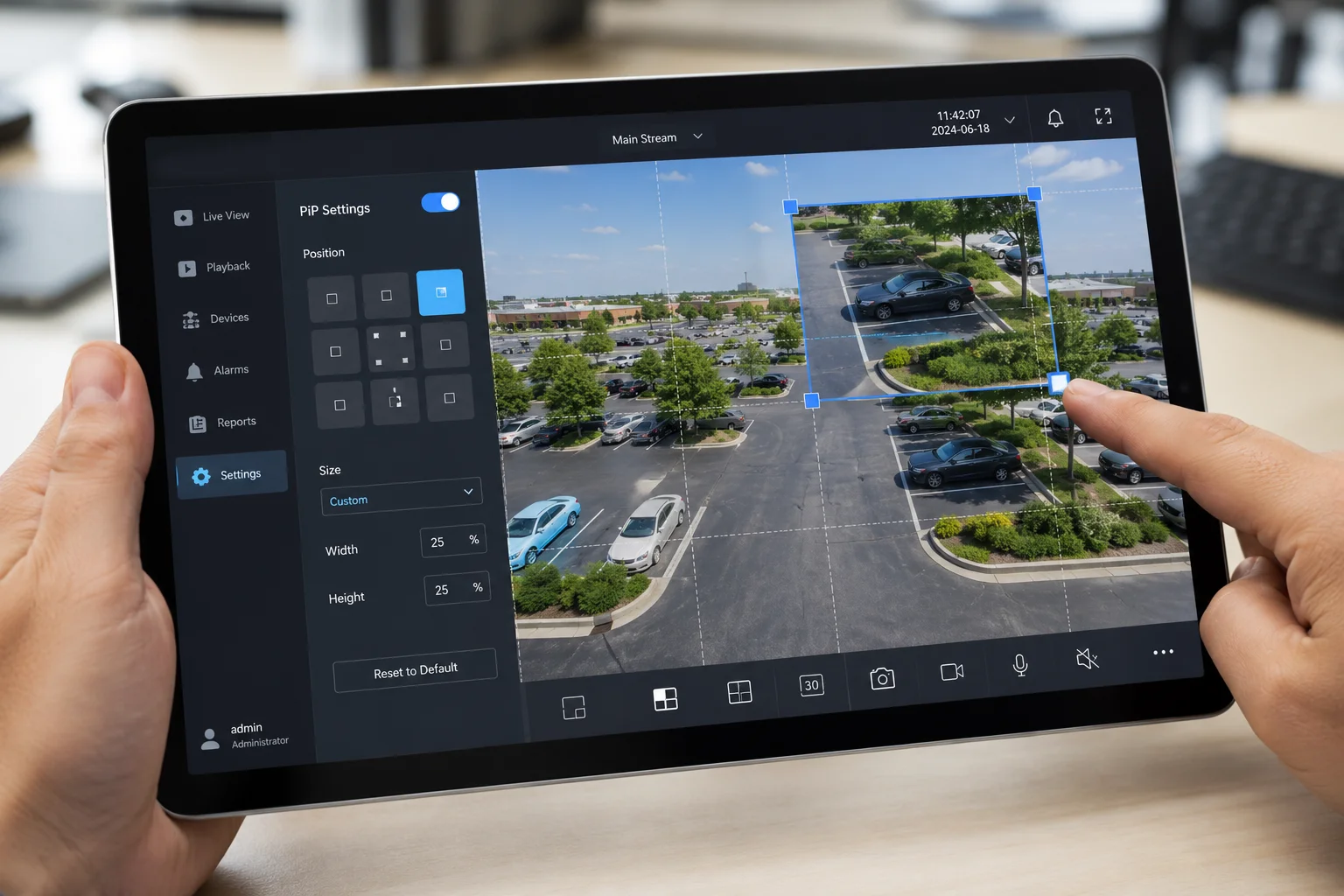
Yes, the PiP window is fully customizable. You can adjust its size from 10% to 40% of the main display area, drag it to any corner or edge position, and choose whether the main view shows the wide-angle or the 40X zoom. These settings are saved per camera profile in our CMS and mobile app.
What You Can Customize
Our CMS software and mobile app give you control over several PiP parameters. Let me list what you can change:
- PiP size: Adjustable from 10% to 40% of the screen area. Smaller saves screen space. Larger gives more detail in the secondary view.
- Position: Drag to any of the four corners, or snap to any edge. The position saves per camera profile.
- Main vs. secondary view: You choose which lens fills the main screen. Most users put the 40X zoom as the main view and the wide-angle as the PiP. But for perimeter monitoring, some prefer the opposite.
- Border and opacity: You can add a colored border (red, white, or custom) around the PiP window. Opacity is adjustable from 70% to 100%.
- Tracking indicator: A red rectangle in the wide-angle PiP shows exactly where the PTZ is currently pointing. This gives instant spatial awareness.
Why Position Matters for Your Project
Think about how your end client actually watches these feeds. A security guard on a 24-inch monitor has different needs than a site manager checking alerts on a phone. On a phone screen, a 40% PiP window covers too much of the main image. On a large monitor wall, a 10% PiP is too small to be useful.
I recommend these settings based on display type:
| Display Type | Recommended PiP Size | Recommended Position | Main View |
|---|---|---|---|
| Mobile phone (5-7 inch) | 15-20% | Bottom-right corner | 40X close-up |
| Tablet (10-12 inch) | 20-25% | Top-right corner | 40X close-up |
| Desktop monitor (24 inch) | 25-30% | Top-right corner | Wide-angle |
| Video wall (55+ inch) | Use split-screen instead | N/A | Both full-size |
Saving Profiles for Different Clients
If you manage multiple sites — say, a construction site in Dallas and a solar farm in Arizona — you can save different PiP profiles for each. The CMS stores these settings per camera group. When you switch between sites, the layout switches automatically.
OEM White-Label Note
For integrators who white-label our hardware under their own brand, the PiP interface is fully skinnable. You can change the colors, add your logo to the overlay, and lock certain settings so your end users cannot accidentally break the layout. This is part of our standard OEM package — no extra firmware cost.
How Does the PiP Overlay Impact the H.265 Compression Efficiency of the 4G Alert Video?
Bandwidth is money on 4G. Every extra kilobyte you push over cellular costs real dollars, especially on remote sites with metered SIM cards. So this question matters a lot.
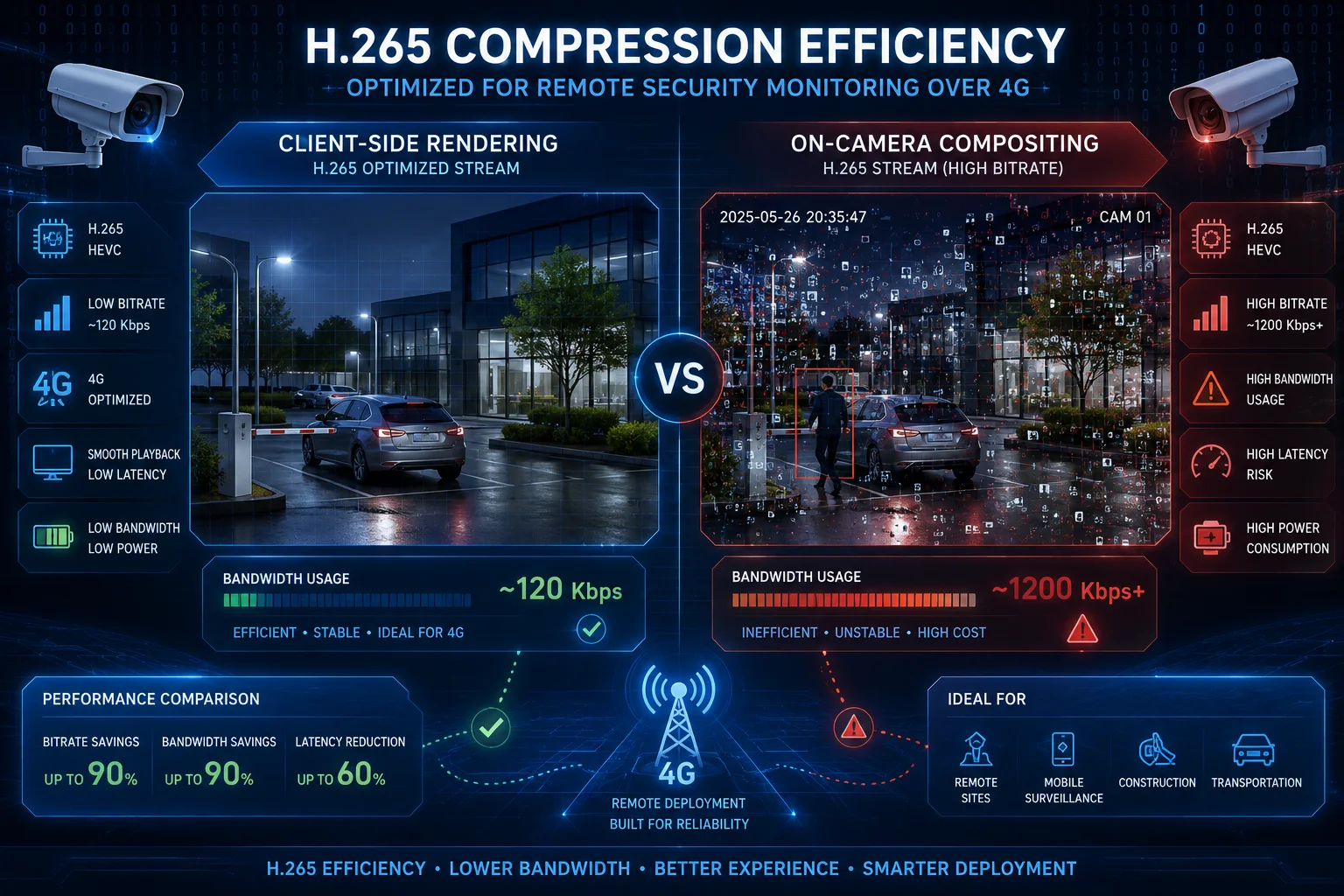
The PiP overlay has zero impact on H.265 compression efficiency when rendered at the software client level, because the overlay is drawn on your screen — not burned into the video stream.4 If you use the optional on-camera hard composite mode, expect a 10-15% increase in bitrate due to the added visual complexity in the overlay region.
Understanding Where the PiP Gets Rendered
This is the key point most people miss. There are two completely different places where PiP can happen:
-
Client-side rendering (default): The camera sends two separate H.265 streams. Your phone app or CMS software draws the PiP window on your screen. The video files themselves are untouched. Compression efficiency stays exactly the same as without PiP.
-
Camera-side compositing (custom firmware): The camera’s processor draws the wide-angle thumbnail directly onto the 40X video frames before encoding to H.265. The encoder now sees more visual complexity in that corner of the frame, which means it needs more bits to maintain quality.
Why Camera-Side Compositing Costs More Bandwidth
H.265 (HEVC) works by finding areas of the frame that do not change much between frames. A static wall, a clear sky, a parking lot with no movement — these areas compress very efficiently because the encoder reuses data from previous frames.
When you overlay a PiP window in the corner, that corner now contains a completely different scene (the wide-angle view) with its own motion patterns. The encoder cannot predict this area from the main 40X view. It has to encode it almost from scratch every frame. This breaks the inter-frame prediction in that region.
The result: 10-15% higher bitrate for the same quality setting. On a 2 Mbps 4G stream, that means roughly 200-300 Kbps extra. Over a month of continuous recording, that adds up.
My Recommendation for 4G Deployments
For any site running on 4G or solar power, I always recommend client-side PiP. Here is why:
- The two streams are already optimized independently by the encoder
- You only pull the wide-angle stream when you actually need it (on-demand)
- During alarm events, you can push just the 40X clip over 4G (5-10 seconds, maybe 2-3 MB)
- The wide-angle context stays on the SD card for remote retrieval later
Bitrate Comparison Table
| Scenario | Typical Bitrate | Monthly Data (24/7) | PiP Impact |
|---|---|---|---|
| 40X stream only (no PiP) | 2 Mbps | ~648 GB | None |
| Client-side PiP (default) | 2 Mbps + 512 Kbps on-demand | ~648 GB + on-demand | Zero on stored video |
| Camera-side hard composite | 2.3 Mbps | ~745 GB | +15% bitrate |
| Alarm-only recording (5s clips) | Burst only | ~2-5 GB | Negligible |
For David’s Texas construction sites, the alarm-only mode with client-side PiP is the sweet spot. You get full visual context when you need it, and your SIM card bill stays reasonable.
One More Thing: Smart Codec Optimization
Our newer firmware versions include a Region of Interest (ROI) encoding feature.5 If you do choose camera-side compositing, the encoder can assign lower quality to the PiP region (since it is already a thumbnail) and higher quality to the main 40X view. This claws back about half of that 15% bitrate penalty. Ask our engineering team about this if you need the single-file approach on 4G.
Can I Choose to Record the Two Lenses as Separate Streams to My Local NVR via ONVIF?
If you already run Milestone, Blue Iris, or any ONVIF-compatible NVR, you do not want to be locked into a proprietary app. You want those streams on your own system, under your own control.
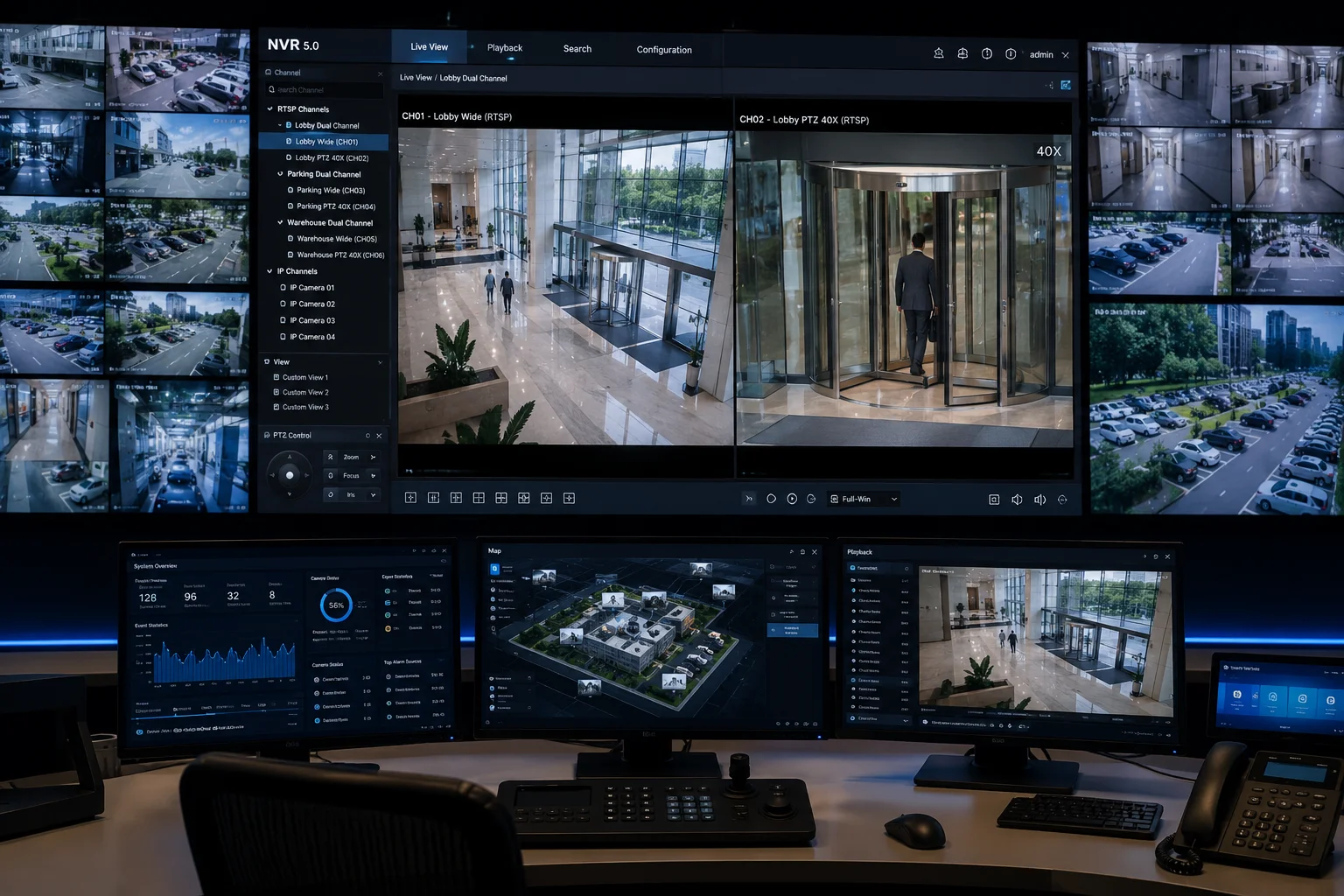
Yes, both the wide-angle lens and the 40X PTZ lens register as separate ONVIF channels on your NVR.6 Your NVR sees them as two independent cameras with their own RTSP URLs, and you can record, play back, and manage them using any ONVIF Profile S/T compatible software.7 PTZ control of the 40X lens also works through standard ONVIF commands.
How the Dual-Channel ONVIF Registration Works
When you add our camera to your NVR, the device discovery process finds two channels:
- Channel 1: Wide-angle fixed lens (typically 4MP, 2.8mm or 4mm)
- Channel 2: PTZ lens (40X optical zoom, 2MP or 4MP depending on model)
Each channel has its own RTSP URL, its own encoding settings, and its own motion detection zone configuration.8 Your NVR treats them as two separate cameras that happen to share one IP address and one physical housing.
What This Means for Your Existing Infrastructure
If you are running a 64-channel NVR and you add 10 of our dual-lens cameras, they will occupy 20 channels on your NVR. Plan your channel capacity accordingly. The benefit is that you get full independent control:
- Set different recording schedules for each lens
- Apply different retention policies (keep wide-angle for 7 days, keep 40X for 30 days)
- Use your NVR’s built-in analytics on either stream independently
- Export either stream as a standalone file for evidence
RTSP URL Structure
For integrators who need to manually configure streams, here is the typical URL pattern:
Channel 1 (Wide-angle): rtsp://[IP]:554/cam/realmonitor?channel=1&subtype=0
Channel 2 (PTZ 40X):    rtsp://[IP]:554/cam/realmonitor?channel=2&subtype=0
Sub-streams (lower resolution for preview) use subtype=1. These URLs work in VLC, FFmpeg, Blue Iris, Milestone, and any standard RTSP client.
PTZ Control via ONVIF
The 40X PTZ lens responds to standard ONVIF PTZ commands. This means:
- Pan, tilt, and zoom from your NVR interface
- Preset positions (up to 256 presets)
- Patrol tours
- Auto-tracking trigger via ONVIF events
One thing to note: the AI auto-tracking feature works best through our own protocol, because it requires real-time coordination between the wide-angle lens (which detects the target) and the PTZ lens (which follows it). ONVIF can trigger tracking start/stop, but the actual tracking algorithm runs on-camera regardless of which software you use.
Compatibility Tested With
We regularly test ONVIF compatibility with these platforms:
- Milestone XProtect (Corporate, Expert, Professional+)
- Blue Iris 5
- Genetec Security Center
- Hikvision NVRs (as third-party camera)
- Dahua NVRs (as third-party camera)
- Synology Surveillance Station
- QNAP QVR Pro
If your NVR is not on this list, send me the model number. We will test it in our lab and send you a configuration guide within 48 hours. That is part of our standard pre-sales support.
Why Separate Streams Beat a Merged Feed for NVR Recording
Some cheaper dual-lens cameras force both views into one merged stream before sending to the NVR. This causes problems:
- Your NVR cannot apply different settings to each view
- You waste storage recording a composited image at one resolution
- Digital zoom on the NVR only works on the merged frame, not the original full-resolution streams
- If the wide-angle view is not needed for a particular site, you cannot disable it to save storage
Our approach gives you full control. Record both, record one, or switch dynamically based on alarm events. Your NVR, your rules.
Conclusion
Our PTZ camera delivers both PiP and synchronized split-screen through client-side software rendering by default, keeping full pixel quality on both streams while saving 4G bandwidth. Both lenses register as independent ONVIF channels for seamless NVR integration. Contact me at sales05@.com to discuss your specific project layout.
1. Overview of pan-tilt-zoom camera technology and its applications. ↩︎ 2. Understand how split-screen displays show multiple video sources simultaneously. ↩︎ 3. Explanation of cellular backhaul for remote site connectivity. ↩︎ 4. Technical details about HEVC video compression efficiency. ↩︎ 5. How ROI encoding optimizes video compression by allocating more bits to important areas. ↩︎ 6. Official ONVIF profile specifications for IP camera interoperability. ↩︎ 7. Detailed information about the ONVIF Profile S (streaming) and Profile T (advanced streaming) standards. ↩︎ 8. Technical reference for Real Time Streaming Protocol used in IP cameras. ↩︎