
I have seen it happen too many times. An integrator shows a camera to a client, and a random Chinese error message pops up on screen. That moment kills the deal.
A properly built white-label firmware should contain zero traces of the original manufacturer. But most OEM firmware still hides Chinese characters in sub-menus, ONVIF descriptors, exported file names, and debug logs. Only a kernel-level rebuild can remove every last identifier and protect your brand image in front of end users.
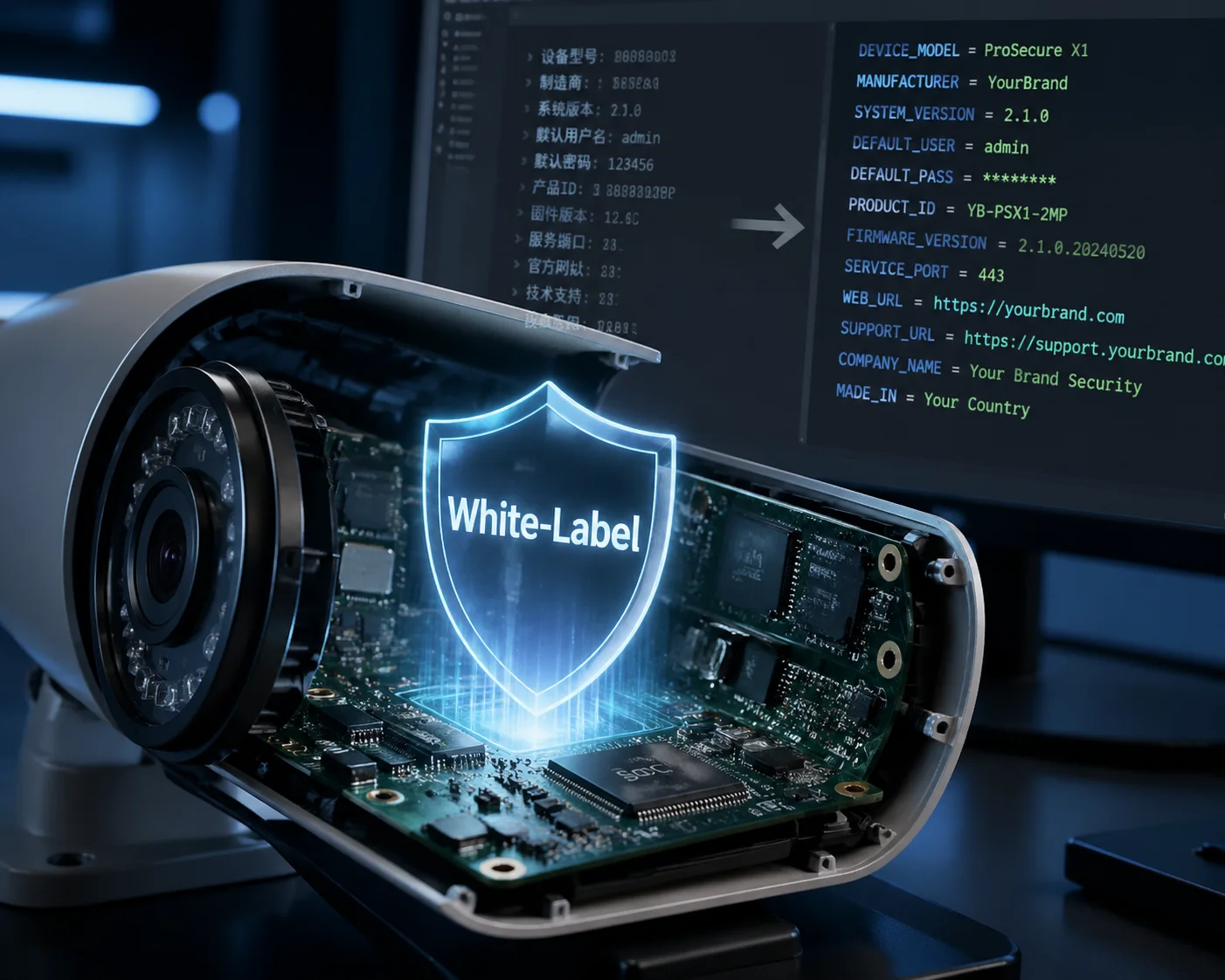 White-label firmware security camera branding customization
Over my years working at Loyalty-Secu, I have helped hundreds of integrators like David Miller build a clean brand presence on top of our hardware. In this article, I will walk you through every layer of white-label firmware — from the login page logo down to the MAC address prefix. I will show you where the “ghost” branding hides, and exactly how we eliminate it. If you are buying cameras from China and reselling under your own name, this is the most important article you will read today.
How Do I Customize the Login Logo and “About” Page to Show My Own Brand?
I once had a client who lost a $200K government bid because the “About” page on his camera still showed a Shenzhen address. That one oversight cost him the entire project.
To fully customize the login logo and “About” page, your factory must replace all visual assets at the firmware source-code level — not just overlay a PNG file. This includes the login splash screen, the browser tab favicon, the “About” dialog box, the system info page, and any embedded copyright text strings in the web UI.
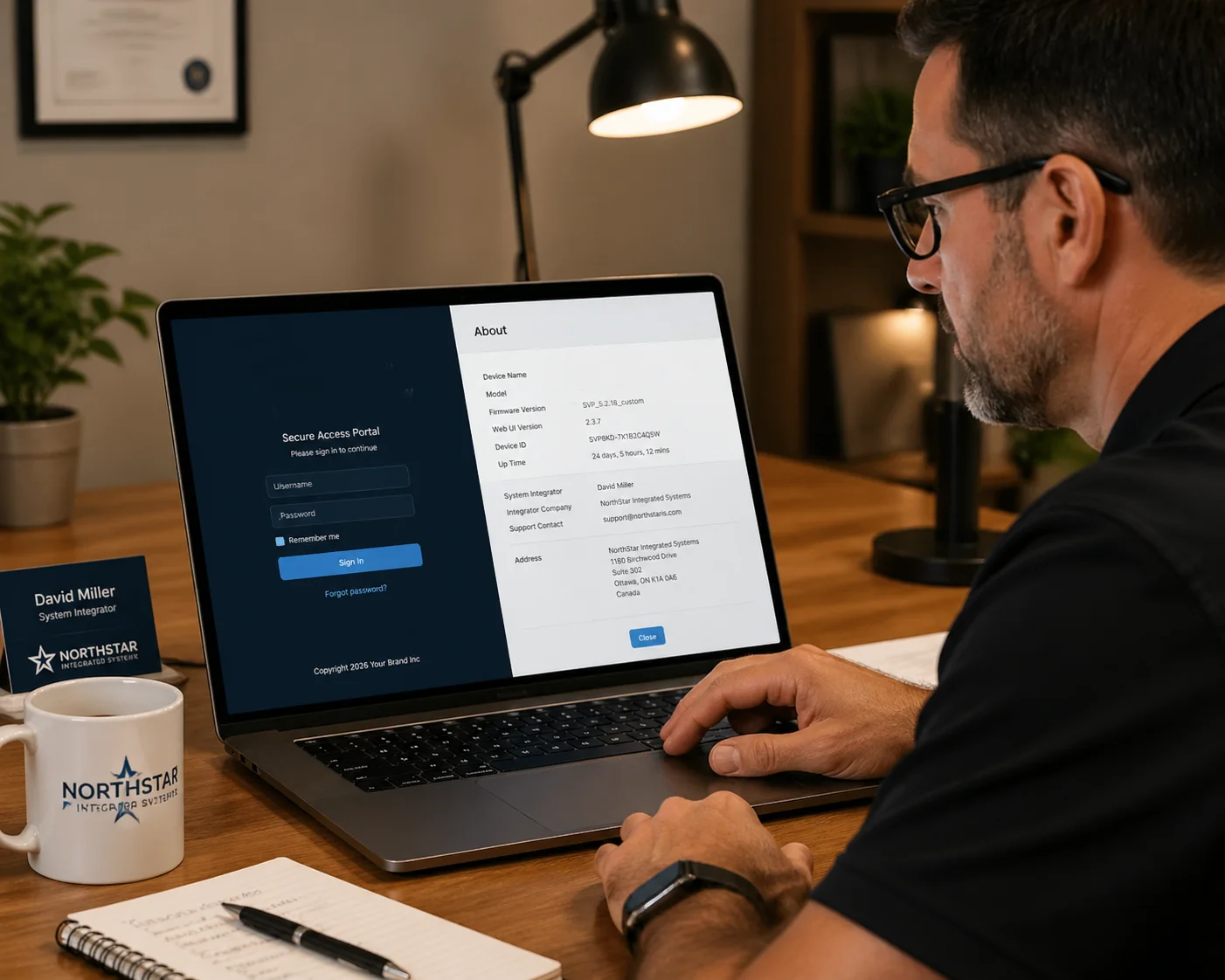 Customizing camera login logo and about page for white-label branding
Why a Simple Logo Swap Is Never Enough
Most factories will tell you they support “white-label.” What they mean is: they will put your logo on the login page. That is it. But the problem goes much deeper than a single image file.
I have personally extracted firmware from dozens of cameras that claimed to be “fully white-labeled.” In almost every case, I found leftover traces. Here is what I typically discover when I run a basic strings search on a firmware binary:
| Hidden Location | What You Might Find | Risk Level |
|---|---|---|
| Web UI “About” dialog | Original factory name and Shenzhen address | Critical |
| Browser tab favicon | OEM logo icon (16×16 pixel .ico file) | Médio |
| ActiveX installer prompt | Chinese text in the installation wizard | Critical |
| Error dialog boxes | Chinese characters in timeout or connection-fail messages | Critical |
| FTP export file headers | Factory model number embedded in metadata | Alta |
| System info / version page | OEM firmware version string like V5.0.0_XM_build_2024 | Alta |
The ONVIF Ghost — The Most Overlooked Problem
Here is something most integrators never check. When your client uses an Gerenciador de dispositivos ONVIF 1 to scan the network, the camera reports its “Manufacturer” field. If your factory did not modify the ONVIF service layer, that field will still say the original Chinese brand name.
I have seen this ruin deals. A property management company in Texas bought 50 cameras from a U.S.-based integrator. When their IT team ran a network scan, every single camera showed up as a Chinese brand. The integrator had to refund the entire order.
At Loyalty-Secu, we modify the ONVIF descriptor at the kernel level. We recompile the ONVIF service module so it reports your brand name, your model number, and your firmware version. We also scrub the UPnP 2 and Bonjour discovery strings.
What a Real White-Label Login Page Looks Like
A true white-label login page is not just about the logo. I make sure the following items are all customized:
- The login page background image
- The product model name displayed on the page
- The copyright line at the bottom (e.g., “© 2025 Your Brand Inc.”)
- The browser page title (what shows in the browser tab)
- The password-reset email template (if cloud-based)
- The “Help” link URL (pointing to your own support site)
If even one of these elements points back to the original factory, your brand story falls apart. I always tell my clients: treat your firmware like your business card. Every pixel must be yours.
Can I Change the Default IP Address and Port Settings to Match My Company Standards?
I know how frustrating it is when every camera arrives with the same 192.168.1.10 default IP. It clashes with your existing network plan and confuses your field technicians.
Yes, a good OEM partner can set custom default IP addresses, subnet masks, gateway addresses, and service ports (HTTP, RTSP, ONVIF, HTTPS) directly in the firmware image. This means every camera ships from the factory pre-configured to your company’s network standards — no manual setup needed on site.
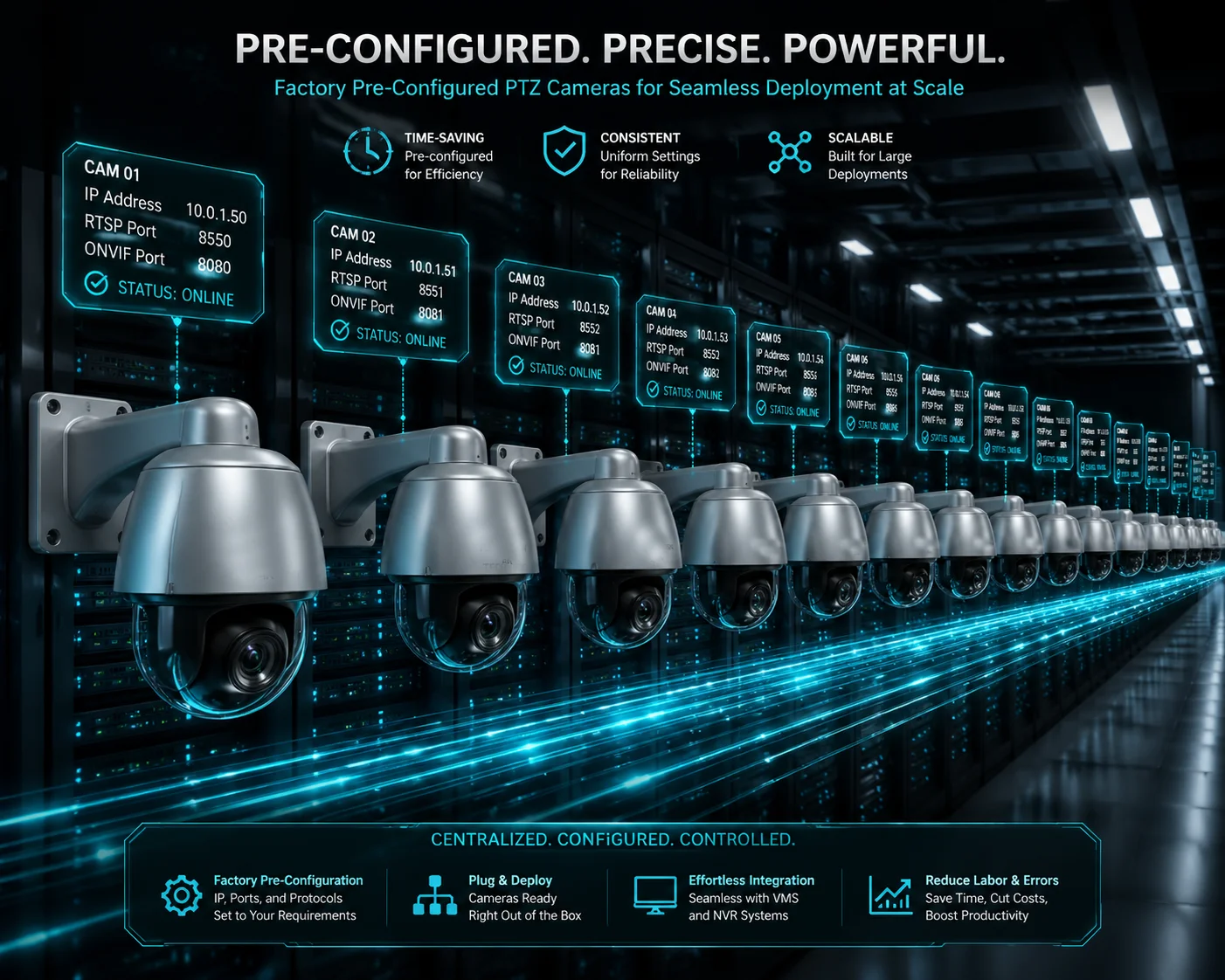 Custom default IP address and port settings in OEM camera firmware
Why Default Network Settings Matter More Than You Think
When David’s installation crew rolls up to a job site, time is money. If every camera defaults to 192.168.1.10, the technician must manually change the IP of each unit before it can go on the network. On a 100-camera job, that is hours of wasted labor.
I configure the firmware so the default IP scheme matches what David’s team already uses. For example, if his standard is 10.0.x.x com um /24 subnet, every camera will boot into that range from day one.
Port Customization Options
Beyond the IP address, I can also set custom default ports. Here is what we typically adjust:
| Service | Factory Default Port | Your Custom Port (Example) |
|---|---|---|
| HTTP Web UI | 80 | 8080 |
| HTTPS Web UI | 443 | 8443 |
| RTSP Stream | 554 | 5540 |
| ONVIF Service | 8899 | 9000 |
| P2P Cloud | 34567 | Disabled entirely |
| SDK / API | 9527 | Custom |
Disabling Unwanted Services at the Firmware Level
This is a point I feel strongly about. Many Chinese cameras ship with services enabled that you do not need — and some of these services are security risks. For example:
- Telnet is often open on port 23 with a hardcoded root password.
- P2P cloud relay connects the camera to a server in China by default.
- UPnP can automatically open ports on the client’s router without permission.
I disable these services at the firmware build stage. They are not just turned off in the menu — they are removed from the startup scripts entirely. This way, even if someone factory-resets the camera, those services stay dead.
DHCP vs. Static: Choosing the Right Default
I also let you choose whether your cameras default to DHCP 3 or static IP mode. For large projects with a managed network, DHCP with MAC-based reservations is usually the fastest approach. For small jobs with a standalone NVR, a static IP in a predictable range is simpler.
The key point is: you should not have to fight your own hardware during installation. The firmware should work with your process, not against it.
Is the Mobile App Also White-Labeled to Hide Any Reference to the Original Factory?
I have had clients download the factory’s default mobile app and immediately see another brand’s name, a Chinese app store link, and even ads for other products. That is not white-labeling. That is embarrassment.
A truly white-labeled mobile app removes all references to the original factory — including the app name, icon, splash screen, server endpoints, and app store listing. Your customers should see only your brand from the moment they download the app to the moment they view a live stream.
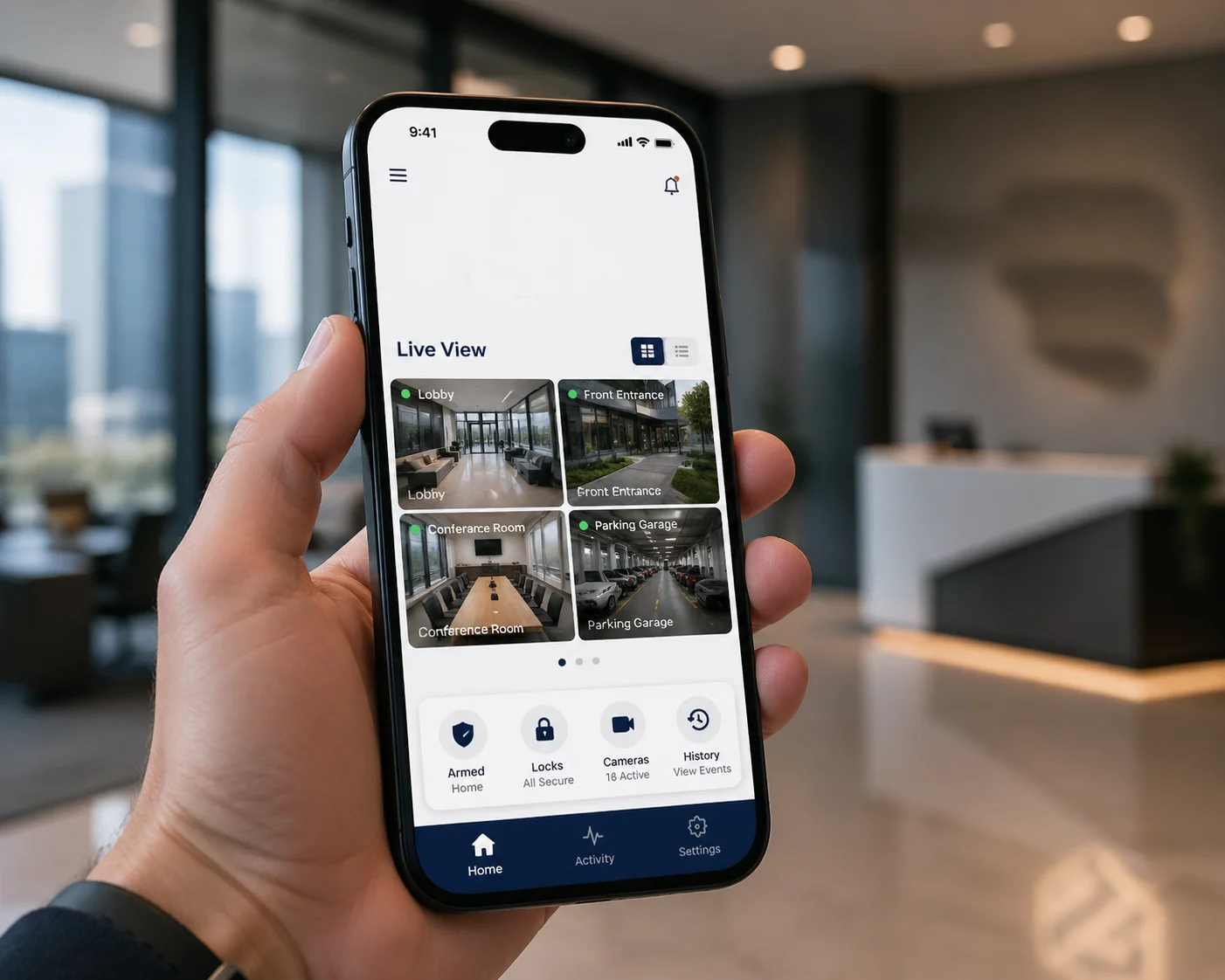 White-labeled mobile app for security camera viewing and management
The Three Levels of Mobile App White-Labeling
Not all factories offer the same depth of app customization. I break it down into three levels so my clients know exactly what they are getting:
Level 1: Skin-Only (Basic)
This is what most cheap factories offer. They change the app icon, the splash screen, and the app name. But inside the app, you still see the factory’s default UI layout, their cloud server domain, and sometimes even Chinese text in settings menus or push notification messages.
I do not recommend this level for any serious integrator. It is a ticking time bomb.
Level 2: Full UI Rebrand (Professional)
At this level, we customize the entire user interface. Every screen, every button label, every color scheme matches your brand guidelines. We also change the cloud server endpoint. When a user scans a QR code to add a camera, the app talks to your domain — not ours.
This is the level most of my clients choose. It gives them full control over the user experience without the cost of building an app from scratch.
Level 3: Independent App Build (Enterprise)
For the biggest clients, we build a completely separate app from our SDK. Your development team (or ours) creates a custom app with only the features you want. It is published under your own Apple Developer 4 e Google Play Console 5 accounts. There is zero connection to any factory app.
| Recurso | Level 1: Skin-Only | Level 2: Full Rebrand | Level 3: Independent Build |
|---|---|---|---|
| Custom app icon & name | ✅ | ✅ | ✅ |
| Custom splash screen | ✅ | ✅ | ✅ |
| Full UI color/layout change | ❌ | ✅ | ✅ |
| Your own cloud server domain | ❌ | ✅ | ✅ |
| Push notifications from your server | ❌ | ✅ | ✅ |
| Published under your store account | ❌ | Optional | ✅ |
| Custom feature set (remove/add features) | ❌ | ❌ | ✅ |
| No shared codebase with factory app | ❌ | ❌ | ✅ |
The QR Code Redirect Problem
Here is a detail that catches people off guard. When a camera prints a QR code on its label, that code usually contains a device serial number and a server URL. If the URL points to the factory’s P2P cloud server, then every time a user scans that code, your customer’s camera data flows through the factory’s infrastructure.
I configure the QR code and P2P service 6 to point to your own server or a neutral third-party relay. This keeps your data chain clean and gives you full ownership of the customer relationship.
App Store Listing Matters
Even if the app itself is clean, the app store listing can give things away. I have seen white-labeled apps where the developer name on Google Play still showed a Chinese company. Or the app screenshots contained Chinese text. I make sure the entire store presence — developer name, description, screenshots, and privacy policy link — all point to your brand.
Will the MAC Address OUI Reveal That the Camera Was Made by a Third Party?
I know this worry well. A smart IT manager at your client’s company runs a network scan, looks up the MAC address, and suddenly sees a Chinese manufacturer’s name. Your “American brand” story crumbles in seconds.
The first three bytes of a MAC address — called the OUI (Organizationally Unique Identifier) — are registered with IEEE 7 and publicly searchable. If your camera uses the factory’s default OUI, any network scan tool will reveal the original manufacturer. To prevent this, you need a custom OUI assignment or a neutral OUI that does not trace back to a specific Chinese factory.
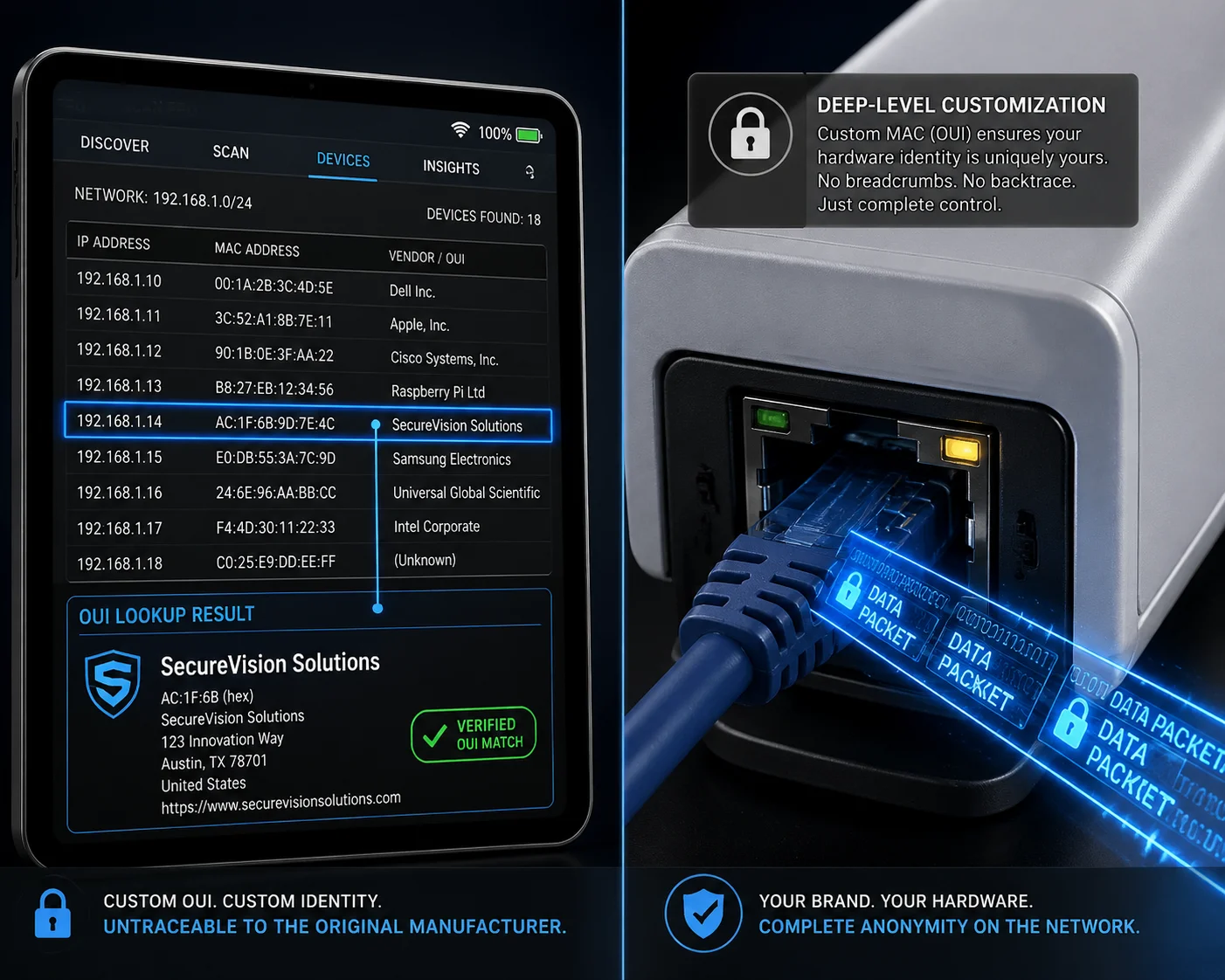 MAC address OUI lookup revealing camera manufacturer origin
How OUI Lookup Works
Every network device has a MAC address. The first half of that address (the OUI) is registered to a specific company. Anyone can search the IEEE OUI database 8 for free. Type in the first six characters of a MAC address, and it tells you who made the device.
For example, if your camera’s MAC starts with 00:12:17, a quick lookup shows it belongs to Cisco. If it starts with a prefix registered to a Shenzhen camera factory, your client will know instantly.
Your Options for OUI Management
I offer three approaches depending on your budget and volume:
Option A: Use Our Neutral OUI. Loyalty-Secu has registered our own OUI block with IEEE. When your client looks it up, they see “Loyalty-Secu Technology” — a professional electronics manufacturer. This is clean enough for most projects.
Option B: Register Your Own OUI. For about $3,000–$4,000 USD, you can register your own OUI block directly with IEEE. This means every camera you buy from us ships with your MAC prefix. When anyone looks it up, they see your company name. This is the gold standard for brand protection.
Option C: Use a Private/Randomized OUI. In some cases, I can assign locally administered MAC addresses. These do not appear in the IEEE public database at all. This works for closed networks where devices do not need globally unique identifiers.
How I Implement OUI Changes in Production
Changing the OUI is not something you do in software after the camera is built. I program it during manufacturing. Each unit gets its MAC address burned into the network chip during the testing phase on our production line. Once it is set, it does not change — even after a firmware update or factory reset.
I also make sure the MAC address range is sequential and documented. I give you a spreadsheet mapping every serial number to its MAC address. This helps your support team troubleshoot network issues without guessing.
The ONVIF + OUI Double Check
Smart IT departments do not just check one thing. They check the MAC OUI and the ONVIF device descriptor together. If the MAC says “Brand X” but the ONVIF discovery says “Shenzhen Factory Y,” the game is over. That is why I always handle both at the same time. I make sure every identifier — MAC, ONVIF, UPnP, RTSP headers, HTTP server strings 9 — all tell the same brand story.
This level of consistency is what separates a real white-label program from a cheap logo swap.
Conclusão
True white-labeling goes far beyond a logo change. It requires kernel-level firmware rebuilds, OUI customization, app rebranding, and total protocol scrubbing — every layer must tell your brand story. Reach me to start your clean firmware project.
1. Official ONVIF Device Manager tool for network camera discovery. ︎ 2. Explanation of Universal Plug and Play network discovery protocol. ︎ 3. How DHCP automates IP address assignment on local networks. ︎ 4. Apple Developer Program for publishing white-label iOS apps. ︎ 5. Google Play Console for publishing branded Android security apps. ︎ 6. Overview of peer-to-peer networking for cloud camera access. ︎ 7. IEEE Registration Authority for MAC OUI assignments. ︎ 8. Public IEEE OUI lookup tool for identifying device manufacturers. ︎ 9. MDN Web Docs on HTTP Server header configuration. ︎