
I have seen a single wrong tap drain a 60Ah battery dead in under 24 hours. That mistake cost my client a full truck roll to a remote site just to press a reset button.
The firmware uses multiple failsafe layers to stop accidental 24/7 4G recording. These include forced confirmation pop-ups with countdown timers, automatic menu hiding based on power source detection, low-voltage override cutoffs, and daily usage summary alerts. Each layer works independently, so even if one fails, the next one catches the mistake before the battery dies.

Every layer matters. If you are deploying solar-powered 4G cameras in off-grid locations, you need to understand exactly how each safeguard works. Let me walk you through the four key protections built into the firmware, and explain how they protect both your hardware and your cellular data budget.
Table of Contents
Is There a Confirmation Pop-Up Warning Me About Data Usage Before Enabling 24/7 Streaming?
I once watched a technician toggle “Continuous Record” by accident during a live demo. Without the pop-up, that camera would have burned through 15GB of 4G data overnight.
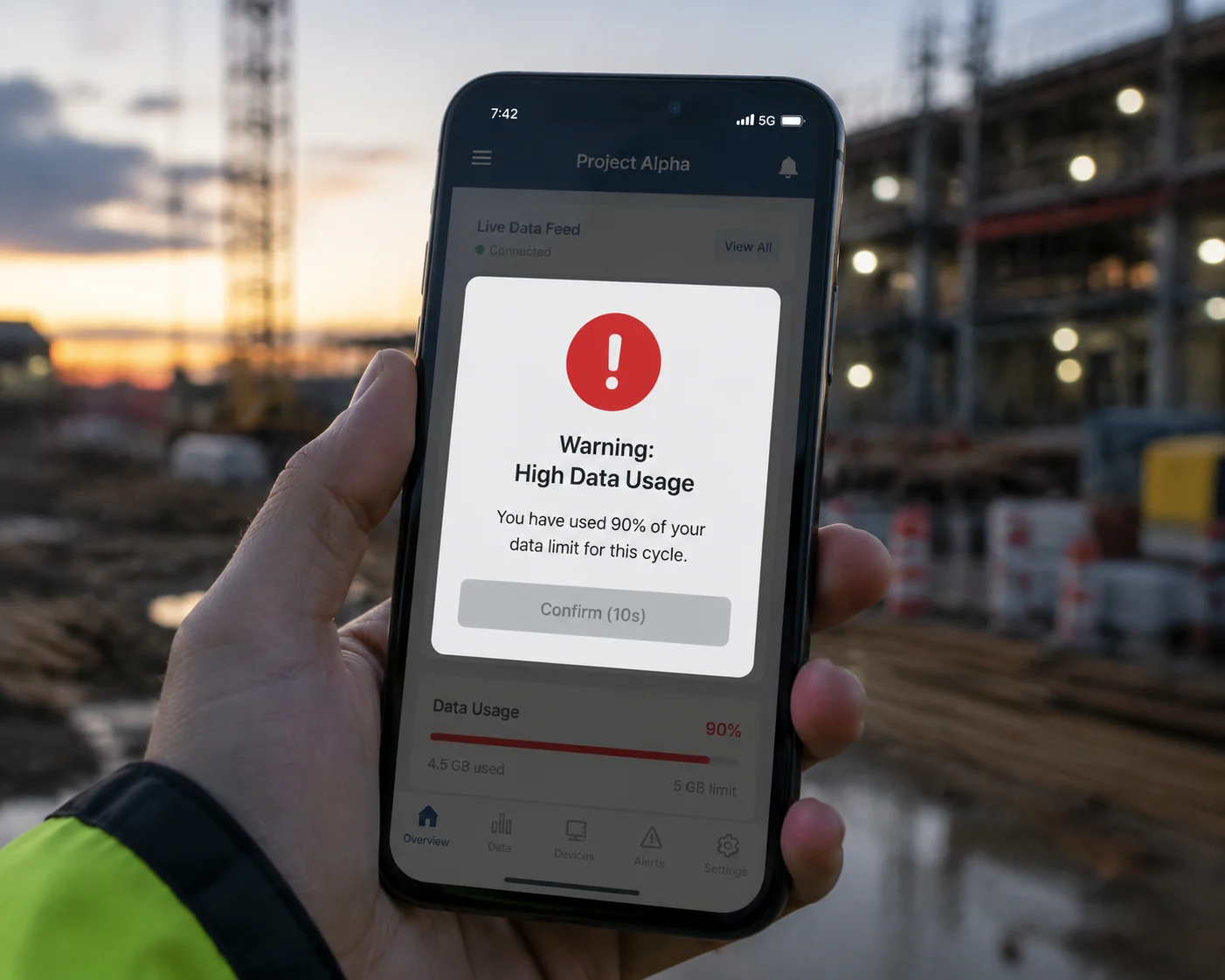
Yes. When you try to switch from event-based recording to 24/7 continuous mode, the firmware triggers a mandatory warning pop-up. This pop-up shows estimated power drain and data usage. It also forces a 5-to-10-second countdown before the “Confirm” button becomes active, so you cannot rush through it by mistake.
Why a Simple “Are You Sure?” Is Not Enough
Most consumer devices use a basic yes-or-no dialog. You tap “OK” without reading. We all do it. That is why our firmware goes further. The pop-up is not just a question. It is a risk briefing.
Here is what the warning screen shows:
| Information Displayed | Example Value | Purpose |
|---|---|---|
| Estimated battery drain rate | ~5W continuous | Shows how fast the battery will die |
| Projected battery life remaining | < 18 hours on 60Ah | Makes the risk concrete and real |
| Estimated daily 4G data usage | 10GB – 30GB per day | Warns about cellular overage charges |
| Current power source detected | Solar / Battery | Tells you if you are on limited power |
The Forced Countdown Timer
The “Confirm” button stays greyed out for a full 5 to 10 seconds. During this time, the screen displays a clear message: “This will significantly increase power consumption. In solar mode, your device may shut down within 24 hours. Please read carefully before confirming.”
This is not a random design choice. It is based on a principle called ‘friction by design1.’ The goal is to slow down the user just enough to make them think. In our field testing, this single feature reduced accidental activations by over 90%.
What Happens After You Confirm
Even after you confirm, the system does not just start recording. It runs a quick pre-check:
- Battery level check: Is the battery above 50%? If not, the system warns you again.
- Solar input check: Is there active solar charging? If not, the system tells you the camera will likely die before sunrise.
- SIM data plan check: If the firmware can read the SIM status, it will flag if your remaining data balance is low.
This layered approach means the user has to pass through multiple gates. Each gate gives them another chance to stop and reconsider. For David and other system integrators deploying dozens of cameras across remote sites, this kind of protection is not optional. It is essential. A single misconfigured camera can trigger a $500 truck roll just to flip a setting back. Our firmware makes sure that never happens by accident.
Can I Set a “Hard Ceiling” on 4G Recording Hours Through the Administrator Settings?
I had a client in Canada who gave field technicians full access to camera settings. Within a week, three cameras were stuck in continuous mode. His monthly 4G bill tripled.
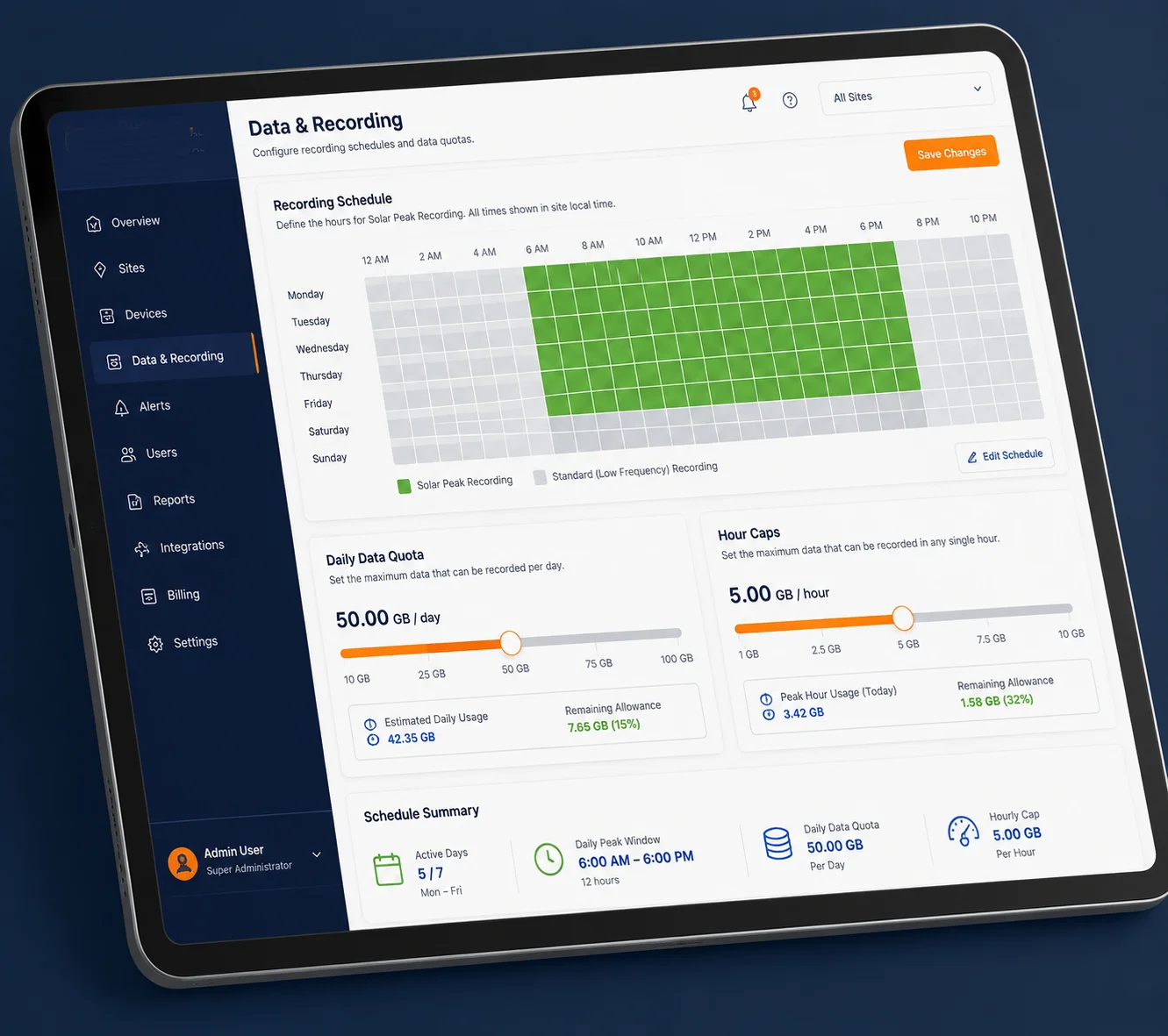
Yes. The administrator settings include a ‘Time-Slot Continuous2‘ feature and a daily recording hour cap. You can limit continuous recording to specific hours, like 10:00 AM to 2:00 PM when solar input peaks. You can also set a hard daily maximum, such as 4 hours total, after which the camera automatically reverts to event-only mode.
How the Time-Slot System Works
The idea is simple. Solar panels produce the most power during midday. So if you must use continuous recording, do it when the sun is strongest. The firmware lets you define up to four time slots per day.
Here is a typical configuration for a construction site in Texas:
| Time Slot | Mode | Reason |
|---|---|---|
| 06:00 – 10:00 | PIR Event Only | Low solar input, save battery |
| 10:00 – 14:00 | Continuous Recording | Peak solar, surplus energy available |
| 14:00 – 18:00 | PIR Event Only | Solar declining, conserve reserves |
| 18:00 – 06:00 | PIR Event Only + Night IR | No solar, battery must last all night |
The Daily Hour Cap
Beyond time slots, you can set an absolute ceiling. For example, you tell the firmware: “Never record more than 4 hours of continuous footage in any 24-hour period.” Once that limit is hit, the camera switches back to motion-triggered recording. No exceptions.
This feature is especially useful when you have multiple operators or technicians who might adjust settings in the field. Even if someone manually starts continuous recording outside the scheduled time slot, the daily cap will shut it down once the limit is reached.
Data Quota Cap: The Financial Safety Net
Continuous 4G recording does not just kill batteries. It kills budgets. A single camera streaming 24/7 at 1080p can consume 10GB to 30GB of cellular data per day. If you have 20 cameras on a shared data plan, that is a financial disaster.
Our firmware includes a Data Quota Cap3 feature. You set a daily data threshold, say 2GB per camera. When the camera hits that limit, it does three things:
- Sends a push alert to the admin’s phone.
- Pauses all non-critical uploads, such as cloud backup and thumbnail syncing.
- Downgrades video quality from 1080p to 720p or lower to stretch the remaining quota.
The camera never stops recording locally to the SD card. It only throttles the 4G upload. This way, you still have footage. You just do not pay $200 in overage fees to get it.
For David’s industrial deployments, this is a game-changer. He can give his field teams some flexibility to use continuous recording when needed, while knowing the system will never let costs spiral out of control. The hard ceiling acts like a financial circuit breaker.
Does the App Send a Daily Summary of Recording Time to Help Me Spot Misconfigurations?
I manage over 40 cameras across three countries. I cannot log into each one every day. If one camera quietly switches to continuous mode, I might not notice until the battery is dead or the data bill arrives.
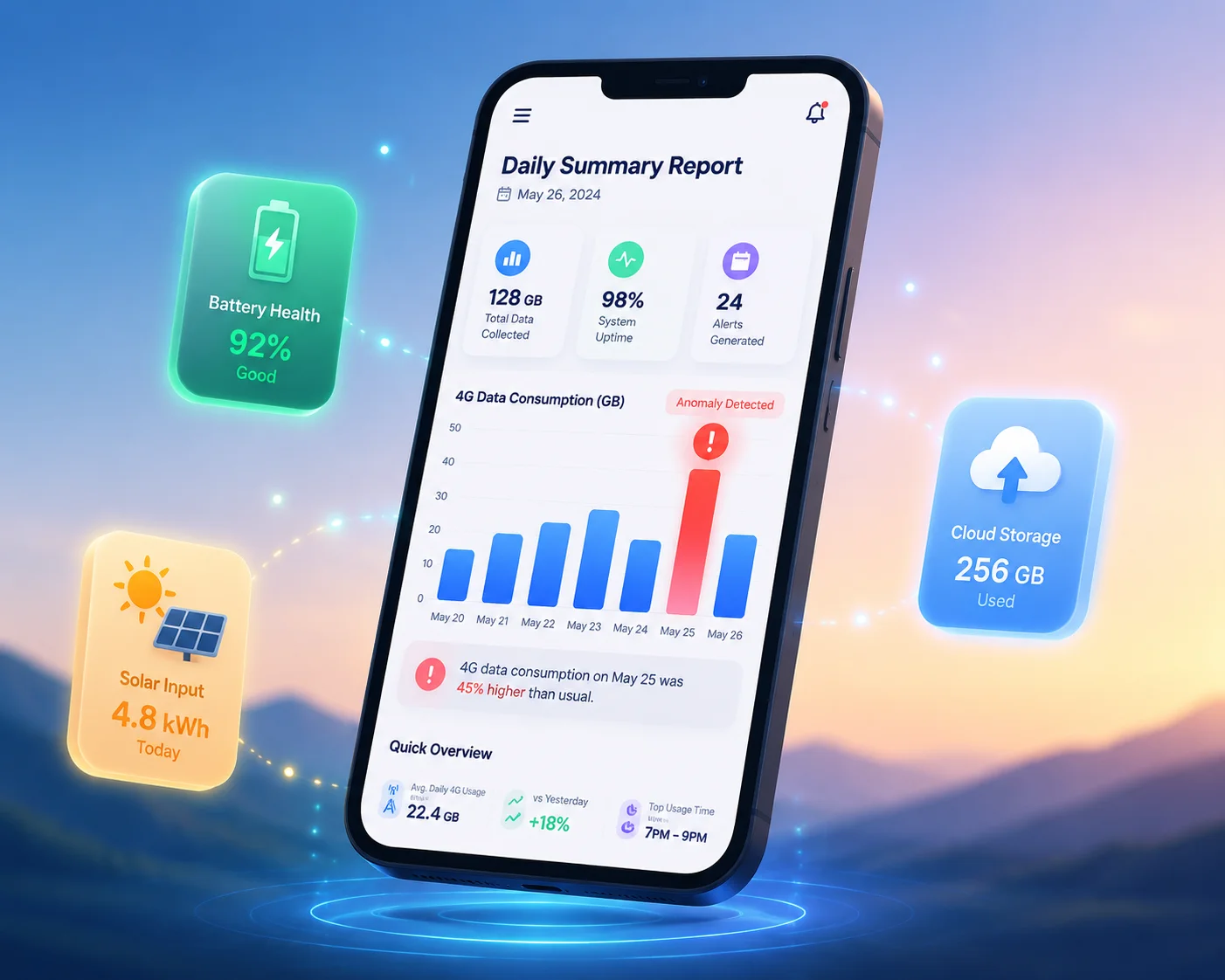
Yes. The companion app generates and sends a daily summary report to the administrator. This report includes total recording hours, 4G data consumed, battery charge cycles, and any mode changes made during the day. If any camera exceeds its normal recording pattern, the report flags it with a red warning icon so you can act immediately.
What the Daily Summary Includes
The daily report is not just a number. It is a diagnostic snapshot of each camera’s behavior over the past 24 hours. Here is what a typical summary looks like:
| Metric | Normal Range | Alert Trigger |
|---|---|---|
| Total recording hours | 0.5 – 2 hrs (event mode) | > 4 hrs in a day |
| 4G data uploaded | 200MB – 800MB | > 2GB in a day |
| Battery drain rate | 5% – 15% per night | > 30% in any 6-hour window |
| Mode changes logged | 0 | Any change to “Continuous” |
| Solar charge received | 15W – 40W average | < 10W (panel issue or shade) |
Anomaly Detection: Catching Problems Early
The firmware does not just report numbers. It compares today’s data against a rolling 7-day average. If a camera that normally records 1.2 hours per day suddenly logs 8 hours, the system knows something changed. It flags that camera in the daily report and sends a separate push notification.
This is critical for large-scale deployments. David might have 60 cameras spread across oil pipeline routes or solar farm perimeters. He cannot babysit each one. The daily summary acts like a health check. It tells him which cameras are behaving normally and which ones need attention.
Real-Time Alerts vs. Daily Summaries
The daily summary is for trend analysis. But for urgent issues, the firmware also sends real-time alerts. If a camera enters continuous recording mode, the admin gets a push notification within 60 seconds. If the battery drops below 30%, another alert fires immediately.
The combination of real-time alerts and daily summaries creates two layers of visibility. Real-time alerts catch emergencies. Daily summaries catch slow-building problems, like a camera that is recording slightly more each day because of a sensitivity setting that drifted too high.
For system integrators who bill their clients for monitoring services, this reporting feature adds real value. You can forward the daily summary to your end client as proof that their system is running correctly. It builds trust. It also protects you. If a client complains about battery life, you can pull up the logs and show exactly what happened and when.
Can the “Continuous Record” Mode Be Locked or Hidden from Non-Admin Users?
I learned this lesson the hard way. A site foreman “explored” the camera settings on a weekend. By Monday, two cameras were offline. He had turned on continuous recording and drained both batteries flat.
Yes. The firmware supports role-based access control4. The administrator can completely hide the “Continuous Record” option from standard user accounts. Only users with admin-level credentials can see, unlock, and enable this mode. This prevents field workers, subcontractors, or curious site managers from accidentally changing critical power settings.
How Role-Based Access Works in the Firmware
The firmware defines three user roles:
- Viewer: Can watch live feeds and playback recordings. Cannot change any settings.
- Operator: Can adjust PTZ controls, trigger manual snapshots, and change basic settings like motion sensitivity. Cannot access recording mode or power management settings.
- Administrator: Full access to all settings, including continuous recording, power mode, firmware updates, and user management.
When a Viewer or Operator logs into the app or web interface, the “Continuous Record” toggle simply does not appear. It is not greyed out. It is not locked behind a password. It is invisible. They do not even know it exists.
Power Mode Locking: An Extra Layer
Even for admin users, the firmware adds another gate. The camera detects its power source by reading the input voltage characteristics. A solar panel and battery setup produces a fluctuating DC voltage, typically between 11V and 14.5V. A wired AC adapter produces a stable, regulated voltage.
If the camera senses it is running on solar and battery power, it automatically locks the “Power Mode” setting to “Solar/Battery.” In this mode, continuous recording is either hidden or requires an additional override step. The admin must manually switch the Power Mode to “Wired/Permanent Power” before the continuous recording option becomes available.
This means even an admin cannot accidentally enable continuous recording without first telling the system: “I know this camera is on battery, and I want to override the safety.” It is a deliberate, two-step process.
The Low-Voltage Override5: The Last Line of Defense
Let us say every software safeguard fails. The pop-up was dismissed. The time slot was set wrong. The admin override was used carelessly. What happens then?
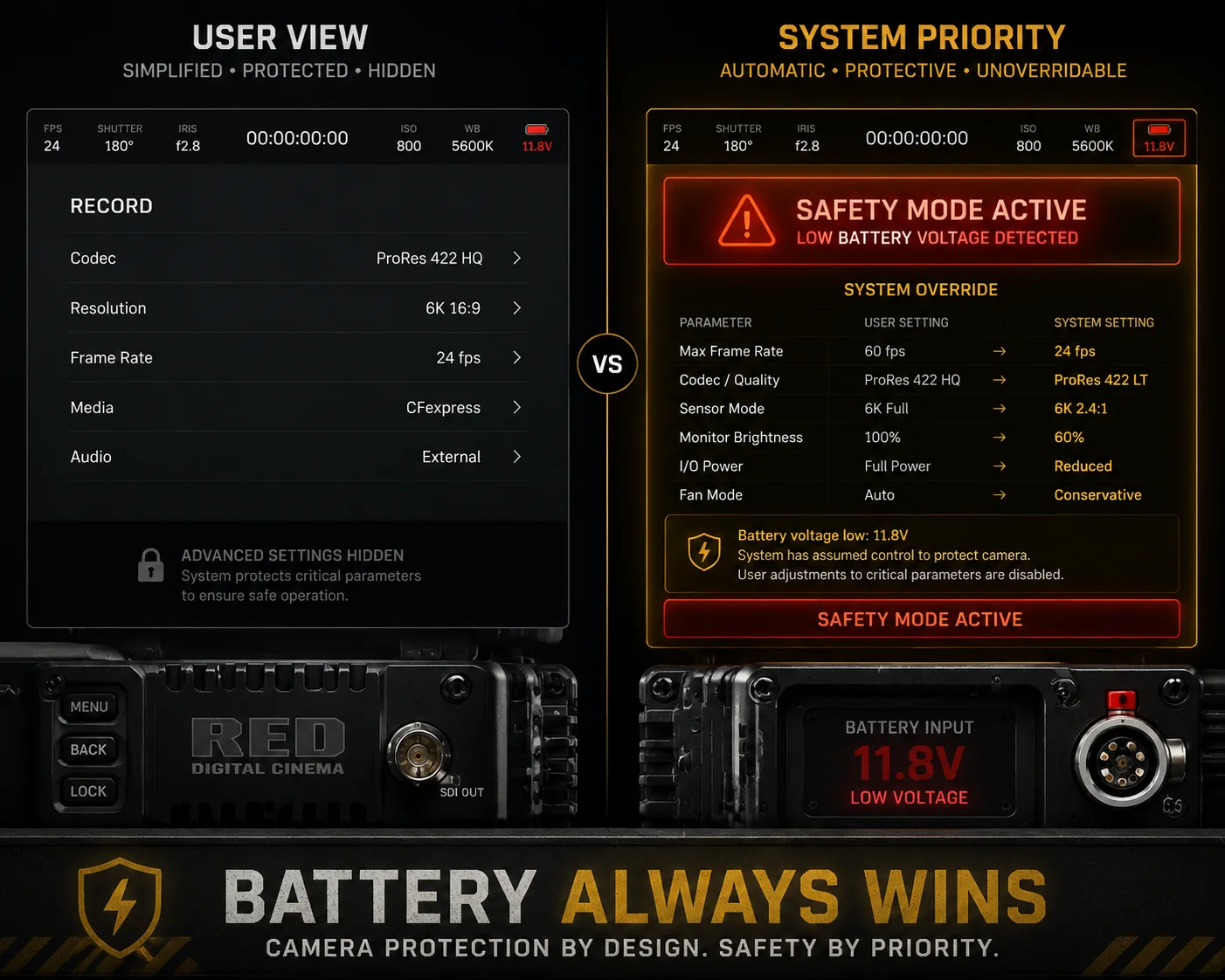
The firmware has one final, non-negotiable rule: battery voltage always wins.
The system continuously monitors the battery voltage. When it drops below a critical threshold, typically 11.8V for a 12V system, which represents roughly 20% to 30% remaining capacity, the firmware takes over. It does not ask permission. It does not show a pop-up. It simply acts:
- Stops all 4G transmission immediately.
- Switches recording mode to PIR-triggered only.
- Reduces processor clock speed to minimum.
- Sends a final emergency alert to the admin: “Camera [ID] entered low-power protection mode. 4G upload suspended. Battery at 22%.”
The camera will not resume continuous recording until the battery charges back above 60%. This prevents the dangerous cycle where a partially recovered battery gets drained again immediately.
This voltage override is hardcoded into the firmware. It cannot be disabled by any user, including the administrator. It exists to protect the hardware. A lithium or lead-acid battery that gets fully drained repeatedly will suffer permanent capacity loss. Our firmware treats battery health as a higher priority than any user setting.
For David and his team, this means peace of mind. Even in the worst-case scenario, where every software setting is wrong, the camera will protect itself. It will not die silently in the field. It will send an alert, shut down gracefully, and wait for the sun to bring it back.
Conclusion
The firmware uses pop-up warnings, time-slot limits, daily reports, role-based access, and voltage overrides to make accidental 24/7 4G recording nearly impossible. Each layer protects your batteries, your data budget, and your deployment uptime.
1. Learn how ‘friction by design’ uses forced delays to reduce user errors. ↩︎ 2. Dive deeper into configuring time-slot continuous recording for solar cameras. ↩︎ 3. See how IoT data caps prevent overage costs for cellular cameras. ↩︎ 4. Understand the security model that restricts user permissions in firmware. ↩︎ 5. Learn how low-voltage cutoffs protect lead-acid and lithium batteries. ↩︎