
I have seen too many 4G PTZ cameras lose their video feed in the field. The root cause is often the modem jumping between weak bands with no control logic in the firmware.
You implement auto-band switching by sending a full hex band mask to the modem and letting its RRM algorithm pick the best band. You implement manual band locking by sending a filtered hex mask that only enables specific bands. Both methods rely on AT commands between your firmware and the cellular module, such as Quectel’s AT+QCFG="band" or Sierra Wireless’s AT!BAND. The key is to build a band management module in your firmware that handles mode selection, signal evaluation, and safe rollback.

Below, I will walk you through the exact logic, AT commands, and firmware design patterns we use at Loyalty-Secu. Whether you need to lock a band, set carrier priorities, trigger a remote refresh, or monitor signal metrics through a web GUI, each section covers the practical steps.
Table of Contents
Can I Lock the Camera to a Specific Band to Prevent Roaming on a Weak Tower?
I have dealt with this exact problem on forest-edge deployments where the modem kept bouncing between Band 12 and Band 4. The video stream broke every time it switched.
Yes, you can lock the camera to a specific band. The firmware sends a hex bit-mask to the modem that only enables your chosen band. The modem will then ignore sync signals from all other bands. This stops the “ping-pong effect” where the device jumps between two weak towers and drops the video feed.
How Band Locking Actually Works at the Modem Level
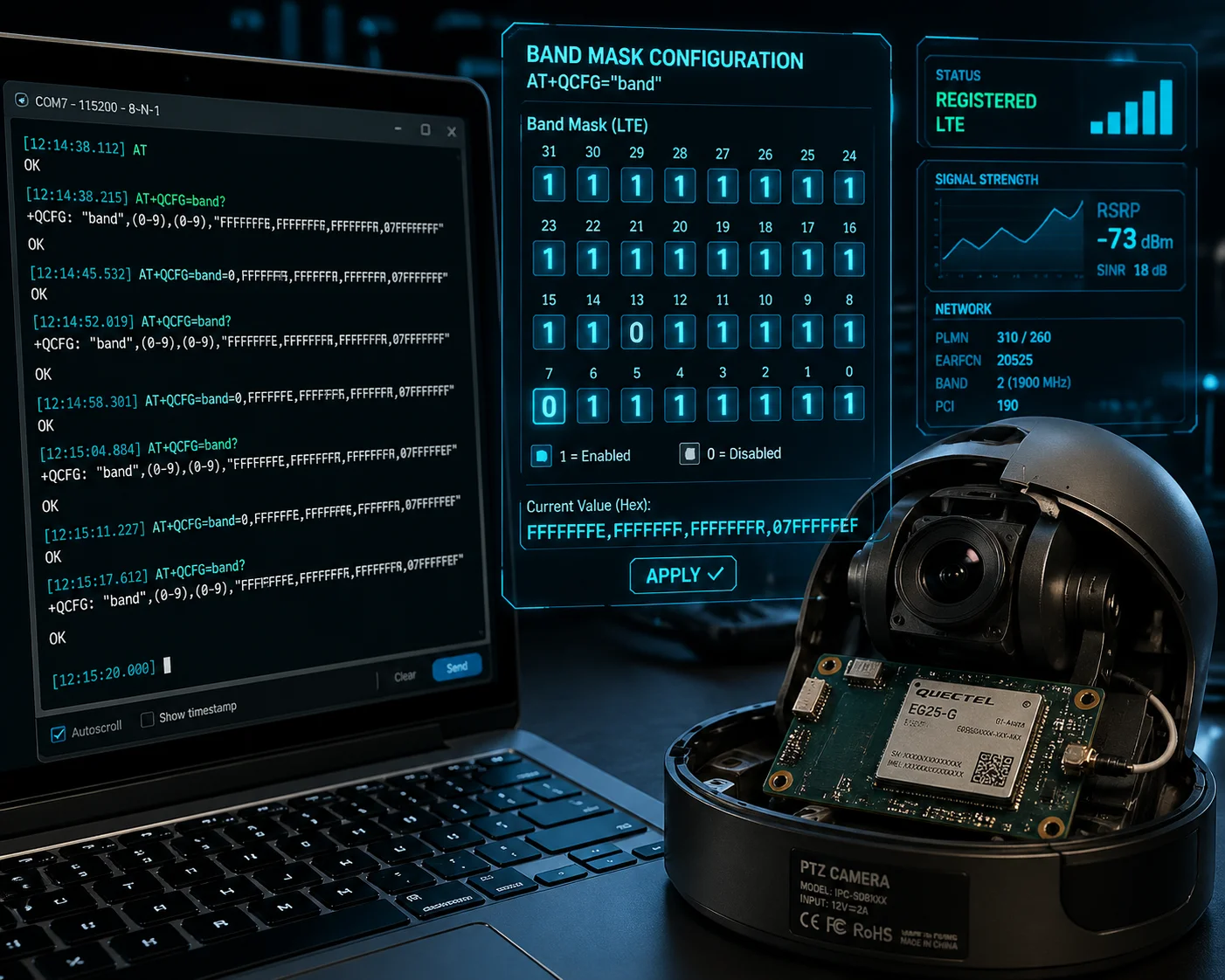
Band locking is not really “switching.” It is masking. You tell the modem which bands are allowed. Every band the modem supports has a bit position in a hex value. If that bit is 1, the band is allowed. If it is 0, the modem will not even try to scan it.
For example, on a Quectel EC25 1 or EG25 module (very common in Chinese-made PTZ cameras), the command looks like this:
AT+QCFG="band",0,A,0,1Here, A is the hex mask. It means only Band 2 and Band 4 are allowed. The 1 at the end tells the modem to apply this setting right now and restart the protocol stack.
How to Calculate the Hex Mask
Each LTE band maps to a bit position. Band 1 is bit 0. Band 2 is bit 1. Band 3 is bit 2. And so on. To get the hex value, you raise 2 to the power of (band number minus 1).
| LTE Band | Bit Position | Decimal Value | Hex Value |
|---|---|---|---|
| Band 2 | 1 | 2 | 0x2 |
| Band 4 | 3 | 8 | 0x8 |
| Band 7 | 6 | 64 | 0x40 |
| Band 12 | 11 | 2048 | 0x800 |
| Band 13 | 12 | 4096 | 0x1000 |
To lock Band 2 and Band 4, add their hex values: 0x2 + 0x8 = 0xA. That is your mask.
What Happens If the Locked Band Disappears?
This is where many firmware designs fail. If you hard-lock a single band and that band goes offline, the camera goes offline too. No signal. No video. No remote access.
I always recommend adding a safety timer. If the modem cannot register on the locked band within 60 seconds, the firmware should automatically roll back to auto mode. This way, the camera stays online. It might be on a slower band, but at least you still have a live feed and can change settings remotely.
To restore auto mode, you just reset the mask to all F’s:
AT+QCFG="band",0,FFFFFFFF,0,1This tells the modem to scan all supported bands again.
Three Locking Modes to Offer in Your Firmware
For B2B customers like system integrators, I suggest offering three options in the configuration:
- AUTO: All bands enabled. The modem picks the best one.
- LOCK_SINGLE: Only one band is allowed. The modem stays on it or goes offline.
- LOCK_SET: A group of bands is allowed. The modem can switch within this group but never outside it.
This gives the installer flexibility. In a city, AUTO works fine. On a remote farm with one tower, LOCK_SINGLE avoids wasted scanning. On a highway, LOCK_SET with two or three bands keeps the connection stable without too many options.
Does the Firmware Allow for Priority-Based Band Selection for My Local Carrier?
I have had customers in the US ask me to pre-configure band priorities for Verizon or AT&T. They do not want to touch AT commands. They just want a dropdown menu.
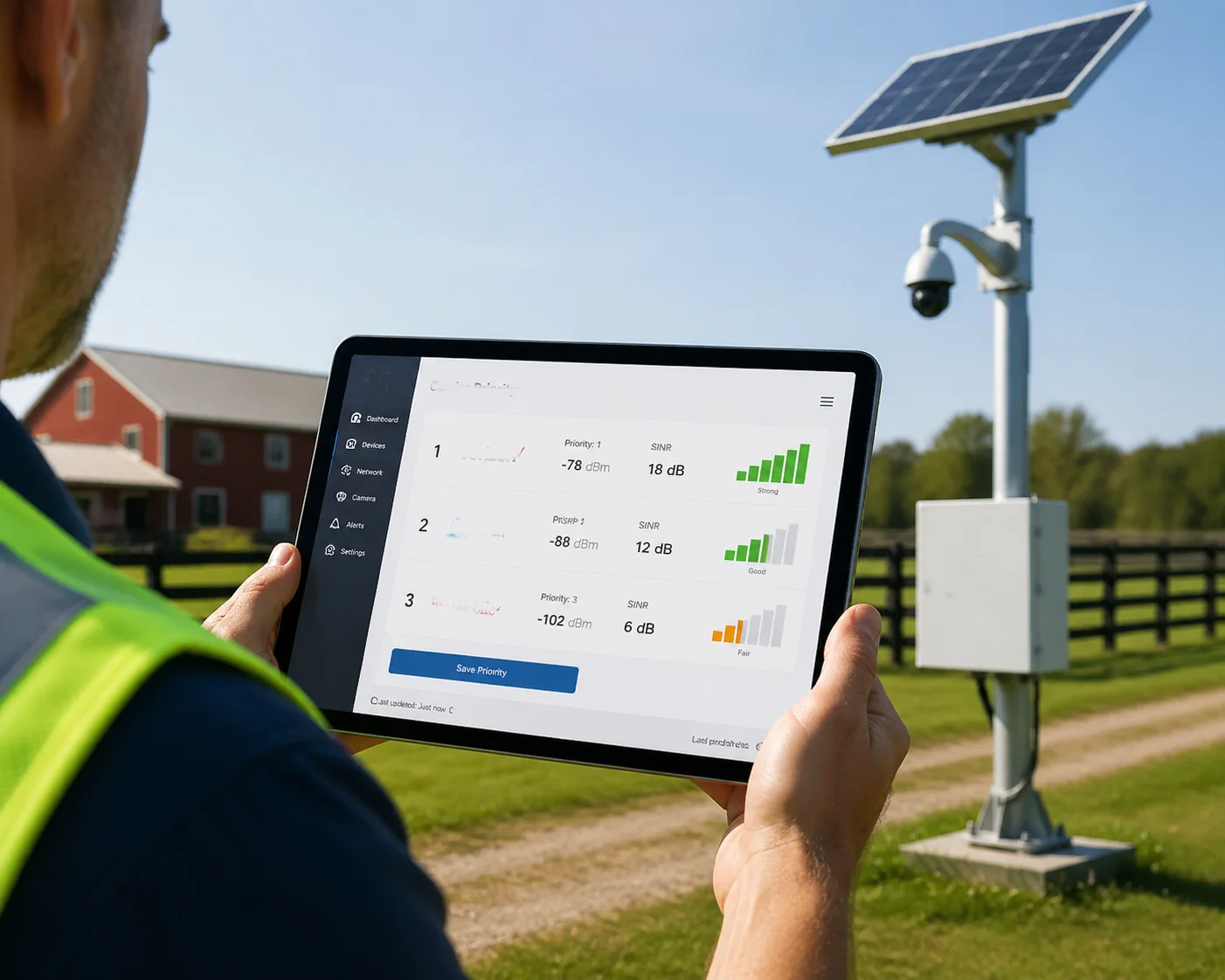
Yes, the firmware can support priority-based band selection. You build a scoring algorithm that ranks available bands by signal strength (RSRP), signal quality (RSRQ/SINR), and throughput. The firmware periodically evaluates each band and switches to the highest-scoring one. You can also pre-load carrier-specific priority lists so the installer just picks their carrier from a menu.
The Scoring Algorithm
The auto-switching logic runs on a simple loop. Every 10 to 30 seconds, the firmware queries the modem for current signal metrics using commands like AT+QNWINFO or AT+QCSQ. It records RSRP 2, RSRQ, SINR, and optionally uplink throughput.
Then it scores the current band. If the score drops below a threshold for more than 30 seconds, the firmware triggers a band scan. It checks all allowed bands, scores each one, and switches to the best candidate.
Setting Thresholds with Hysteresis
The biggest mistake is setting a single threshold. If you say “switch when RSRP drops below −110 dBm,” the modem might switch back and forth every few seconds when the signal hovers around −110. This is called the ping-pong effect. It kills the video stream.
The fix is hysteresis. You set two thresholds:
- Exit threshold: Leave the current band when RSRP < −110 dBm AND SINR < 0 dB for 30 seconds.
- Entry threshold: Accept a new band only when RSRP > −100 dBm AND SINR > 3 dB for 60 seconds.
Also add a minimum dwell time. After switching, the firmware must stay on the new band for at least 5 minutes before it evaluates again. This prevents rapid switching during brief signal dips.
Carrier-Specific Priority Lists
For US carriers, the common bands are:
| Carrier | Primary Bands | Notes |
|---|---|---|
| Verizon | B13, B4, B2 | B13 has wide coverage but low bandwidth |
| AT&T | B12, B14, B2, B4 | B12/B14 for rural, B2/B4 for urban |
| T-Mobile | B71, B12, B2, B66 | B71 is great for rural long-range coverage |
In the firmware, you store these as preset profiles. When the installer selects “Verizon” in the web GUI, the firmware loads the right band mask and priority order. No manual hex input needed.
How This Helps Your Business
If you are a system integrator deploying 50 solar PTZ cameras across rural Texas, you do not want to manually configure each one. You want to pick “AT&T” from a menu and let the firmware handle the rest. That is the kind of feature that reduces your install time and truck rolls.
How Do I Remotely Trigger a Band-Refresh If the Data Connection Becomes Slow?
I have seen cases where a camera stays connected to a congested band for hours. The signal looks fine on paper, but the actual throughput is terrible. The installer has no way to force a refresh without driving to the site.
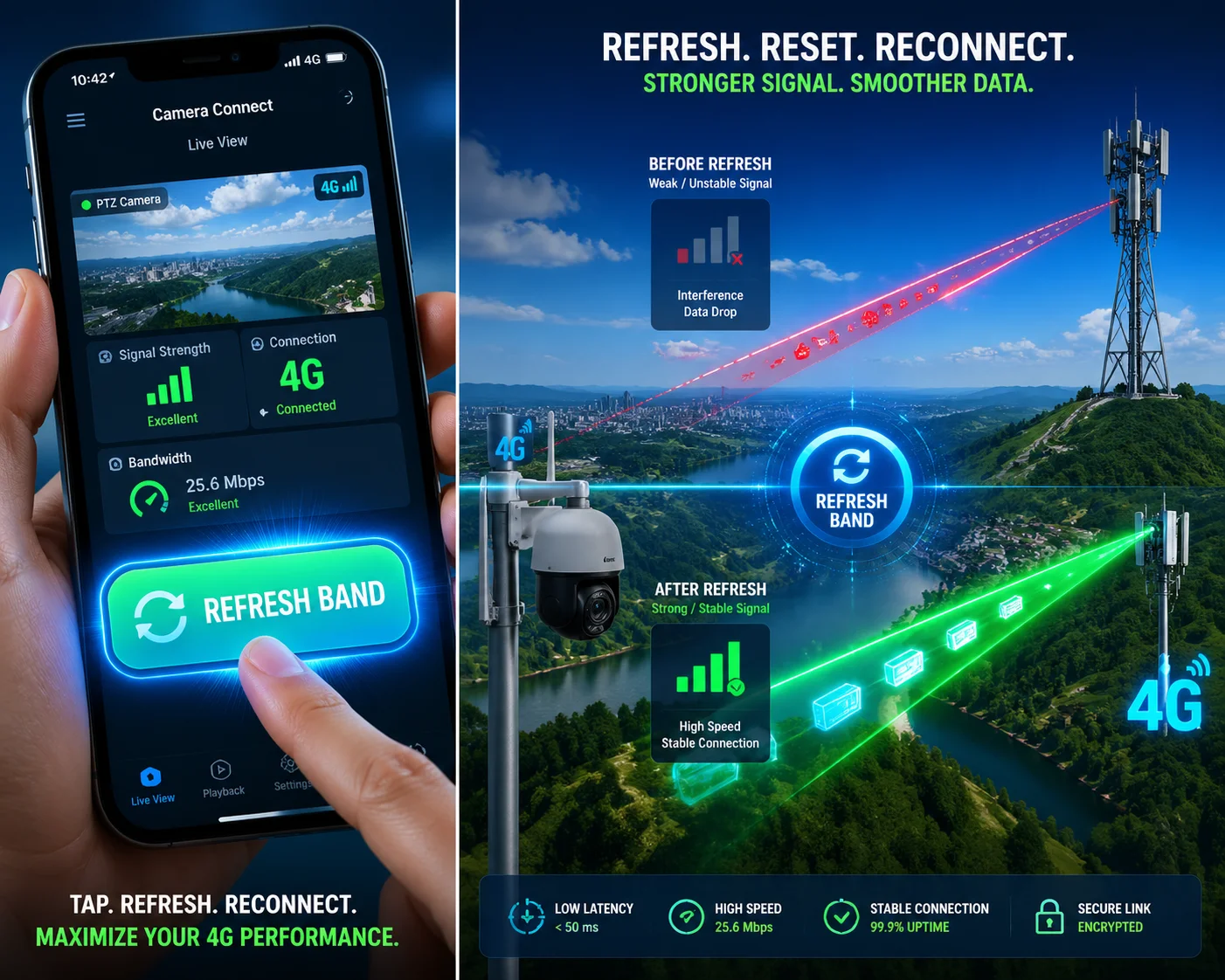
You can trigger a band-refresh remotely by sending a command through the camera’s web interface, API, or cloud platform. The firmware receives this command, resets the modem’s band mask to trigger a full re-scan, evaluates all available bands, and reconnects to the best one. This avoids a full device reboot and keeps downtime under 15 seconds.
The Remote Refresh Command Flow
Here is the step-by-step logic inside the firmware when a remote refresh is triggered:
- The user clicks “Refresh Band” in the web GUI or sends an API call.
- The firmware saves the current band setting as a fallback.
- It sends
AT+QCFG="band",0,FFFFFFFF,0,1to reset the mask and force a re-scan. - It waits for the modem to register on a new band (timeout: 30 seconds).
- It reads the new band and signal metrics with
AT+QNWINFOandAT+QCSQ. - If the new band is better, it stays. If not, it rolls back to the saved setting.
Why Not Just Reboot the Modem?
A full modem reboot takes 20 to 40 seconds. During that time, you lose all connectivity. If the camera is streaming live video, that is a long gap. A band-refresh only resets the radio layer. The IP session can often survive if the modem re-registers quickly on the same or a nearby cell.
Automatic Band-Refresh Based on Throughput
Beyond manual triggers, I recommend building an automatic version. The firmware monitors upload throughput every 60 seconds. If the throughput drops below 500 Kbps for more than 5 minutes, and the RSRP is still above −105 dBm, the firmware knows the band is congested, not weak. It triggers a band-refresh on its own.
This is very useful for construction site cameras. During peak hours, Band 12 might be overloaded by nearby users. The camera can quietly switch to Band 4 where there is more bandwidth. When traffic dies down at night, it can switch back.
Integrating with the Video Encoder
Here is an important detail. When the firmware triggers a band-refresh, it should also notify the video encoder. The encoder can temporarily drop the bitrate or switch to I-frame-only mode during the transition. This prevents a pile-up of unsent packets in the buffer. Once the new band is active and stable, the encoder goes back to full quality.
This kind of link-aware streaming is what separates a professional PTZ system from a consumer product. Your end customer sees a brief quality dip instead of a frozen screen.
Is There a Web GUI Option to See the RSRP and RSRQ Values for Each Active Band?
I have talked to many integrators who install a camera and then have no idea what the cellular connection looks like. They just see “connected” or “disconnected.” That is not enough for troubleshooting.
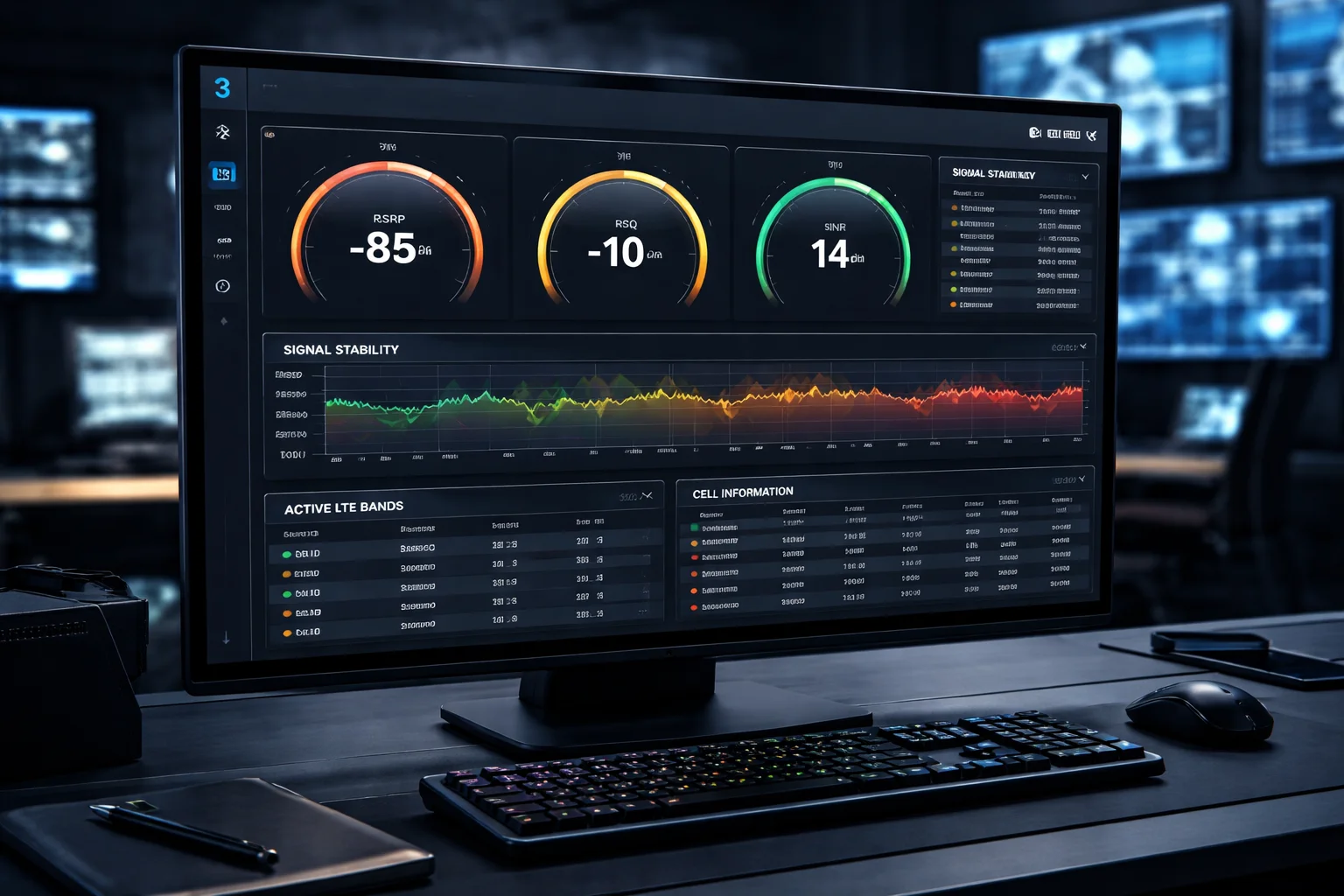
Yes, you can build a web GUI page that shows real-time RSRP, RSRQ, SINR, and current band information. The firmware queries the modem at regular intervals using AT commands like AT+QCSQ and AT+QNWINFO, then pushes the data to the web interface. This gives installers and remote operators full visibility into the cellular link quality without needing SSH access or AT command knowledge.
What Metrics to Display
The web GUI should show at least these values, updated every 5 to 10 seconds:
| Metric | AT Command Source | What It Tells You | Good Range |
|---|---|---|---|
| Current Band | AT+QNWINFO | Which LTE band the modem is using now | — |
| RSRP (dBm) | AT+QCSQ | Signal power from the tower | > −100 dBm |
| RSRQ (dB) | AT+QCSQ | Signal quality (accounts for noise) | > −10 dB |
| SINR (dB) | AT+QCSQ | Signal-to-noise ratio | > 5 dB |
| Cell ID | AT+QENG="servingcell" | Which tower the modem is connected to | — |
| Upload Speed | Firmware speed test | Actual throughput available for video streaming | > 2 Mbps |
Building the GUI Page
On the firmware side, a background daemon runs the AT queries and stores results in shared memory or a small SQLite database. The web server (usually lighttpd or uhttpd on embedded Linux) reads this data and serves it as a JSON API endpoint.
The front-end page polls this endpoint every few seconds and updates the display. You can use simple HTML and JavaScript. No heavy frameworks needed. A color-coded bar (green/yellow/red) next to each metric makes it easy to read at a glance.
Adding a Band History Log
Beyond real-time data, I suggest adding a 24-hour history log. Every time the band changes, the firmware writes a timestamped entry: old band, new band, RSRP before and after, and the reason for the switch (user-triggered, auto-switch due to low SINR, scheduled refresh, etc.).
This log is very valuable for remote troubleshooting. If a customer calls and says “the camera was offline at 3 AM,” you can pull up the log and see exactly what happened. Maybe Band 13 dropped to −120 dBm RSRP and the auto-switch kicked in but the fallback band also had poor SINR. Now you know the problem is tower-side, not camera-side.
Tying It All Together with the Band Manager
The web GUI is not just a display. It should also be the control panel. From the same page, the user can:
- Switch between AUTO, LOCK_SINGLE, and LOCK_SET modes.
- Select which bands to lock.
- Trigger a manual band-refresh.
- Set thresholds for auto-switching.
- Download the band history log as a CSV file.
This gives your B2B customer a complete tool. They do not need to SSH into the camera or type AT commands. Everything is point-and-click. For a system integrator managing 100 cameras across 20 sites, this saves hours of work every week.
Storing Settings in Non-Volatile Memory
One more thing. All user settings, band preferences, mode selection, and threshold values must be stored in non-volatile memory (NV/flash). If the camera loses power and reboots, it must come back with the same band configuration. Do not rely on RAM-only storage. And always provide a physical reset button (hold for 10 seconds) that restores everything to AUTO mode with all bands enabled. This is your safety net if someone locks a band that does not exist at the deployment site.
Conclusion
Auto-band switching and manual band locking come down to one thing: controlling the hex mask your firmware sends to the modem, backed by smart thresholds and a safe rollback mechanism.
1. Quectel EC25 AT command reference for band control. ↩︎ 2. RSRP measurement for LTE signal strength. ↩︎ 3. 3GPP TS 27.007 AT command syntax. ↩︎ 4. Hex bitmask calculation for LTE band selection. ↩︎ 5. Automatic gain control (AGC) for LTE modems. ↩︎ 6. PDP context activation for data sessions. ↩︎ 7. SINR vs RSRP correlation for band quality. ↩︎ 8. JSON API design for embedded web servers. ↩︎ 9. SQLite database for historical band logs. ↩︎ 10. Network congestion detection via throughput. ↩︎