
I’ve seen too many “4K” cameras that choke at 15fps. If you’ve been burned by fake specs, you’re not alone.
To find and verify true 4K@30fps suppliers, you must check the SoC chipset model, sensor native resolution, and real-time bitrate output. Request datasheets, run frame-by-frame motion tests with VLC or MediaInfo, and demand a 24-hour thermal stress report. Only suppliers who open their BOM and chip specs deserve your trust.
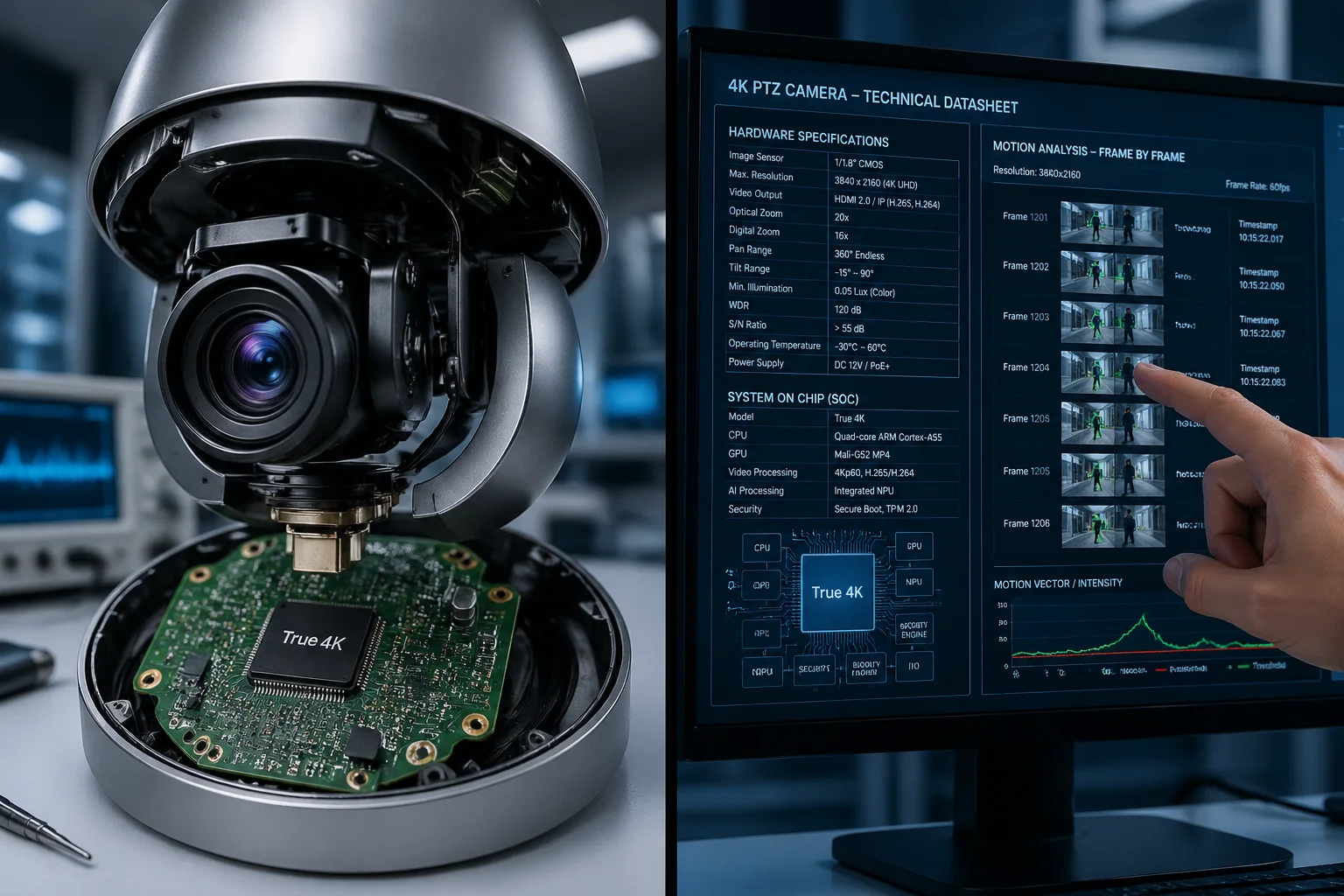 4K PTZ camera supplier verification process
In this guide, I’ll walk you through every step I use at Loyalty-Secu to validate 4K@30fps performance — from hardware checks to factory audits. Whether you’re a system integrator or a procurement director, these methods will save you from costly mistakes. Let’s get into it.
Table of Contents
Why Do Some 4K Cameras from China Only Support 15fps or 20fps in Real-World Tests?
I’ve tested dozens of so-called “4K” cameras from different factories. Many of them drop to 15fps the moment you point them at a busy street.
The main reason is weak hardware. Many Chinese 4K cameras use low-cost SoC chips and entry-level sensors that cannot handle the data throughput required for 3840×2160 at 30 frames per second. The chip simply runs out of processing power under real-world conditions.
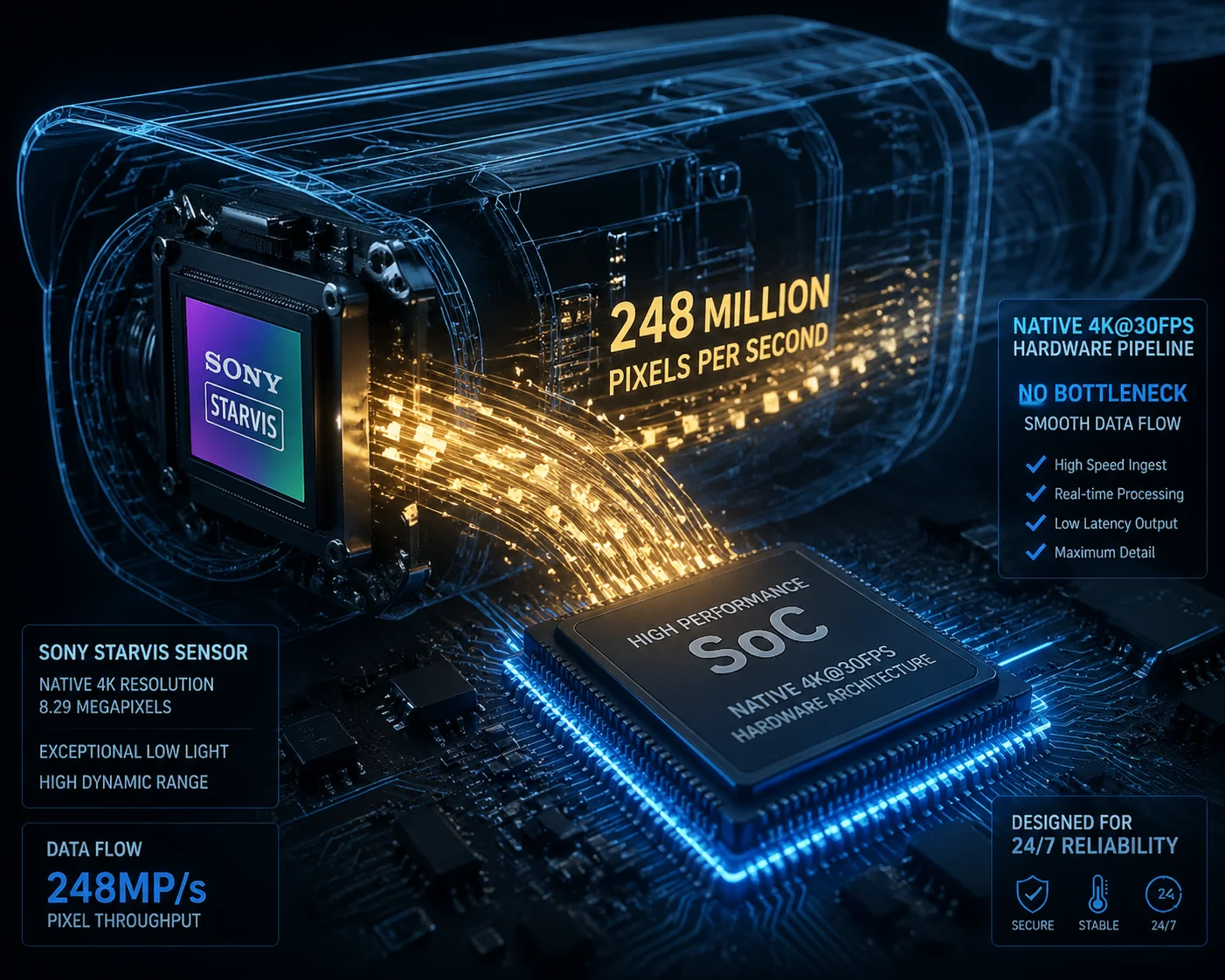 4K camera SoC chip and sensor verification
The Hardware Bottleneck Problem
The root cause is almost always the SoC (System on Chip). Think of the SoC as the brain of the camera. It has to take raw image data from the sensor, process it through the ISP pipeline, encode it into H.265, and push it out over the network — all in real time. At 4K@30fps, that’s roughly 248 million pixels per second. Cheap chips just can’t keep up.
Here’s what happens in practice. A factory buys a budget SoC that technically “supports” 4K output. But the chip’s ISP can only encode 4K at 15fps or 20fps before it maxes out. To hide this, the firmware duplicates frames to fill the gap up to 30fps. On paper, the stream says 30fps. In reality, you’re watching the same frame twice.
How to Spot the Weak Link
The first thing I do is ask for the chip model number. If a supplier refuses to share it, that’s a red flag. Here are some benchmarks:
| Component | Minimum for True 4K@30fps | Red Flag |
|---|---|---|
| SoC Chipset | Novatek NT98528 1/NT98566 or higher | Unknown or unnamed chipset |
| Image Sensor | Sony IMX415 / IMX485 (native 8MP+) | Generic “4K CMOS” with no model |
| MIPI Output | Must support 30fps at full resolution | Sensor only rated for 20fps at 4K |
| Encoding | H.265 at ≥8Mbps sustained | Bitrate capped below 4Mbps |
The Sensor Side of the Equation
Even if the SoC is strong enough, the sensor itself can be the bottleneck. Some entry-level 8MP sensors only output 20fps at full resolution through their MIPI interface. The camera firmware then upscales a lower frame rate to fake 30fps. You won’t notice this on a static scene. But point the camera at a moving car or a walking person, and you’ll see stuttering, ghosting, and motion blur that shouldn’t be there.
At Loyalty-Secu, we use Sony STARVIS series sensors like the IMX415 2 because they deliver native 30fps at 3840×2160 with enough headroom for ISP processing. This is not a marketing choice. It’s a physics requirement. The sensor must push enough data fast enough for the SoC to process every single frame without dropping any.
Why “4K Support” ≠ “4K Performance”
Many suppliers list “4K support” on their spec sheet. But “support” can mean the chip can output a 4K-resolution image — even if it’s only at 10fps. The word “support” has no standard definition in this context. That’s why you must always ask: “What is the maximum sustained frame rate at 3840×2160 with H.265 encoding under dynamic scene conditions?” If they can’t answer this clearly, move on.
How Can I Verify the Real-Time Frame Rate Using Standard VLC or VMS Software?
I never trust a spec sheet alone. The only way to know if a camera truly delivers 30fps is to measure it yourself.
You can verify real-time frame rate by opening the camera’s RTSP stream in VLC Media Player 3 and checking the codec information window. Use MediaInfo 4 on recorded files to confirm the actual frame rate. For the most reliable test, record a millisecond-precision digital stopwatch and check frame-by-frame for duplicates.
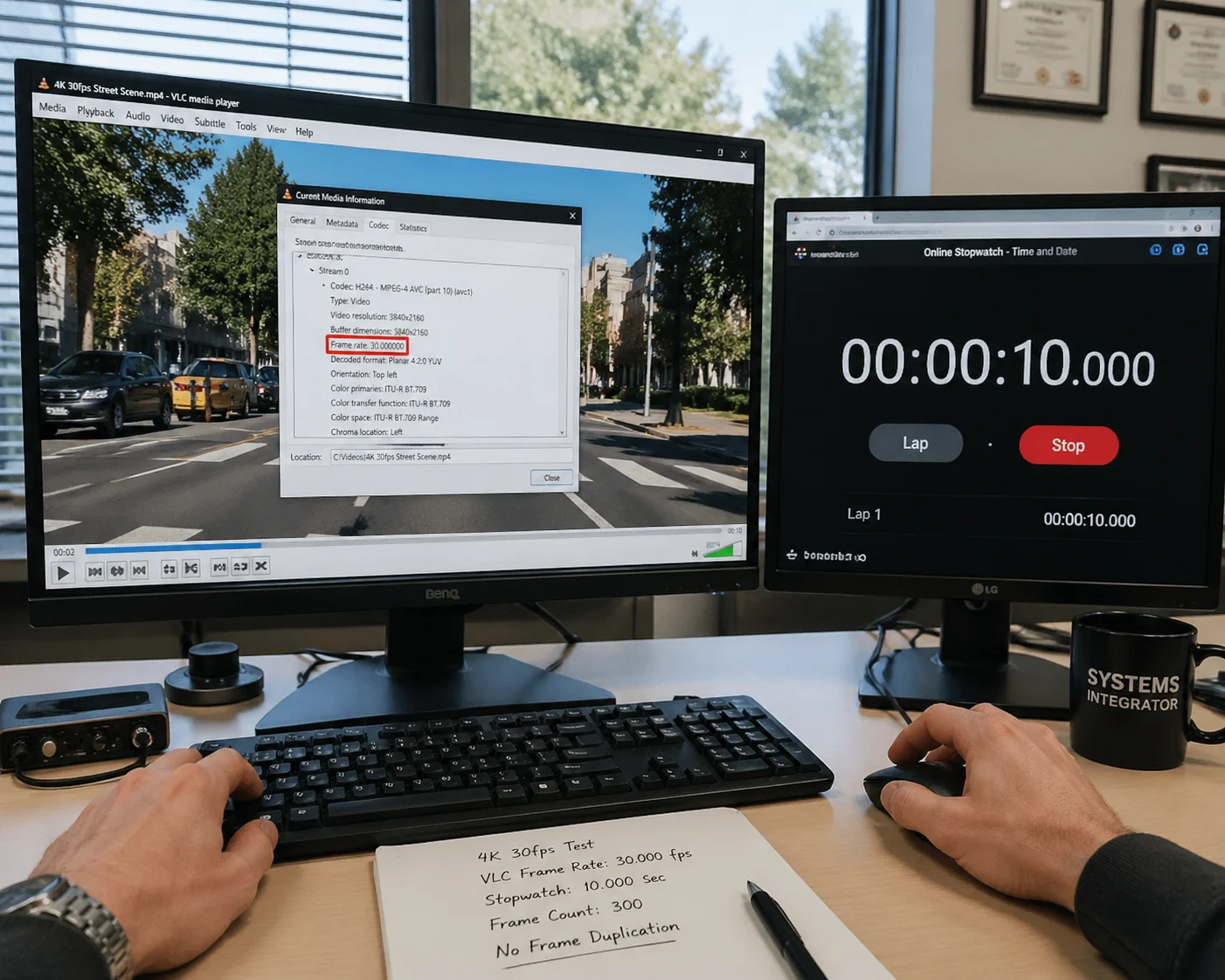 VLC media player frame rate verification for 4K camera
Step-by-Step VLC Verification
VLC is free and available on every platform. Here’s exactly how I use it to catch fake frame rates:
- Open VLC and go to Media → Open Network Stream
- Enter the camera’s RTSP URL (e.g.,
rtsp://192.168.1.100:554/stream1) - Once the stream is playing, go to Tools → Codec Information
- Look at the “Frame rate” field under the video section
- Watch this number for at least 5 minutes while the camera is viewing a dynamic scene
If the frame rate drops below 25fps during motion, the camera is not delivering true 4K@30fps. Some cameras will show 30fps on a static wall but drop to 12-18fps when there’s actual movement in the scene.
The Stopwatch Test
This is the most foolproof method I know. Place a digital stopwatch (one that shows milliseconds) in front of the camera. Record for 60 seconds. Then open the file and step through it frame by frame.
| What You Check | True 4K@30fps Result | Fake/Interpolated Result |
|---|---|---|
| Frames per second | 30 unique frames each second | Repeated or duplicate frames visible |
| Stopwatch increment | Each frame shows ~33ms advance | Some frames show 66ms or 100ms jumps |
| Motion clarity | Smooth, no stuttering | Visible stuttering on fast movement |
| MediaInfo frame rate | 30.000 fps | May show 30fps but with VFR (variable) |
Using MediaInfo for File-Level Verification
After recording a test clip, download MediaInfo (also free). Open the recorded file and look at these fields:
- Frame rate mode: Should say “Constant” (CFR), not “Variable” (VFR)
- Frame rate: Should show 30.000 fps
- Bit rate: For true 4K@30fps in H.265, expect 8Mbps to 16Mbps minimum
- Width × Height: Must be 3840 × 2160, not 2560 × 1440 upscaled
If the bit rate is below 4Mbps at 4K@30fps, the encoder is compressing too aggressively. You’ll see heavy macro-blocking (blocky artifacts) during motion. This means either the SoC can’t handle higher bitrates, or the firmware is intentionally limiting bandwidth to prevent overheating.
VMS Integration Test
For buyers like David Miller who run Milestone 5 or Blue Iris 6, I always recommend testing the stream directly inside your VMS platform. Some cameras behave differently when accessed through ONVIF versus their proprietary protocol. Connect the camera via ONVIF Profile S, pull the 4K stream into your VMS, and monitor the frame rate counter inside the software. If the VMS shows frame drops that VLC doesn’t, you may have a protocol compatibility issue — not a hardware one. This distinction matters because it changes whether you need a different camera or just a firmware update.
Does the ISP (Image Signal Processor) in My Camera Have the Power to Handle 4K at 30fps?
I’ve seen cameras with great sensors paired with weak ISPs. The result? Beautiful still images but terrible video.
The ISP must be able to process noise reduction, white balance, HDR tone mapping, and edge sharpening at 3840×2160 resolution 30 times per second. If the ISP pipeline is underpowered, the camera will either drop frames, disable advanced image processing features, or produce washed-out video to reduce computational load.
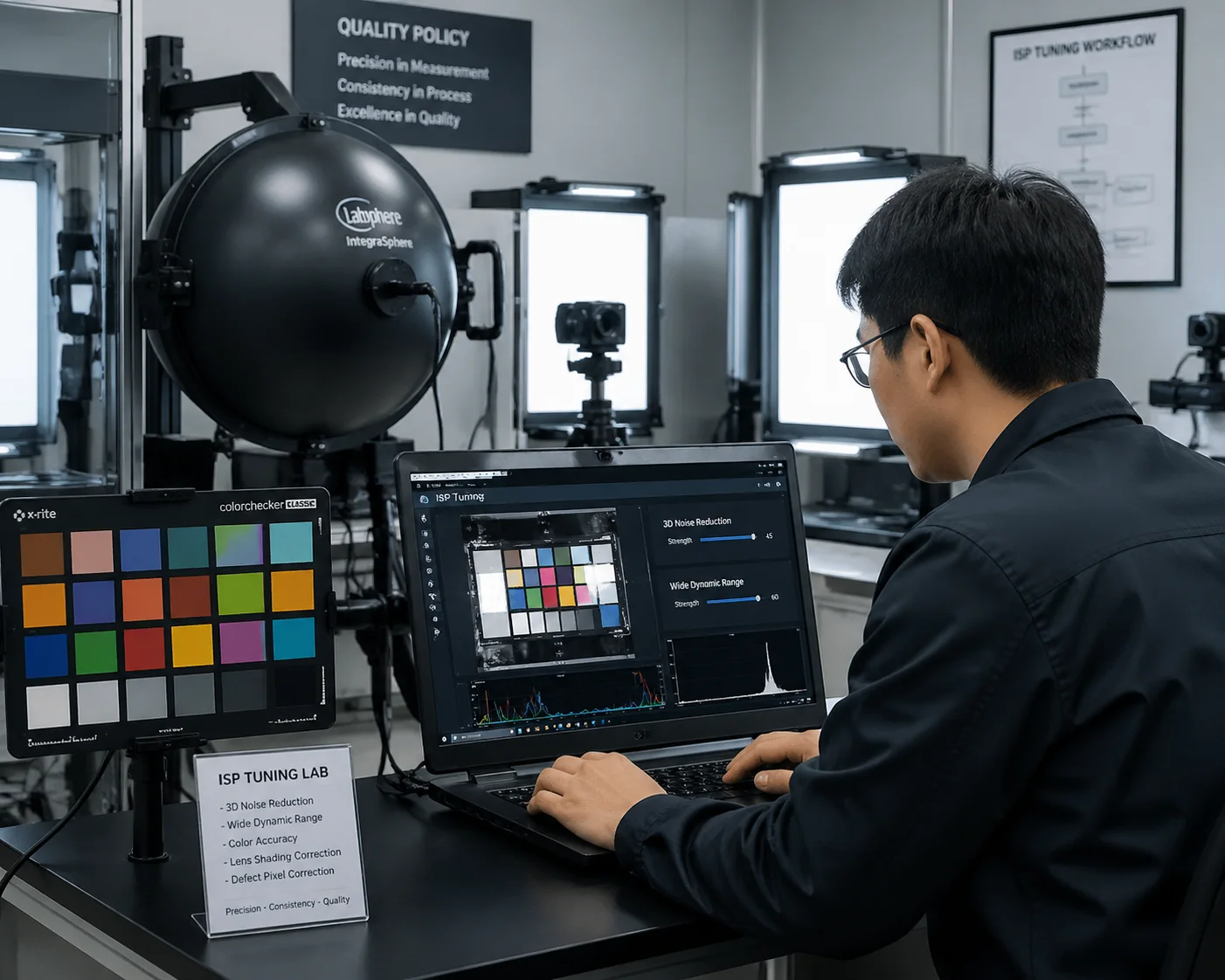 ISP image signal processor 4K camera performance test
What the ISP Actually Does at 4K@30fps
The ISP is the part of the SoC that turns raw sensor data into a usable image. At 4K@30fps, the ISP must perform all of the following operations on every single frame — 30 times per second:
- 3D Noise Reduction (3D-NR): Compares multiple frames to remove grain
- Wide Dynamic Range (WDR/HDR): Merges multiple exposures for balanced lighting
- Auto White Balance (AWB): Adjusts color temperature in real time
- Lens Distortion Correction (LDC): Fixes barrel distortion from wide-angle lenses
- Edge Enhancement: Sharpens details without adding artifacts
When the ISP can’t keep up, the firmware starts cutting corners. The first thing to go is usually 3D-NR, because it requires comparing adjacent frames and is very memory-intensive. Without it, your night footage becomes grainy and unusable. The second thing to go is WDR processing, which means blown-out highlights and crushed shadows.
How to Test ISP Capability
Ask the supplier to provide sample footage shot under three specific conditions:
| Test Condition | What to Look For | Failure Sign |
|---|---|---|
| Low light (< 1 lux) | Clean image with minimal grain | Excessive noise or frame drops |
| High contrast (indoor/outdoor mix) | Balanced exposure, visible details in shadows and highlights | Blown whites or black shadows |
| Fast motion (person running) | Sharp edges, no ghosting | Motion blur, smearing, or frame duplication |
The ISP Tuning Lab Question
Here’s a question that separates real manufacturers from assemblers: “Do you have your own ISP tuning lab?”
A real ISP tuning lab includes an integrating sphere, standard color charts (like the X-Rite ColorChecker 7), and a calibrated light box. If a supplier has this equipment, it means they can adjust the ISP parameters at the firmware level. They can optimize noise reduction algorithms, color accuracy, and exposure curves for your specific use case.
At Loyalty-Secu, our R&D team tunes ISP parameters in-house. When a client needs a camera optimized for nighttime perimeter security, we adjust the 3D-NR aggressiveness and infrared cut filter switching point. When another client needs license plate recognition in daylight, we tune the shutter speed and WDR settings differently. This level of customization is only possible when you control the ISP firmware — not when you’re buying a turnkey solution from a third-party SDK provider.
If a supplier tells you they “can’t modify ISP settings” or “that’s handled by the chip vendor,” they are likely an assembler, not a manufacturer. They bought a reference design and put it in a housing. They cannot help you when you need performance adjustments for your specific deployment environment.
Can I Request a Customized Firmware That Prioritizes Frame Rate Over High Compression?
Yes, and this is where the real value of working with an R&D-driven manufacturer shows up.
A capable supplier can modify the firmware to lock the frame rate at 30fps and allocate more bitrate to the encoder, even if it means larger file sizes and higher bandwidth usage. This trade-off is often necessary for forensic-grade surveillance where every frame matters more than storage savings.
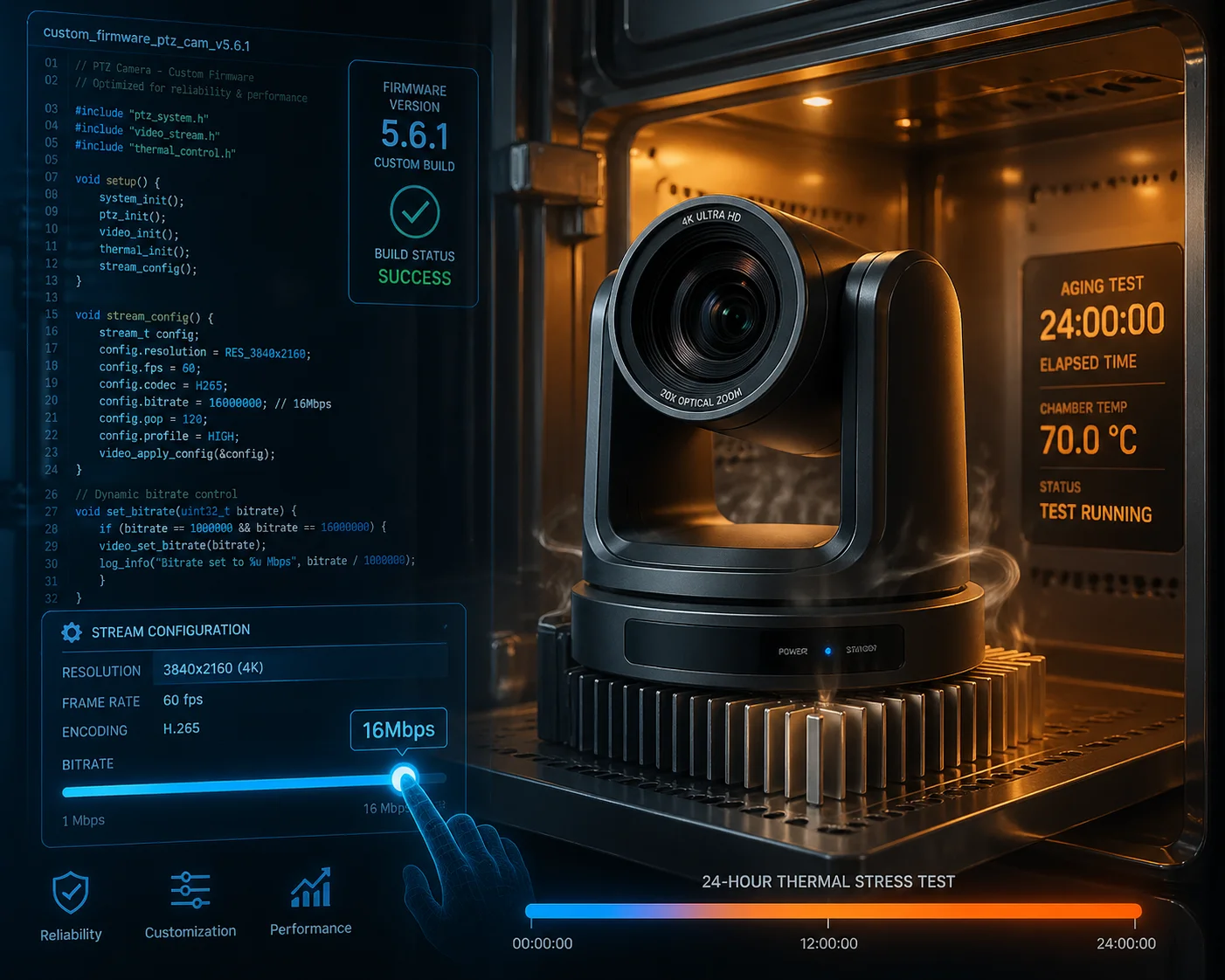 Custom firmware development for 4K PTZ camera
The Frame Rate vs. Compression Trade-Off
Every camera firmware makes a balancing decision between three competing demands: frame rate, image quality, and file size. In most stock firmware, the default priority is small file size — because it reduces storage costs and network bandwidth. But this comes at the expense of frame rate and detail.
When you request a custom firmware that prioritizes frame rate, you’re telling the encoder: “I’d rather have 30 clean frames per second at 12Mbps than 15 frames per second at 4Mbps.” For applications like traffic monitoring, casino surveillance, or construction site security, this trade-off makes perfect sense. Missing frames means missing evidence.
What a Custom Firmware Can Change
Here’s what a qualified R&D team can adjust in the firmware:
- Encoding bitrate ceiling: Raise the maximum from 4Mbps to 16Mbps or higher
- I-frame interval: Reduce the GOP (Group of Pictures) length for more keyframes, improving scrubbing accuracy during playback
- Frame rate lock: Disable automatic frame rate reduction that triggers during high CPU temperature
- ROI encoding 8: Allocate more bits to specific regions of interest (like entry points) while compressing background areas more aggressively
- Dual-stream configuration: Set the main stream to 4K@30fps for recording while the sub-stream runs at 1080p@15fps for live monitoring
How to Verify Firmware Customization Capability
Ask the supplier this specific question: “Can you provide a modified firmware build within 3 working days that changes the maximum bitrate from 8Mbps to 16Mbps?”
If they can do it, they have access to the source code and a competent engineering team. If they say “we need to check with our chip vendor” or “that will take 4-6 weeks,” they are likely reselling someone else’s solution.
Thermal Management Is Part of the Firmware Story
Custom firmware that pushes 4K@30fps at high bitrates generates more heat. The SoC works harder, and the temperature rises faster. This is where thermal design becomes critical.
A good manufacturer designs the PCB with proper thermal pads connecting the SoC to an aluminum heatsink. The heatsink should make direct contact with the metal housing for passive cooling. At Loyalty-Secu, every 4K PTZ camera goes through a 24-hour aging test at 55°C (131°F) in our burn-in chamber. We monitor frame rate stability throughout the entire test. If the frame rate drops even once during that 24-hour window, the unit fails QC.
For buyers who deploy cameras in hot climates — like the Middle East, Texas, or Southeast Asia — this thermal validation is not optional. It’s the difference between a camera that works for 10 minutes and one that works for 10 years.
SDK and API Access
True customization goes beyond firmware. If you need to integrate the camera into your own VMS, cloud platform, or AI analytics pipeline, you need SDK and API access 9. A real manufacturer provides:
- ONVIF Profile S/T compliance for standard VMS integration
- RTSP stream URLs for direct access
- HTTP API documentation for PTZ control, preset management, and alarm triggering
- SDK packages for secondary development (usually in C/C++ or Python)
If a supplier can only give you a proprietary mobile app and nothing else, they cannot support the kind of integration that professional system integrators require.
Conclusion
True 4K@30fps requires verified hardware, real-world testing, and a supplier who opens their BOM and firmware to you. Never trust a spec sheet — always test the sample yourself.
1. Novatek NT98528 SoC datasheet and 4K encoding specs. ↩︎ 2. Sony IMX415 sensor specifications for 4K security cameras. ↩︎ 3. VLC Media Player RTSP stream frame rate verification guide. ↩︎ 4. MediaInfo tool for video frame rate and bitrate analysis. ↩︎ 5. Milestone VMS ONVIF frame rate monitoring features. ↩︎ 6. Blue Iris software for PTZ camera performance testing. ↩︎ 7. X-Rite ColorChecker for ISP tuning and color calibration. ↩︎ 8. ROI encoding technology for bandwidth optimization. ↩︎ 9. Loyalty-Secu SDK and API documentation for integrators. ↩︎