
I lost count of how many false alarms came from trees blowing outside a rectangular motion box. That problem disappears with polygon zones.
Yes, our industrial-grade camera firmware and software platform fully support custom polygon detection zones1. You can draw multi-point shapes that match the exact outline of your site, eliminating wasted coverage area and cutting false alerts by up to 90% compared to basic rectangular boxes.
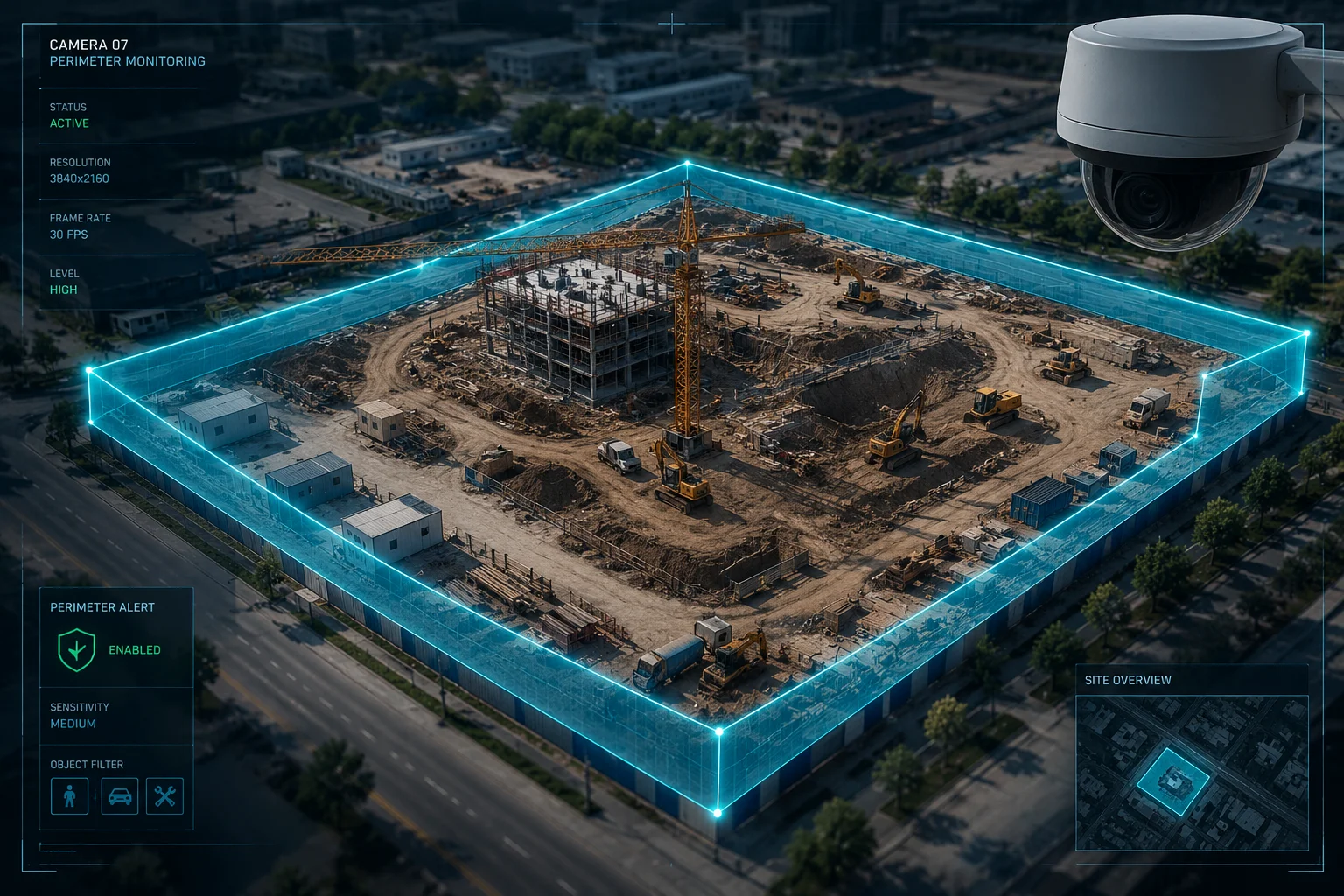
Below, I break down exactly how polygon zones work, how many you can draw, how exclusion zones help, and how to assign unique AI rules to each one. If you run projects on construction sites, solar farms, or remote infrastructure, this is the feature set that separates professional-grade gear from consumer toys.
Table of Contents
Can I Draw Up to 8 Independent Polygon Zones to Fit the Complex Boundaries of a Construction Site?
Construction sites have odd shapes. Fences curve around roads. Equipment yards sit at angles. A single rectangle cannot cover that without pulling in a public sidewalk or a neighbor’s lot.
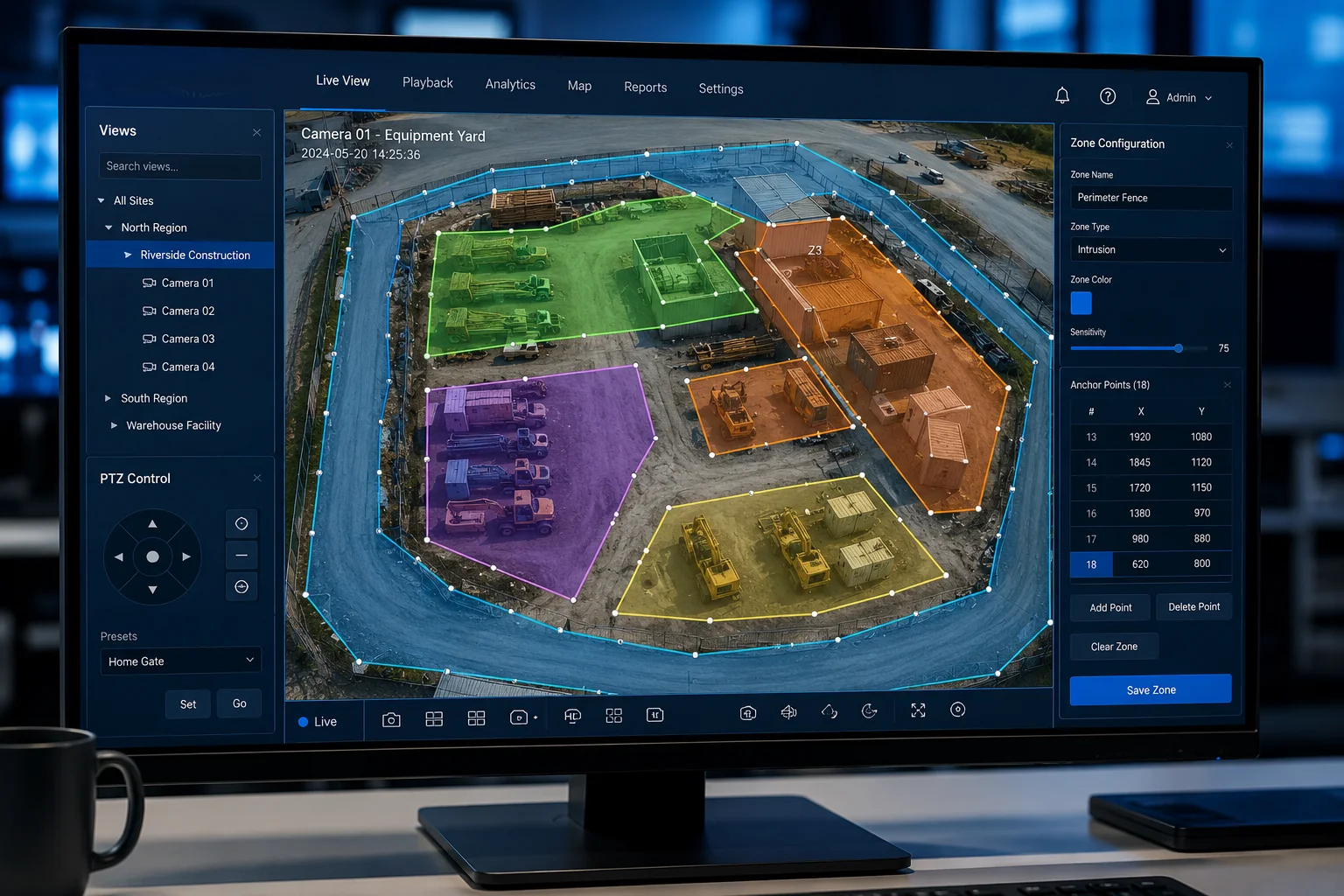
You can draw up to 8 independent polygon zones on a single camera view. Each zone supports 8 to 12 anchor points, so you can trace fence lines, angled boundaries, and irregular perimeters with pixel-level precision.
How Multi-Point Drawing Works
When you open the zone editor in our web interface or NVR client, you click to place points directly on the live video feed. Each click adds an anchor point. Connect 4 to 12 points, and the software closes the shape into a polygon. You can drag any point to adjust it later.
This means you are not stuck with straight lines across the whole frame. You can wrap a zone tightly around a fenced compound, skip over a gate entrance, or follow the curve of a retaining wall.
Why 8 Zones Matter for Real Job Sites
Most construction projects have more than one area to protect. Think about it this way:
- Zone 1: The main equipment yard where excavators park overnight.
- Zone 2: The materials storage container area.
- Zone 3: The site office and fuel depot.
- Zone 4: A temporary access road that should only trigger alerts after hours.
- Zone 5-8: Perimeter fence segments that face different directions and need different sensitivity levels.
With 8 zones, you cover all of these from a single PTZ preset position. You do not need to buy extra cameras just because the site has complex geometry.
Concave vs. Convex Shapes
Our firmware supports both convex and concave polygons. This matters when your fence wraps around a utility pole or when a building corner cuts into your coverage area.
| Feature | Specification |
|---|---|
| Max anchor points per zone | 8–12 (firmware dependent) |
| Max independent zones | Up to 8 per preset position |
| Shape types supported | Convex and concave polygons |
| Editing method | Drag-and-drop on live video |
| Zone overlap allowed | Yes, with priority ranking |
A Practical Tip for PTZ Users
David, if you use PTZ presets5 for patrol tours, remember that polygon zones are tied to each preset. When the camera sits at Preset 1, it uses the zones you drew for that view. When it rotates to Preset 2, a different set of zones activates. Plan your presets around your most critical coverage angles first, then draw zones for each one.
How Does the Polygon Detection Improve Accuracy Compared to Standard Rectangular “Motion Boxes”?
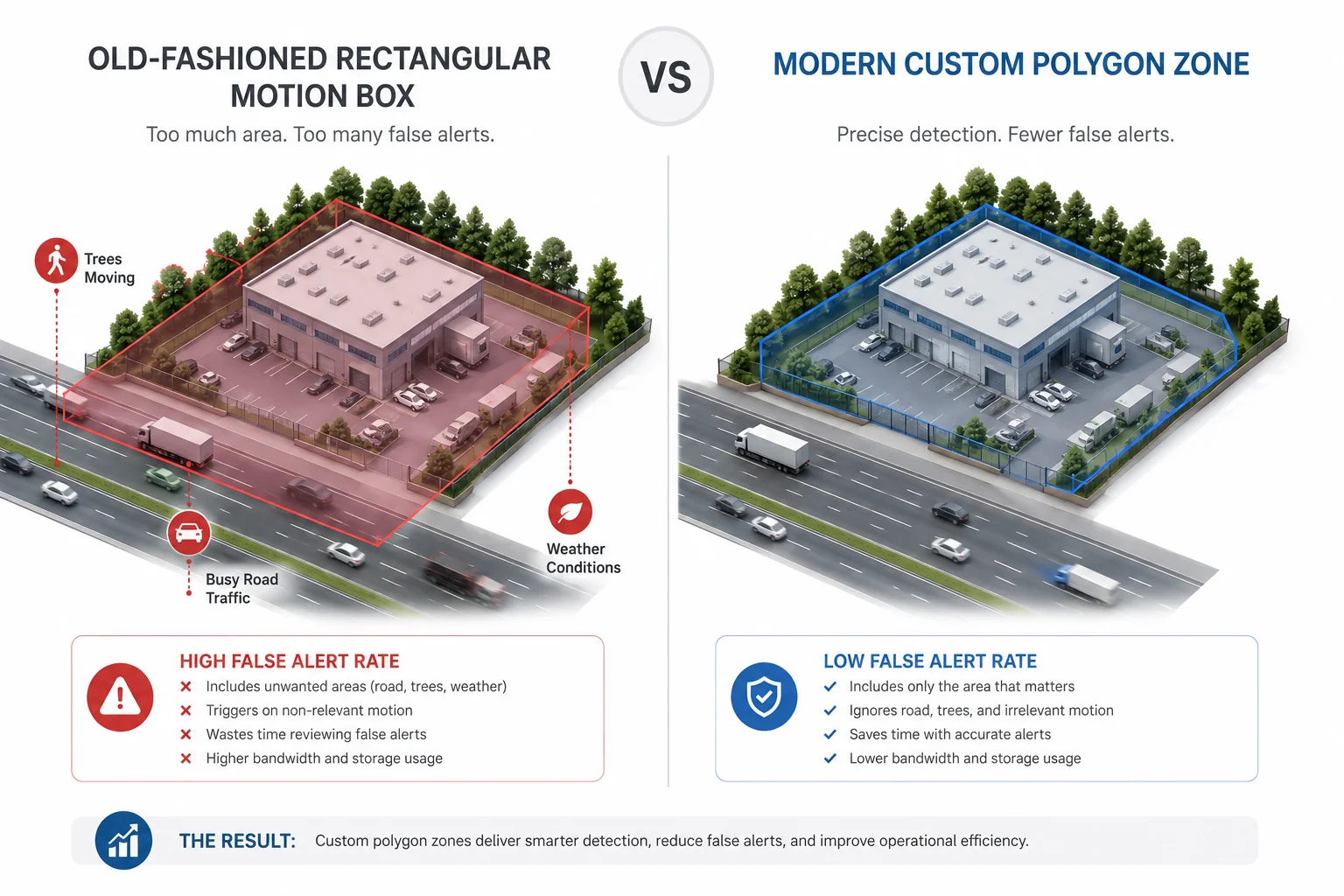
I have seen integrators waste entire weekends tuning rectangular motion boxes that still fire 50 false alerts a night. The geometry is the root cause. A rectangle always includes dead space you do not care about.
Polygon detection improves accuracy because it eliminates irrelevant background pixels from the analysis area. The AI only processes motion inside your custom shape, so passing cars, swaying branches, and shifting shadows outside the boundary never trigger an alert.
The Math Behind Fewer False Alarms
Think of a camera watching a triangular corner lot. A rectangle that covers the lot also covers the two roads on either side. That means every car driving past enters the detection area. With a polygon, you trace only the lot boundary. The roads stay outside. The camera ignores them completely.
In real numbers, I have seen customers reduce false alerts from 40–60 per night down to 2–5 per night just by switching from rectangles to polygons. That is not a software upgrade. It is the same firmware. The only change is the shape of the zone.
How the AI Uses the Polygon Boundary
Our AI engine does not just check “is there motion inside the box.” It checks whether the base point of a detected object falls inside the polygon coordinates. The base point is usually the midpoint between a person’s feet or the center-bottom of a vehicle bounding box.
This means:
- A person walking along the outside of your fence will not trigger an alert, even if their arm or shadow crosses into the zone.
- A vehicle parked just outside the polygon edge stays ignored, even if its headlights illuminate the zone interior.
- Only when the base point coordinate crosses into the polygon does the system register an intrusion event.
Pixel-Level Precision vs. Block-Level Detection
Old-style motion detection divides the frame into a grid of blocks, usually 22×18 or 32×24. You turn blocks on or off. The smallest unit you can control is one block, which might represent a 50×50 pixel area. That is coarse.
Polygon detection works at the pixel coordinate level. Each anchor point has an exact X,Y position on the full-resolution frame. The boundary line between two points is a straight vector. The system checks object coordinates against these vectors using point-in-polygon math4. The result is far more precise than block grids.
| Detection Method | Boundary Precision | Typical False Alerts/Night | Setup Time |
|---|---|---|---|
| Block-grid motion boxes | ~50px blocks | 40–60 | 5 minutes |
| Rectangular ROI | Pixel-level edges, 4 points only | 15–25 | 3 minutes |
| Custom polygon zones | Pixel-level edges, 8–12 points | 2–5 | 10 minutes |
Direction-Sensitive Filtering on Polygon Edges
You can also set rules on the polygon boundary itself, for example, to only alert when someone enters the zone, not when they leave. Or you can set it to alert on both directions. This is useful for loading docks where workers exit all day but no one should enter after 6 PM.
Does the Firmware Support “Exclusion Zones” to Ignore Busy Roads Just Outside the Security Fence?
A busy road 10 meters from your fence will destroy your alert log if you cannot exclude it. I have talked to integrators who disabled motion detection entirely because they could not stop road traffic from flooding their system.
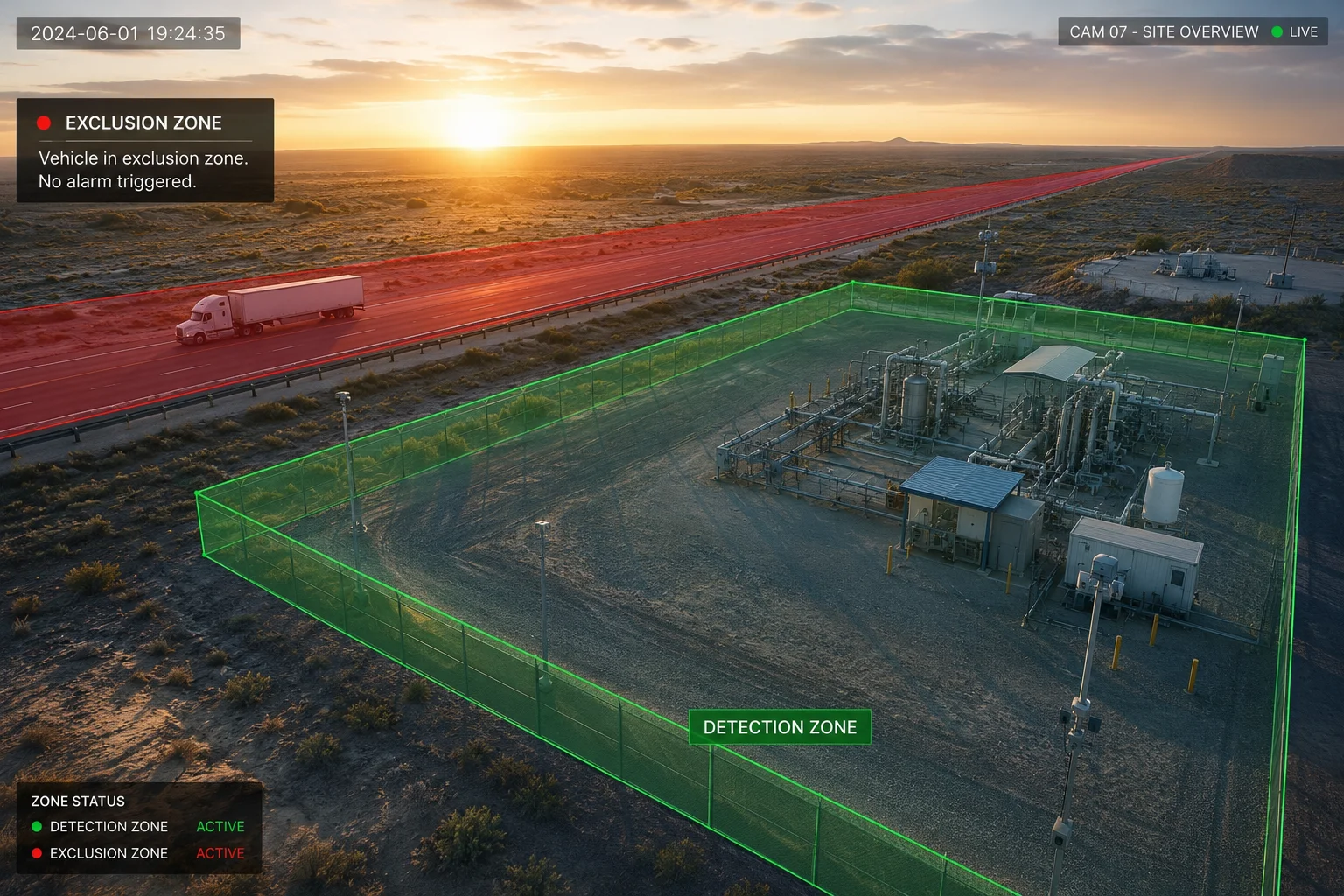
Yes, our firmware supports dedicated exclusion zones3. You draw a polygon over any area you want the AI to completely ignore, such as a public road, a neighbor’s property, or a flag pole. All motion and AI analysis inside that exclusion zone is discarded before it reaches the alert engine.
How Exclusion Zones Differ from Detection Zones
A detection zone tells the system “watch this area and alert me.” An exclusion zone tells the system “pretend this area does not exist.” They work together. You can draw a large detection polygon over your entire site, then place a smaller exclusion polygon over the public road that cuts through your camera’s field of view.
The processing order is:
- Camera captures full frame.
- AI engine identifies objects (people, vehicles, animals).
- System checks if the object’s base point falls inside any exclusion zone.
- If yes, the object is discarded. No alert. No recording tag.
- If no, the system checks if the object falls inside a detection zone.
- If yes, the configured rule fires (alert, record, siren, etc.).
Common Exclusion Zone Use Cases
Here are situations where exclusion zones save projects:
- Public roads adjacent to fenced sites. Cars and pedestrians pass constantly. Without exclusion, you get hundreds of alerts daily.
- Neighbor’s property visible over a low fence. Their dog, their kids, their delivery drivers — none of your concern.
- Flags, banners, or loose tarps. Wind makes these move constantly. A small exclusion polygon over the flag pole eliminates the problem without reducing coverage elsewhere.
- Water features or reflective surfaces. Ponds, puddles after rain, or shiny metal roofs can create false motion triggers from light changes.
Combining Exclusion with Detection for Layered Logic
David, here is a setup I recommend for your Texas highway-adjacent sites:
Draw your main detection polygon tight around the fenced perimeter. Then draw an exclusion polygon over the highway shoulder and the first lane of traffic. Even if a truck’s headlights sweep across your detection zone, the truck itself (its base point) stays in the exclusion area. No alert fires.
If someone pulls off the highway and walks toward your fence, their base point leaves the exclusion zone and enters the detection zone. Now the alert fires. The system caught the real threat and ignored the normal traffic. That is the power of layered polygon logic.
Exclusion Zone Limits
You can typically draw 2 to 4 exclusion zones per camera view, depending on firmware version. These count separately from your 8 detection zones, so you do not sacrifice coverage to gain exclusion capability.
Can Each Polygon Zone Be Assigned a Unique AI Sensitivity and Alert Priority?
Not every part of your site carries the same risk. The generator room matters more than the parking lot. A one-size-fits-all sensitivity setting forces you to choose between catching real threats and drowning in false alerts.
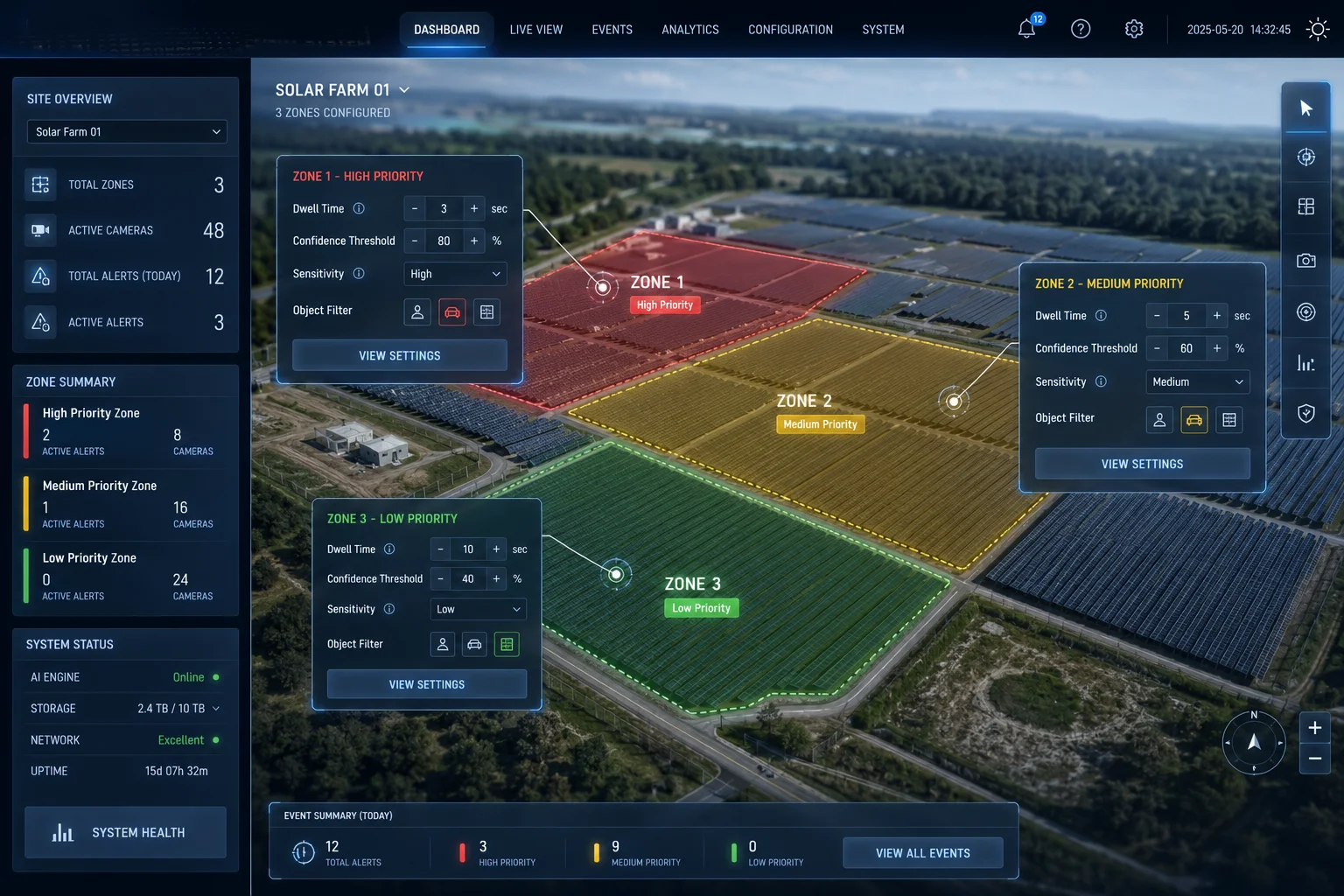
Each polygon zone can be assigned its own AI sensitivity2 level, object filter, dwell time threshold, and alert priority. This means your high-value zone triggers an instant siren while your low-risk buffer zone only logs a recording — all from the same camera, at the same time.
What “Per-Zone Sensitivity” Actually Controls
When we say sensitivity, we mean several parameters working together:
- Object size threshold6: The minimum pixel size an object must reach before the AI classifies it. A higher threshold ignores small animals. A lower threshold catches everything.
- Confidence score cutoff: The AI assigns a confidence percentage to each detection (e.g., “92% likely human”). You set the minimum confidence required to trigger an alert. Zone A might require 80%. Zone B might require 95%.
- Dwell time7: How long an object must remain inside the zone before an alert fires. Set 0 seconds for instant alerts in critical zones. Set 5–10 seconds in buffer zones to filter out people who briefly cut through.
Priority Levels and Response Actions
Each zone gets its own priority tag: High, Medium, or Low. The priority determines what happens when the alert fires.
| Priority Level | Response Actions | Use Case Example |
|---|---|---|
| High (Red Zone) | Instant push notification, siren activation, strobe light, email with snapshot, VMS pop-up | Generator room, fuel storage, server rack |
| Medium (Yellow Zone) | Push notification, recording bookmark, email digest | Perimeter fence, parking area |
| Low (Green Zone) | Recording bookmark only, no push alert | Buffer area near public path |
Real-World Zone Configuration Example
Let me walk through a setup I would recommend for a solar farm project:
Zone 1 — Inverter Array (High Priority):
- Object filter: Human + Vehicle only
- Confidence threshold: 80%
- Dwell time: 0 seconds
- Response: Siren, strobe, instant push, VMS alarm8
Zone 2 — Perimeter Fence Line (Medium Priority):
- Object filter: Human only
- Confidence threshold: 90%
- Dwell time: 3 seconds
- Response: Push notification, recording tag
Zone 3 — Access Road Inside Gate (Low Priority):
- Object filter: Vehicle only
- Confidence threshold: 85%
- Dwell time: 0 seconds
- Response: License plate capture, log entry only
Exclusion Zone — Public Highway:
- All detection disabled
Why This Matters for 4G Solar Sites
David, on a 4G solar-powered site, every alert costs bandwidth and battery. Per-zone priority means only critical events consume your limited bandwidth. Low-priority events stay as local recordings until the next scheduled sync or until you pull them manually.
This is not just a convenience feature. It is a power management strategy. On a 100W solar panel with a 100Ah battery, the difference between 50 uploads per night and 5 uploads per night can mean the difference between a system that runs through three cloudy days and one that dies on day two.
Conclusion
Custom polygon zones give you pixel-level control over where your AI watches, what it ignores, and how it responds — zone by zone, from a single camera. If you need help configuring zones for your specific site layout, reach out to me at sales05@.com and I will walk you through it.
1. A detailed guide on how polygon detection zones work and how to configure them for maximum accuracy. ↩︎ 2. Learn how AI sensitivity settings reduce false alarms by filtering detection events based on machine learning models. ↩︎ 3. Understand how exclusion zones let you ignore irrelevant areas like public roads, reducing nuisance alerts. ↩︎ 4. The computational geometry algorithm used to determine if a detected object’s base point lies inside a polygon zone. ↩︎ 5. A guide to programming PTZ camera presets and linking polygon zones to specific viewing positions. ↩︎ 6. Learn about minimum object pixel size settings that ignore small animals while detecting humans and vehicles. ↩︎ 7. Define how long an object must remain in a zone before triggering an alert, useful for filtering transient motion. ↩︎ 8. How video management systems (VMS) handle alarms triggered by AI detection zones. ↩︎