
I’ve seen too many projects fail because cameras drained batteries overnight or filled SD cards with useless footage. The constant battle between complete coverage and resource limits keeps many integrators awake at night.
Yes, the firmware supports dynamic switching between 24/7 continuous recording and motion-only modes through scheduled tasks and trigger linkage. You can set time-based schedules, power-aware rules, or manually switch modes remotely via the app to balance security needs with solar power and storage constraints.
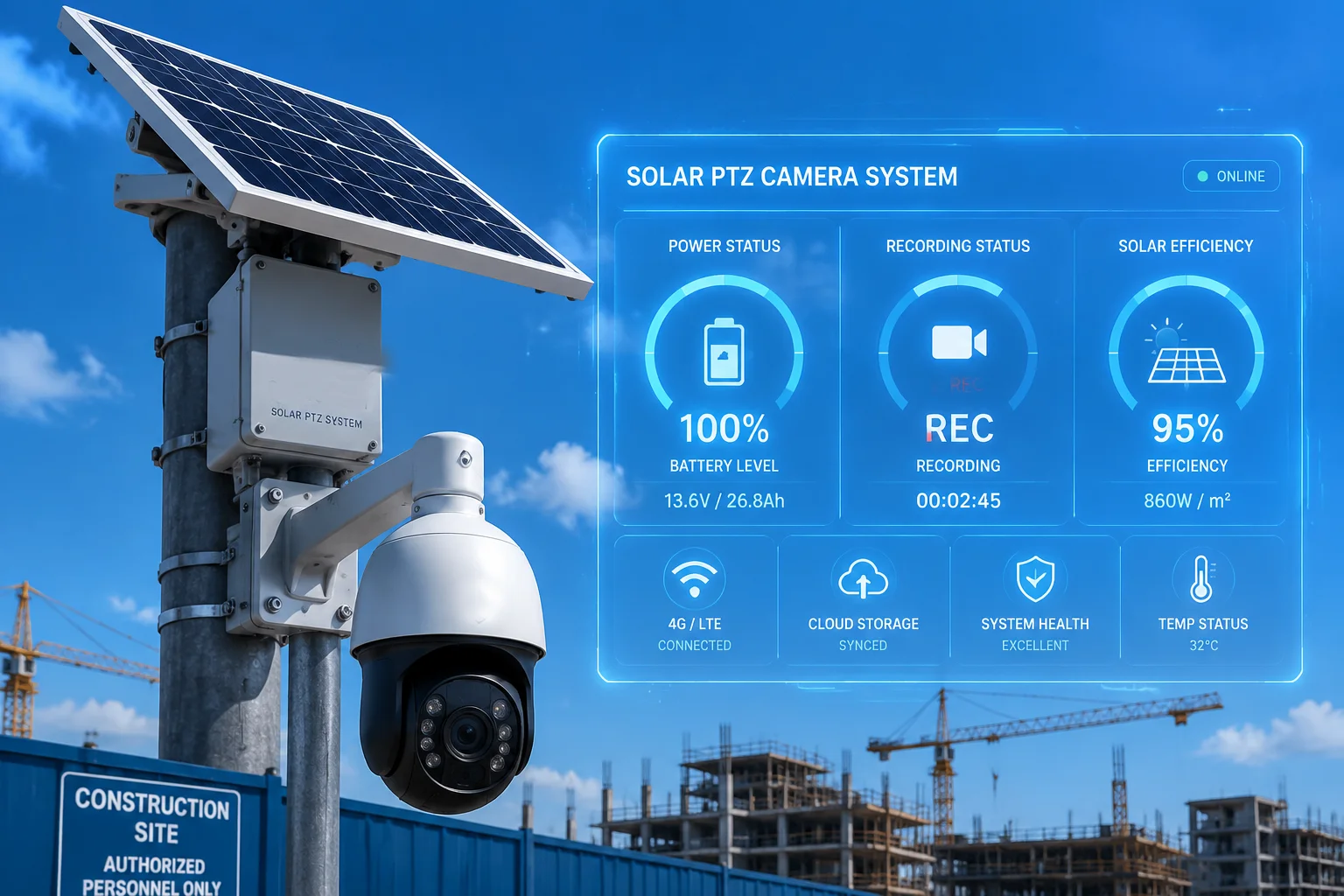
This flexibility is not just a nice feature. It’s the core solution for off-grid solar systems where you need to protect both your client’s security and your own reputation. Let me walk you through exactly how this works in real deployments.
Table of Contents
Can I record 24/7 during daylight hours and switch to AI-trigger only at night?
I remember a farm project in Montana where the client wanted full coverage during work hours but couldn’t afford the battery drain at night. This exact scenario is why we built the schedule system.
You can configure different recording strategies for different time periods through the web interface or mobile app. For example, set 24/7 recording from 08:00 to 18:00 during work hours, then automatically switch to motion detection or AI-filtered recording from 18:00 to 08:00 at night.
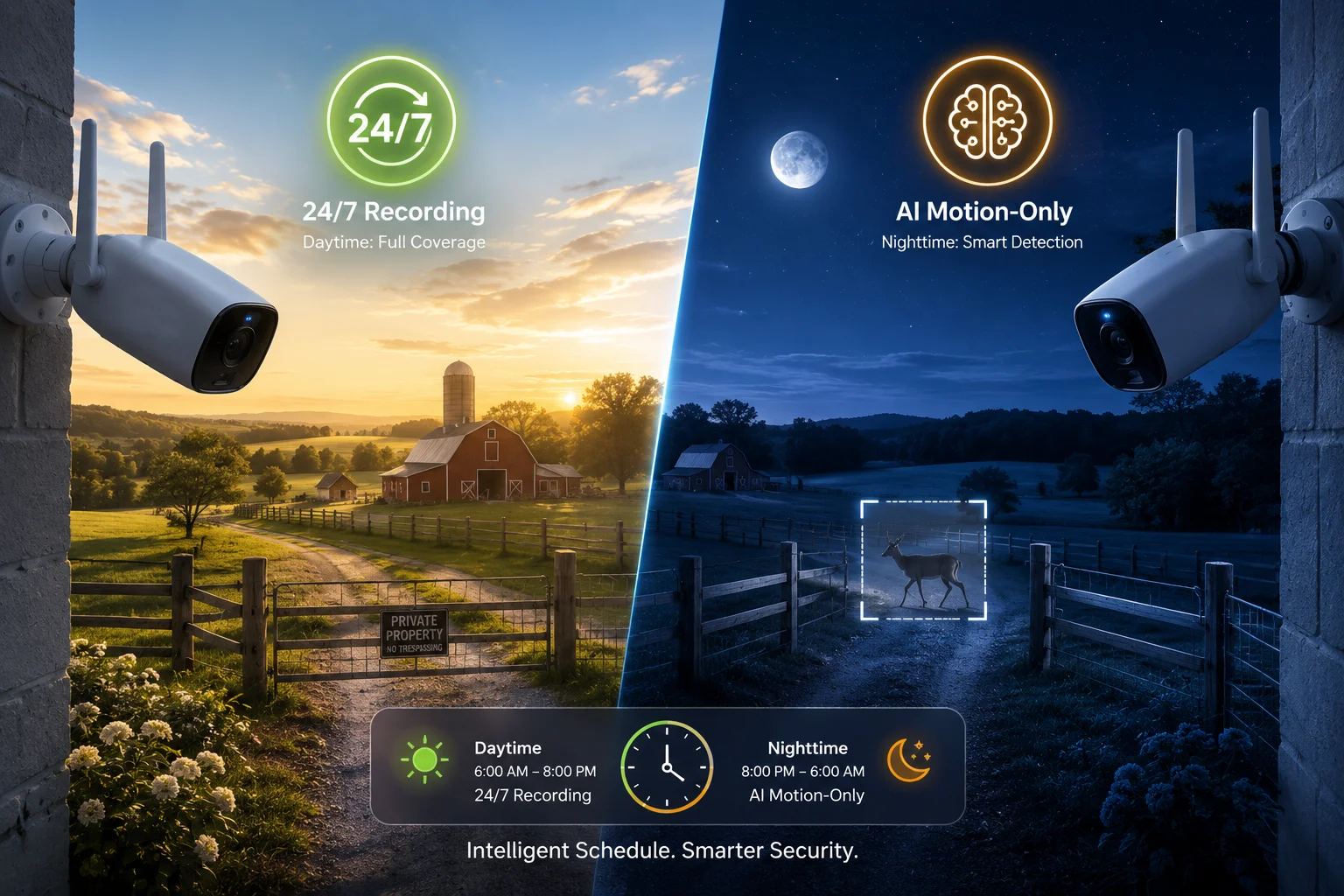
How the time-based schedule works
The firmware includes a built-in scheduler that runs independently of your monitoring software. You don’t need to rely on third-party VMS (Video Management System)7 to handle the switching. The camera itself manages the transitions.
You access this through the web GUI or the mobile app. The interface shows a 24-hour timeline where you can drag and drop recording modes. Each time block can have its own settings. You can set one mode for weekdays and a completely different pattern for weekends.
The system supports multiple schedule templates. You can create a “summer schedule” with longer daylight recording and a “winter schedule” that adjusts for shorter days. Switch between templates with one click when seasons change.
Why this matters for solar-powered deployments
Solar systems have predictable power cycles. Batteries charge during the day and discharge at night. If you run 24/7 recording all the time, you’re fighting against this natural cycle.
By recording continuously during daylight hours, you capture all activity when the solar panels are actively charging the batteries. The power you use for recording is essentially “free” because it comes directly from the panels.
At night, when the system runs purely on battery power, switching to motion-only mode dramatically extends runtime. A typical 4G PTZ camera draws about 8-12W during continuous recording but only 3-5W in standby with motion detection enabled. That difference can mean the gap between a system that survives three cloudy days versus one that dies after one.
Real-world configuration example
Here’s a typical schedule I recommend for construction sites:
| Time Period | Recording Mode | Reason |
|---|---|---|
| 06:00 – 08:00 | Motion + AI filter | Early arrivals, low activity |
| 08:00 – 18:00 | 24/7 continuous | Full work hours, maximum coverage |
| 18:00 – 22:00 | Motion + AI filter | Cleanup crew, occasional activity |
| 22:00 – 06:00 | Motion only (high sensitivity) | Security focus, minimal false triggers |
This pattern ensures you never miss important daytime events while conserving power during low-activity periods. The AI filter during transition hours prevents false alarms from shadows or animals while still catching human activity.
Technical implementation details
The schedule runs on the camera’s internal real-time clock (RTC)1. Make sure you set the correct timezone configuration8 during initial setup. The camera can sync time via NTP (Network Time Protocol)2 if it has internet access, or you can set it manually.
The switching happens instantly. There’s no gap in coverage when the camera transitions between modes. If motion is detected right at the transition moment, the camera will complete that recording before switching modes.
You can also set up email or push notifications to confirm when mode switches occur. This helps you verify the schedule is working correctly, especially during the first few days of deployment.
How does the “Smart Schedule” help balance security needs with solar power limitations?
I’ve dealt with too many emergency calls from clients whose cameras went offline during critical moments because the battery died. Smart Schedule is our answer to this problem.
Smart Schedule uses power-aware logic to automatically adjust recording modes based on battery voltage levels. When the battery drops below a critical threshold like 11.8V, the system forces a switch from 24/7 recording to motion-only mode, then automatically restores full recording when the battery recharges to safe levels like 12.5V.
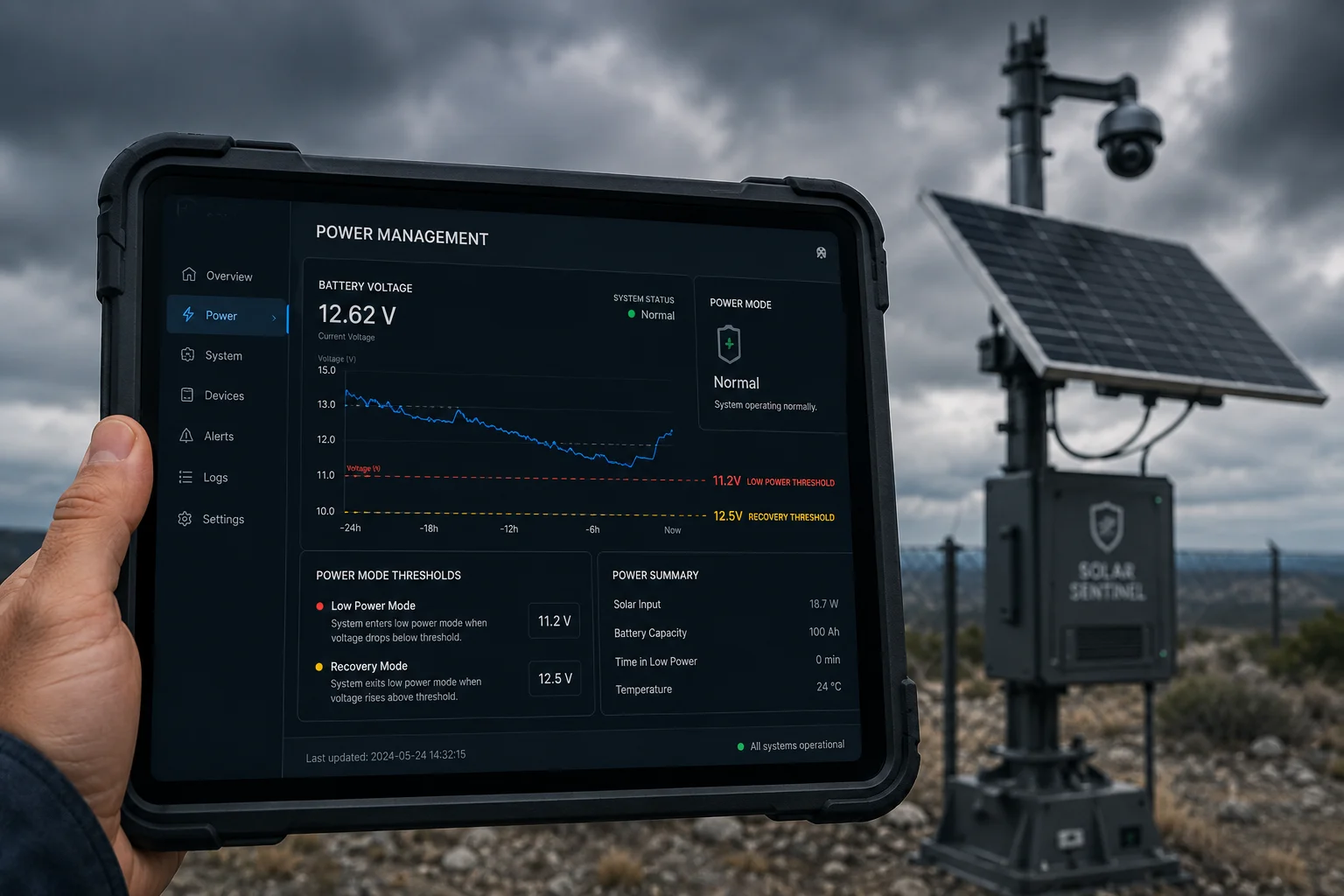
The power-aware switching mechanism
This feature goes beyond simple time schedules. The firmware continuously monitors battery voltage monitoring3 and makes intelligent decisions to prevent complete power failure.
You set two voltage thresholds in the configuration. The “low power threshold” triggers the switch to conservation mode. The “recovery threshold” allows the system to return to normal operation. This creates a buffer zone that prevents the system from constantly switching back and forth.
The typical settings I use are 11.8V for the low threshold and 12.5V for recovery. These values work well for standard 12V lead-acid or lithium batteries. You can adjust them based on your specific battery chemistry and capacity.
Why this prevents catastrophic failures
When a camera completely drains its battery, it doesn’t just stop recording. It goes completely offline. You lose remote access. You can’t check what happened. You can’t even restart it remotely. Someone has to physically visit the site.
For remote locations, that site visit might cost $500-1000 in labor and travel. The camera itself might only cost $400. You’re losing money on every failure.
Smart Schedule prevents this by ensuring the camera always keeps enough power to maintain basic connectivity. Even in conservation mode with motion-only recording, the camera stays online and accessible. You can still view live feeds and adjust settings remotely.
How it handles extended cloudy periods
This is where Smart Schedule really proves its value. During a string of cloudy days, solar charging drops significantly. A system without power-aware switching will continue 24/7 recording until the battery dies.
With Smart Schedule enabled, the camera detects the declining battery voltage and automatically reduces power consumption before reaching critical levels. This can extend runtime by 2-3x during poor weather.
Here’s what happens during a typical cloudy period:
| Day | Weather | Battery Level | Recording Mode | System Status |
|---|---|---|---|---|
| Day 1 | Cloudy | 12.8V → 12.3V | 24/7 recording | Normal operation |
| Day 2 | Cloudy | 12.3V → 11.7V | Auto-switch to motion-only | Power conservation activated |
| Day 3 | Cloudy | 11.7V → 11.4V | Motion-only continues | System remains online |
| Day 4 | Partly sunny | 11.4V → 12.6V | Auto-restore to 24/7 | Normal operation resumed |
Without Smart Schedule, this system would have died on Day 3 and required a site visit. With Smart Schedule, it survived and automatically recovered.
Manual override capabilities
Sometimes you need to override the automatic system. Maybe you received a tip about suspicious activity and want full recording regardless of battery level. The mobile app includes a manual override button.
When you activate manual override, the camera ignores power thresholds and records according to your command. The system will warn you about potential power issues, but it won’t stop you from making the decision.
This override stays active until you manually disable it or until a preset time limit expires. I usually set the time limit to 24 hours to prevent accidentally leaving override mode enabled indefinitely.
Will the camera automatically extend recording time if it detects continuous human activity?
I’ve reviewed footage where cameras stopped recording right in the middle of a break-in because the motion event timer expired. That’s unacceptable for professional security systems.
Yes, the camera uses intelligent event extension logic. When AI detection identifies continuous human or vehicle activity, the recording automatically extends beyond the preset motion timer. The recording only stops after the activity ends plus a configurable post-event buffer5 period, ensuring you capture complete incidents from start to finish.
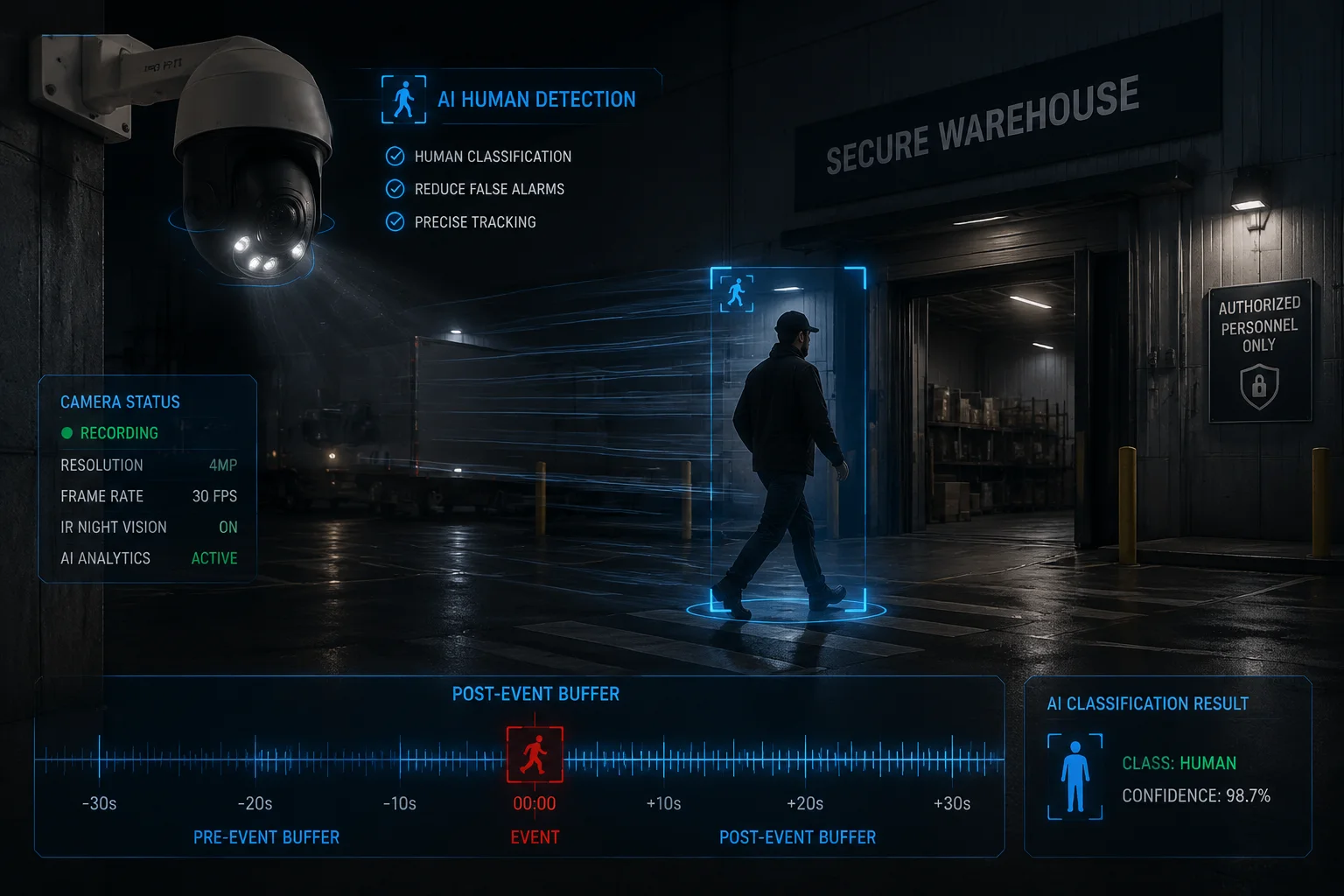
How event extension differs from basic motion recording
Basic motion detection uses a simple timer. Motion triggers recording for a fixed duration like 30 seconds or 2 minutes. If motion continues beyond that time, the camera creates a new clip. This creates gaps and makes reviewing footage frustrating.
Event extension treats the entire incident as a single continuous event. As long as the AI continues detecting humans or vehicles in the frame, the recording continues without interruption.
The system uses a “cool-down period” to determine when an event truly ends. If no human is detected for 30 seconds (configurable), the camera considers the event finished and stops recording after the post-event buffer.
AI classification prevents false extensions
Not all motion deserves extended recording. Tree branches swaying in wind or clouds moving across the frame shouldn’t trigger long recordings.
The AI classification layer filters out non-relevant motion. The camera only extends recording time for objects classified as humans, vehicles, or other configured targets. This dramatically reduces false alarms and wasted storage.
You can configure which object types trigger extension. For a parking lot, you might enable extension for vehicles but not humans. For a building entrance, you’d enable humans but not vehicles.
Storage and bandwidth implications
Extended recording uses more storage than fixed-duration clips. A typical break-in might last 5-10 minutes instead of generating multiple 30-second clips. Plan your SD card capacity4 accordingly.
For 4G systems, extended recording can impact data usage. A 10-minute continuous recording at 2 Mbps uses about 150 MB of data. If you’re on a limited data plan, you might want to configure the camera to save extended recordings locally while only uploading short alert clips to the cloud.
The firmware includes a “maximum event duration” setting as a safety limit. Even with continuous activity, the camera will close the current file and start a new one after this limit (typically 10-15 minutes). This prevents single massive files that are difficult to handle and ensures you don’t lose everything if a file gets corrupted.
Configuration recommendations
Here’s how I typically configure event extension for different scenarios:
| Scenario | AI Trigger | Cool-down Period | Post-event Buffer | Max Duration |
|---|---|---|---|---|
| Construction site | Human + Vehicle | 45 seconds | 30 seconds | 15 minutes |
| Warehouse entrance | Human only | 30 seconds | 20 seconds | 10 minutes |
| Parking lot | Vehicle only | 60 seconds | 15 seconds | 20 minutes |
| Farm perimeter | Human only | 30 seconds | 30 seconds | 10 minutes |
These settings balance complete event capture with reasonable file sizes and storage consumption. Adjust based on your specific needs and available resources.
Can I set different schedules for weekdays versus weekends via the remote app?
I work with many clients who have completely different security needs on weekends versus weekdays. A construction site might be busy Monday through Friday but completely empty on weekends.
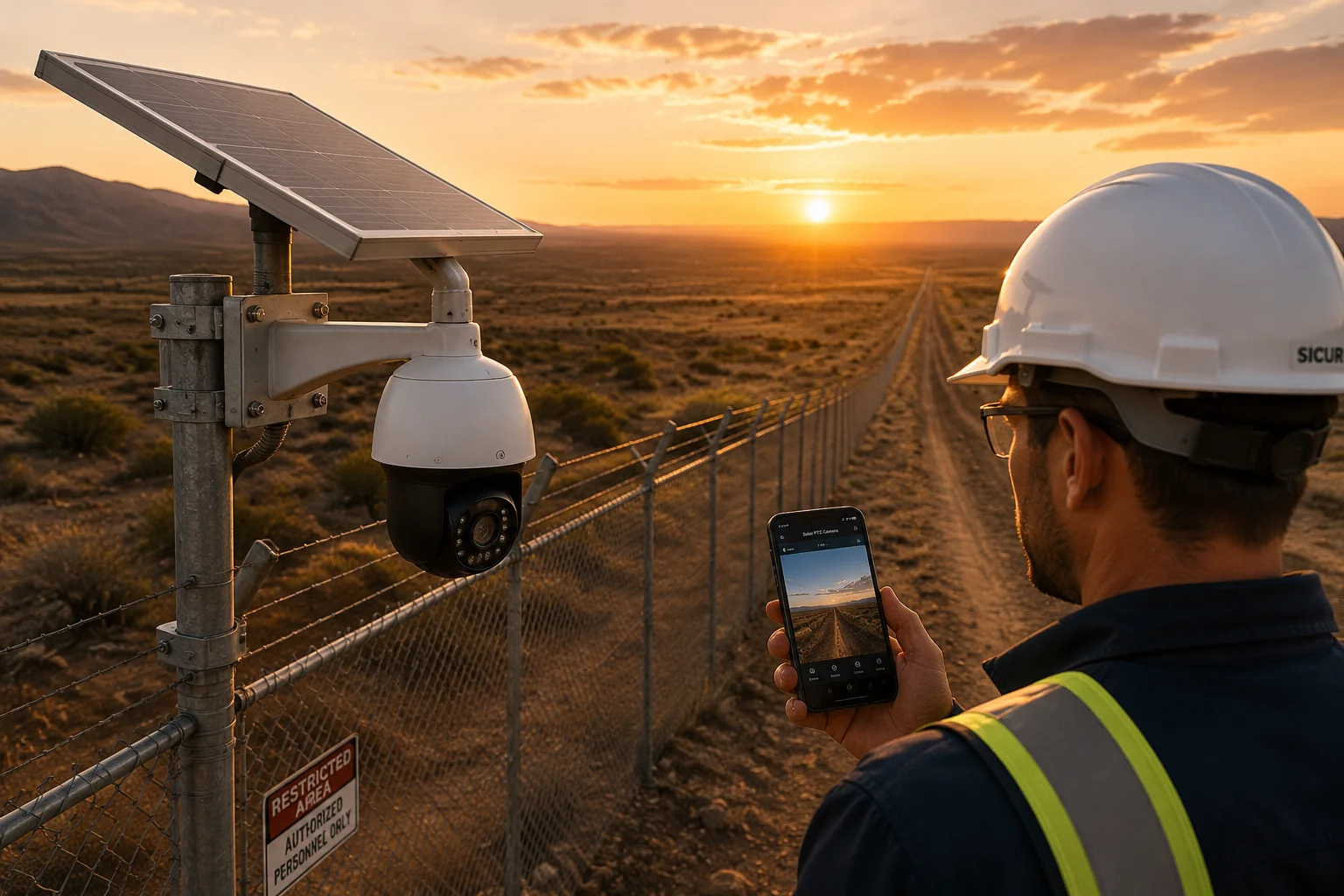
Yes, the mobile app and web interface support separate schedule configurations for weekdays and weekends. You can create distinct recording patterns, sensitivity levels, and notification rules for different days of the week. All settings sync across devices and can be modified remotely without visiting the site.
Creating day-specific schedules
The schedule interface includes a calendar view where you can assign different profiles to different days. You’re not limited to just weekday/weekend splits. You can configure each day of the week individually if needed.
For example, a retail business might want 24/7 recording Monday through Saturday during business hours, but only motion detection on Sundays when the store is closed. A manufacturing facility might have three shifts Monday through Thursday, two shifts on Friday, and skeleton crew on weekends.
The system supports up to 10 different schedule profiles. Create profiles for different scenarios, then assign them to specific days. When your operational patterns change seasonally, just reassign the profiles instead of recreating schedules from scratch.
Remote modification capabilities
Everything I’ve described can be changed remotely through the mobile app. You don’t need to be on the same network as the camera. As long as the camera has 4G or internet connectivity, you have full control.
The app interface mirrors the web GUI functionality. You can view current schedules, modify time blocks, adjust sensitivity settings, and change AI detection parameters. Changes take effect within 5-10 seconds.
This remote capability is critical for integrators managing multiple sites. You can adjust schedules for dozens of cameras across different locations without leaving your office. When a client calls with a schedule change request, you can implement it during the phone call.
Notification rules tied to schedules
Different schedules can trigger different notification behaviors. During high-activity weekday periods, you might disable push notifications6 to avoid alert fatigue. During weekend security-only periods, you might enable immediate notifications for any human detection.
The notification system supports multiple recipient groups. Your client might want notifications during business hours, while your monitoring team receives alerts 24/7. The schedule system can route notifications to different groups based on time and day.
You can also configure different notification thresholds. During weekdays, maybe only send alerts for events longer than 30 seconds. On weekends, send alerts for any human detection regardless of duration.
Synchronization across multiple cameras
If you’re managing a site with multiple cameras, you can create a master schedule and push it to all cameras simultaneously. This ensures consistent behavior across the entire system.
The app includes a “copy schedule” function. Configure one camera perfectly, then copy that schedule to other cameras with one tap. You can still customize individual cameras afterward if needed.
For large deployments, the web interface supports bulk configuration. Upload a CSV file with schedule parameters and apply them to selected cameras. This saves hours of manual configuration time.
Holiday and exception handling
The schedule system includes an exception calendar for holidays and special events. Mark specific dates as exceptions, and the camera will use a different schedule profile for those d
1. Learn about the role of an RTC in maintaining schedules on embedded devices. ↩︎ 2. Understand how NTP synchronizes time across network devices. ↩︎ 3. Read about techniques for monitoring battery voltage in solar systems. ↩︎ 4. Learn about SD card capacity classes and how to choose for surveillance. ↩︎ 5. Definition of post-event buffering in video surveillance systems. ↩︎ 6. How mobile push notifications work for real-time alerts. ↩︎ 7. Overview of VMS software for centralized camera management. ↩︎ 8. Steps to correctly set timezone for accurate scheduling. ↩︎