
I have watched engineers drive six hours to a remote site, only to find a $2 SIM card had expired. That single truck roll cost more than the camera itself.
Our PTB firmware provides a three-layer diagnostic log system that records cellular signal data, protocol heartbeat status, and watchdog recovery events. These logs let you pinpoint whether a disconnection comes from the carrier, the signal environment, or the hardware module — all without visiting the site.
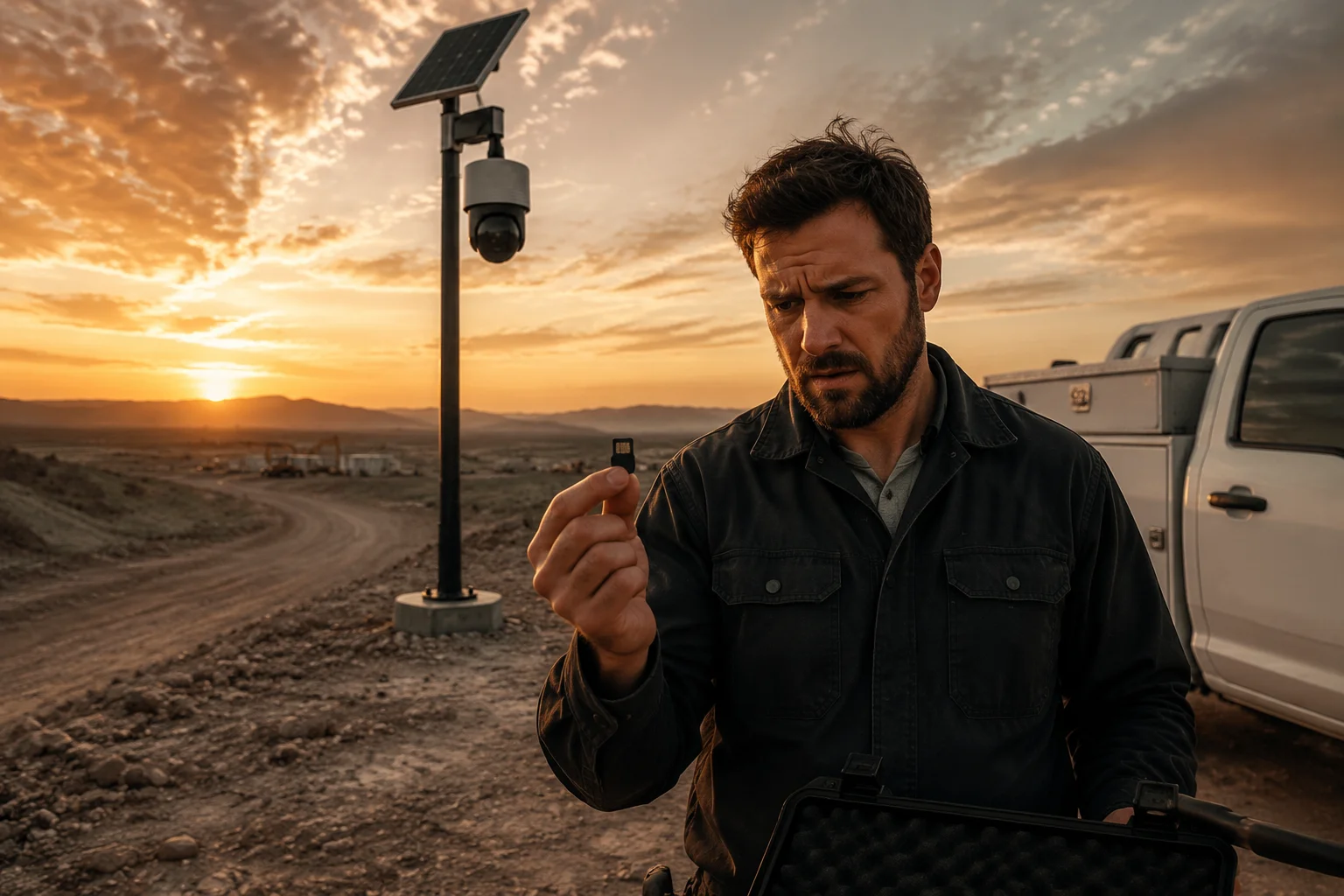
For B2B integrators managing dozens or even hundreds of remote cameras, network logs are the only tool that cuts field maintenance costs. Below, I break down exactly what our firmware logs, how you access them, and what to demand from any PTZ supplier before you sign a purchase order.
Table of Contents
Can I See the Exact Reason for a 4G Disconnection (e.g., SIM Error vs. Tower Failure)?
When a 4G camera goes offline, my phone starts ringing. The client wants answers. “Is it the SIM? The tower? The camera?” Without the right logs, I am just guessing.
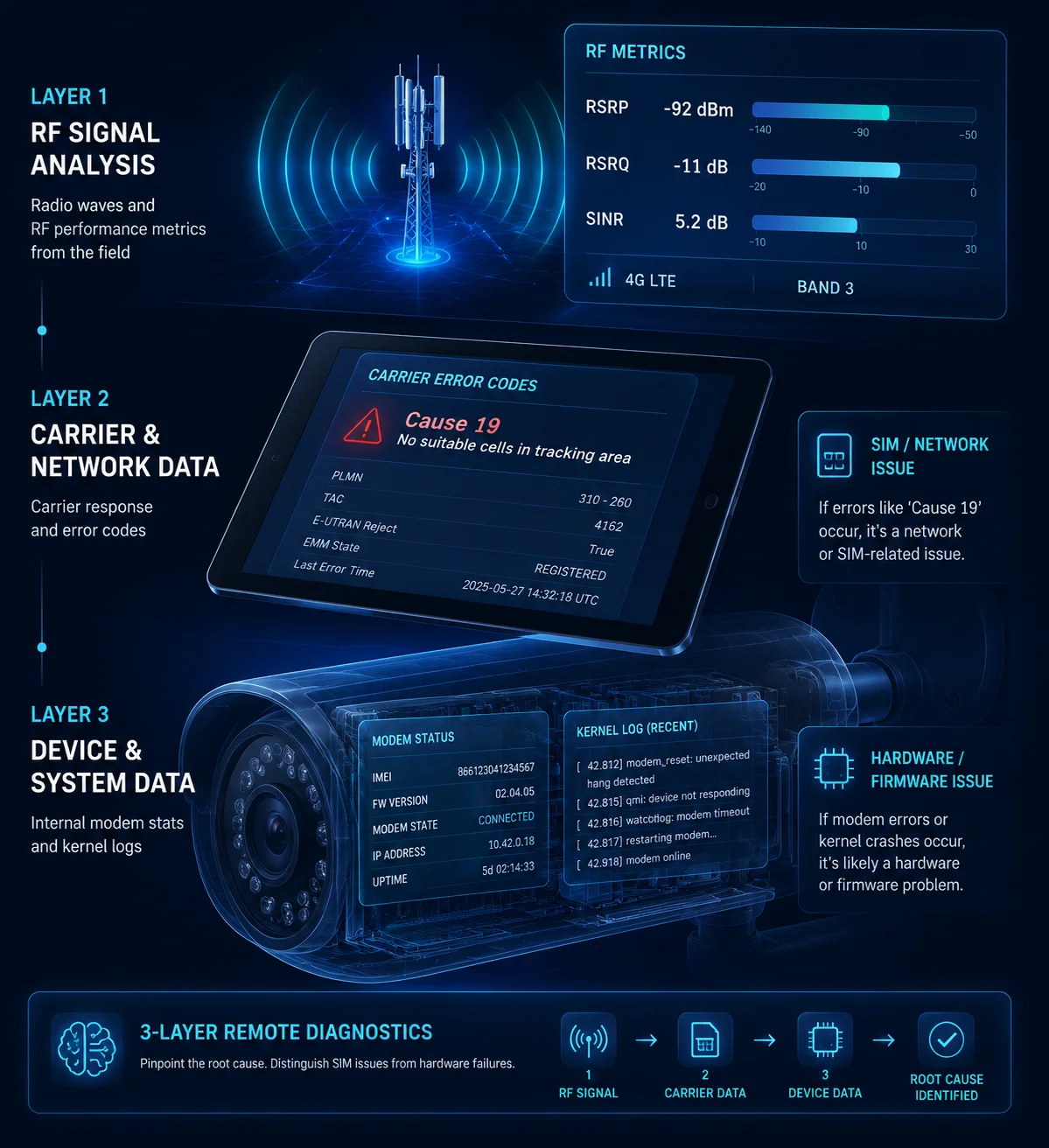
Yes. Our firmware records three distinct categories of cellular data — RF signal metrics, carrier reject codes, and cell tower handover history — so you can tell in seconds whether the problem is a dead SIM, a congested tower, or a failing modem.
Layer 1: Real-Time Cellular Connectivity Logs
The firmware captures every interaction between the 4G modem and the base station. Each entry maps to a specific AT command3 response. Here is what gets recorded:
- Signal quality indicators: The log stores RSRP1 (Reference Signal Received Power), RSRQ2 (Reference Signal Received Quality), and RSSI at regular intervals. If RSRQ stays below -15 dB for more than two minutes, the system flags an “Environmental Interference Warning” automatically.
- Cell ID and PCI: The log tracks which tower the camera connects to. If you see the Cell ID changing every few seconds, that is a classic ping-pong effect4. It means two towers are fighting over the connection. The fix is usually to lock the modem to a specific frequency band.
- Network registration status: The log shows the full journey from
SearchingtoRegistered, including any reject codes. For example, Cause 19: ESM_FAILURE5 almost always means the SIM is out of credit or the APN is wrong.
Layer 2: Carrier Error Codes That Save You a Trip
This is where the real value lives. Instead of driving to the site, you read the reject code and know exactly what happened.
| Reject Code | Meaning | Typical Fix |
|---|---|---|
| Cause 3: Illegal MS | SIM card is blocked by the carrier | Call the carrier to reactivate |
| Cause 6: Illegal ME | The modem IMEI is blacklisted | Replace the modem or contact carrier |
| Cause 11: PLMN Not Allowed | SIM is not authorized for this network | Switch to a supported carrier |
| Cause 19: ESM Failure | APN rejected or SIM has no data plan | Fix APN settings or top up the SIM |
| Cause 22: Congestion | Tower is overloaded | Wait, or lock to a less busy band |
I have seen integrators waste entire days troubleshooting a “dead camera” that turned out to be Cause 19. The SIM had run out of data. A five-second log check would have solved it.
Layer 3: When the Problem Is the Hardware
If the modem driver crashes, the kernel log (dmesg)6 captures the last error instruction. Our engineering team can read that log remotely and push a firmware patch. You do not need to ship the camera back to China. You do not need to open the housing. The log tells us exactly which function failed and why.
This three-layer approach means you never have to guess. SIM issue, tower issue, or hardware issue — the log tells you which one, every time.
Are the Logs Accessible via the Web GUI Even If the P2P Connection Is Unstable?
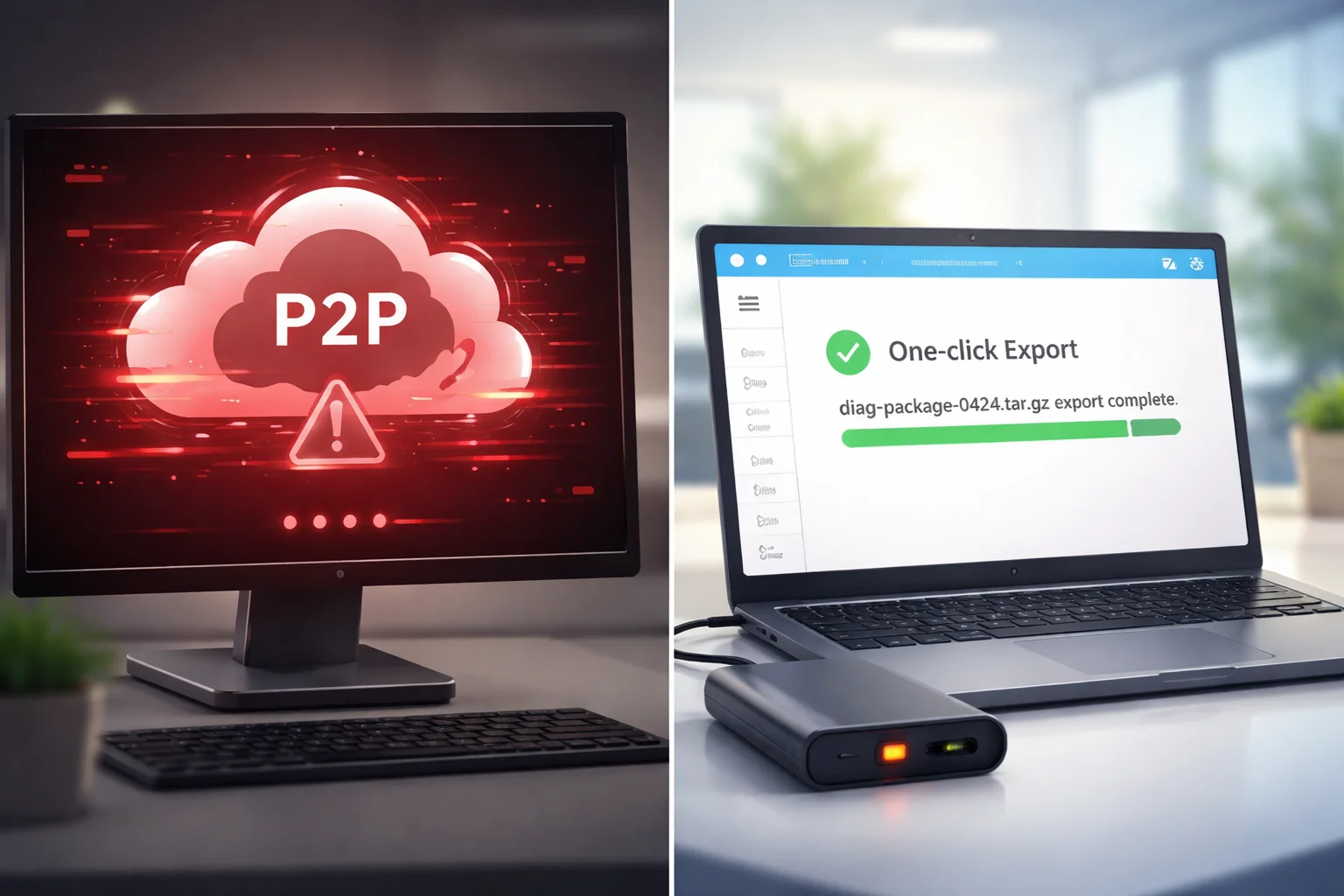
I have been in situations where the P2P tunnel keeps dropping. The camera is half-online. I can ping it sometimes, but the cloud relay is unreliable. Can I still pull logs?
Yes. Our Web UI stores the most recent 500 log entries locally on the camera. If you can reach the device through any IP path — local network, VPN, or even a brief P2P window — you can view and export the full diagnostic package without a stable cloud connection.
Why Local Storage Matters
Many cheap cameras store logs only in RAM. When the device reboots, everything disappears. Our firmware writes logs to non-volatile storage7. Even after a power failure or a watchdog-triggered restart, the logs survive. This is critical for remote sites where you might not check the camera for days or weeks.
Three Ways to Pull Logs
We designed multiple access methods because no single method works in every situation:
- Web UI direct view: Open the camera’s management page, go to “System Maintenance,” and scroll through the last 500 real-time log entries. You can filter by category — network, system, or alarm.
- One-click export: Download a
.tar.gzpackage that contains network logs, system configuration, and runtime statistics. This file is small enough to transfer even over a slow or unstable 4G link. - VMS remote fetch: If you use our management platform, you can pull the “Last Will” log from a device that has already gone offline. The platform caches the last status report the camera sent before it disconnected. This report includes battery level, signal strength, and the final error code.
What If the Web UI Is Completely Unreachable?
If the camera is fully offline and you cannot reach it through any IP path, the logs are still safe on the device. The next time the camera comes back online — whether through a power cycle, a SIM swap, or a signal recovery — you can pull the stored logs immediately. Nothing is lost.
| Access Method | Requires Stable Connection? | Log Depth | Best For |
|---|---|---|---|
| Web UI | Brief access is enough | Last 500 entries | Quick checks during intermittent connectivity |
| .tar.gz Export | Brief access is enough | Full diagnostic package | Sending to engineering for deep analysis |
| VMS Remote Fetch | No (uses cached data) | Last status report | Offline devices you cannot reach at all |
For integrators like David Miller who manage sites across multiple states, this flexibility is not optional. It is a basic requirement. If your current camera vendor cannot give you logs when the connection is bad, the logs are useless exactly when you need them most.
How Far Back Do the Connection Logs Go Before Being Overwritten by the System?
I once needed to trace a pattern of nightly disconnections that had been happening for two weeks. The camera only kept three days of logs. I had to start over with a fresh monitoring window. That cost me two more weeks.
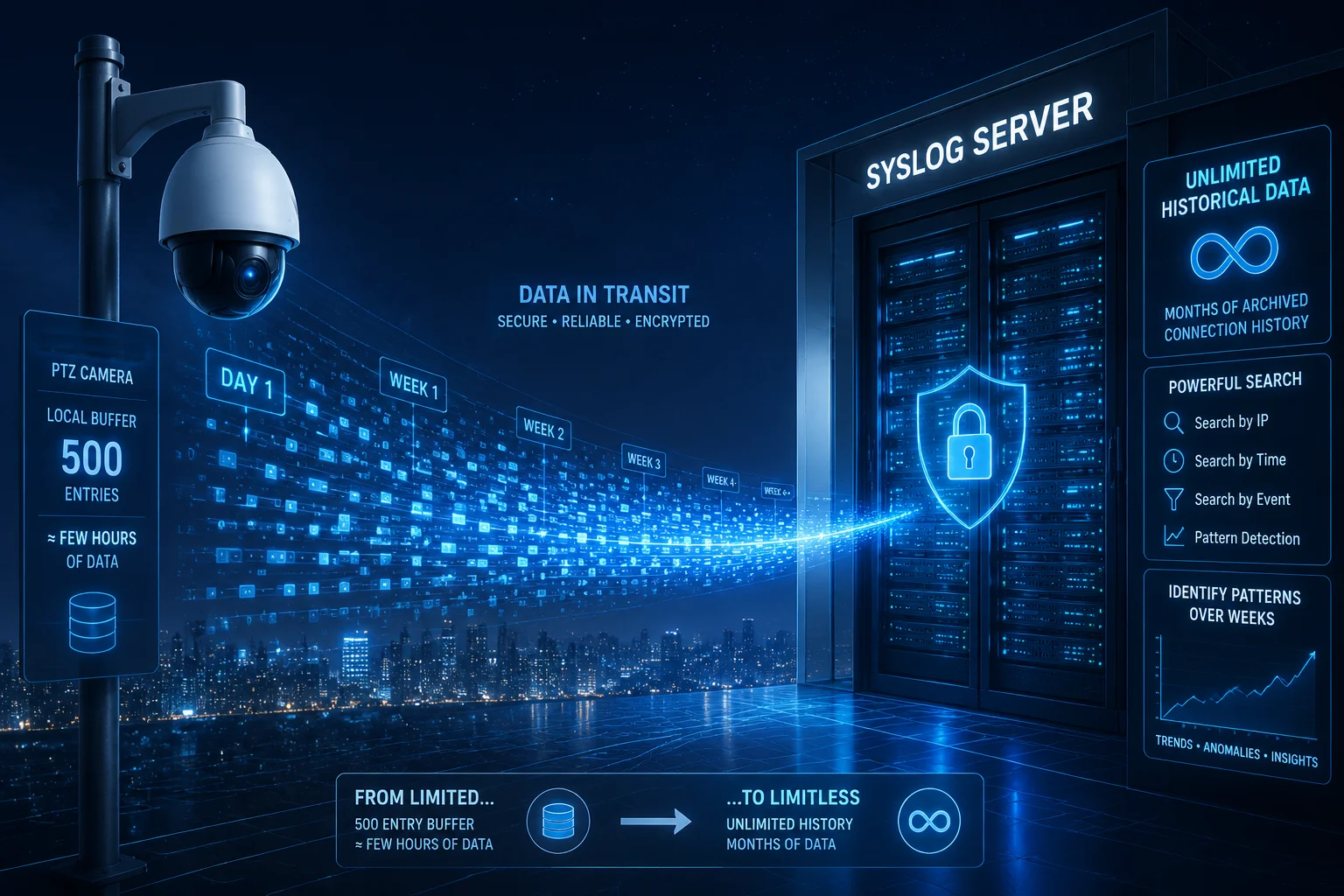
Our firmware retains the most recent 500 structured log entries in local storage. For long-term retention, you can configure Syslog forwarding8 to an external server, which stores unlimited history and lets you search months of data for recurring patterns.
Understanding the 500-Entry Local Buffer
The 500-entry limit is a deliberate design choice. PTZ cameras have limited flash storage, and writing too aggressively shortens the life of the storage chip. Five hundred entries typically cover 3 to 7 days of normal operation, depending on how active the network environment is. In a stable deployment, where the camera connects once and stays connected, 500 entries can cover several weeks. In a noisy environment with frequent handovers and reconnections, the buffer may fill in 2 to 3 days.
Syslog: The Right Answer for Long-Term History
If you need weeks or months of log history, local storage is the wrong tool. The right tool is Syslog. Here is how it works:
- You set up a Syslog server on your backend. Free options include rsyslog on Linux or Kiwi Syslog on Windows.
- In the camera’s Web UI, you enter the Syslog server IP and port.
- You choose the log level: Info, Warning, Error, or Debug.
- From that point on, every log entry is sent to your server in real time. The server stores everything. There is no overwrite limit.
What Log Level Should You Use?
- Info: Logs everything, including routine status updates. Good for initial deployment testing. Generates a lot of data.
- Warning: Logs signal degradation, high latency, and near-threshold events. Good for ongoing monitoring.
- Error: Logs only failures — disconnections, PDP activation failures, watchdog resets. Good for production environments where you only want to see problems.
- Debug: Logs raw AT command exchanges and protocol-level details. Only use this when actively troubleshooting a specific issue. Turn it off when done.
For most B2B deployments, I recommend setting the Syslog level to Warning for daily operation and switching to Debug only when a specific camera shows repeated issues. This gives you months of useful history without flooding your server with noise.
Can the Camera Automatically Email Me a “Diagnostic Report” After a Critical Crash?
I do not want to check logs manually every day. I want the camera to tell me when something goes wrong. Is that possible?
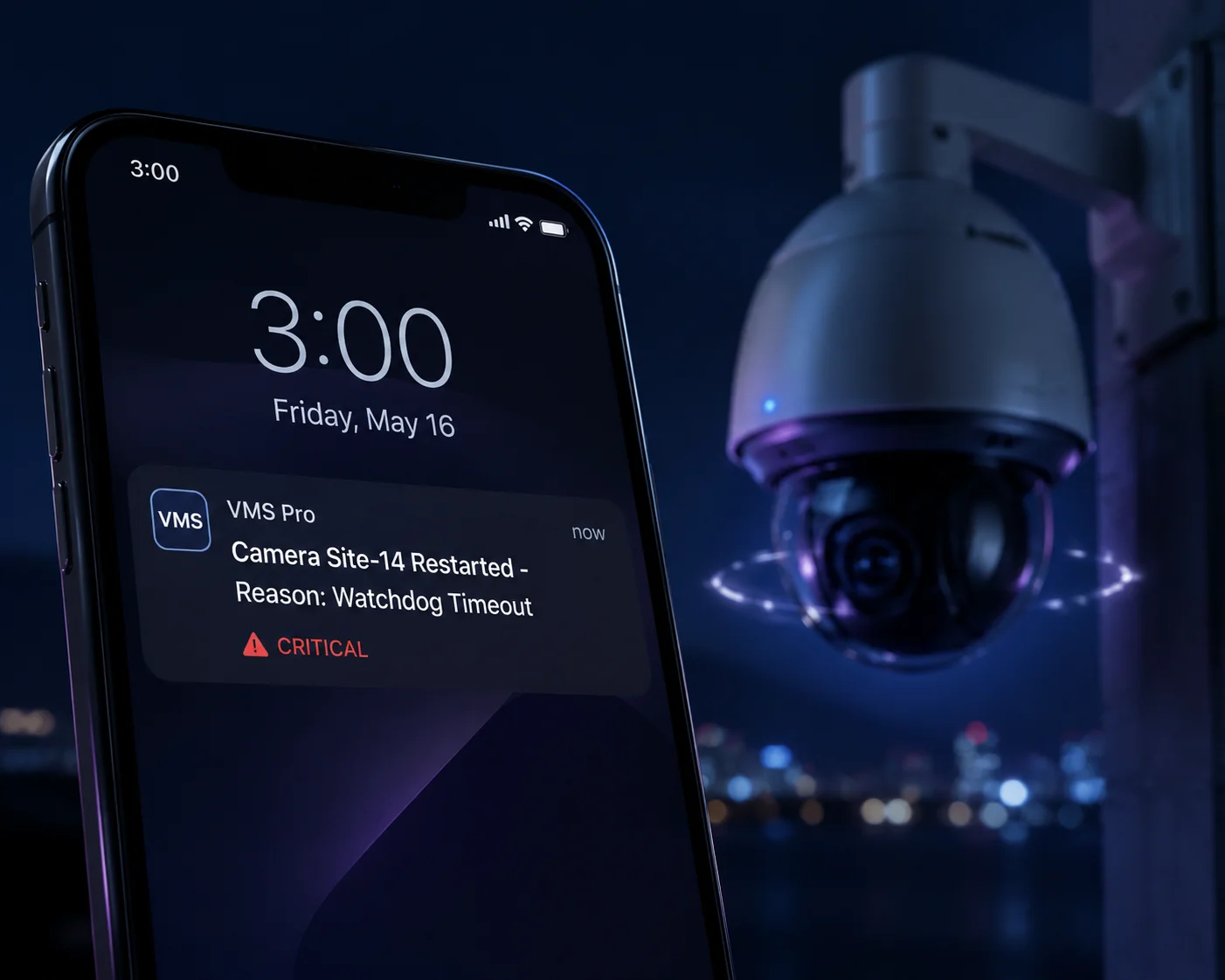
Our firmware supports automated alerts through the VMS platform. When a watchdog reset, modem crash, or repeated heartbeat failure occurs, the system can push a notification that includes the restart reason, last signal readings, and the error code — so you know what happened before you even log in.
How the Watchdog and Recovery Log Works
The watchdog is a hardware-level timer. If the main processor or the network stack stops responding for a set period, the watchdog cuts power and forces a hard reboot. Every time this happens, the firmware writes a recovery log entry that includes:
- Restart reason: Was it a manual reboot, a firmware update, or a watchdog-forced power cycle due to network timeout?
- Pre-crash state: The last known signal strength, IP address, and connection duration before the crash.
- Kernel error trace: If the 4G modem driver crashed, the dmesg log captures the exact function and memory address where the failure occurred.
Turning Logs into Alerts
The camera itself does not send emails directly. Instead, the alert flow works like this:
- The camera writes the crash log to local storage.
- When the camera comes back online, it sends the crash log to the VMS platform.
- The VMS platform parses the log and triggers an alert rule you have configured — email, SMS, webhook, or push notification.
- You receive a summary that says, for example: “Camera Site-14 restarted at 03:22 AM. Reason: Watchdog timeout. Last RSRP: -108 dBm. Last error: PDP Activation Failed.”
Why This Matters for Unmanned Sites
For solar-powered cameras on farms, construction sites, or highway corridors, nobody is watching the live feed at 3 AM. The camera must be able to recover on its own and then report what happened. Our watchdog system handles the recovery. The log system handles the reporting. Together, they give you confidence that the camera is self-healing and that you will know about every incident the next morning.
| Event Type | Logged Data | Alert Trigger |
|---|---|---|
| Watchdog hard reboot | Restart reason, pre-crash signal, uptime before crash | Yes — pushed to VMS on reconnection |
| Modem driver crash | Kernel dmesg trace, last AT command response | Yes — flagged as critical |
| Heartbeat timeout (3x) | MQTT/WebSocket ACK failure timestamps | Yes — triggers link rebuild and alert |
| PDP activation failure | APN config, carrier reject code | Yes — logged and reported |
| Manual reboot | User ID, timestamp | No — informational only |
If your current PTZ supplier cannot tell you why a camera rebooted at a remote site, you are flying blind. You will keep sending trucks to sites where a simple SIM top-up or APN fix would have solved the problem in five minutes.
Conclusion
Detailed network logs are not a luxury feature. They are the difference between a five-minute remote fix and a $500 truck roll. Demand them before you buy.
1. RSRP (Reference Signal Received Power) is a key LTE signal quality metric used to measure the strength of the reference signal from a cell tower. ↩︎ 2. RSRQ (Reference Signal Received Quality) indicates the quality of the received signal, with lower values (e.g., below -15 dB) often signalling interference. ↩︎ 3. AT commands are used to communicate with modems; AT command responses are captured by the firmware to log cellular interactions. ↩︎ 4. The ping-pong effect occurs when a mobile device rapidly switches between two towers, often causing connection instability. ↩︎ 5. ESM failure (Cause 19) indicates a problem with the EPS Session Management, often due to incorrect APN or expired data plan. ↩︎ 6. The dmesg command displays kernel ring buffer messages, crucial for diagnosing hardware driver crashes. ↩︎ 7. Non-volatile memory retains data after power loss, ensuring logs survive reboots. ↩︎ 8. Syslog is a standard protocol for sending log messages to a remote server, enabling unlimited log retention. ↩︎