
I’ve seen entire forensic cases fall apart because the NVR and camera clocks were 30 seconds apart. Time sync sounds simple, but it breaks projects fast.
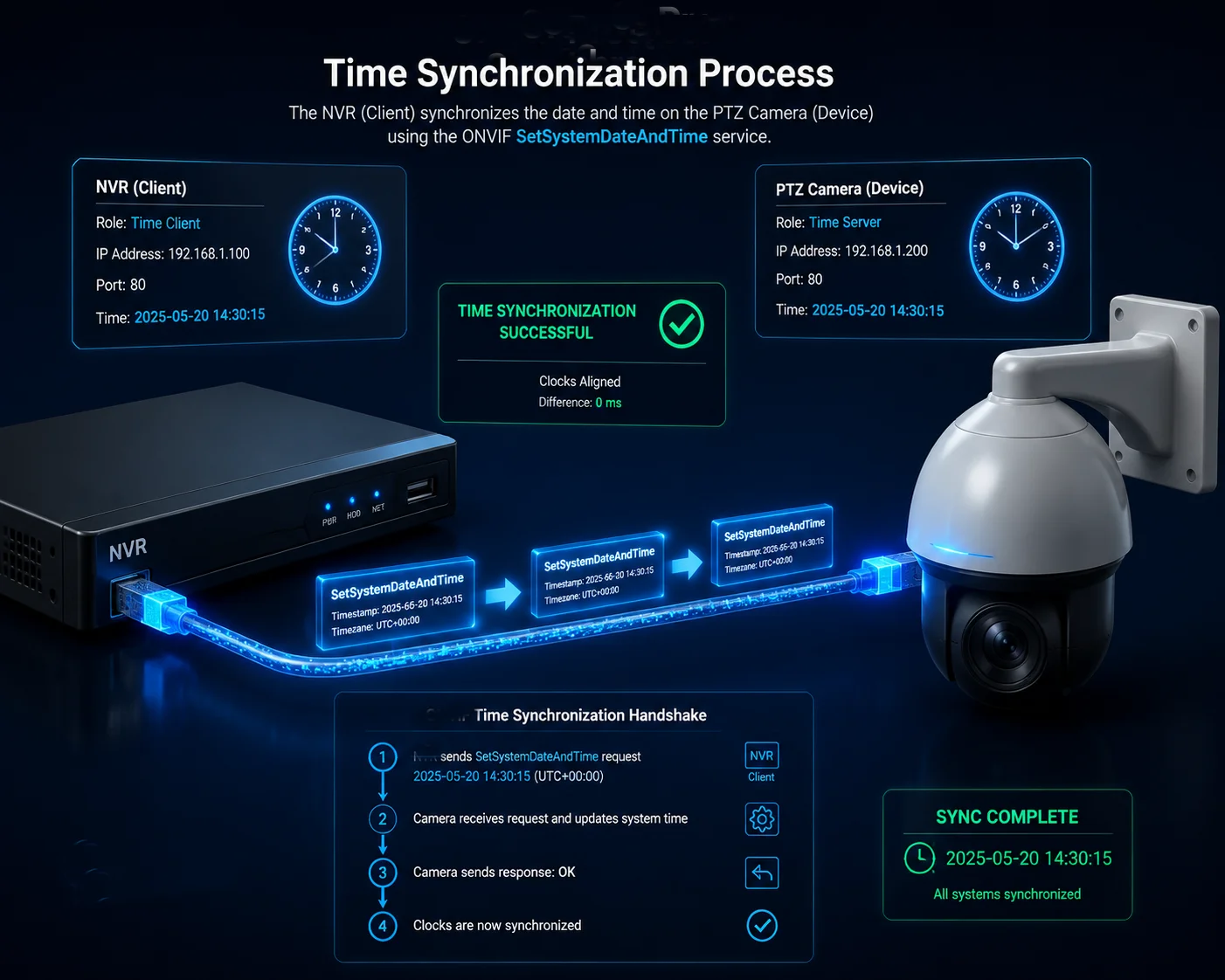
Yes, you can achieve time synchronization on a third-party NVR via ONVIF. But it is not a true “two-way” process. The NVR acts as the master clock and pushes its time to cameras using the SetSystemDateAndTime command. Cameras accept and apply that time if their ONVIF permissions and settings allow it.
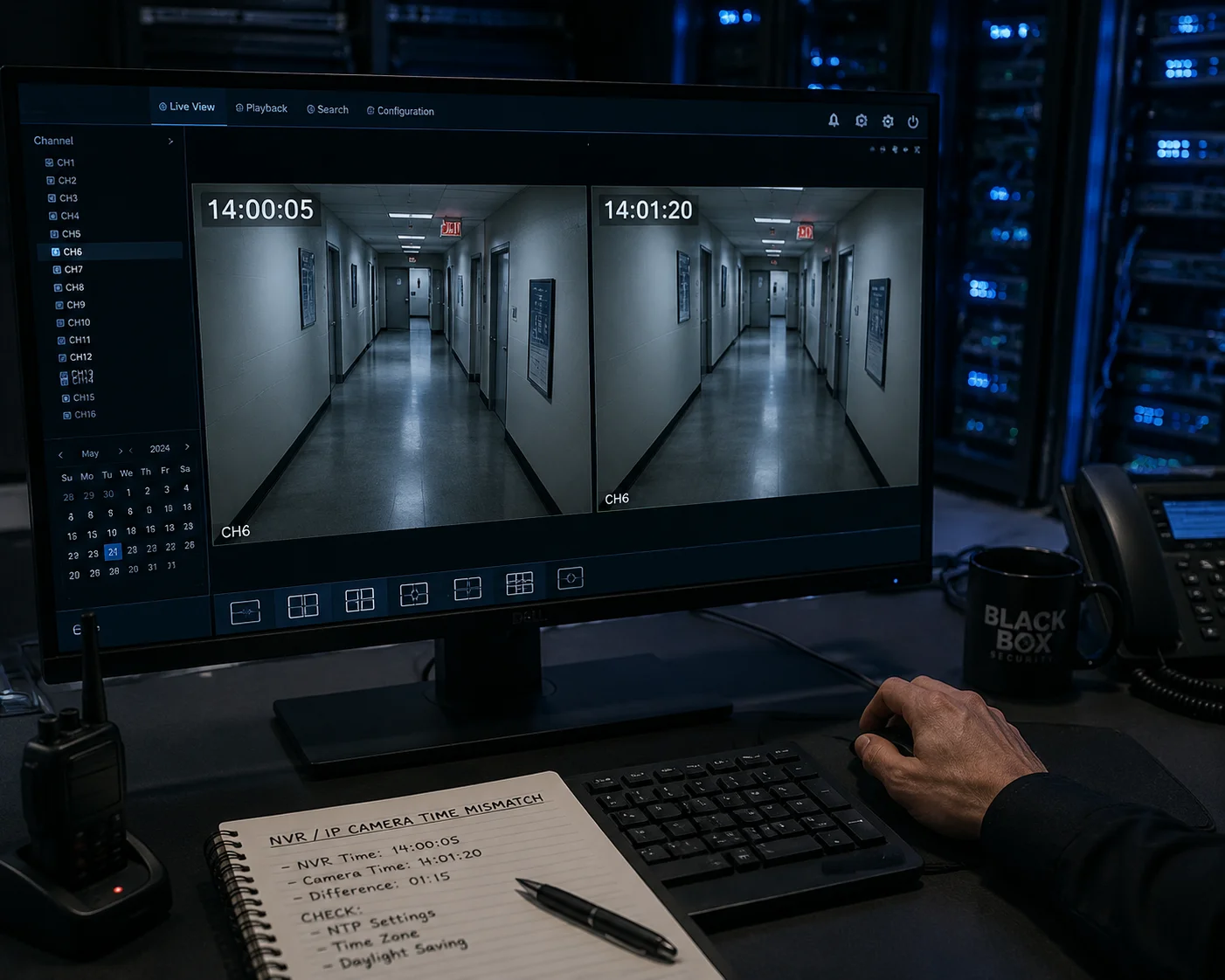
Below, I break down exactly how this works, what goes wrong, and how to set it up right for off-grid and multi-camera deployments. Whether you run Milestone, Hikvision, or Dahua NVRs, these rules apply.
Table of Contents
Will the Camera Automatically Sync Its Internal Clock to My NVR’s Master Time?
I used to assume cameras would just “pick up” the NVR’s time once connected. That assumption cost me a full day of troubleshooting on a 32-channel job site.
No, the camera does not automatically sync to the NVR’s time out of the box. You must enable the “IPC Time Sync” option in the NVR’s channel settings. Once enabled, the NVR sends its current time to the camera at a set interval, typically every 30 to 60 minutes.
How the Sync Actually Works Under the Hood
The ONVIF protocol1 uses a simple XML-based command called SetSystemDateAndTime command. Here is the basic flow:
- The NVR reads its own clock (from NTP2 or its internal RTC chip).
- The NVR sends that time to the camera over the local network.
- The camera receives the command and overwrites its local RTC.
- The camera sends back a confirmation response.
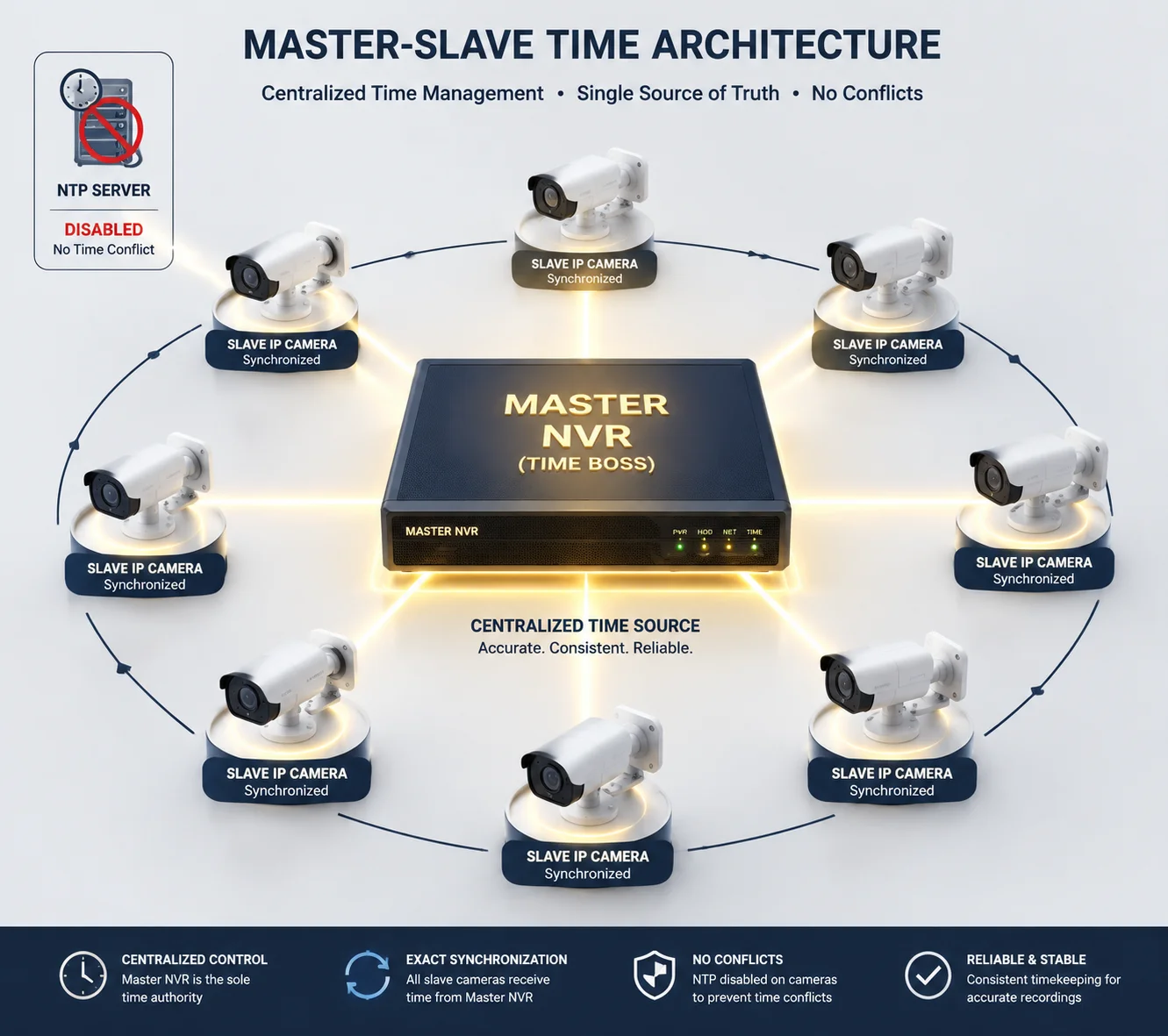
This is a one-way push. The NVR tells the camera what time it is. The camera does not tell the NVR anything about time. So “two-way” is a bit misleading. It is really ‘master-slave sync’3.
What Happens If You Don’t Enable It
If you skip this setting, each device keeps its own clock. Over days and weeks, cheap RTC chips4 drift. I have measured drift of 2 to 5 seconds per day on budget cameras. After one month, that is over a minute of difference. Your video timeline becomes unreliable.
The Sync Interval Matters
Most NVRs let you choose how often to push time. Here is a quick guide:
| Sync Interval | Best For | Risk Level |
|---|---|---|
| 10 minutes | High-security forensic sites | Low drift, higher network traffic |
| 60 minutes | Standard commercial projects | Good balance for most jobs |
| 24 hours | Low-priority residential | High drift risk between syncs |
For any project where video evidence matters in court, I recommend 60 minutes or less. The camera’s RTC will not drift more than a fraction of a second in that window.
A Common Trap: The Camera Rejects the Command
Some cameras ship with ONVIF disabled by default. Others require you to create a separate ONVIF user account with admin rights. If the NVR sends SetSystemDateAndTime and the camera’s ONVIF service is off or the user lacks permission, the sync silently fails. The NVR may not even show an error. You only discover the problem weeks later when timestamps don’t match.
My advice: after connecting any new camera, manually check its current time via the NVR’s “channel status” page. If the time is off by more than 2 seconds, your sync is not working.
How Does the System Handle “Daylight Saving Time” Changes Through the ONVIF Protocol?
I once had a client call me in a panic because half their cameras jumped forward an hour while the other half stayed put. DST transitions are a hidden landmine in multi-vendor systems.
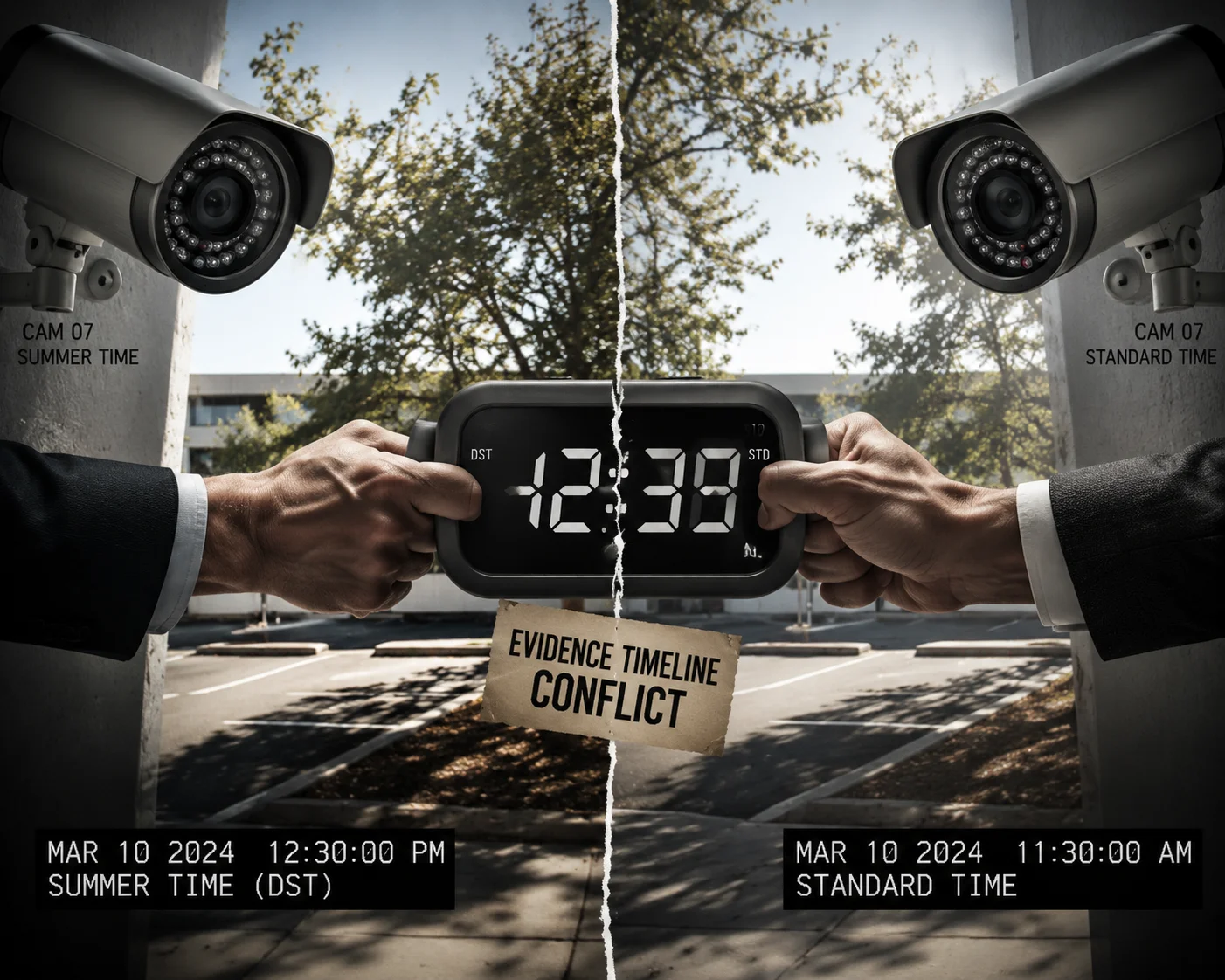
ONVIF handles Daylight Saving Time through the TimeZone and DaylightSavings fields in the SetSystemDateAndTime command. If both the NVR and camera share the same DST rules, the transition happens smoothly. If they don’t match, you get a one-hour gap in your recordings.
Why DST Breaks Things
The core problem is simple. DST is not a universal rule. Different countries change clocks on different dates. Some regions don’t observe DST at all. When your NVR is set to “US Eastern Time” and your camera is set to “UTC+8 (no DST),” the NVR’s clock jumps forward in March. The camera’s clock does not. Now your timeline has a one-hour mismatch twice a year.
The ONVIF DST Fields Explained
Inside the SetSystemDateAndTime XML payload, there are specific fields:
- DateTimeType: Can be “Manual” or “NTP.”
- DaylightSavings: A boolean. True means DST is active.
- TimeZone: A POSIX timezone string5 like
CST6CDT,M3.2.0,M11.1.0.
That POSIX string tells the camera exactly when to spring forward and fall back. If the NVR sends this string correctly, the camera will handle DST on its own.
The Real-World Problem
Most third-party NVRs do not send the full POSIX timezone string. They only send the current date and time. So the camera never learns the DST rules. It just gets told “it is now 14:00” every hour. This works fine 363 days a year. But on the two DST transition days, chaos happens.
| Scenario | What Happens | Fix |
|---|---|---|
| NVR sends full timezone + DST rules | Camera adjusts automatically | No action needed |
| NVR sends only current time (no DST info) | Camera jumps 1 hour on transition day, then gets corrected at next sync | Set sync interval to 10 min around DST dates |
| NVR and camera have different DST settings | Permanent 1-hour offset for 6 months | Manually match timezone on both devices |
My Recommendation for International Projects
If you deploy cameras across multiple time zones, set everything to UTC6. No DST. No timezone offsets. Just raw UTC time on every device. Then let your VMS software convert to local time for display. This removes all DST headaches at the hardware level.
For single-region projects, make sure the NVR and every camera use the exact same timezone string. Don’t rely on “auto-detect.” Set it manually on each device during commissioning.
Can I Disable the Camera’s Internal NTP to Let the NVR Act as the Primary Time Source?
I learned this lesson the hard way. A camera kept bouncing between two different times every few minutes. It took me hours to realize its built-in NTP client was fighting the NVR’s ONVIF sync command.
Yes, you should disable the camera’s internal NTP client when using NVR-based ONVIF time sync. If both are active, they compete. The camera’s clock oscillates between the NTP server’s time and the NVR’s time, creating unstable timestamps on your recordings.
Understanding the Conflict
Here is what happens when both NTP and ONVIF sync run at the same time:
- At minute 0, the NVR pushes its time to the camera via ONVIF. Camera clock is set to 14:00:00.
- At minute 5, the camera’s NTP client polls
pool.ntp.org. The NTP server says it is 14:00:03 (because the NVR’s own clock was slightly off). Camera clock jumps to 14:00:03. - At minute 60, the NVR pushes again. Camera jumps back to whatever the NVR says.
This back-and-forth creates micro-jumps in your video timeline. Most VMS platforms handle small jumps fine. But if the difference is more than a second, you may see duplicate frames or gaps in playback.
When to Keep NTP Active on the Camera
There is one exception. In off-grid 4G deployments where the NVR has no internet access, the camera might be your most accurate time source. If the camera connects to the internet via 4G and syncs with NTP, it may have better time than the NVR sitting in a sealed cabinet with no network.
In this case, you want the opposite setup:
| Deployment Type | Best Time Source | Camera NTP | NVR ONVIF Sync |
|---|---|---|---|
| Standard wired LAN | NVR (connected to NTP) | Disabled | Enabled, 60 min |
| Off-grid, NVR has internet | NVR (connected via 4G) | Disabled | Enabled, 60 min |
| Off-grid, only camera has 4G | Camera (via NTP over 4G) | Enabled | Disabled |
| Fully offline, no internet | NVR (high-quality RTC) | Disabled | Enabled, 30 min |
How to Disable NTP on Most Cameras
The steps vary by manufacturer, but the general process is:
- Log into the camera’s web interface directly (not through the NVR).
- Go to System > Time Settings or Configuration > Date/Time.
- Change the time mode from “Synchronize with NTP” to “Manual” or “Sync with NVR.”
- Save and reboot.
Some cameras hide this setting deep in advanced menus. Others only expose it through the ONVIF SetSystemDateAndTime command itself, where you set DateTimeType to “Manual.”
A Note on Firmware Bugs
I have seen cameras from certain manufacturers that re-enable NTP after a firmware update. Always re-check time settings after any firmware upgrade. Add it to your commissioning checklist.
Why Is Precise Time Synchronization Critical for Forensic Evidence in Multi-Camera Projects?
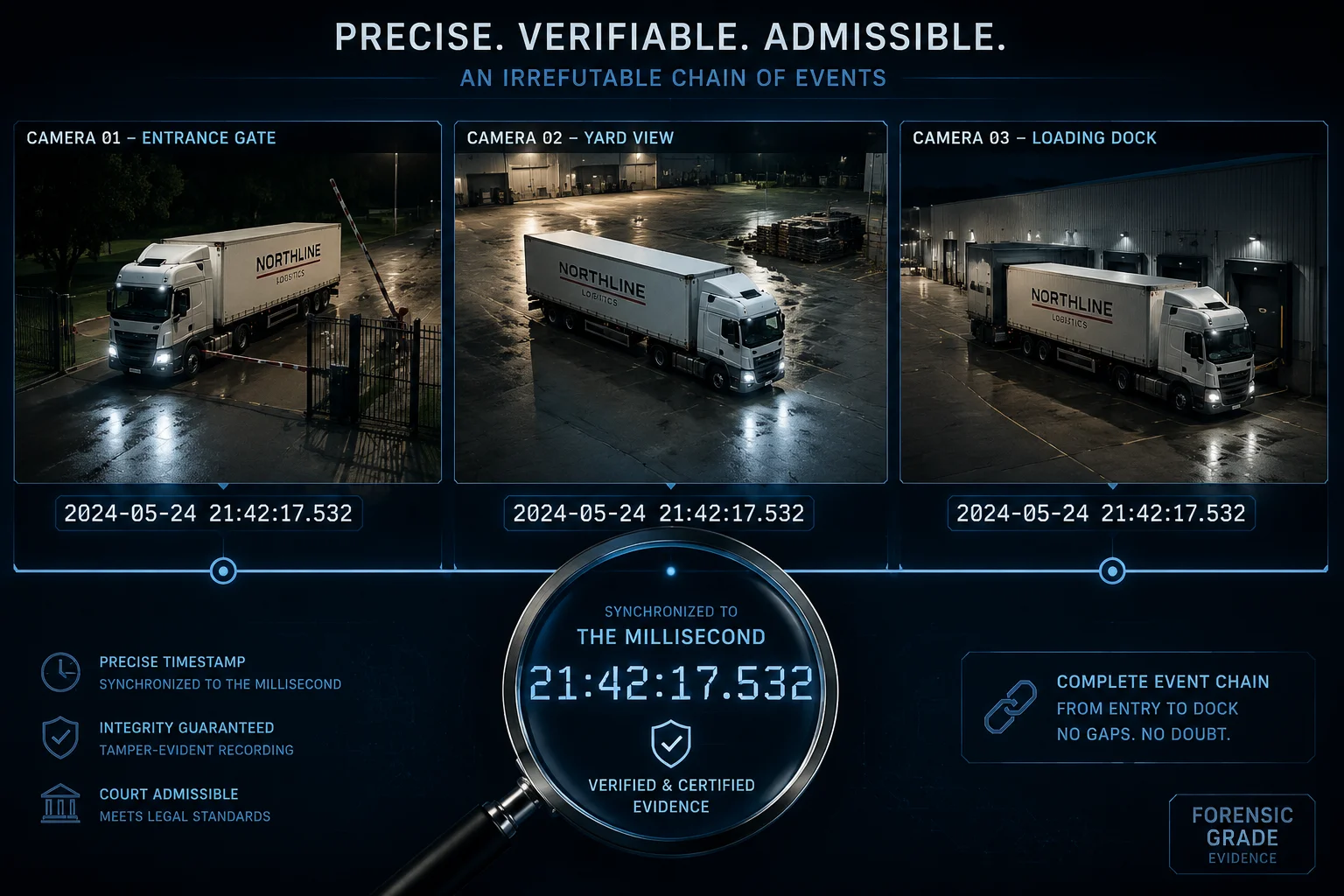
I had a client lose a liability case because their cameras showed a 47-second gap between two angles of the same event. The opposing lawyer argued the footage was edited. It wasn’t. The clocks were just out of sync.
Precise time sync is critical because courts and insurance companies require continuous, correlated evidence across multiple camera views. If timestamps don’t match between cameras, the footage can be challenged as unreliable, tampered, or inadmissible.
The Legal Standard
In most jurisdictions, video evidence must meet a chain-of-custody standard. Part of that standard is proving that the timestamps are accurate and consistent. A judge does not need to understand ONVIF. But a judge does understand that if Camera A says an event happened at 14:02:15 and Camera B says the same event happened at 14:02:58, something is wrong.
How Much Drift Is Acceptable?
For general commercial security, most integrators accept up to 2 seconds of drift between cameras. For forensic-grade systems (casinos, banks, critical infrastructure), the standard is under 500 milliseconds.
The Real Cost of Bad Sync
Think about it from your client’s perspective. They paid for a 32-camera system to protect a construction site. A theft happens. They pull footage. Camera 12 shows a truck arriving at 03:14. Camera 7 shows the same truck at 03:15. Camera 22 shows it at 03:13. Now the investigator cannot build a clear timeline. The footage is technically usable, but it creates doubt.
What “Forensic-Grade” Sync Looks Like
For projects that require court-admissible evidence, here is what I recommend:
- Single time source. Every device on the network syncs to one NTP server. No exceptions.
- Sync interval of 10 minutes or less. This keeps drift under 1 second even on cheap RTC chips.
- Timestamp overlay. Burn the time directly into the video stream. This proves the time was set at recording, not added later.
- Audit logs. Enable time-sync logging on the NVR. This creates a record showing that sync was active and successful throughout the incident period.
- Regular verification. Run a monthly check comparing all camera clocks against a reference. Document the results.
The Off-Grid Challenge
On solar-powered 4G sites, maintaining forensic-grade sync is harder. The NVR may lose power. The 4G link may drop. The camera may reboot and lose its RTC setting. For these sites, I recommend cameras with GPS-disciplined clocks7 or high-quality RTC modules that hold time accurately for weeks without correction.
At Loyalty-Secu, our 4G solar PTZ systems include industrial-grade RTC chips rated for less than 1 second drift per week. Combined with NTP sync over 4G when the link is available, this gives you forensic-grade accuracy even in fully off-grid environments.
Conclusion
ONVIF time sync works, but only when you configure it deliberately. Disable competing NTP clients, match timezones exactly, verify permissions, and check your clocks monthly. Treat time like infrastructure, not an afterthought.
1. Official ONVIF specification site for interoperability standards. ↩︎ 2. Network Time Protocol – the standard for clock synchronization over IP networks. ↩︎ 3. Explanation of master-slave synchronization in networked systems. ↩︎ 4. Real-time clock chips used for maintaining time when power is off. ↩︎ 5. GNU C Library documentation for POSIX timezone strings used in ONVIF. ↩︎ 6. Coordinated Universal Time – the primary time standard by which the world regulates clocks. ↩︎ 7. Technical article on GPS-disciplined oscillators for ultra-precise time. ↩︎