
I’ve seen clients get hit with $500+ overage bills from a single camera running unchecked on a 4G plan1.
Yes, our firmware automatically downscales bitrate in stages as your 4G data approaches its monthly limit. The system uses threshold-based triggers at 80%, 90%, and 95% usage to progressively reduce video quality, switch transmission modes, and ultimately cut the data connection to prevent overage charges.

Below, I break down exactly how each protection layer works, how to configure it, and what to expect at every stage of data depletion. Whether you manage 5 cameras or 500, these answers will help you keep costs predictable.
Table of Contents
Can the Camera Switch from 4K to 720p Automatically to Keep Me Within My Monthly Limit?
I once had a client running twelve 4K streams on shared 4G plans. By day 18, every single plan was maxed out. The remaining 12 days? Blind spots everywhere.
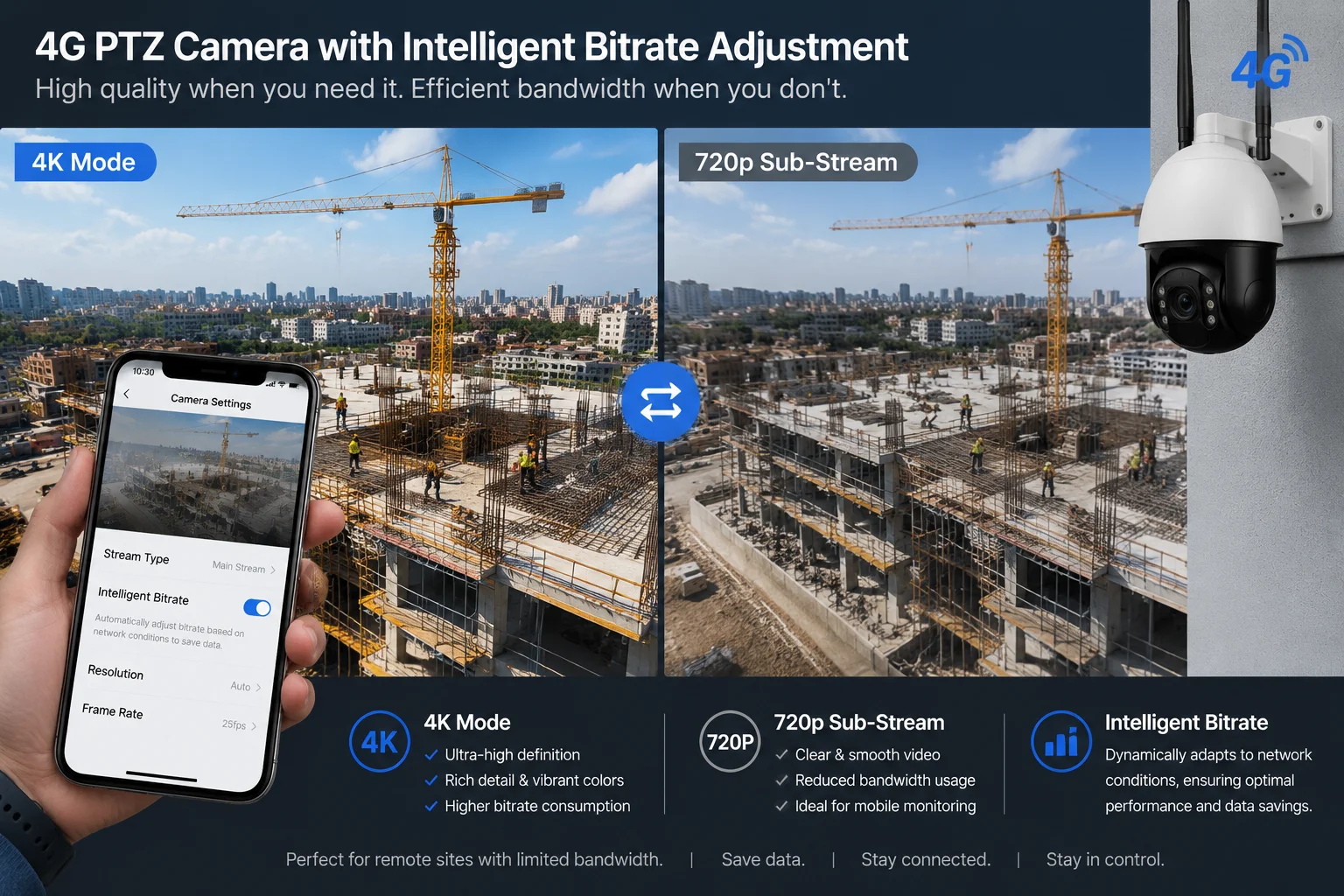
Yes, the camera can automatically drop from 4K main stream to 720p sub stream when your data usage crosses the threshold you set in the app. This happens without any manual input and keeps your cameras online longer within the same data budget.
How the Auto-Switch Actually Works
The system ties into the data usage counter built into the 4G module. You set your plan size and billing start date in the app. From there, the firmware tracks cumulative usage in real time.
When usage hits 80%, the camera does not shut down. Instead, it changes which video stream2 it serves to remote viewers. Here is what happens at each level:
Stream Selection Logic
| Data Used | Stream Served | Resolution | Typical Bitrate |
|---|---|---|---|
| 0% – 80% | Main Stream | 4K / 2K | 4–8 Mbps |
| 80% – 90% | Sub Stream | 720p | 512 Kbps – 1 Mbps |
| 90% – 95% | Sub Stream + VBR Cap3 | 720p (compressed) | 256–512 Kbps |
| 95% – 100% | Event-only clips | Snapshot or short clip | Minimal |
What Does This Mean for Your Daily Operations?
When you open the app after the 80% mark, the live view loads faster because it pulls the sub stream. The image is softer, yes. But the camera is still online. You can still pan, tilt, and zoom. You can still receive AI alerts.
The local SD card recording4 does not change. It keeps writing at full 4K resolution regardless of what the 4G module is doing. So even if remote viewing drops to 720p, your on-site evidence stays sharp.
A Common Mistake to Avoid
Many integrators forget to update the billing cycle start date after switching SIM providers. If your plan resets on the 15th but the app thinks it resets on the 1st, the percentage calculations will be wrong. The camera might throttle too early or too late. Always double-check this setting after any SIM change.
Does the Switch Affect PTZ Control?
No. PTZ commands5 use almost zero bandwidth. A pan or tilt instruction is just a few bytes. Even at the lowest bitrate tier, you retain full mechanical control of the camera head. The only thing that changes is the video preview quality you see while controlling it.
Does the Firmware Support “Data Quota” Alerts at 50%, 80%, and 95% Usage?
I used to rely on carrier SMS alerts for data warnings. The problem? Those messages arrived hours late, sometimes after the damage was already done.
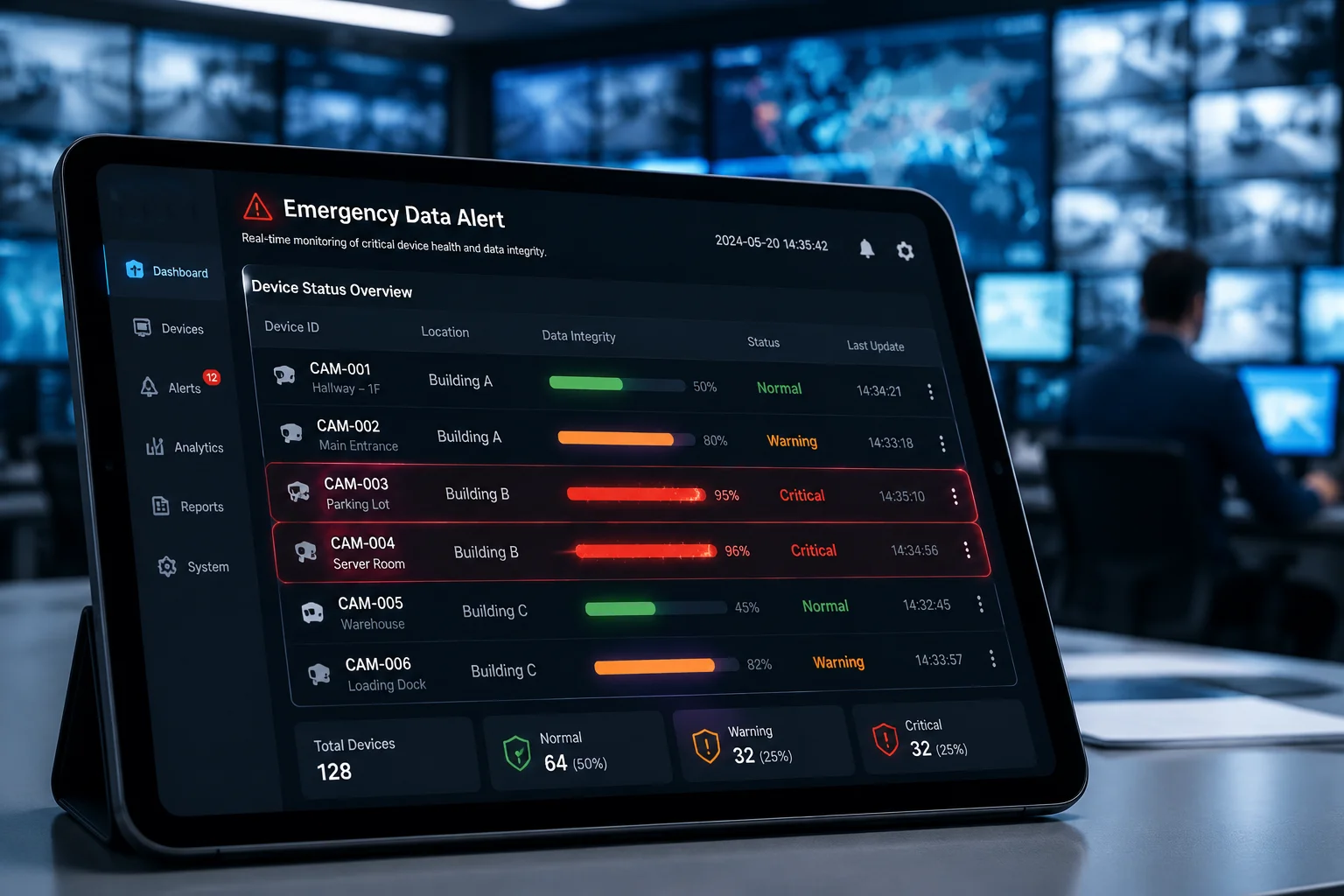
Yes, the firmware supports configurable quota alerts at multiple thresholds including 50%, 80%, and 95%. These alerts push directly to your app and can also trigger email notifications, giving you faster response time than carrier-level warnings.
Why Carrier Alerts Are Not Enough
Mobile carriers send usage notifications on their own schedule. Some update every 6 hours. Some only send one alert at 80%. By the time you read it, your camera may have already burned through another gigabyte.
Our firmware tracks usage at the device level. It counts every byte that passes through the 4G modem. This means alerts are near-instant, not delayed by carrier processing.
Configurable Alert Levels
You can set up to five custom thresholds in the app. The most common setup looks like this:
- 50% — Informational. Everything is normal, but you are halfway through your cycle.
- 80% — Warning. System auto-switches to sub stream. You get a push notification.
- 90% — Critical. Forced VBR compression kicks in. Second push notification plus email.
- 95% — Emergency. Event-only transmission mode activates. Third alert sent.
- 100% — Kill-switch. Data plane shuts down. Final alert confirms disconnection.
Alert Delivery Methods
| Method | Latency | Requires Internet | Best For |
|---|---|---|---|
| App Push Notification | < 5 seconds | Yes | Real-time awareness |
| Email Alert | 10–30 seconds | Yes | Record keeping |
| SMS Command Response | 30–60 seconds | No (uses SMS) | Backup when app is offline |
| On-device LED Indicator | Instant | No | On-site technicians |
What Happens If You Ignore All Alerts?
If every alert goes unread, the system still protects you. The automated downscaling and eventual kill-switch operate independently of whether you acknowledge the notifications. The alerts exist for your awareness, but the protection logic does not depend on human response.
Multi-Camera Fleet Management
If you manage 20 or 50 cameras across different sites, each camera tracks its own SIM data independently. The app dashboard shows a fleet-wide view so you can spot which sites are burning data faster than expected. This helps you rebalance plans or investigate why a specific camera is consuming more than its peers. Usually, the cause is a high-traffic scene like a busy road that triggers constant AI detection uploads.
How Do I Set the “Emergency Bitrate” to Ensure I Can Still Control the PTZ During a Crisis?
I had a situation where a client’s camera hit its data cap during an active break-in. He could not pan the camera to follow the intruder. That one incident cost more than a year of data plans.
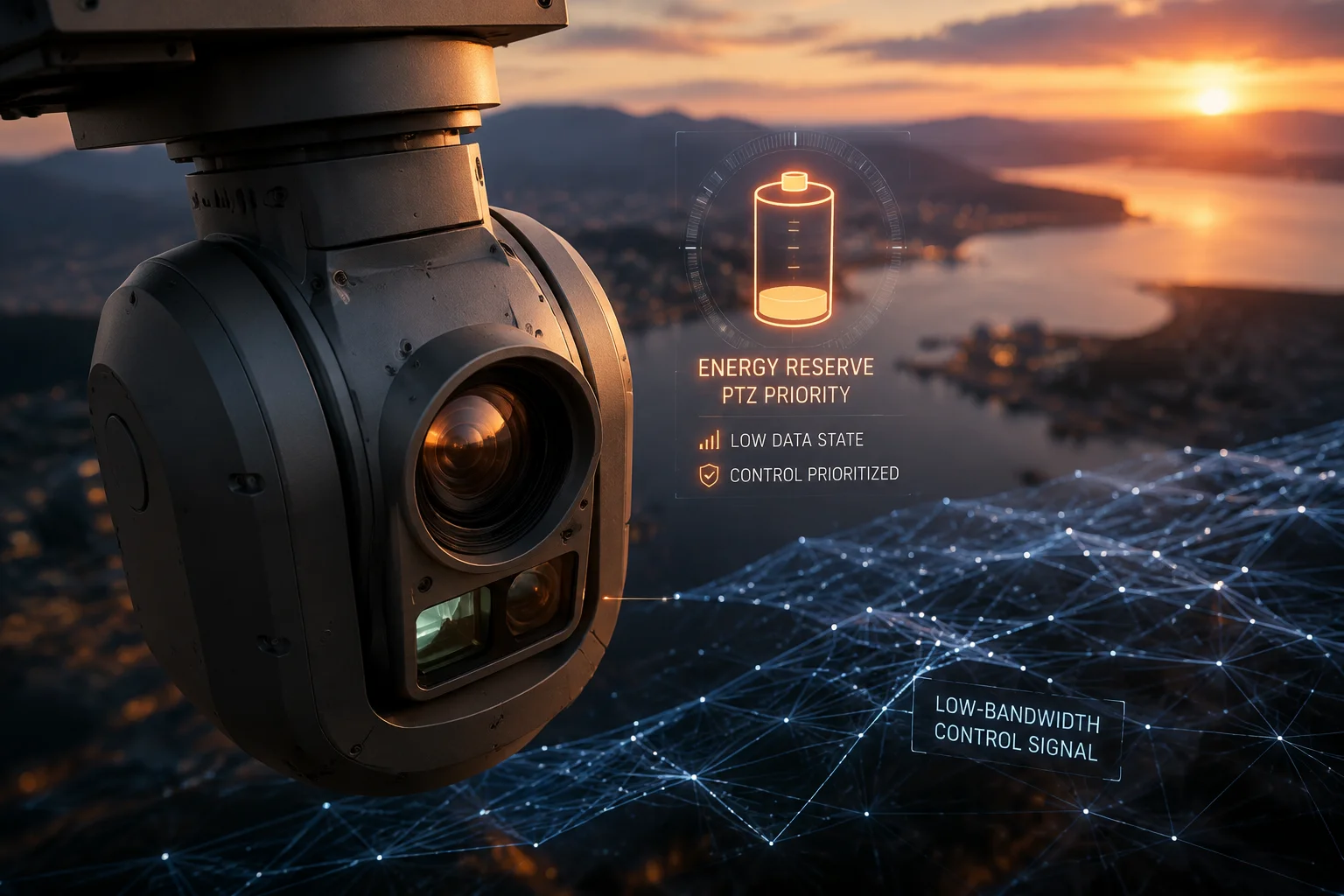
You set the Emergency Bitrate in the app under “Network > Data Protection > Emergency Mode.” This reserves a minimum bandwidth allocation specifically for PTZ control commands and low-resolution snapshots, ensuring you never lose mechanical control of the camera even when data is nearly gone.
Step-by-Step Configuration
Here is how to set it up:
- Open the app and navigate to Device Settings > Network > 4G Data Management.
- Tap “Emergency Bitrate Configuration.”
- Set your reserved data amount. I recommend reserving at least 200 MB for emergencies.
- Choose what functions remain active in emergency mode:
- PTZ control (always on by default)
- Low-res snapshot on demand
- AI alert push (text only, no video)
- Save and confirm.
What “Emergency Bitrate” Actually Means
This is not a video streaming bitrate in the traditional sense. It is a reserved data bucket. The firmware sets aside a portion of your monthly quota that normal operations cannot touch. Only emergency actions can draw from this reserve.
Think of it like a fuel reserve tank in a truck. Normal driving uses the main tank. When the main tank is empty, the reserve keeps you going just far enough to reach safety.
What You Can and Cannot Do in Emergency Mode
| Function | Available | Data Cost Per Use |
|---|---|---|
| Pan / Tilt / Zoom control | Yes | < 1 KB per command |
| Single snapshot request | Yes | 50–200 KB |
| 10-second video clip | Yes (if reserve allows) | 1–3 MB |
| Continuous live stream | No | Blocked |
| Firmware update | No | Blocked |
| Cloud upload of recordings | No | Blocked |
Why This Matters for Security-Critical Sites
If you deploy cameras at construction sites, solar farms, or remote infrastructure, the moment you lose PTZ control is the moment the camera becomes a fixed-angle device. An intruder who knows the camera cannot move will simply walk outside its field of view.
The emergency reserve ensures that even at 99% data usage, you can still point the camera where you need it. The PTZ commands themselves are tiny. A single pan instruction is less than 1 kilobyte. So even 50 MB of reserve gives you thousands of PTZ movements.
Combining Emergency Bitrate with SMS Activation
On supported models, if the kill-switch has already triggered and the data plane is fully off, you can send an encrypted SMS command6 to temporarily reactivate the 4G module for 10 minutes. During this window, the emergency reserve applies. This gives you a last-resort method to regain control without physically visiting the site.
Will the AI Detection Switch to “Snapshot Only” to Minimize High-Bandwidth Video Uploads?
Every AI alert that uploads a 10-second video clip costs roughly 3–5 MB. Multiply that by 200 alerts per day on a busy site, and you are burning 1 GB daily just on alerts.
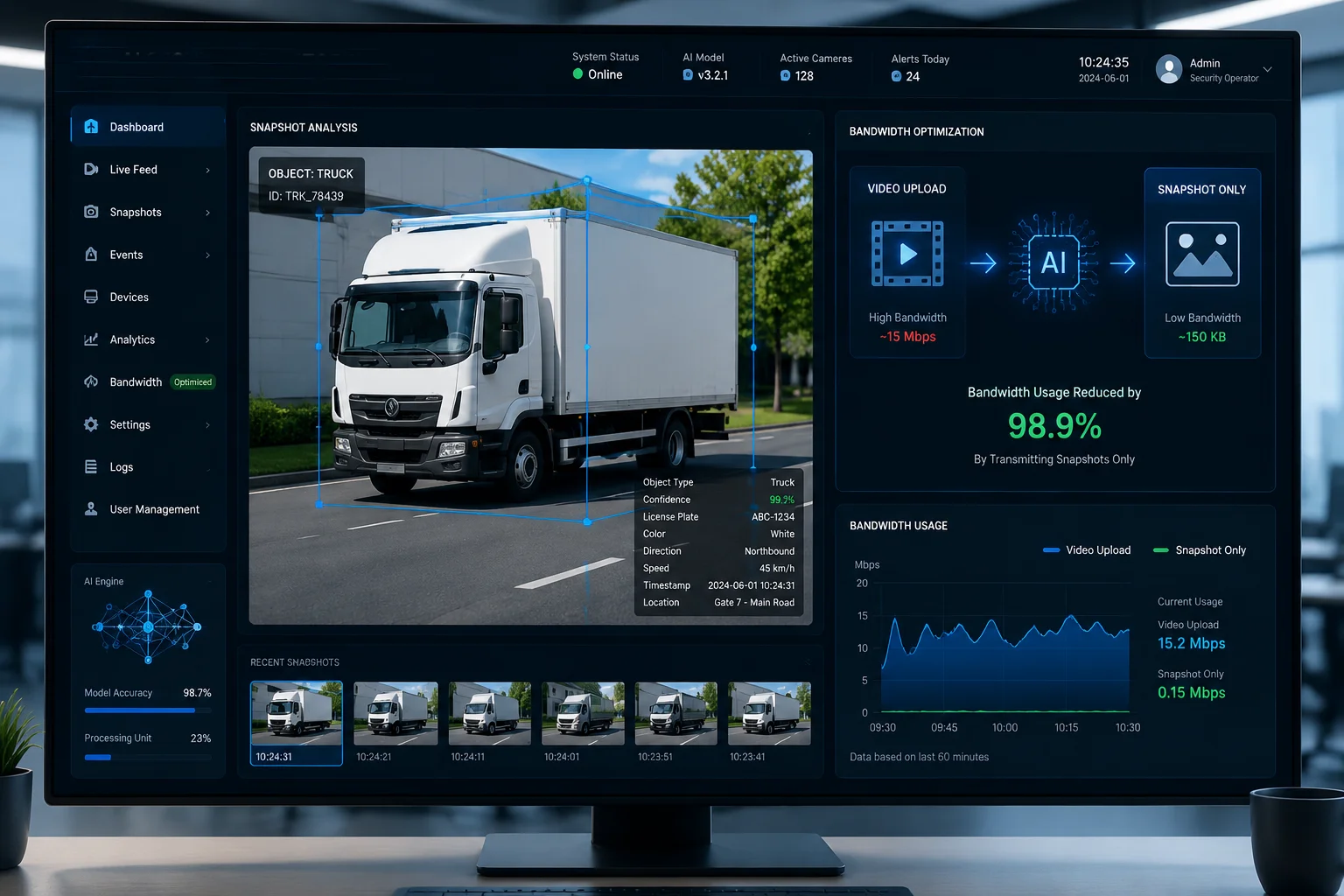
**Yes, when data usage crosses your configured threshold, the AI detection system automatically switches from uploading video clips to sending snapshot-only alerts. Each snapshot uses 50–200 KB instead of 3–5 MB, reducing alert-related data consumption by over 90%.
How the AI Alert System Adapts
Under normal conditions, when the AI detects a person or vehicle, it does three things:
- Sends a push notification to your phone.
- Uploads a short video clip (typically 8–15 seconds) to the cloud or app.
- Marks the event on the local SD card timeline.
When data is running low, step 2 is the expensive one. A single 10-second clip at 720p uses about 3 MB. At 4K, it can be 15 MB or more.
The Snapshot-Only Transition
Once the system enters data-saving mode (typically at 90%+ usage), it replaces video clip uploads with a single JPEG snapshot. This snapshot is captured at the moment of detection. It still shows you who or what triggered the alert. You just do not get the motion context of a video.
What You Lose and What You Keep
You lose the ability to see movement in the alert. You cannot watch someone walk across the frame. But you keep:
- The exact timestamp of detection
- A clear image of the person or vehicle
- The bounding box showing what the AI identified
- Full local video recording on the SD card (accessible later via app when data resets, or physically via card removal)
Smart Snapshot Optimization
The firmware does not just grab any random frame. It selects the frame where the detected object is largest and clearest in the image. If a person is walking toward the camera, the system picks the frame where their face is most visible, not the frame where they first appeared as a tiny dot at the edge.
ROI Encoding Still Applies
Even in snapshot mode, the Region of Interest encoding7 is active. The snapshot compresses background areas heavily while keeping the detected subject sharp. This means a 150 KB snapshot can still show a readable face or license plate while the surrounding grass or sky is heavily compressed.
When Does Full Video Upload Resume?
It resumes automatically at the start of your next billing cycle8 when the data counter resets. You do not need to manually switch anything back. The system returns to full video clip uploads as soon as it detects sufficient data headroom.
A Practical Tip for High-Alert Sites
If your site generates more than 100 AI alerts per day, consider enabling snapshot-only mode permanently for that camera, regardless of data usage. Some clients find that snapshots give them everything they need for daily monitoring, and they only review full video from the SD card when an actual incident requires investigation. This approach can cut monthly data usage by 40–60% without meaningfully reducing security awareness.
Conclusion
Our firmware gives you layered, automatic data protection from 80% usage all the way to full cutoff. Your cameras stay useful longer, your PTZ stays responsive, and your monthly bill stays predictable. Set your plan details in the app, configure your thresholds, and let the system handle the rest.
1. Understand common causes of mobile data overage fees and how to prevent them. ↩︎ 2. Dual-stream technology allows cameras to provide both high-resolution and low-resolution streams simultaneously. ↩︎ 3. Variable bitrate adjusts encoding quality to save bandwidth while maintaining key details. ↩︎ 4. Local SD card backup ensures footage is retained even when cloud uploads are restricted. ↩︎ 5. PTZ cameras allow remote directional and zoom control, consuming negligible bandwidth. ↩︎ 6. Encrypted SMS commands can remotely re-enable a data module as a last-resort recovery method. ↩︎ 7. ROI encoding preserves quality in key areas while compressing the rest, reducing file sizes significantly. ↩︎ 8. Understanding your carrier’s billing cycle is essential for accurate data usage tracking. ↩︎