
I’ve seen too many installers lose critical footage because they never checked their SD card settings. This one mistake can cost you an entire project.
By default, most 4G PTZ cameras use a loop overwrite (FIFO) method. The system deletes the oldest unlocked files first to make room for new recordings. However, built-in protection logic like event locking and stop-recording mode can prevent important evidence from being erased.
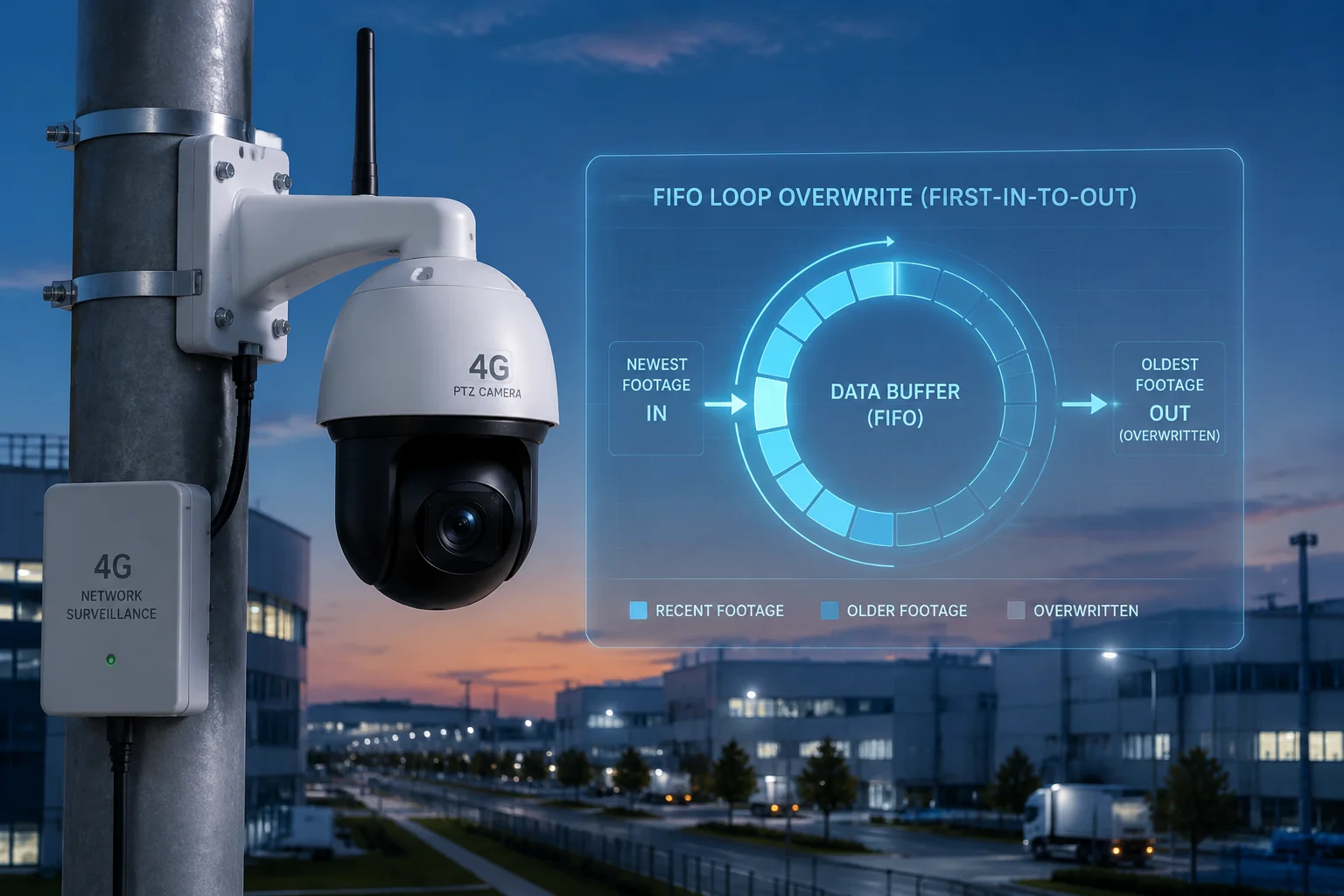
Below, I’ll break down exactly how overwrite and protection logic work together. I’ll also cover push notifications, manual configuration, and how 4K write loads affect your file system. If you manage remote deployments, this matters more than you think.
Table of Contents
Does the Firmware Support “Priority Locking” to Prevent AI-Triggered Events from Being Overwritten?
I once had a client lose a key alarm clip because his card was full and nothing was locked. That single event taught me why priority locking is non-negotiable.
Yes. Industrial-grade PTZ firmware supports priority locking. When an AI algorithm detects a person, vehicle, or other target, the triggered recording is automatically tagged as “Locked.” The overwrite loop skips these files, so they stay safe until you manually delete them or the card has only locked files left.

How Priority Locking Works at the Firmware Level
Priority locking is not just a label. It changes how the file system treats that specific video segment. When the camera’s AI engine fires an alert — say, a human shape crosses a perimeter — the firmware does two things at once. First, it writes the clip to a reserved partition or marks the file header with a “locked” flag. Second, it updates the internal file index so the overwrite scheduler knows to skip it.
This means the FIFO deletion process only targets “normal” recordings. Locked files sit untouched. The system keeps deleting the oldest normal clips until no more normal clips remain. At that point, behavior depends on your settings. Some firmware will stop recording entirely. Others will send a push alert telling you the card is full of locked files.
What Triggers a Lock?
Not every motion event gets locked. The lock is tied to specific AI or sensor events you configure:
| Trigger Type | Example | Lock Behavior |
|---|---|---|
| AI Human Detection | Person enters restricted zone | Auto-lock the clip |
| AI Vehicle Detection | Car enters frame at night | Auto-lock the clip |
| PIR Sensor Alarm1 | Infrared body heat detected | Auto-lock the clip |
| Manual Trigger | User presses “Lock” in app | Manual lock on selected file |
Capacity Planning with Locked Files
Here’s the part most people miss. If your camera triggers 50 alarm events per day, and each clip is 30 seconds of 4MP video at roughly 15 MB, that’s 750 MB of locked data per day. In 30 days, you’ve used over 22 GB just for locked files. On a 128 GB card, that’s nearly 20% of your total space gone — permanently, unless you clear them.
My advice: review your AI sensitivity settings. If your detection zone is too broad, you’ll lock too many false positives. That eats your card fast. Set tight zones, raise the confidence threshold, and schedule monthly exports of locked files to cloud or NVR storage.
What Happens When Only Locked Files Remain?
This is the edge case. When the card is 100% full of locked files, the camera cannot delete anything. At this point, the system either stops recording or sends a critical alert. It will not overwrite locked files. This is by design. The whole point of locking is to guarantee that evidence stays intact, even at the cost of new recordings.
For David’s off-grid ranch deployments in Texas, this scenario is real. If the camera sits unattended for weeks, locked files can pile up. That’s why I recommend pairing priority locking with a scheduled cloud upload6 — even a low-bandwidth 4G push of metadata and thumbnails — so you know when to intervene remotely.
Will I Receive a Push Notification When My SD Card Reaches 90% Capacity?
I’ve managed deployments where no one checked the card for months. By the time we noticed, the card was already failing. A simple alert would have saved us a truck roll.
Yes. Most professional PTZ cameras send a push notification to your mobile app when the SD card reaches a preset capacity threshold — typically 90%. The system also alerts you if it detects declining read/write speeds, which signals the card is nearing end-of-life.

How the Alert System Works
The camera’s firmware runs a background health check on the SD card at regular intervals — usually every 10 to 30 minutes. It monitors two things: remaining free space and write speed. When free space drops below your configured threshold (default is often 90% full), the system generates an event. That event is pushed through the camera’s notification pipeline.
The notification reaches you in several ways:
- Mobile app push: A banner alert on your phone.
- Email alert: Sent to the admin email on file.
- System log entry: Recorded locally for audit purposes.
- SNMP trap7 (enterprise models): For integration with network management systems.
Configuring Your Threshold
You’re not stuck with 90%. In the web interface, you can usually set the warning level anywhere from 70% to 95%. For high-traffic sites with lots of AI events, I set it at 80%. This gives me a bigger buffer to react before the card fills completely.
Write Speed Degradation Alerts
This is the one most people overlook. SD cards don’t just run out of space — they wear out. After thousands of erase cycles, write speeds drop. When the firmware detects that write speed has fallen below a safe threshold (for example, below 20 MB/s on a card rated for 60 MB/s), it sends a separate “health warning.”
This is critical for 4K recording. If write speed drops too low, the camera can’t save frames fast enough. You get corrupted files or dropped frames. The alert tells you: replace this card now, before you lose footage.
Endurance Monitoring for Industrial Cards
If you use High Endurance or Industrial-grade microSD cards, our firmware can read the card’s S.M.A.R.T. data2. This gives you a direct percentage of remaining card life. When it hits 90% life consumed, the app sends a “replacement recommended” notification.
| Alert Type | Trigger Condition | Action Required |
|---|---|---|
| Capacity Warning | Free space below threshold (e.g., 10% remaining) | Export or delete old files |
| Write Speed Warning | Speed drops below safe minimum | Replace SD card soon |
| Endurance Warning | S.M.A.R.T. shows 90%+ life consumed | Replace SD card immediately |
| Card Error | File system corruption detected | Format or replace card |
For David’s remote solar-powered sites, these alerts are the difference between a proactive swap and an emergency truck roll. You get the warning over 4G, ship a new card to the nearest technician, and schedule the swap before anything breaks.
How Can I Configure the Camera to Stop Recording Instead of Looping to Preserve Evidence?
I work with integrators who serve law enforcement and legal teams. For them, overwriting even one second of footage can destroy a case. They need the camera to stop, not loop.
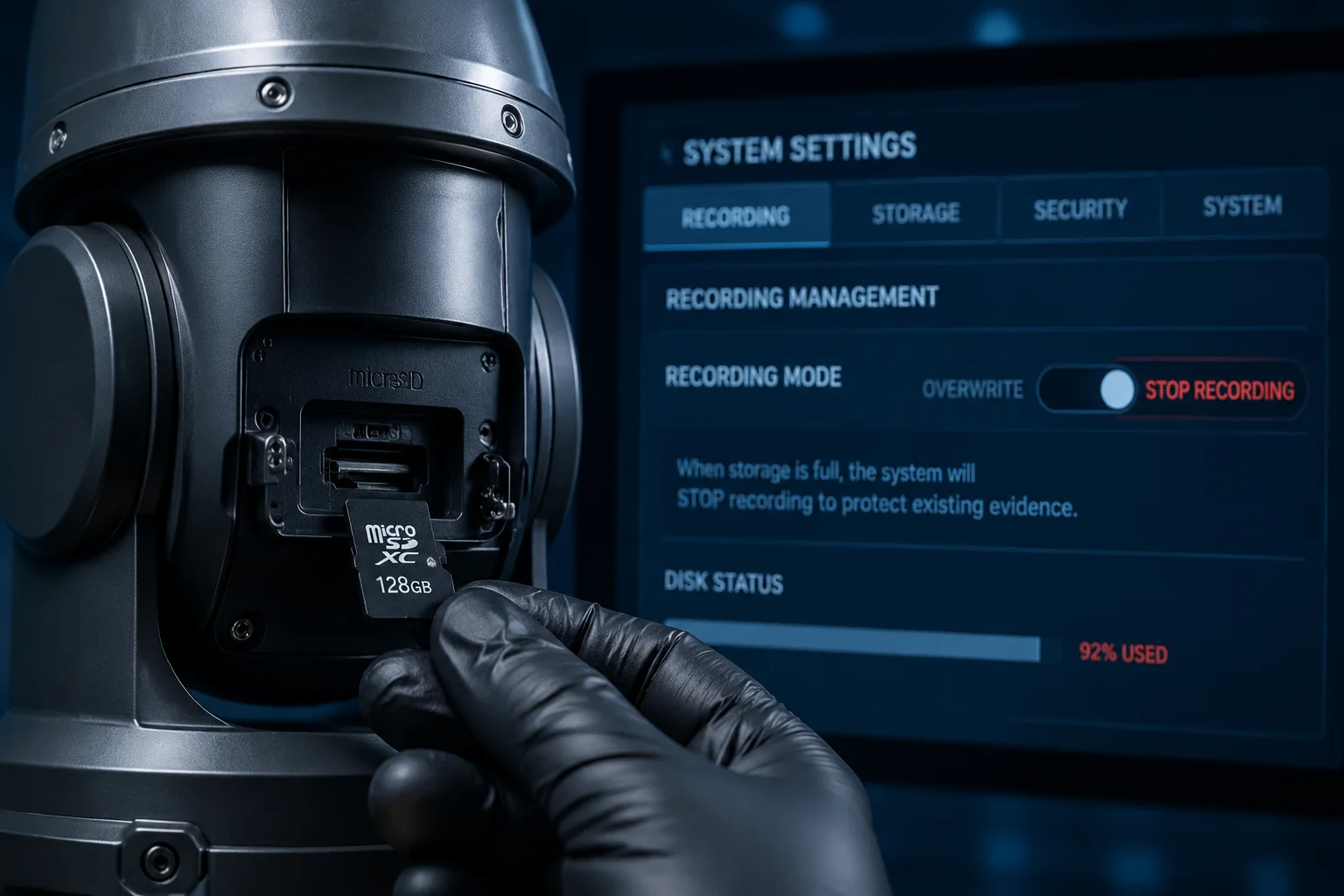
You can switch the “Card Full Policy” from “Overwrite” to “Stop Recording” in the camera’s storage settings. Once enabled, the camera halts all new recordings when the SD card is full. This preserves every file on the card exactly as it was written — critical for forensic and legal applications.
Where to Find This Setting
In most professional PTZ interfaces, go to Settings > Storage > Card Full Policy (or “Disk Full Strategy”). You’ll see two options:
- Overwrite (Loop): Default. Deletes oldest files to continue recording.
- Stop: Halts recording when the card is full. No files are deleted.
Some firmware versions also offer a third hybrid option: “Overwrite Normal Only.” This loops through regular recordings but stops when only locked (alarm) files remain.
When to Use Stop Mode
Stop mode is not for every project. It’s designed for specific use cases:
- Forensic evidence collection: Courts require unbroken chains of custody. If footage is overwritten, it may be inadmissible.
- Incident investigation: After a break-in or accident, you want every frame preserved until an investigator reviews it.
- Compliance requirements: Some industries (banking, healthcare) mandate that surveillance data cannot be automatically deleted.
The Trade-Off
The downside is obvious. Once the card is full, the camera goes blind. No new recordings happen until someone clears space or swaps the card. For a remote solar site with no one nearby, this can mean hours or days of no coverage.
That’s why I always pair stop mode with capacity alerts. Set your push notification at 80% full. When you get the alert, you have time to remotely export files or dispatch someone to swap the card.
Best Practice: Combine Stop Mode with Scheduled Uploads
Here’s what I recommend for forensic deployments:
- Set card full policy to “Stop.”
- Enable 4G cloud upload for all alarm clips.
- Set capacity alert at 80%.
- Schedule a weekly remote check via the app.
- Keep a spare High Endurance card on-site in a weatherproof box.
This way, even if the local card fills up, your alarm clips are already in the cloud. And you get enough warning to act before the camera stops.
File Integrity in Stop Mode
One more thing. When the camera stops recording, it also closes the current file cleanly. This matters. If power cuts during an active write, you can get a corrupted file. But in stop mode, the camera finishes the current segment, writes the file footer, and then halts. The result is a clean, playable file — every time.
Does the Overwrite Logic Handle the High Write-Load of 4K Video Without Corrupting the File System?
I’ve seen cheap cameras destroy SD cards in under three months because their firmware couldn’t handle continuous 4K writes. File system corruption is real, and it’s expensive.
Yes — if the firmware uses pre-allocation and wear-leveling-aware write patterns. Industrial PTZ cameras pre-allocate large contiguous blocks on the SD card before recording starts. This avoids fragmentation, reduces write amplification, and prevents the FAT32 or exFAT file system from collapsing under sustained 4K bitrates.

Why 4K Is Hard on SD Cards
A 4K stream at 25 fps with H.265 encoding4 produces roughly 8–16 Mbps of data. That’s 1–2 MB per second of continuous writing. Over 24 hours, that’s 86–172 GB. The card is being written, deleted, and rewritten constantly. Without proper management, the file allocation table (FAT) becomes fragmented. Fragmented FAT entries mean the card has to search harder for free space. Searches take time. Time means the write buffer overflows. Overflow means dropped frames or corrupted files.
How Pre-Allocation Solves This
Industrial firmware doesn’t write files the way your laptop does. Instead of creating a new file and growing it byte by byte, the camera pre-allocates a fixed-size block — say, 256 MB — before it starts recording a segment. The file system marks that entire block as “in use” immediately. The camera then writes sequentially within that block without touching the FAT until the segment is complete.
This has three benefits:
- No fragmentation: Each file occupies one contiguous block.
- Fewer FAT updates: The allocation table is only modified when a segment starts or ends, not during recording.
- Predictable write speed: Sequential writes are always faster than random writes on flash memory.
File System Choice Matters
| File System | Max File Size | Best For | Risk Level at 4K |
|---|---|---|---|
| FAT323 | 4 GB | Legacy devices, short clips | High (frequent file splits) |
| exFAT | Virtually unlimited | 4K continuous recording5 | Low (with pre-allocation) |
| ext4 | Virtually unlimited | Linux-based cameras | Very low |
Most of our cameras use exFAT by default for cards over 32 GB. This avoids the 4 GB file size limit of FAT32, which would force the camera to split a 4K recording into a new file every 20–30 minutes. Each split is a risk point for corruption if power fails at that moment.
Auto-Format and Self-Healing
For long-term deployments — especially David’s solar sites in Texas where temperature swings from 0°F to 120°F — I recommend enabling the scheduled auto-format feature8. This does a clean format of the card every 30 days (or whatever interval you set). It wipes orphaned file entries, clears bad sector maps, and resets the allocation table to a clean state.
Think of it like an oil change for your SD card. You don’t wait until the engine seizes. You do it on schedule.
Power-Loss Protection
The other big risk is sudden power loss during a write. Solar systems can drop voltage unexpectedly. Our firmware handles this with a write cache flush mechanism. Every few seconds, the camera forces a cache flush to the card. If power dies, you lose at most 2–3 seconds of footage — not the entire file. The file header and footer are written in a way that allows recovery tools to reconstruct the clip even after an unclean shutdown.
This is why I always tell integrators: don’t cheap out on the SD card, and don’t ignore the firmware’s storage settings. A $20 consumer card in a $500 camera is a recipe for failure. Use Industrial or High Endurance cards rated for continuous write workloads. Pair them with firmware that knows how to manage flash storage properly. That combination is what keeps your system running for years without a single corrupted file.
Conclusion
Your SD card’s full behavior is a design choice, not an accident. Configure overwrite, locking, and alerts to match your project’s risk level — and always use industrial-grade cards for 4K deployments.
1. Learn about passive infrared sensors and their role in motion detection. ↩︎ 2. Understand how S.M.A.R.T. monitoring can predict SD card failure. ↩︎ 3. Understand the limitations of FAT32 for high-bitrate video recording. ↩︎ 4. See how H.265 compression balances quality and bitrate for 4K video. ↩︎ 5. Learn about the storage requirements and challenges of 24/7 4K recording. ↩︎ 6. Explore how cloud uploads complement local SD card storage for off-site backup. ↩︎ 7. Understand how SNMP traps integrate with enterprise network management for storage alerts. ↩︎ 8. Learn how scheduled auto-formatting helps maintain SD card health. ↩︎