
I used to get dozens of false alarms during work hours. My phone buzzed nonstop. It drove me crazy until I found the scheduling feature.
Yes, you can set a 7-day weekly schedule to automatically disarm your security system during work hours and re-arm it after you leave. Most professional PTZ camera systems, including solar-powered 4G models, support time-based arming rules that let you define different behaviors for each day of the week through the app or CMS software.
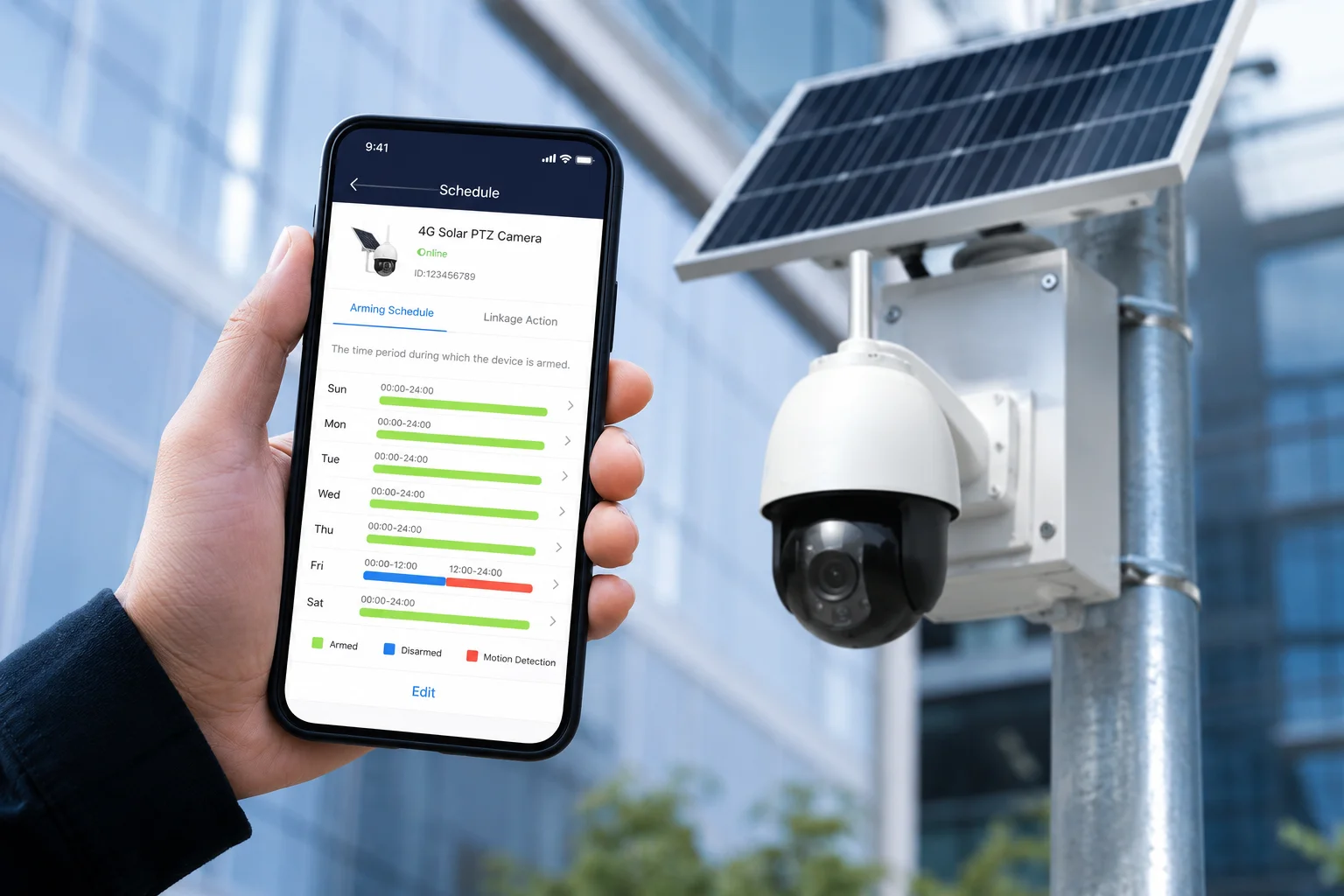
Below, I will walk you through the most common questions about smart scheduling. Each one covers a real scenario that installers and integrators face in the field. Let’s dig in.
Table of Contents
Can I Automate the Security Arming Based on My Office Hours via a 7-Day Calendar?
I wasted hours every morning manually switching my cameras between armed and disarmed modes. A 7-day calendar changed everything for me.
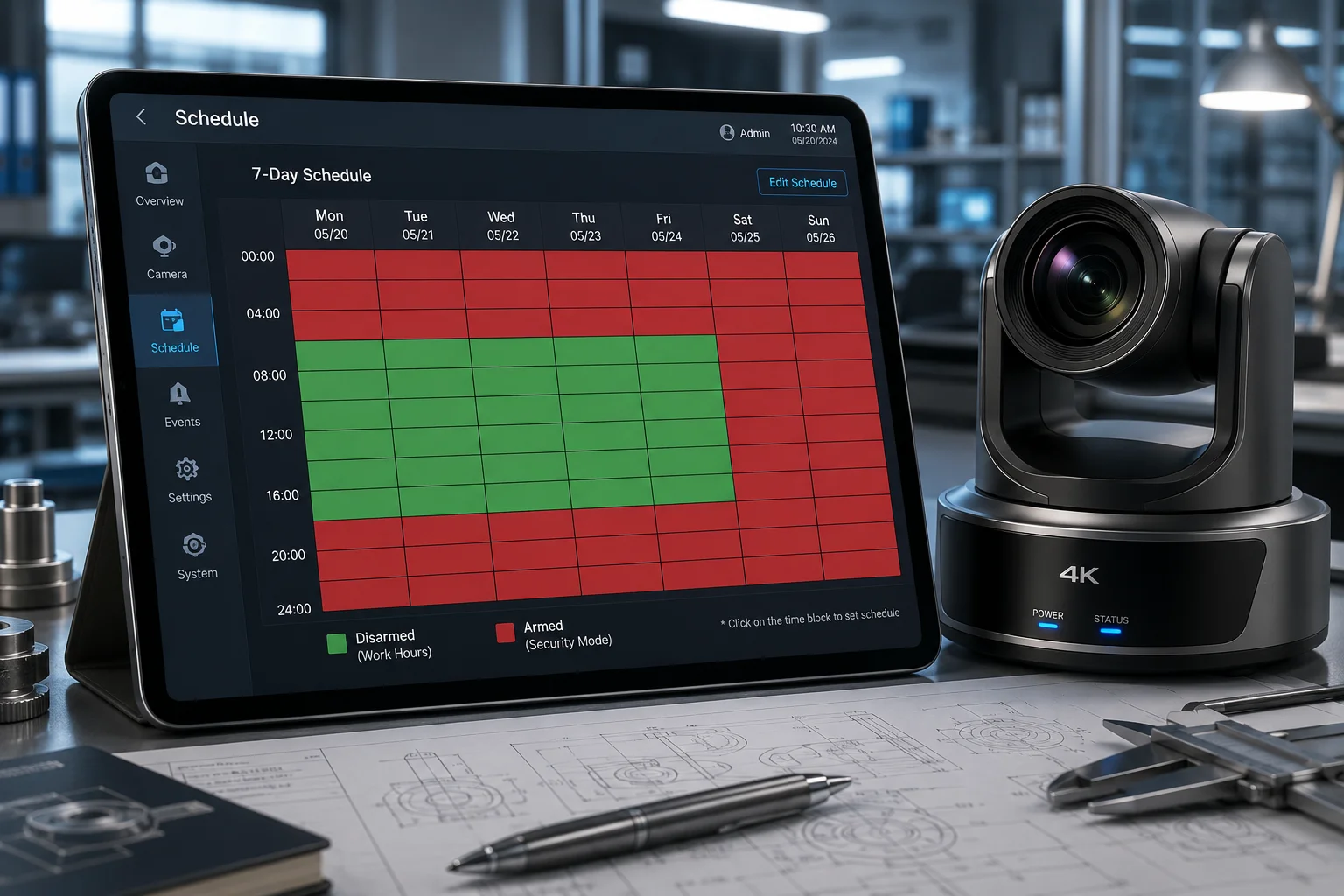
Absolutely. A 7-day calendar lets you pre-program arming and disarming for each day independently. You set your Monday-to-Friday office hours as “disarmed” and evenings plus weekends as “armed.” The system follows this schedule automatically without any daily input from you.
How the 7-Day Calendar Works in Practice
The scheduling engine inside most professional PTZ systems operates on a simple grid. Think of it like a spreadsheet. The rows are days (Monday through Sunday). The columns are hours (0:00 to 23:59). You paint each time block as either “armed” or “disarmed.”
For example, if David runs a construction site that operates from 7:00 AM to 6:00 PM on weekdays, he sets those hours as disarmed. Workers move freely without triggering alerts. At 6:01 PM, the system arms itself. Any motion after that time sends a push notification and starts recording a clip.
Setting Up Multiple Time Blocks
Most systems allow more than one block per day. This is useful for lunch breaks or shift changes.
| Time Block | Status | Use Case |
|---|---|---|
| 00:00 – 06:59 | Armed | Night security, no workers on site |
| 07:00 – 17:59 | Disarmed | Active work hours, free movement |
| 18:00 – 23:59 | Armed | After-hours intrusion detection |
Some advanced platforms let you add a third or fourth block. For instance, you might want a short “armed” window during lunch when the site is empty.
Syncing Across Multiple Cameras
If you manage 10 or 20 cameras on one site, you don’t want to set each one individually. A good CMS (Central Management Software) lets you create one schedule template and push it to all devices at once. This saves time and reduces human error.
What Happens During Holidays?
Most systems support “exception days.” You mark December 25 as a holiday, and the system treats it like a Sunday — fully armed all day. Some platforms even let you import a holiday calendar for your region.
The key takeaway here is simple: once you set the calendar, you forget about it. The system handles the rest. No more morning routines. No more forgotten arming at night.
Will the Camera Still Record Silently While the Push Notifications Are on a “Sleep” Schedule?
I once missed a break-in because I thought “sleep mode” meant the camera stopped working. It didn’t. But I had to learn this the hard way.
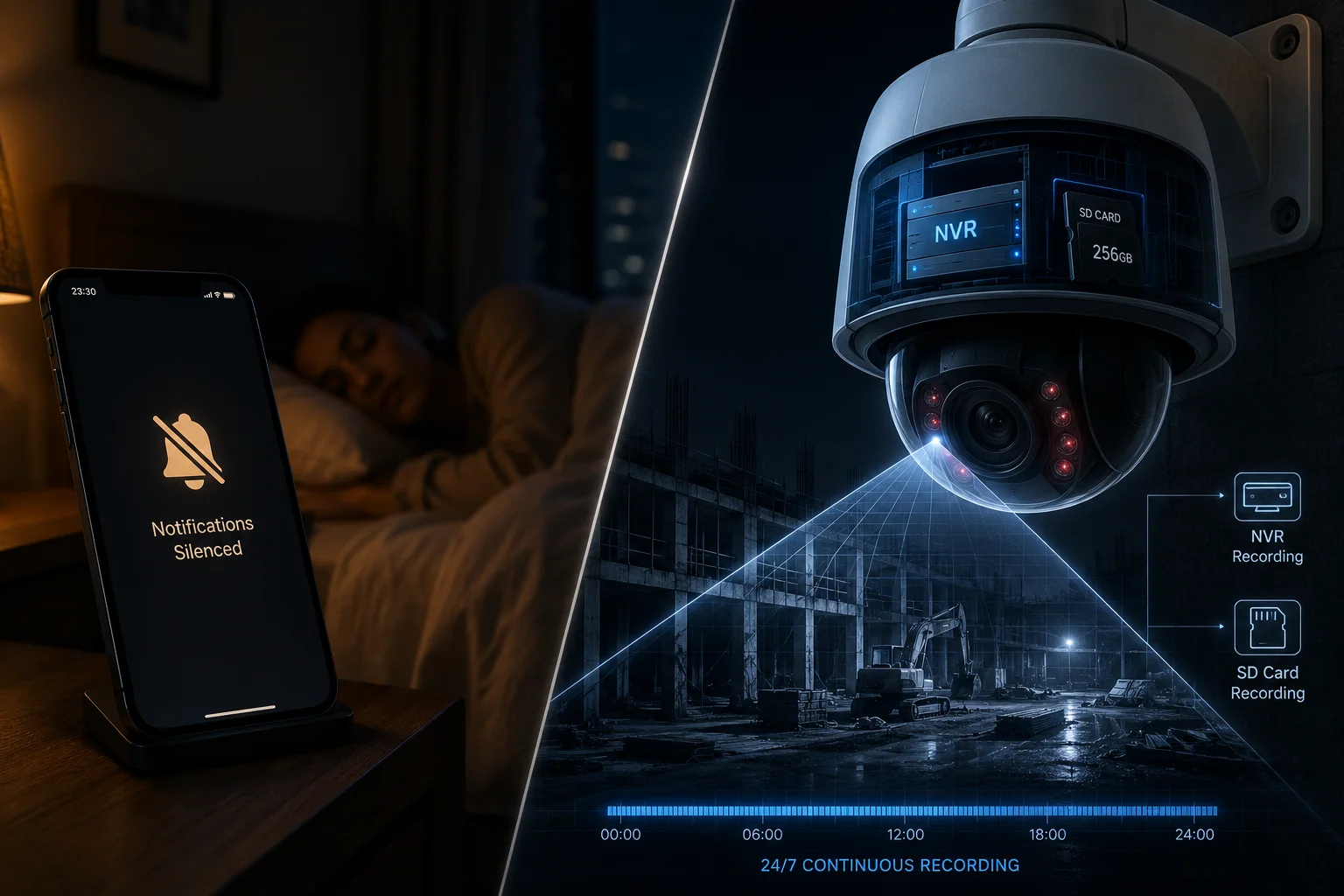
Yes, the camera continues to record even when push notifications are silenced. “Sleep” schedule only mutes the alerts sent to your phone. The camera still detects motion, saves footage to the SD card or NVR1, and uploads clips to the cloud2 if configured. You just won’t be disturbed.
Understanding the Difference Between Recording and Alerting
This is where many people get confused. There are two separate systems running inside your camera:
- The recording engine — this handles video capture, compression, and storage.
- The notification engine — this handles push alerts, email alerts, and siren triggers.
When you put notifications on a sleep schedule, you only silence the second engine. The first one keeps running. Think of it like putting your phone on “Do Not Disturb.” Calls still come in. You just don’t hear them.
Why This Matters for Liability
For integrators like David, this distinction is critical. If a client asks, “Was the camera recording at 2:00 PM when the theft happened?” the answer must always be yes. The footage exists. It was just not pushed to anyone’s phone in real time.
Recording Modes During Sleep Schedule
| Recording Mode | Behavior During Sleep | Storage Location |
|---|---|---|
| Continuous (24/7) | Records everything, no gaps | NVR / SD Card |
| Motion-triggered | Records only when motion is detected | SD Card / Cloud |
| Event-triggered (AI) | Records when AI identifies a person or vehicle | Cloud / FTP |
All three modes work independently of the notification schedule. The sleep schedule is purely a “do not disturb” layer on top.
A Common Mistake to Avoid
Some installers confuse “Disarm” with “Sleep.” These are not the same thing.
- Disarm = the camera stops detecting events entirely. No recording triggered by motion. Only continuous recording (if enabled) keeps going.
- Sleep notifications = the camera still detects and records events. It just doesn’t bother you about them.
If you want silent recording during work hours but still want to review footage later, use the sleep schedule. Do not disarm the camera. This way, you get the best of both worlds: peace during the day and full evidence if something goes wrong.
Can I Override the Schedule with a Single Tap on the App During an Emergency?
I had a situation where a contractor showed up two hours early. My system was still armed. I needed to disarm it instantly from my truck.
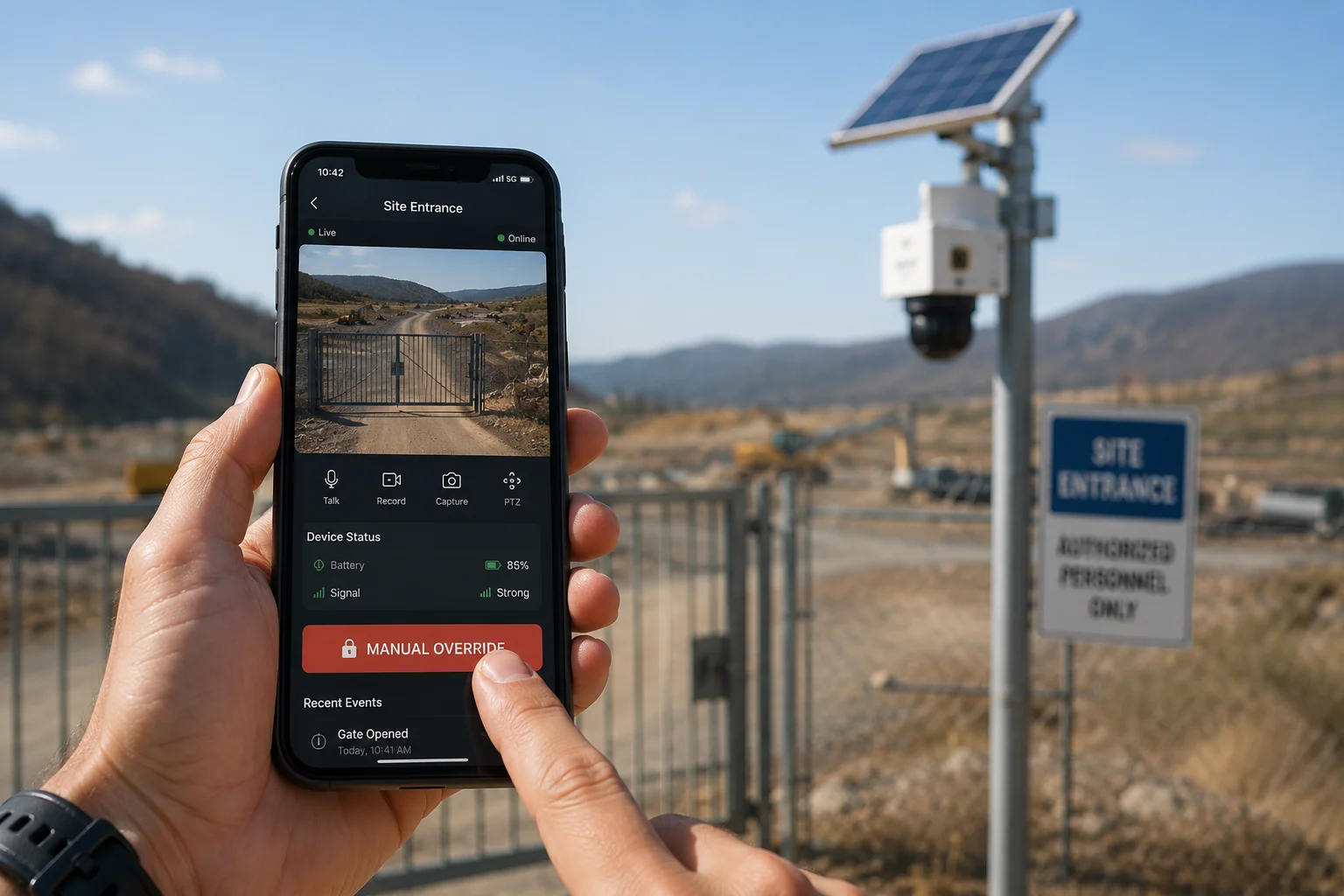
Yes, every professional security app includes a manual override button. One tap switches the system from armed to disarmed (or vice versa) regardless of the current schedule. The override stays active until the next scheduled transition or until you tap it again.
How Manual Override Interacts with the Schedule
When you tap the override button, the system enters a temporary manual state. Here is what happens next:
- The schedule pauses for the current time block.
- The system stays in your chosen state (armed or disarmed).
- When the next scheduled transition arrives, the system returns to automatic mode.
For example, if your schedule says “arm at 6:00 PM” and you manually disarm at 5:30 PM, the system will re-arm itself at 6:00 PM unless you override again.
Override Options in Most Apps
| Override Type | Duration | Auto-Revert? |
|---|---|---|
| Quick toggle | Until next schedule block | Yes |
| Timed override | 30 min / 1 hr / 2 hr (user selects) | Yes |
| Permanent override | Until manually cancelled | No |
The “timed override” is the most popular choice among installers. It gives you a window to handle the situation without worrying about forgetting to re-arm later.
Multi-User Access and Override Permissions
On larger projects, not everyone should have override access. A good system lets you assign roles:
- Admin — full override access, can change schedules.
- Operator — can override for a limited time, cannot change schedules.
- Viewer — can watch live feeds only, no override ability.
This prevents a junior technician from accidentally disarming an entire site. David, as a system integrator, can set these roles during the initial deployment and lock them down.
What About 4G Solar Systems in Remote Areas?
For off-grid cameras connected via 4G LTE3, the override command travels over the cellular network. Latency is typically under 2 seconds. Even in areas with weak signal, the command queues and executes as soon as the connection stabilizes. The app will confirm with a status update once the camera acknowledges the change.
The bottom line: you are never locked out of your own system. One tap gives you full control, anytime, anywhere.
Does the Schedule Allow for Different AI Rules on Weekends Versus Weekdays?
I noticed my weekend false alarms were mostly from animals. On weekdays, I needed to detect vehicles. Same camera, different needs depending on the day.
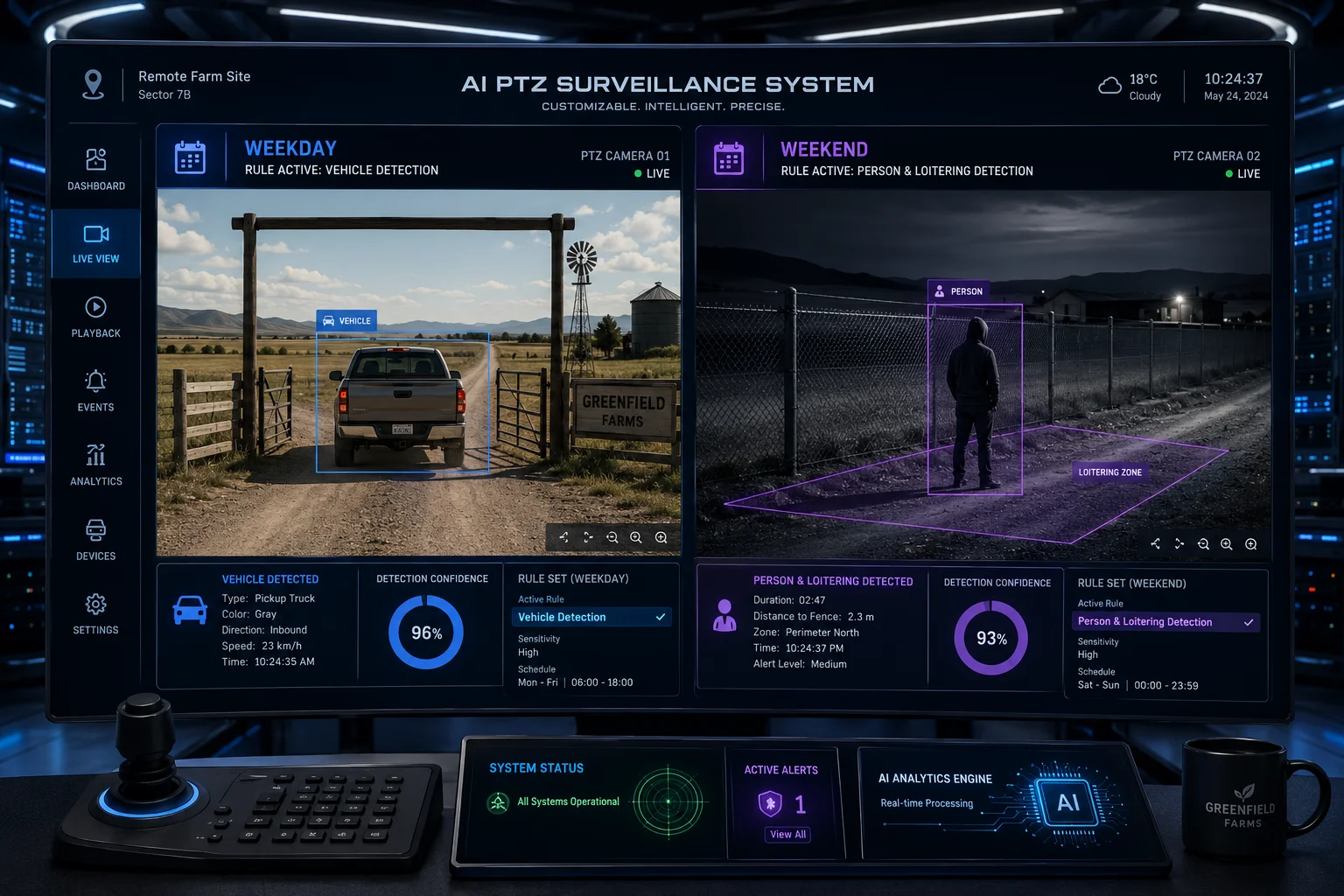
Yes, advanced scheduling systems let you assign different AI detection rules4 for weekdays and weekends. You can enable person-only detection on weekdays when workers are expected, and switch to vehicle-plus-person detection on weekends when the site should be empty. Each day can have its own AI rule set.
Why Different AI Rules Matter
A construction site on a Tuesday looks very different from the same site on a Saturday. On Tuesday, workers walk around all day. You don’t want 500 “person detected” alerts. You only care about vehicles entering restricted zones. On Saturday, nobody should be there. Now you want alerts for both people and vehicles.
Without day-specific AI rules, you face two bad options:
- Keep all detection on — and drown in weekday false alarms.
- Keep detection minimal — and miss weekend intrusions.
Smart scheduling solves this by letting you define AI behavior per day.
Example Configuration
Here is how a typical setup might look for a solar PTZ camera on a remote farm:
Monday to Friday (Work Days):
- Person detection: OFF (workers are expected)
- Vehicle detection: ON (only authorized trucks should enter)
- Perimeter crossing: ON (for the fence line only)
Saturday and Sunday (Off Days):
- Person detection: ON (nobody should be on site)
- Vehicle detection: ON
- Perimeter crossing: ON
- Loitering detection5: ON (anyone standing still for 30+ seconds triggers an alert)
Combining AI Rules with Zones
The best systems also let you draw detection zones6 on the camera’s field of view. You can have Zone A (the gate) active 24/7 and Zone B (the parking lot) active only on weekends. This layered approach cuts false alarms7 by up to 90% based on field data from real deployments.
The Role of Edge AI in Schedule-Based Detection
All of this processing happens on the camera itself — at the edge8. The camera does not need to send video to a cloud server for analysis. This means:
- Faster response time (under 200ms from detection to alert).
- Lower bandwidth usage (critical for 4G solar systems with limited data plans).
- Privacy compliance (video stays local unless you choose to upload).
For integrators serving clients in North America and Europe, edge-based AI with schedule-aware rules is becoming a baseline requirement. It reduces support calls, lowers false alarm rates, and makes the end client happier.
Conclusion
Smart scheduling turns your security system from a noisy tool into a quiet, reliable partner. Set it once, let it run, and override when you need to. The right schedule saves time, cuts false alarms, and keeps footage rolling when it matters most.
1. Compare storage options: SD card vs. NVR (Network Video Recorder) for security footage. ↩︎ 2. Explore the benefits and considerations of cloud storage for security camera footage. ↩︎ 3. How 4G LTE enables remote access and command transmission in off-grid camera systems. ↩︎ 4. Learn about AI-powered detection rules that can be customized per schedule. ↩︎ 5. Learn about loitering detection as an advanced AI feature for security cameras. ↩︎ 6. How detection zones help reduce false alarms by focusing on specific areas. ↩︎ 7. Tips to minimize false alarms using scheduling and AI rules. ↩︎ 8. Understand how edge AI processes video locally for faster, bandwidth-efficient detection. ↩︎