
I have seen too many integrators get burned by cameras that claim ONVIF support but fail during VMS integration on site.
To confirm which ONVIF Profiles a camera truly supports, you need to verify through four methods: the official ONVIF Device Test Tool, the free ONVIF Device Manager software, the ONVIF.org conformant products database, and the manufacturer’s Declaration of Conformance document. Firmware version matters more than any marketing label.
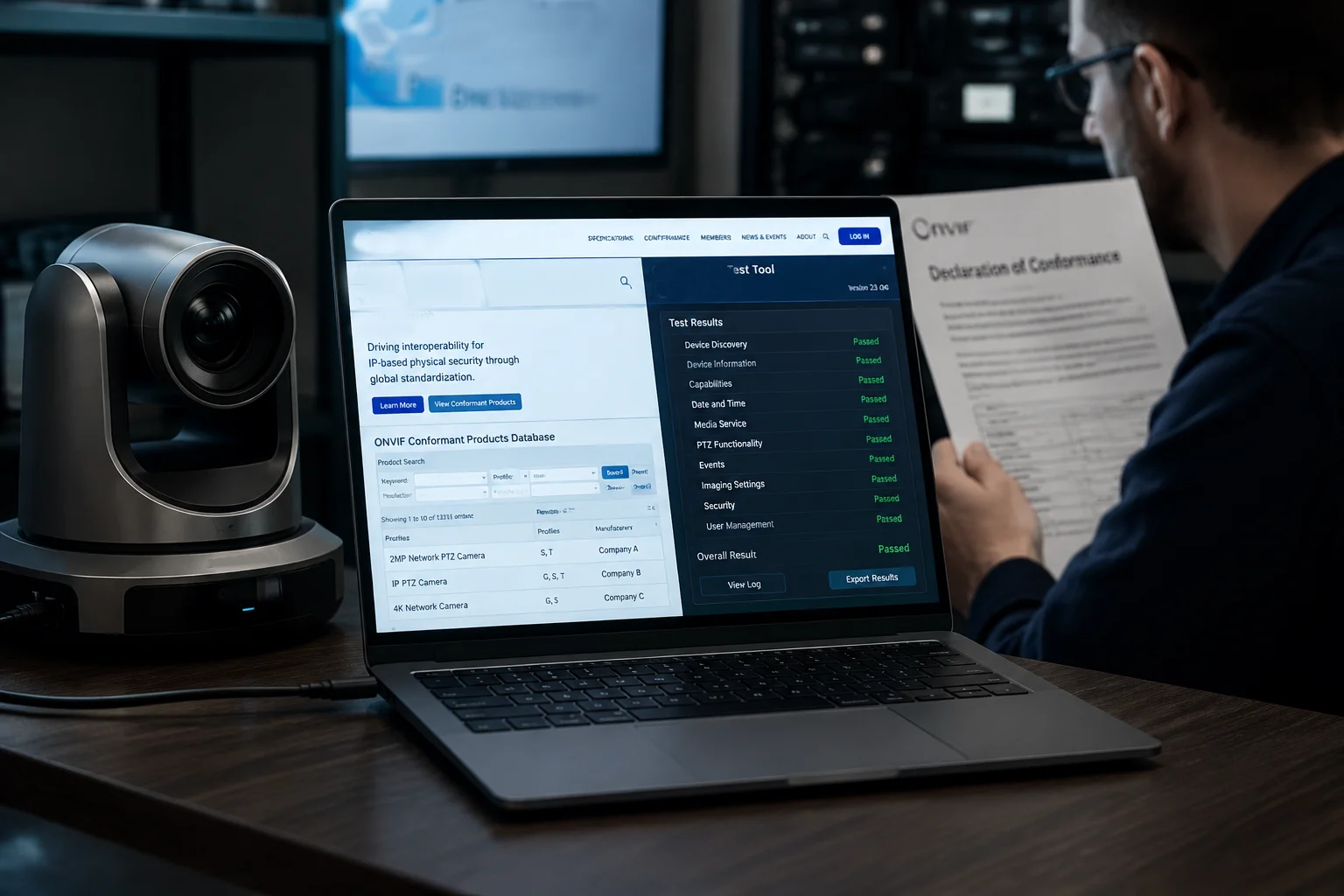
Below, I will walk you through the most common questions I get from system integrators and project managers. Each one ties directly to real deployment scenarios. Let me break them down one by one so you can make confident purchasing decisions.
Table of Contents
Will My Camera Support Profile G for Edge Storage Retrieval on a Milestone NVR?
This is the question I hear most from integrators running Milestone XProtect1. They need to pull SD card recordings remotely, but half the cameras they test just do not respond to the retrieval command.
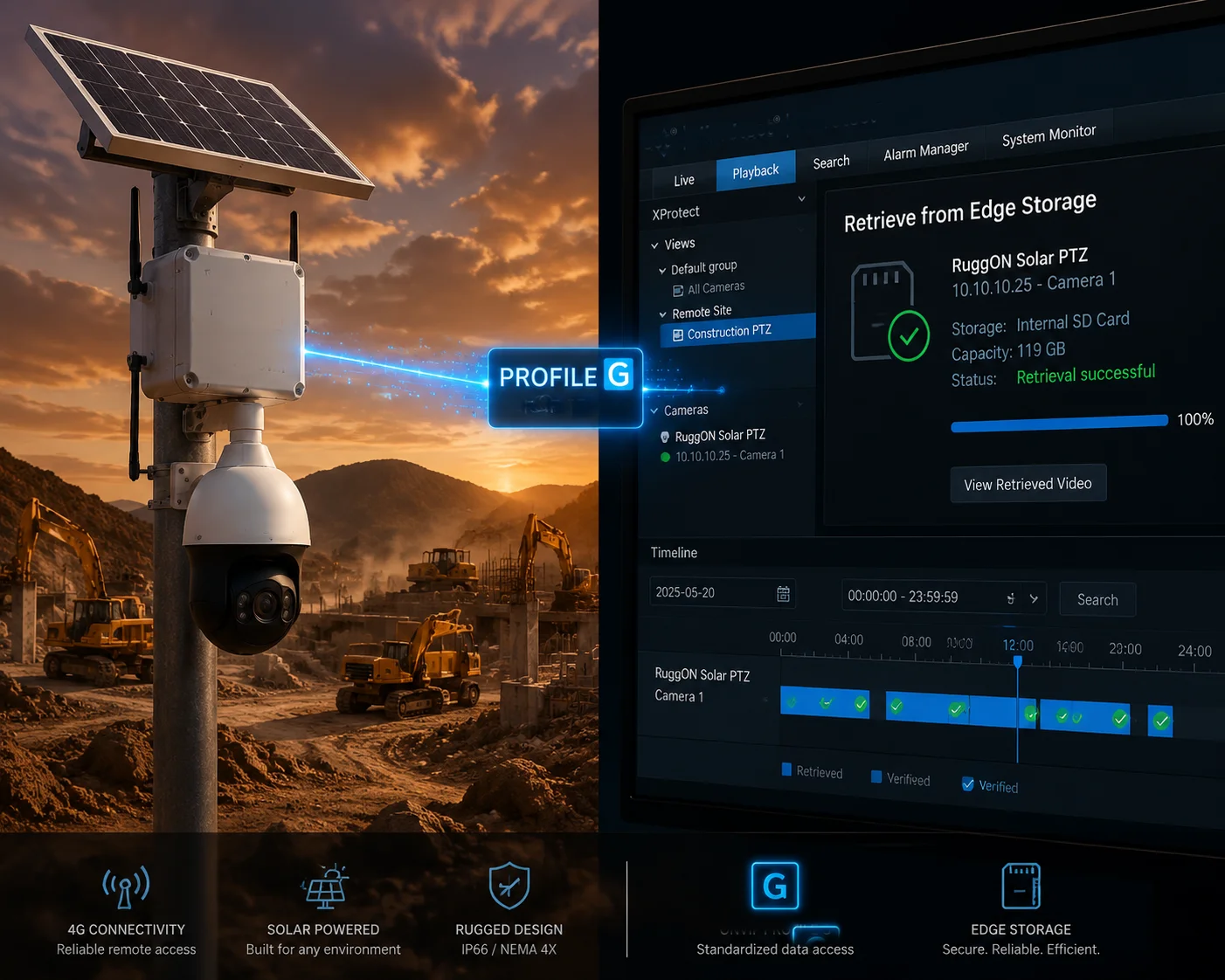
Yes, a camera will support Profile G2 edge storage retrieval on Milestone — but only if it has passed official ONVIF Profile G conformance testing. You must verify this through the ONVIF Device Test Tool3 or the ONVIF.org database. A camera with an SD card slot does not automatically mean it supports Profile G’s standardized recording search and playback commands.
Why Profile G Matters for Remote Sites
Let me explain why this matters so much. In a typical 4G solar-powered deployment4 — like a construction site in rural Texas or a farm in Alberta — the camera is not connected to a local NVR 24/7. The bandwidth is limited. The VMS cannot pull a continuous stream all day long.
So what happens when there is an incident at 2 AM? You need to go back and retrieve that footage. If the camera supports Profile G, your Milestone NVR can send a standard ONVIF command to the camera. The camera then searches its local SD card and sends back the specific clip you need. No proprietary plugin. No private SDK. Just a clean, standardized protocol.
If the camera does not truly support Profile G, here is what happens instead:
- Milestone cannot see the SD card recordings at all.
- You have to physically drive to the site and pull the SD card.
- Or you use the manufacturer’s own web interface, which may not even work over 4G.
How to Test Profile G Before You Buy
Here is my recommended testing workflow:
| Step | Tool | What to Check |
|---|---|---|
| 1 | ONVIF Device Manager | Click Recording tab. Can you see a list of stored clips? Can you play them back inside the tool? |
| 2 | Milestone XProtect | Add the camera via ONVIF driver. Go to Playback mode. Can you search edge recordings by time range? |
| 3 | ONVIF.org Database | Search the camera model. Does the listing explicitly say Profile G? |
The Firmware Trap
One thing I always warn my clients about: Profile G support can depend on the firmware version. I have seen cameras where firmware v3.2 supported Profile G, but the factory shipped units with firmware v2.8 — which did not. Always ask your supplier for the exact firmware version that passed Profile G testing. Better yet, ask them for a screenshot of the ONVIF Device Test Tool conformance report showing Profile G as “Passed.”
What About NAS Storage vs. SD Card?
Profile G covers both. It defines a standard way to search and retrieve recordings from any local storage — whether that is a MicroSD card, an onboard SSD, or even a NAS drive connected to the camera. The key point is that the storage is on the edge (at the camera), not on a central server. This is exactly why Profile G is so critical for off-grid and 4G deployments where central recording is not always possible.
At Loyalty-Secu, when we ship our 4G solar PTZ cameras, we test Profile G compatibility with Milestone and Blue Iris before the units leave the factory. We can provide the test report with every order. If you need this for your next project bid, just email me at sales05@loyalty-secu.com.
Does Profile T Support Advanced H.265 Compression for My Cloud VMS?
I get this question a lot from integrators who manage cloud-based VMS platforms. They want to cut bandwidth costs, and H.265 is the obvious answer. But they are not sure if ONVIF Profile T actually guarantees H.265 support.
Yes, ONVIF Profile T5 includes support for H.265 (HEVC)6 video compression as part of its specification. It also covers HTTPS streaming, imaging settings, motion detection events, and bidirectional audio. However, a camera claiming Profile T must pass the official conformance test to guarantee these features work through the standard ONVIF interface — not just through its own web GUI.
Why H.265 Through ONVIF Matters
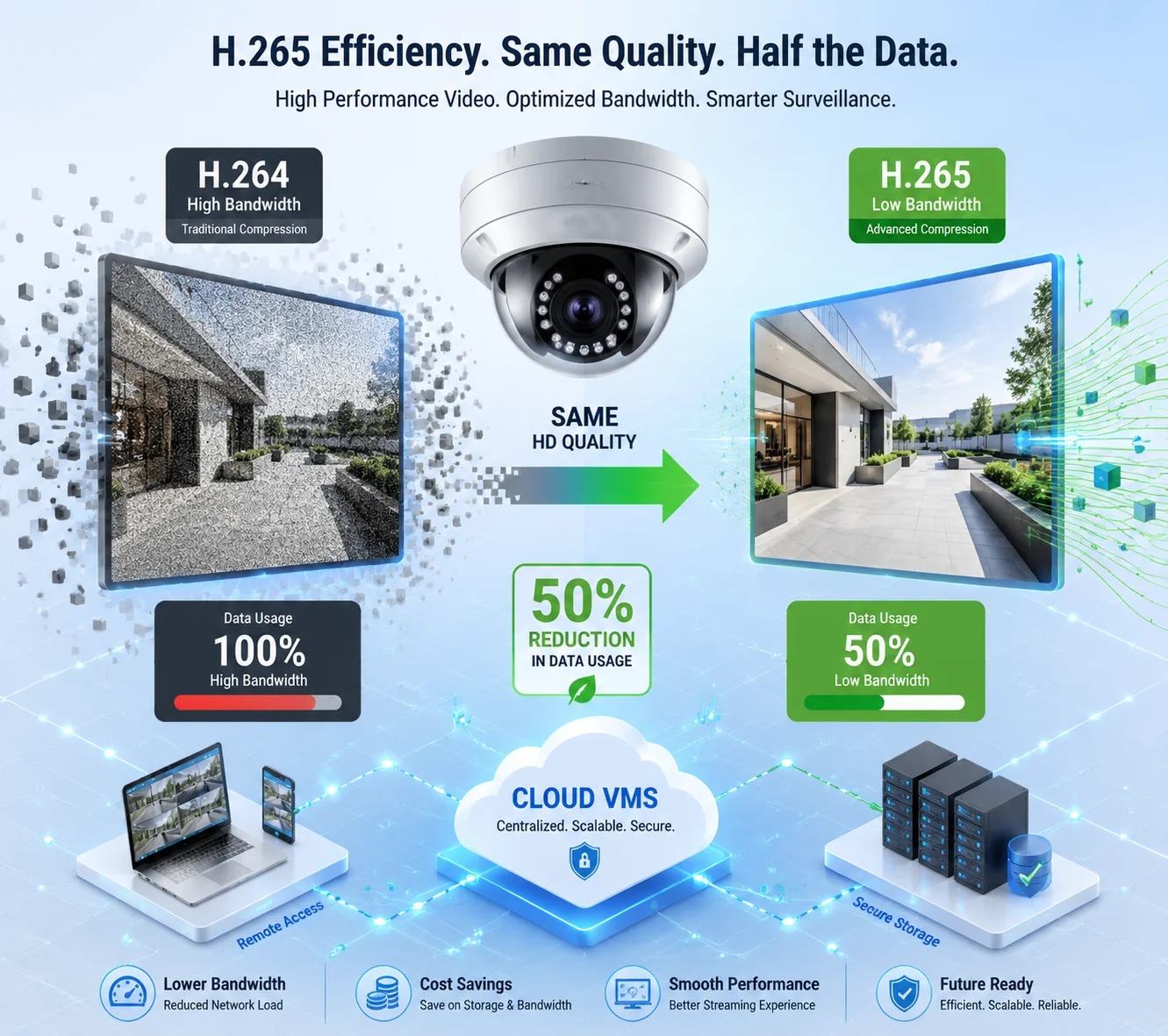
Here is the thing many people miss. Most modern cameras support H.265. You can enable it in the camera’s web interface. But that does not mean the camera exposes H.265 streams through the ONVIF media service. If your cloud VMS connects to the camera using ONVIF (which most do for standardization), it might only see H.264 streams — even though the camera is capable of H.265.
Profile T fixes this. When a camera is Profile T conformant, it means the ONVIF interface properly advertises and delivers H.265 streams. Your VMS can discover, select, and pull H.265 streams using standard ONVIF commands.
The Bandwidth Math
For 4G deployments, the difference between H.264 and H.265 is not just technical — it is financial. Let me show you:
| Codec | Bitrate for 1080p @ 25fps | Monthly Data Usage (24/7) | Estimated 4G Cost (US) |
|---|---|---|---|
| H.264 | ~4 Mbps | ~1,296 GB | $150–$300/month |
| H.265 | ~2 Mbps | ~648 GB | $75–$150/month |
| H.265+ (Smart Codec) | ~1 Mbps | ~324 GB | $40–$75/month |
That is a 50% reduction in data costs just by switching from H.264 to H.265. Over a 12-month project with 20 cameras, you could save thousands of dollars. But this only works if the VMS can actually pull the H.265 stream through ONVIF — and that requires Profile T.
What Else Does Profile T Cover?
Profile T is not just about H.265. It is a broader upgrade over Profile S. Here is what it adds:
HTTPS Secure Streaming
Profile T supports encrypted video transport. For 4G cameras sending footage over public cellular networks, this is a big deal. Without HTTPS, anyone who intercepts the data stream can view the video. Profile T makes sure the stream is encrypted end-to-end.
Motion Detection and Alarm Events
Profile T standardizes how the camera reports motion detection events7 to the VMS. This means your Milestone or Genetec system can receive alarm triggers through ONVIF — without needing a proprietary plugin from the camera manufacturer.
Imaging Controls
Exposure, white balance, IR cut filter, wide dynamic range — Profile T lets the VMS adjust these settings remotely through ONVIF. This is very useful for integrators who manage hundreds of cameras from a central console. You do not need to log into each camera’s web interface one by one.
How to Verify Profile T in Practice
Open ONVIF Device Manager8. Connect to the camera. Go to Video Configuration. If you can see H.265 as an available encoding option and you can switch between H.264 and H.265 from within the tool, that is a strong sign of Profile T support. Then check the Events tab. If you see motion detection events streaming in real time, that confirms the event handling part of Profile T.
But the gold standard is still the ONVIF.org conformant products page. Search the model. If it says Profile T, it has been officially tested and certified.
How Do I Verify the ONVIF Certification on the Official ONVIF.org Website?
I have had clients tell me they spent weeks integrating a camera, only to find out it was never officially certified. The camera had an ONVIF option in its menu, but it was a partial, unofficial implementation. It worked with some VMS platforms and failed with others.
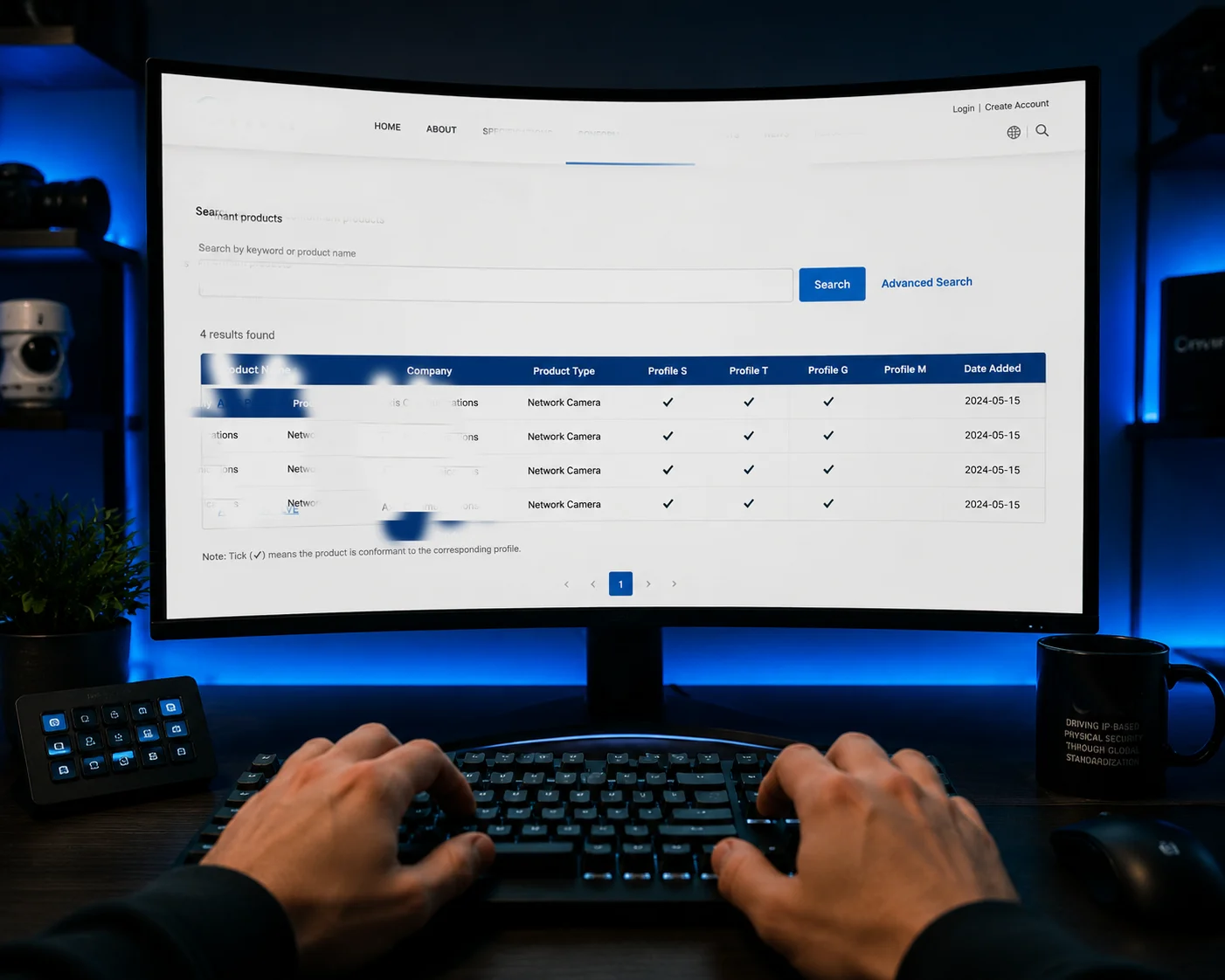
To verify ONVIF certification9, go to onvif.org/conformant-products and search by manufacturer name or product model number. Only devices listed in this database have passed official conformance testing and paid the required licensing fees. If a camera is not listed, its ONVIF support is unofficial and may have compatibility issues.
Step-by-Step Verification Process
Let me walk you through exactly how to do this. It takes less than two minutes.
Step 1: Visit the Database
Go to https://www.onvif.org/conformant-products/. This is the only official source. Do not trust third-party websites or manufacturer claims without cross-checking here.
Step 2: Search by Manufacturer
Type the manufacturer’s name in the search box. For example, type “Loyalty-Secu” or “Hikvision” or “Dahua.” The database will return all certified products from that manufacturer.
Step 3: Check the Profile Columns
Each product listing shows which Profiles it has been certified for. You will see columns for Profile S, Profile G, Profile T, Profile C, Profile Q, and Profile M. A checkmark or version number means the product passed that specific test.
Step 4: Note the Firmware Version
This is the part most people skip. The certification is tied to a specific firmware version. If the camera you receive has a different firmware version, the certification may not apply. Always compare the firmware version on the ONVIF.org listing with the firmware version on your actual camera.
What If the Camera Is Not Listed?
This happens more often than you might think. Many Chinese manufacturers add ONVIF code to their firmware but never go through the official certification process. The certification costs money and takes time. Some factories skip it.
Does that mean the camera will not work with your VMS? Not necessarily. It might work fine. But here are the risks:
- Partial implementation. The camera might support basic streaming (Profile S functions) but fail on edge storage retrieval (Profile G) or event handling (Profile T).
- No accountability. If something breaks during integration, you cannot file a complaint with ONVIF because the product was never certified.
- Project bid rejection. Many government and enterprise projects require official ONVIF certification as a minimum specification. If the camera is not in the database, it does not qualify.
The Difference Between “ONVIF Compatible” and “ONVIF Conformant”
This is a distinction that matters a lot in B2B procurement:
| Term | Meaning | Risk Level |
|---|---|---|
| ONVIF Conformant | Passed official testing. Listed on onvif.org. Certified for specific Profiles. | Low — standardized and verified. |
| ONVIF Compatible | Manufacturer claims it works with ONVIF. Not officially tested or listed. | Medium to High — may have gaps. |
| ONVIF Enabled | Has ONVIF option in firmware menu. No testing, no claims. | High — could fail at any point. |
When you write your project specifications, always use the word “Conformant” — not “Compatible” or “Enabled.” This one word protects you from receiving cameras that look right on paper but fail in the field.
At Loyalty-Secu, our PTZ cameras go through the full ONVIF conformance process. Every certified model is listed on the official ONVIF.org database. If you need to verify a specific model before placing an order, send me the model number and I will send you the direct link to its ONVIF listing.
Can I Get a Copy of the ONVIF “Declaration of Conformance” for My Project Bid?
I know this pain. You are putting together a bid for a city surveillance project or a large farm monitoring contract. The RFP requires proof of ONVIF compliance. A screenshot from the website is not enough. The client wants an official document.
Yes, you can request the ONVIF Declaration of Conformance10 (DoC) directly from the camera manufacturer. This is a formal PDF document that states which ONVIF Profiles the product has been tested and certified for, along with the firmware version and test date. Most reputable manufacturers keep this document on file and can provide it within 24 hours.

What Is the Declaration of Conformance?
The Declaration of Conformance is a document that the manufacturer produces after their product passes the ONVIF conformance test. It is not issued by ONVIF itself — it is a self-declaration by the manufacturer, backed by the test results from the official ONVIF Device Test Tool.
Think of it like a CE marking declaration. The manufacturer runs the tests (or hires a lab to do it), and then signs a document saying: “We declare that this product, with this firmware version, conforms to these ONVIF Profiles.”
What Should the Document Include?
A proper Declaration of Conformance should contain:
Product Information
- Manufacturer name and address
- Product model number
- Hardware version
- Firmware version (this is critical — the certification only applies to this specific version)
Profile Certification Details
- Which Profiles were tested (S, G, T, M, C, Q)
- The version of each Profile (e.g., Profile S v1.0, Profile T v1.0)
- The date of testing
Test Tool Information
- Which version of the ONVIF Device Test Tool was used
- Whether the test was performed by the manufacturer or a third-party lab
Signature
- A signed declaration from an authorized representative of the manufacturer
Why This Document Matters for Your Bid
In my experience, there are three reasons why you need this document:
First, many government RFPs explicitly require it. If you cannot provide it, your bid gets disqualified — no matter how good your price is.
Second, it protects you legally. If the camera fails to perform as declared, you have a written document to hold the manufacturer accountable.
Third, it shows your client that you are a professional integrator who does proper due diligence. This builds trust and helps you win repeat business.
How to Request It from Your Supplier
Here is what I recommend. Send your supplier an email with this exact request:
“Please provide the ONVIF Declaration of Conformance (DoC) for model [XXX] with firmware version [XXX]. The document should list all certified ONVIF Profiles (S, G, T, M) and the test tool version used. We need this for our project bid submission.”
If the supplier cannot provide this document, that is a red flag. It likely means the product was never officially tested.
At Loyalty-Secu, we keep the Declaration of Conformance on file for every certified model. When you request a quotation from me, I include the DoC as part of the standard documentation package — along with the datasheet, test reports, and CE/FCC certificates. You do not need to ask twice. Just email me at sales05@loyalty-secu.com and I will send everything you need for your bid.
Conclusion
Always verify ONVIF Profile support through official tools and the ONVIF.org database — never trust marketing claims alone. Your project success depends on it.
1. Popular VMS platform used for edge storage retrieval with Profile G cameras. ↩︎ 2. ONVIF profile for edge storage, recording search, and playback retrieval. ↩︎ 3. The official ONVIF conformance testing tool used to verify profile support. ↩︎ 4. Remote camera installation over 4G cellular, where Profile G edge storage is critical. ↩︎ 5. ONVIF profile supporting H.265, HTTPS streaming, motion events, and imaging controls. ↩︎ 6. Video compression standard supported by Profile T for reduced bandwidth. ↩︎ 7. Standardized alarm events from camera to VMS, part of Profile T. ↩︎ 8. Free software to inspect ONVIF camera capabilities such as recording and video streams. ↩︎ 9. Official process listing cameras in the ONVIF database after passing tests. ↩︎ 10. Manufacturer document proving official ONVIF profile certification for specific firmware. ↩︎