
I have watched clients burn through 20 GB of 4G data in a single week just because their 4K cameras had no stream-splitting logic — a costly and avoidable mistake.
A dual-stream setup lets your 4K PTZ camera record at full resolution locally while sending a lightweight 720p sub-stream for remote preview. This simple split can cut your mobile data usage by over 90%, keeping your 4G bill low and your live view smooth — even on weak rural signals.
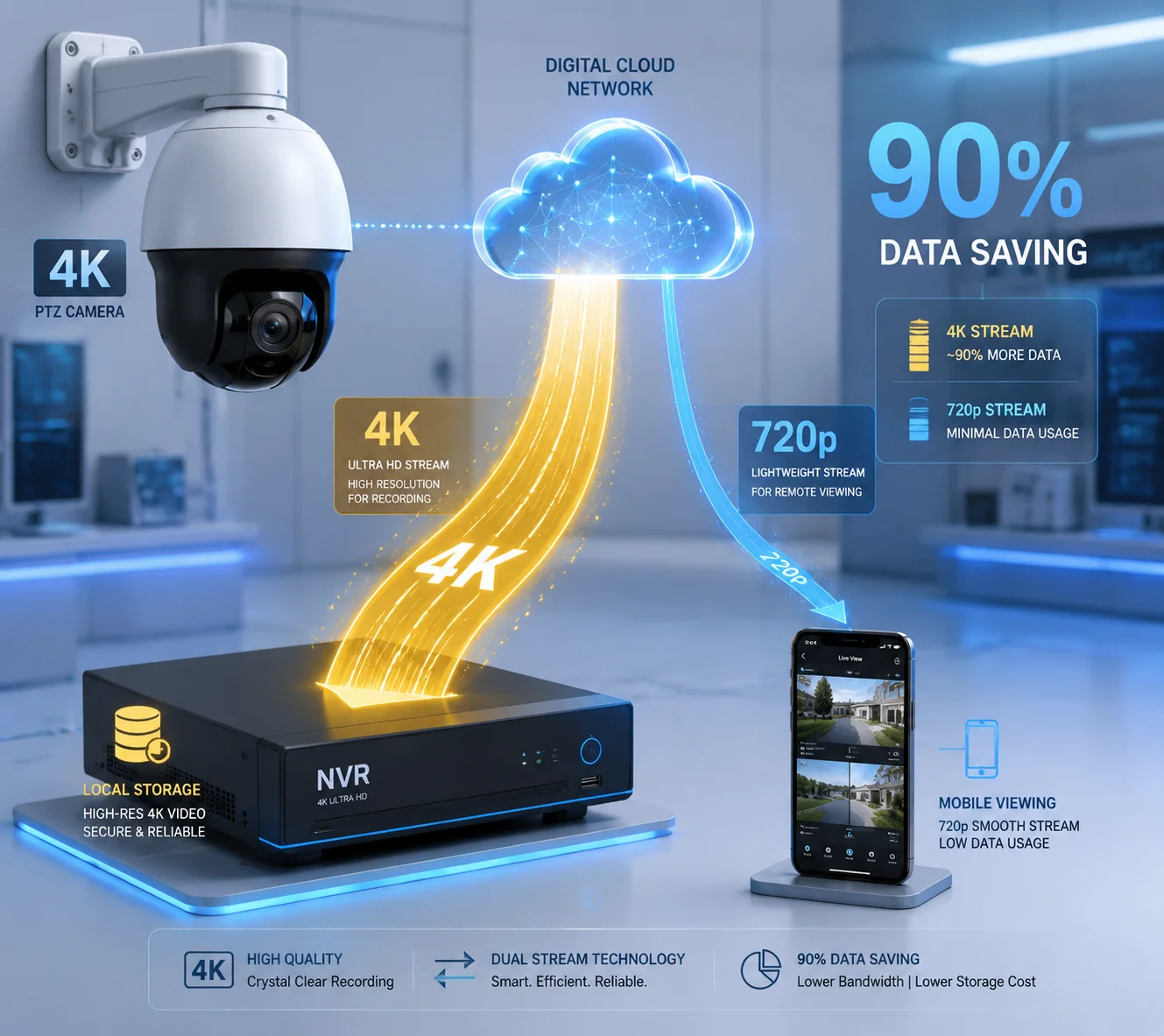
Below, I will walk you through the four most common questions I get from system integrators and project managers about dual-stream configuration. Each answer includes real numbers, configuration tips, and procurement language you can copy straight into your next technical agreement.
Table of Contents
Can I Default My Mobile App to a “Sub-Stream” Preview to Save 90% of My Data?
I have seen too many installers leave the app on “HD mode” by default, then wonder why their monthly 4G plan runs dry in ten days.
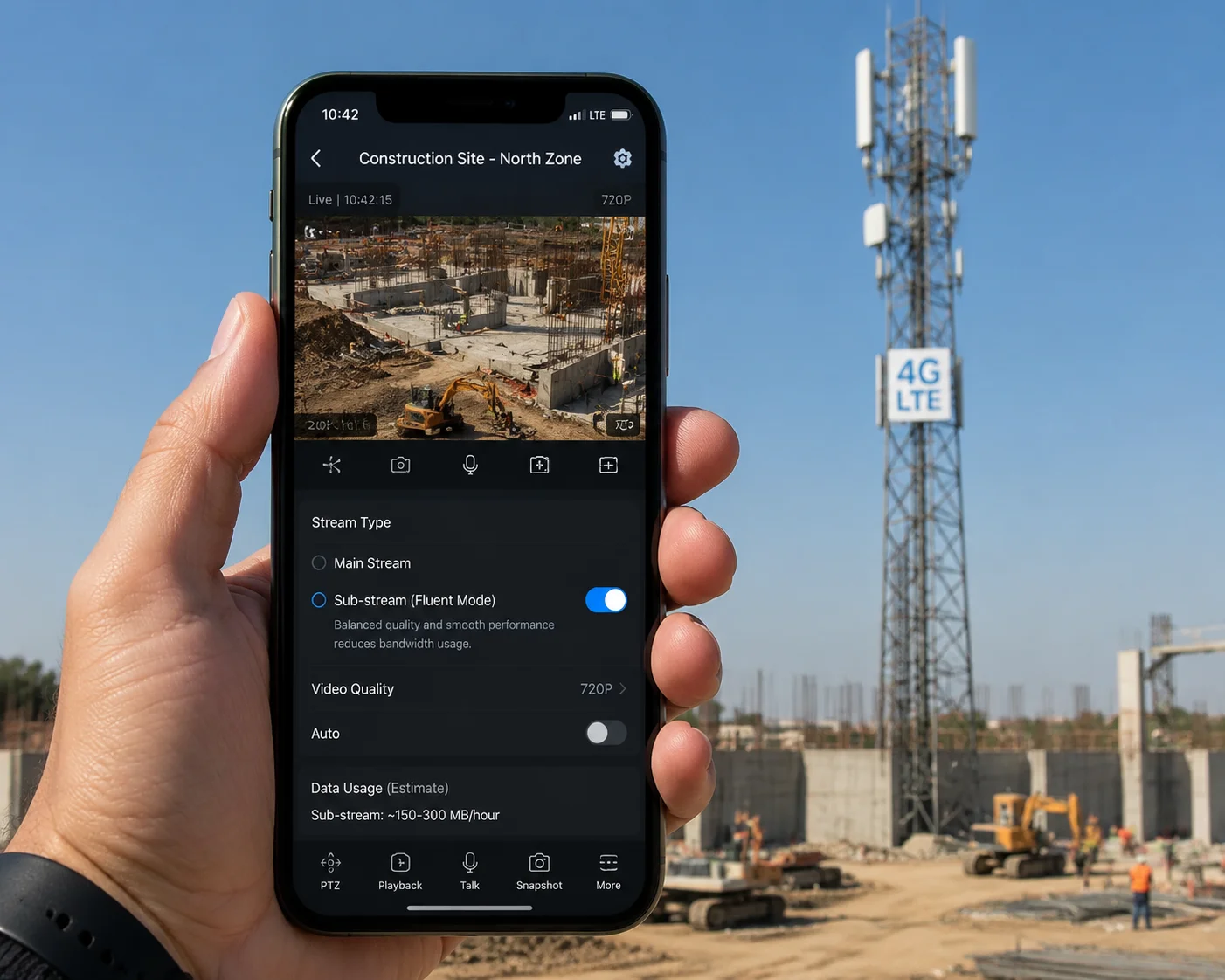
Yes. You should always set the mobile app to load the sub-stream (720p) by default. At roughly 0.5 Mbps versus 6 Mbps for the 4K main stream, this single change alone saves about 90–96% of your remote viewing data — without touching your local recording quality.
Why the Default Stream Setting Matters So Much
Most 4K PTZ cameras encode two independent video streams at the same time. The main stream captures every pixel at full 4K resolution. The sub-stream compresses the same scene down to 720p or even 480p. Both streams exist simultaneously inside the camera’s encoder chip. The question is simply: which one does your phone pull when you open the app?
If the app defaults to the main stream, your phone tries to download 6 Mbps of data the moment you tap “Live View.” On a 4G connection, that is roughly 675 MB every 15 minutes. Over a month of casual daily checks, you are looking at 20 GB gone — just for preview, not even recording.
Switch the default to the sub-stream, and that same 15-minute session drops to about 57 MB. Over a month, that is only 1.7 GB.
The Real-World Data Comparison
| Preview Mode | Bitrate | 15-Min Session | Monthly (15 min/day) | User Experience |
|---|---|---|---|---|
| Main stream only (4K) | 6 Mbps | 675 MB | ~20 GB | Frequent buffering on weak 4G |
| Sub-stream only (720p) | 512 Kbps | 57 MB | ~1.7 GB | Fast and smooth, less detail |
| Dual-stream (smart switch) | Dynamic | ~100 MB | ~3 GB | Best balance: quick preview, clear forensics on demand |
How to Configure This in Practice
Most professional-grade PTZ cameras — including the models we build at Loyalty-Secu — expose this setting in two places:
- Camera firmware (web interface): Under “Video/Audio → Stream Settings,” you set the sub-stream resolution, frame rate, and bitrate. I recommend 720p, 15 fps, H.2651, and 512 Kbps VBR as a starting point.
- Mobile app or VMS client: Under “Live View Settings” or “Network Adaptation,” choose “Fluent” or “Sub-stream” as the default. Only when the user taps “HD” or “4K” should the app pull the main stream.
A Note on VBR for the Sub-Stream
For the sub-stream, I always recommend VBR2 (Variable Bit Rate) instead of CBR3. Surveillance scenes are mostly static — a fence, a gate, an empty parking lot. VBR drops the bitrate during these quiet moments, sometimes down to 128 Kbps. When motion appears, it ramps up to capture the action. This can save another 30–50% on top of the sub-stream savings you already get.
When you write your procurement spec, include this line:
“App shall default to sub-stream preview. Main stream shall only be activated upon explicit user request or HD toggle.”
That one sentence protects your client’s data budget for the entire project lifecycle.
Will the “Main-Stream” Continue to Record at Full 4K Resolution While I Preview at 720p?
I once had a client in Canada panic because he thought switching to sub-stream preview meant his recordings also dropped to 720p. It does not work that way.
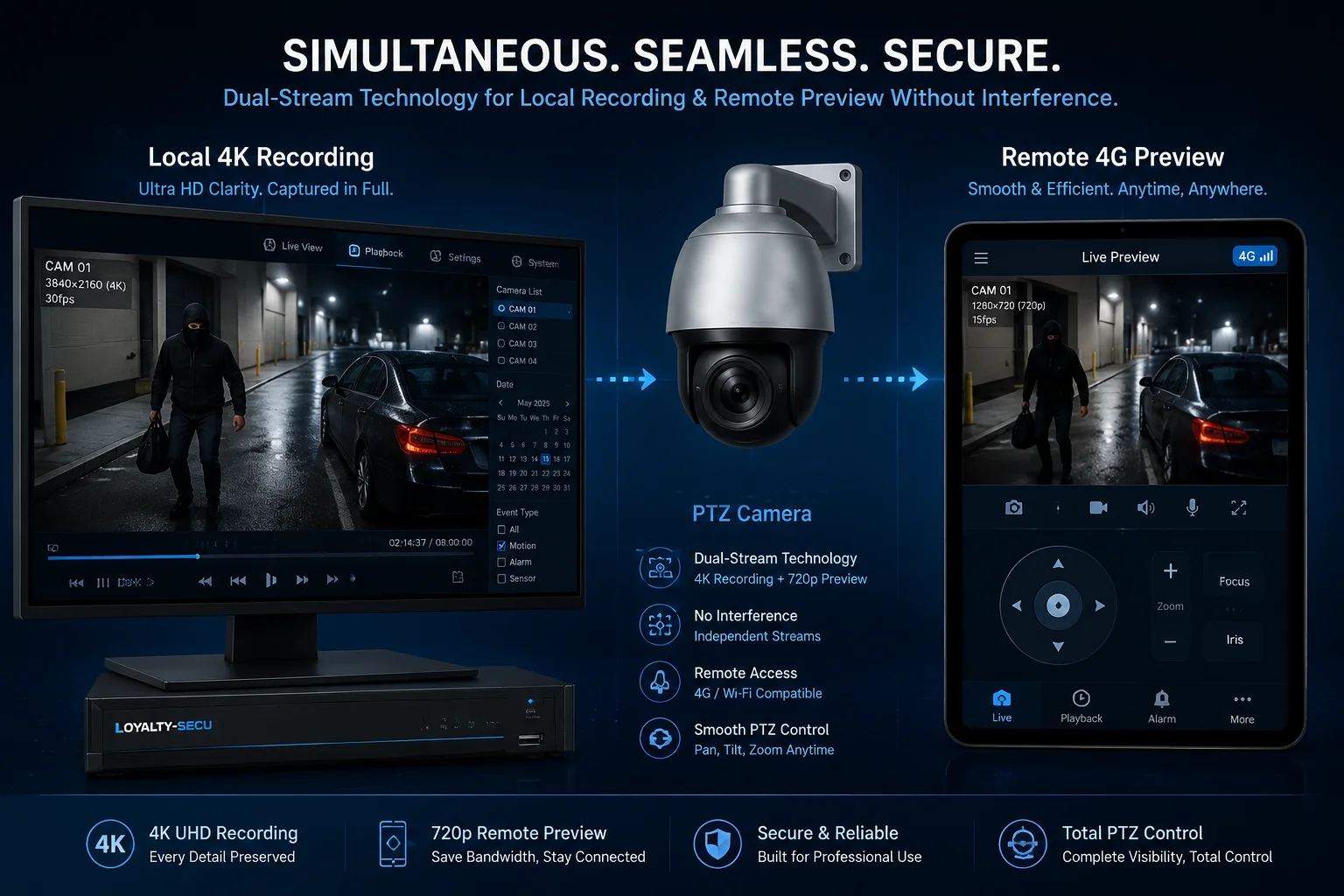
Yes. The main stream and sub-stream are completely independent encoding channels. Your local NVR or SD card always records the full 4K main stream at its configured bitrate, regardless of what resolution you are viewing remotely on your phone.
How Dual Encoding Actually Works Inside the Camera
Modern 4K PTZ cameras use a System-on-Chip (SoC)4 that runs two (or more) encoding pipelines in parallel. Think of it like two separate video recorders sharing the same lens. One recorder captures 4K at 6–8 Mbps and writes it to the SD card or pushes it to the local NVR over Ethernet. The other recorder captures 720p at 0.5 Mbps and holds it ready for any remote client that connects over 4G.
These two pipelines do not interfere with each other. Turning off the sub-stream does not improve the main stream. Watching the sub-stream on your phone does not degrade the main stream recording. They are parallel, not serial.
The Storage and Bandwidth Separation Model
This is the architecture I recommend to every system integrator I work with:
| Storage Location | Stream Used | Purpose | 4G Data Impact |
|---|---|---|---|
| Local NVR / SD card | Main stream (4K H.265) | 24/7 continuous recording, forensic playback | Zero — stays on local storage |
| Cloud storage (optional) | Main stream clips or sub-stream continuous | Off-site backup, critical event archiving | Event-triggered uploads only |
| 4G remote preview | Sub-stream (720p H.265) | Real-time mobile monitoring, multi-screen patrol | Sub-stream bitrate only (~0.5 Mbps) |
Why This Matters for Project Bids
When David — a typical CTO or project manager — submits a bid for a solar-powered construction site camera, his client expects 4K evidence-grade footage. But the site only has a 60 GB monthly 4G plan. Without dual-stream separation, he faces an impossible choice: either burn through the data plan in three days with 4K streaming, or downgrade the recording to 720p and lose forensic value.
Dual-stream removes that trade-off entirely. The 4K footage sits safely on the local 256 GB SD card5. David checks the site twice a day on his phone using the sub-stream. He uses maybe 3 GB a month. And when an incident happens, he pulls the 4K clip from the SD card — either remotely (one-time download) or physically during the next site visit.
Procurement Language to Include
“Camera shall simultaneously encode main stream (4K, H.265, ≥25 fps) for local storage and sub-stream (720p, H.265, ≤15 fps) for remote access. Local recording resolution shall not be affected by remote viewing stream selection.”
How Do I Customize the Sub-Stream Resolution for Extremely Slow Rural 4G Connections?
I have deployed cameras on farms in the American Midwest where the 4G signal barely holds 1 Mbps downstream. Standard 720p sub-stream settings still choked. You need to go lower.
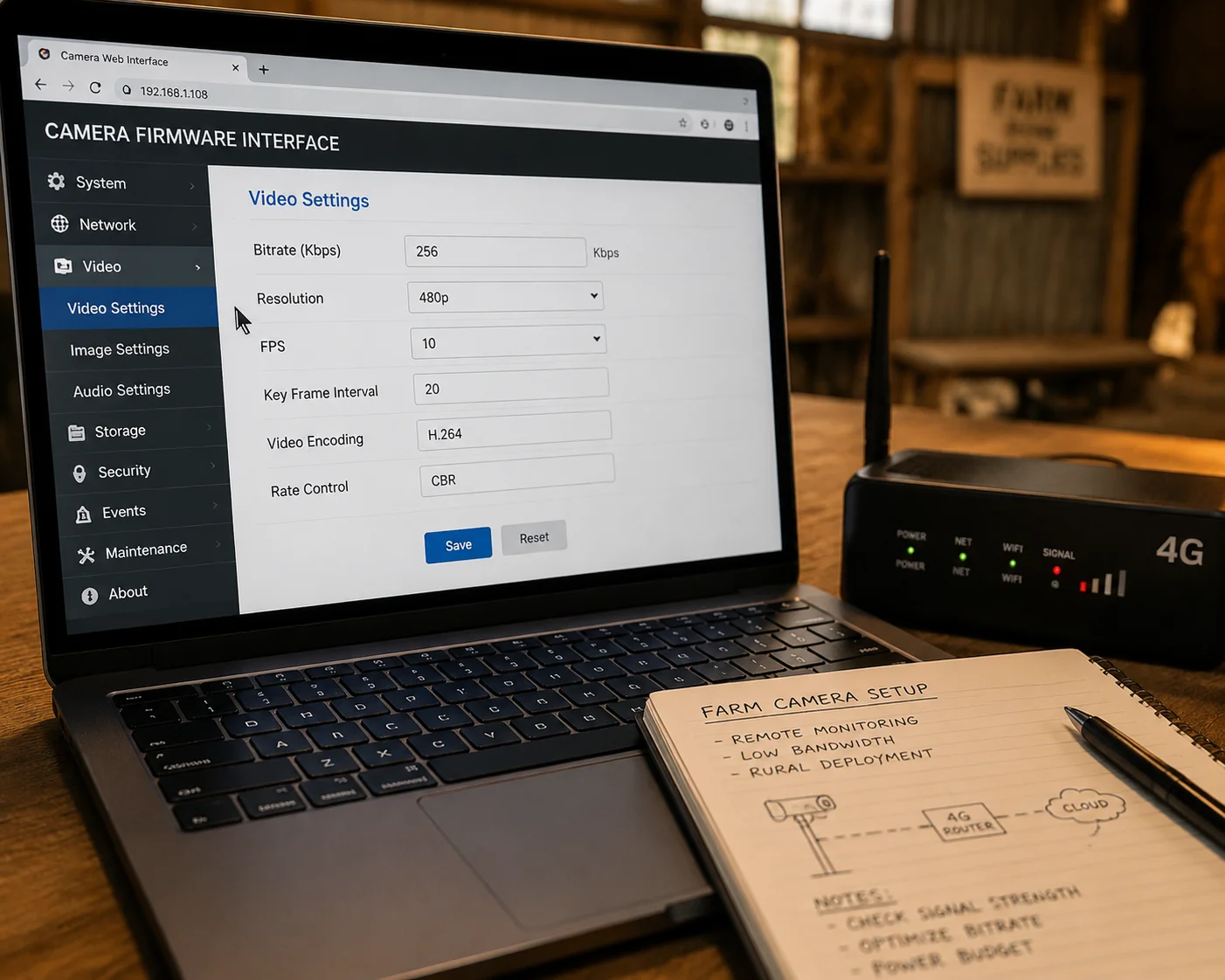
Most professional PTZ cameras let you manually set the sub-stream resolution down to 480p or even 352×288 (CIF), reduce the frame rate to 8–10 fps, and cap the bitrate at 200–300 Kbps. Combined with H.265 encoding and VBR mode, this makes live preview possible even on connections as slow as 0.5 Mbps.
The Three Levers You Can Pull
When the network is bad, you have three variables to adjust on the sub-stream. Each one reduces data consumption independently, and they stack:
1. Resolution
Dropping from 720p (1280×720) to 480p (854×480) cuts the pixel count nearly in half. Going further to CIF (352×288) cuts it by about 85%. Fewer pixels mean fewer bits to encode and transmit.
2. Frame Rate
A 25 fps stream sends 25 images per second. Drop that to 10 fps, and you send less than half the data. For surveillance — where you mostly need to see “is someone there?” rather than watch smooth motion — 10 fps is perfectly usable. In extreme cases, 8 fps still works.
3. Bitrate Cap
Even with lower resolution and frame rate, the encoder might still allocate more bits than your connection can handle. Setting a hard bitrate cap (for example, 256 Kbps) forces the encoder to stay within your bandwidth budget. With VBR, the encoder will often stay well below this cap during static scenes.
Recommended Settings by Network Quality
| Network Condition | Sub-Stream Resolution | Frame Rate | Bitrate (H.265 VBR) | Expected Experience |
|---|---|---|---|---|
| Good 4G (≥5 Mbps) | 1280×720 (720p) | 15 fps | 512–800 Kbps | Smooth, clear preview |
| Moderate 4G (2–5 Mbps) | 854×480 (480p) | 12 fps | 300–500 Kbps | Good preview, slight softness |
| Weak 4G (0.5–2 Mbps) | 640×480 (VGA) | 10 fps | 200–300 Kbps | Usable preview, visible compression |
| Very weak 4G (<0.5 Mbps) | 352×288 (CIF) | 8 fps | 128–200 Kbps | Basic monitoring, low detail |
GOP and I-Frame Interval Tuning
There is one more setting that matters a lot on slow connections: the GOP6 (Group of Pictures) interval. GOP controls how often the encoder sends a full “key frame” (I-frame). A shorter GOP means more key frames, which means faster channel switching but higher bandwidth. A longer GOP means fewer key frames, lower bandwidth, but a slight delay when you first open the live view.
For weak 4G, I recommend setting the sub-stream GOP to 2× the frame rate. So if your frame rate is 10 fps, set GOP to 20. This means one key frame every 2 seconds — a good balance between startup speed and bandwidth savings.
ROI Encoding: A Hidden Bandwidth Saver
If your camera firmware supports ROI (Region of Interest) encoding, turn it on. ROI tells the encoder to allocate more bits to the center of the frame — where the gate, door, or vehicle lane usually is — and fewer bits to the background like sky, grass, or walls. On a 4G connection, this can reduce the effective bitrate by another 15–25% without any visible loss in the areas that matter.
At Loyalty-Secu, our 4K PTZ models support ROI configuration through the web interface. You draw a rectangle over the area you care about, and the encoder does the rest.
Is There a “tri-stream7” Option for Simultaneous Local Recording, Remote Viewing, and AI Analysis?
I get this question more and more as AI analytics move from the cloud to the edge. The short answer: yes, but you need to check the hardware spec carefully.
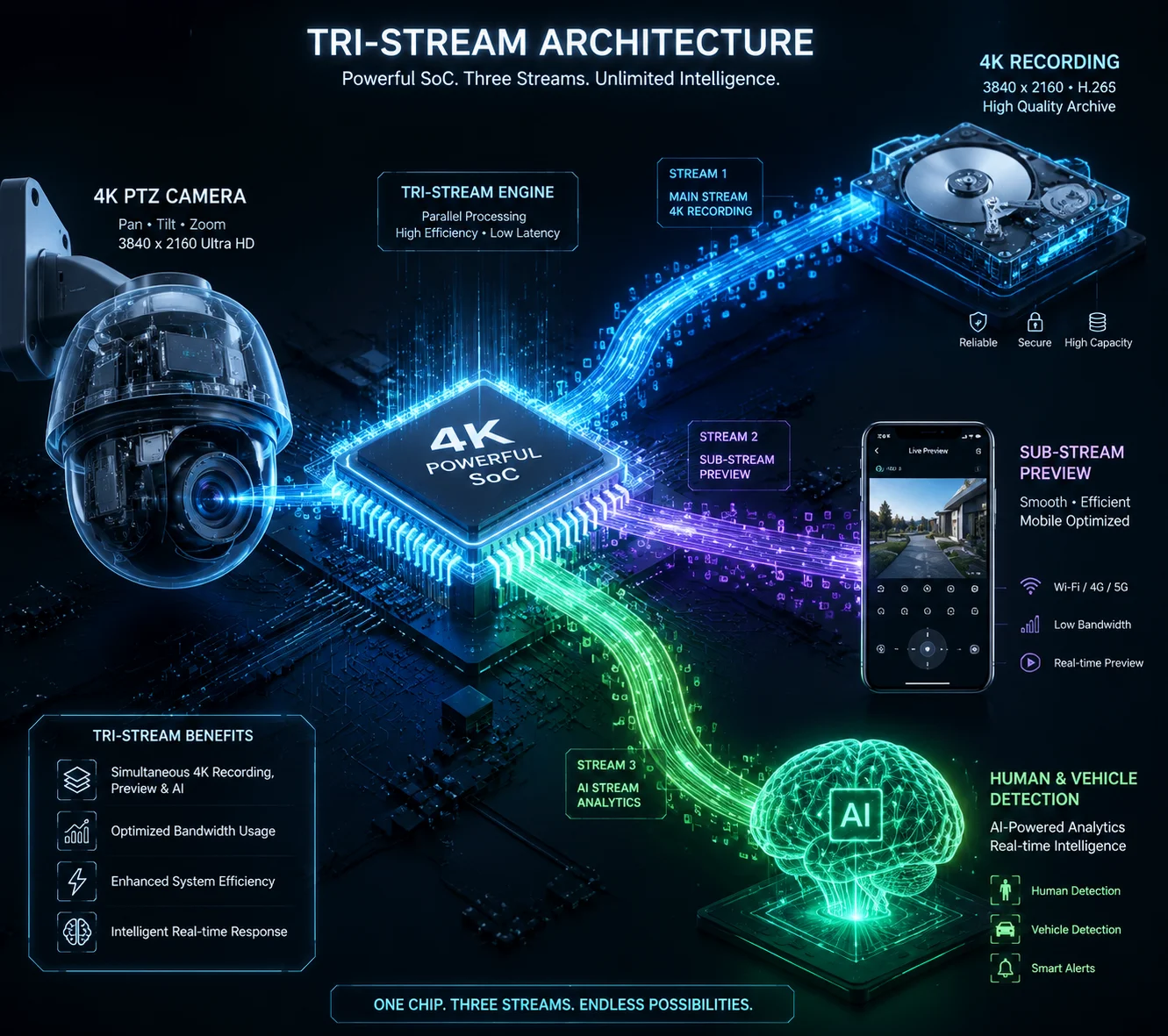
Many modern 4K PTZ cameras support a third stream — often called the “third stream” or “analysis stream” — specifically designed to feed the onboard AI engine or a third-party analytics server. This stream typically runs at 1080p or 720p with settings optimized for machine vision rather than human viewing, allowing local 4K recording, remote 720p preview, and AI processing to run simultaneously without competing for bandwidth.
Why AI Needs Its Own Stream
AI algorithms — like human detection, vehicle tracking, or license plate recognition — do not need 4K resolution. In fact, feeding 4K frames to an AI chip wastes processing power and slows down inference speed. Most edge-AI8 chips perform best at 1080p or even 720p input.
But you cannot just share the sub-stream with the AI engine. The sub-stream is optimized for human eyes: it uses aggressive compression, low frame rates, and sometimes skips frames during network congestion. AI needs a consistent, stable feed with predictable frame timing. A dropped frame can cause a missed detection.
That is why the third stream exists. It runs independently of both the main and sub streams. It feeds directly into the onboard neural processing unit (NPU) or gets pushed to an external analytics server over the local network.
How the Three Streams Divide the Work
Here is how I recommend configuring a tri-stream setup:
-
Stream 1 (Main): 4K, 25 fps, H.265, 6–8 Mbps CBR → Local NVR / SD card recording. This is your evidence archive. It never touches the 4G link unless you manually download a clip.
-
Stream 2 (Sub): 720p, 15 fps, H.265, 512 Kbps VBR → Remote mobile preview over 4G. This is what David sees on his phone when he checks the site.
-
Stream 3 (Analysis): 1080p, 20 fps, H.265, 2 Mbps CBR → Onboard AI engine or local analytics server. This feeds the human/vehicle detection algorithm. It stays on the local bus or LAN — no 4G data consumed.
When Tri-Stream Becomes Essential
For basic motion detection, you do not need a third stream. The camera can run motion detection on the main stream internally. But for advanced AI features — perimeter intrusion with object classification, face capture, license plate recognition, or PTZ auto-tracking — a dedicated analysis stream makes a real difference in detection accuracy and speed.
Our dual-lens linkage PTZ cameras at Loyalty-Secu use this architecture. The fixed wide-angle lens provides the AI analysis stream for full-scene detection. When the AI detects a target, it sends coordinates to the PTZ lens, which then zooms in and tracks the target using the main stream. The sub-stream continues to serve the remote viewer throughout. Three streams, three jobs, zero conflict.
Procurement Spec for Tri-Stream
“Camera shall support a minimum of three simultaneous encoding streams: main stream (4K, ≥25 fps, H.265), sub-stream (720p, ≤15 fps, H.265), and analysis stream (1080p, ≥20 fps, H.265). The analysis stream shall be independently configurable and accessible via RTSP9 for third-party VMS or AI server integration.”
If your project involves any form of intelligent video analytics — and most new projects do — make sure the camera you source actually supports three independent encoding channels at the hardware level. Some budget cameras advertise “tri-stream” but actually time-share two encoders, which causes frame drops under load. Ask your supplier for the SoC datasheet. If it lists three independent encoding pipelines, you are safe.
Conclusion
Dual-stream is not optional for 4K solar PTZ projects — it is the foundation that makes remote monitoring affordable, reliable, and scalable over 4G without sacrificing forensic-grade local recording.
1. H.265 is a video compression standard that reduces bitrate without sacrificing quality. ↩︎ 2. Variable bitrate encoding saves data during static scenes, ideal for surveillance. ↩︎ 3. Constant bitrate maintains a fixed data rate but wastes bandwidth on static scenes. ↩︎ 4. SoC integrates encoder, processor, and AI hardware in a single chip for PTZ cameras. ↩︎ 5. SD cards provide local storage in cameras, enabling edge recording without network dependencies. ↩︎ 6. Group of Pictures interval affects key frame frequency and bandwidth efficiency. ↩︎ 7. Tri-stream adds a third encoding channel for AI or analytics without affecting primary streams. ↩︎ 8. Edge AI processes video locally on the camera, reducing cloud dependency and latency. ↩︎ 9. RTSP enables real-time video streaming from cameras to VMS or third-party servers. ↩︎