
I once lost a critical tracking shot because my PTZ jerked across the frame at the slowest setting. That frustration pushed me to master the 0.1°/s slow cruise.
To achieve 0.1°/s ultra-smooth manual slow cruise, the PTZ hardware must support that minimum speed in its motor driver. Then, the operator needs to lower the max manual speed in the web interface, enable proportional pan/tilt, tune the ramp curve for gentle acceleration, and use a 3D joystick controller with a high expo curve to maintain steady, jitter-free movement.
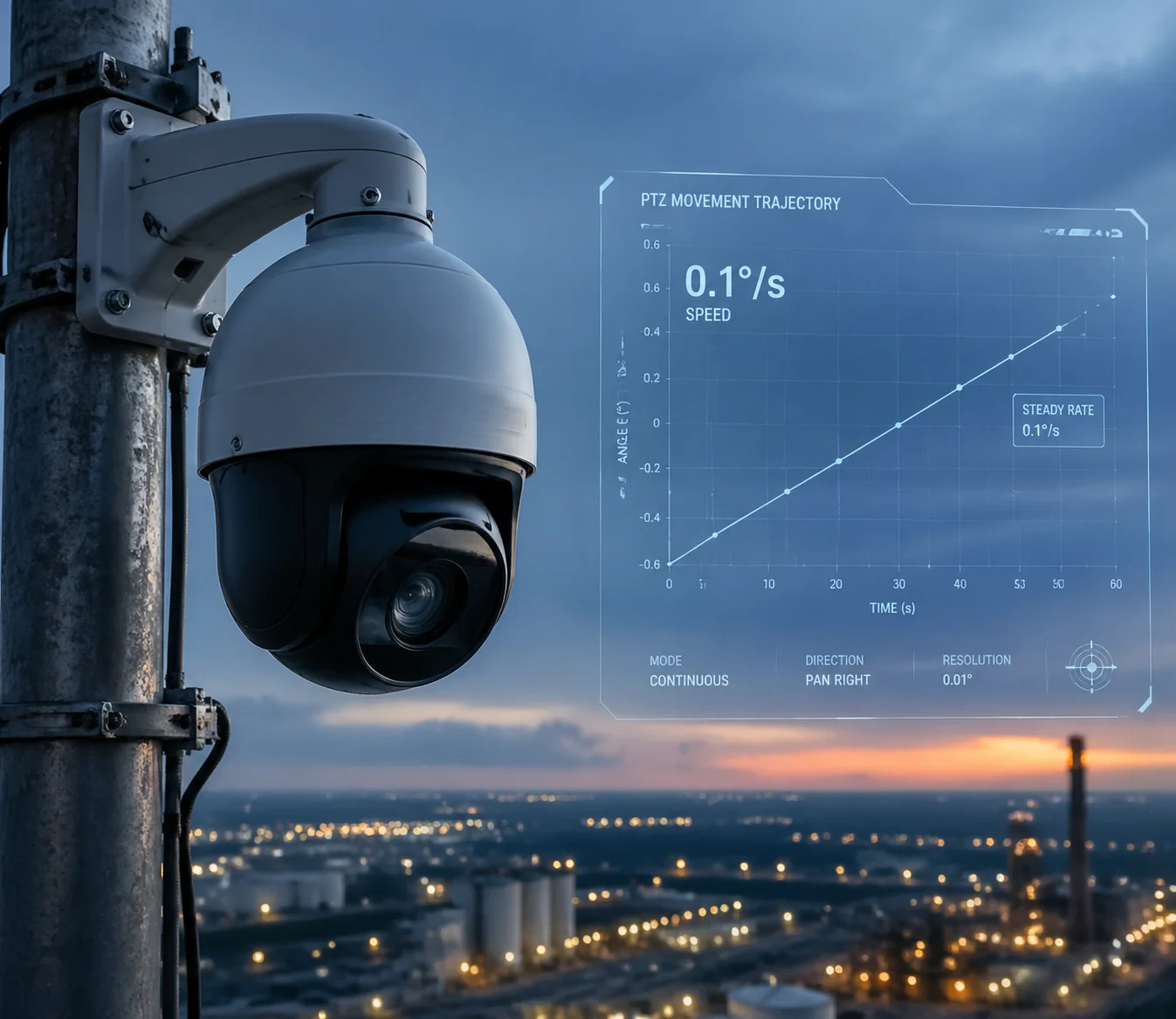
Below, I break down each part of the process. I cover joystick sensitivity, motor driver requirements, web interface settings, and common causes of stutter. If you are deploying PTZ cameras for long-range surveillance at 500 meters or more, every detail here matters.
Table of Contents
How Can I Configure the Joystick Sensitivity for 0.1°/s Precision Tracking?
I have watched operators push a joystick and overshoot a target 400 meters away in a split second. That is a sensitivity problem, and it is fixable.
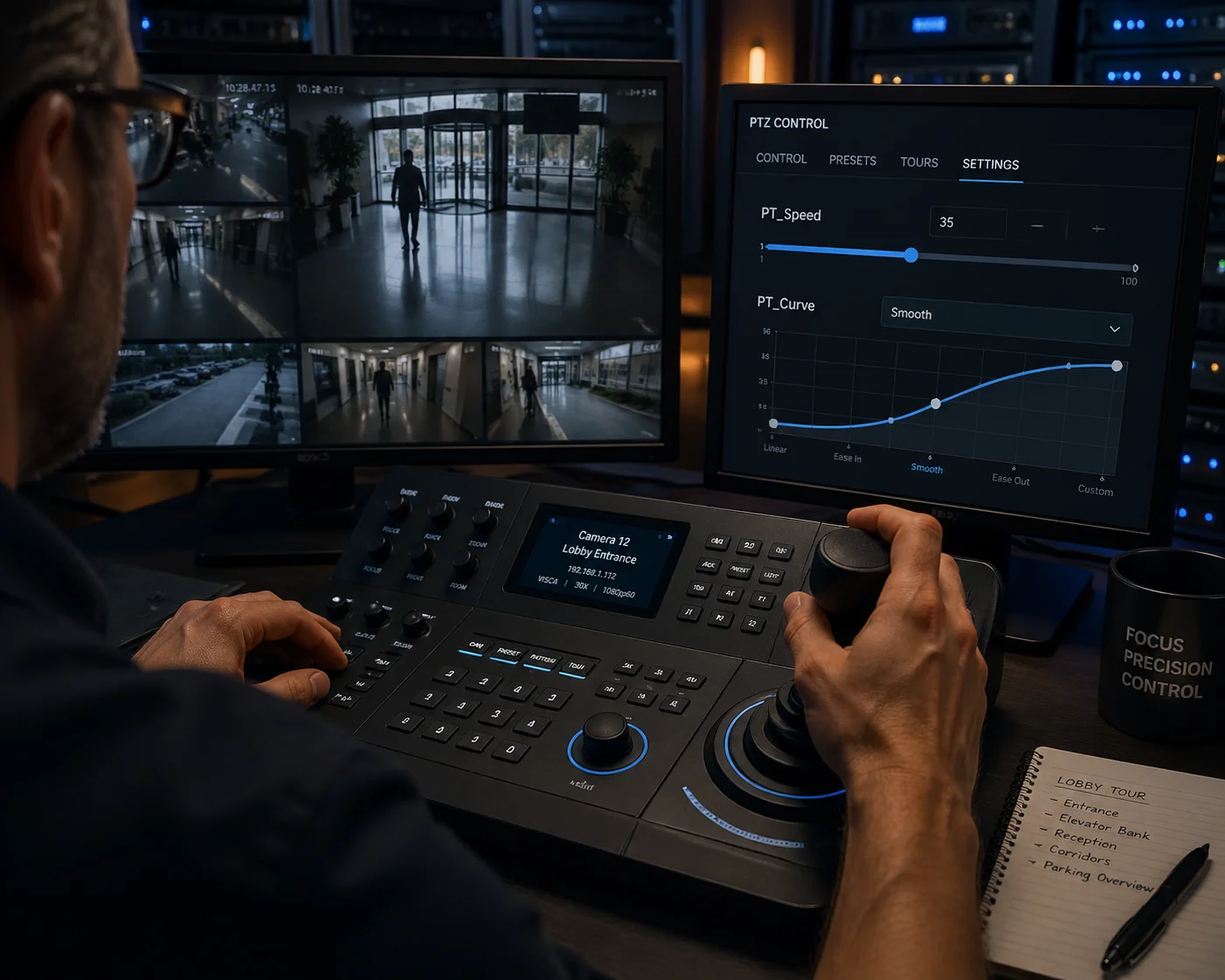
Joystick sensitivity for 0.1°/s tracking is configured by lowering the maximum PT speed on the controller and increasing the expo curve value. A high expo curve maps most of the joystick travel to very low speeds, so only a full push reaches higher speeds.
What Are PT_Speed and PT_Curve?
Most third-party hardware controllers like Skaarhoj 1 or PTZOptics 2 offer two main parameters for pan/tilt control. The first is PT_Speed (or Max Speed). This sets the ceiling. When I push the joystick all the way, the PTZ moves at this percentage of its full speed. The second is PT_Curve (or Expo). This controls the shape of the speed response. A low expo value gives a linear response. A high expo value creates a steep curve where the first 70–80% of joystick travel only produces very slow movement. The fast zone is compressed into the last 20% of travel.
For 0.1°/s slow cruise, I use a combination of low PT_Speed and high PT_Curve. This gives me a large “dead zone” of ultra-slow movement in the middle of the joystick range.
Recommended Joystick Settings for Slow Cruise
| Parameter | Recommended Value | Effect |
|---|---|---|
| PT_Speed (Max Speed) | 2–3 (20–30% of max) | Caps the fastest possible speed |
| PT_Curve (Expo) | 10–20 (high expo) | Makes most joystick range ultra-slow |
| Ramp (Acceleration) | Low or Off | Removes sudden speed jumps at start |
Why Not Use a Mouse on the Web Interface?
I tried using the web interface mouse control for slow tracking on a border surveillance project. It did not work well. The reason is simple. Mouse clicks send discrete speed commands over the network. Network latency adds 50–200ms of delay. This creates small speed bursts instead of smooth, continuous motion. A physical 3D joystick with RS-485 or USB sends analog position data. The controller translates the tilt angle of the joystick into a proportional speed command. When I push it just 2mm off center, it sends a tiny speed value. This is the only way to get true physical-level smoothness at 0.1°/s.
I always recommend that my B2B clients invest in a proper 3D joystick controller if slow-speed tracking is part of their project scope. The cost is small compared to the value of a stable, professional tracking shot.
Does My Camera’s Motor Driver Support Micro-Stepping for Jitter-Free Slow Movement?
I once received a complaint from a client. His PTZ looked smooth at medium speed but shook at the lowest setting. The problem was not software. It was the motor driver.
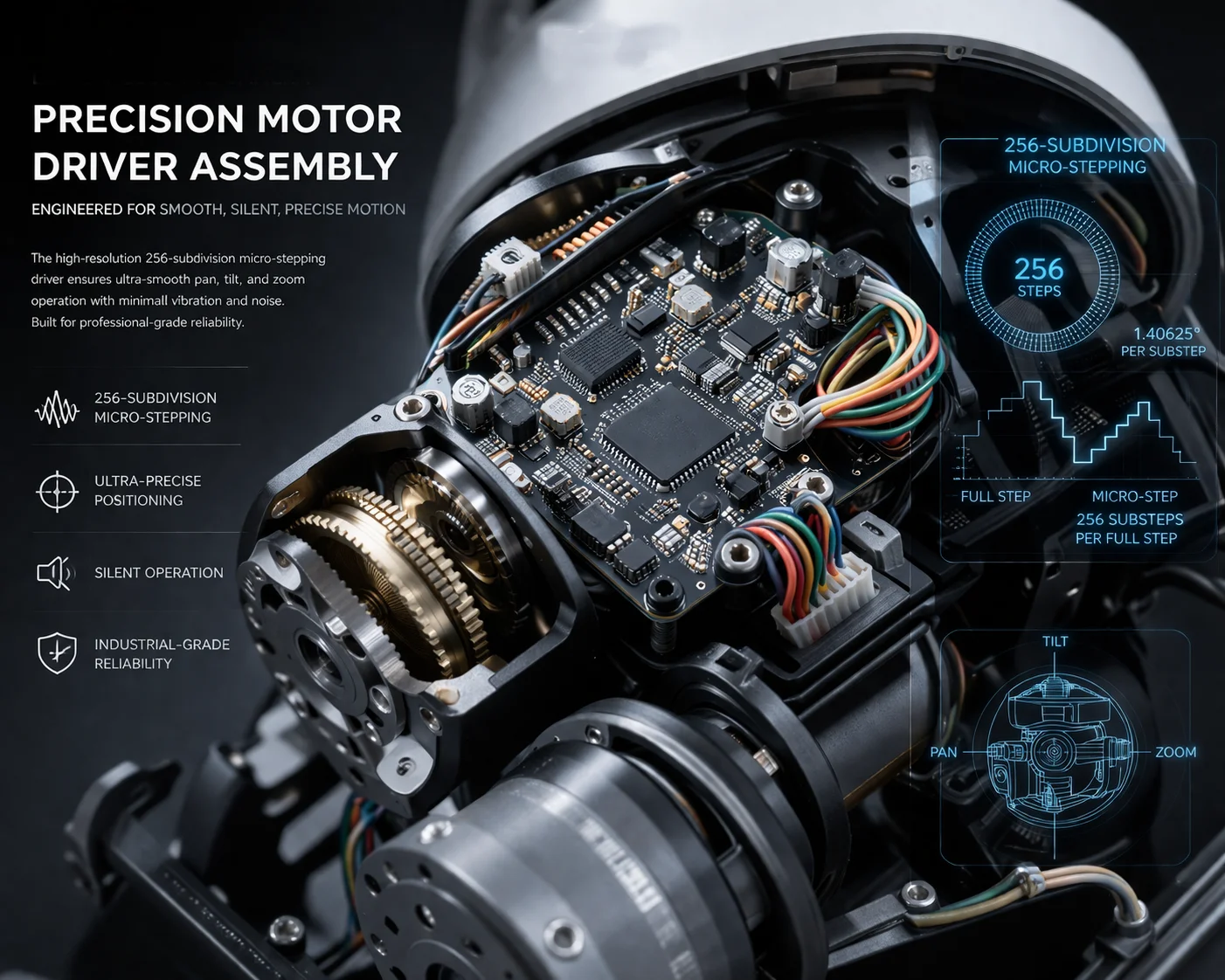
A PTZ camera needs a motor driver with micro-stepping capability (256 subdivisions or higher) to deliver jitter-free movement at 0.1°/s. Basic stepper drivers with simple on/off current control produce torque ripple at low speeds, which causes visible vibration in the video frame.
How Stepper Motors Create Jitter
A stepper motor moves in fixed angular steps. A typical motor has 200 full steps per revolution. That means each step is 1.8°. At low speed, the motor moves one step, pauses, moves another step, pauses. This creates a “stop-start” pattern. In the video, it looks like the image is jumping or vibrating.
Micro-stepping 3 solves this. Instead of moving in full 1.8° steps, the driver divides each step into 256 smaller increments. Each micro-step is only 0.007°. This makes the rotation almost perfectly smooth, even at very low speeds like 0.1°/s.
Motor Driver Technology Comparison
| Driver Type | Step Resolution | Low-Speed Smoothness | Typical Use |
|---|---|---|---|
| Basic constant off-time | Full step (1.8°) | Poor — visible jitter | Budget PTZ cameras |
| Mid-range with 16x micro-stepping | 0.1125° per micro-step | Acceptable above 1°/s | Mid-tier PTZ cameras |
| Trinamic StealthChop / 256x micro-stepping | 0.007° per micro-step | Excellent — no visible jitter | Professional PTZ cameras |
How to Check Your PTZ’s Motor Driver
I check this before I ship any unit to a client. First, I look at the spec sheet. If the minimum pan speed is listed as 0.1°/s, the motor driver likely supports fine micro-stepping. If the minimum is 1°/s or higher, the driver probably cannot deliver true slow cruise.
Second, I run a simple test. I set the PTZ to its lowest speed and point it at a distant object with sharp vertical lines, like a building edge. I watch the edge in the live view. If it slides smoothly, the driver is good. If it “ticks” or “jumps” across the frame, the driver lacks micro-stepping.
At Loyalty-Secu, our PTZ models use 256-subdivision motor drivers. This is not a marketing claim. Clients like David can verify it during a factory acceptance test or through remote live demo. The spec sheet says 0.1°/s minimum. The motor actually does it.
Can I Set a Custom Speed Limit for Manual Control Through the Web Interface?
I often get asked this question by system integrators who want to lock down the PTZ so that operators cannot accidentally spin the camera at full speed.
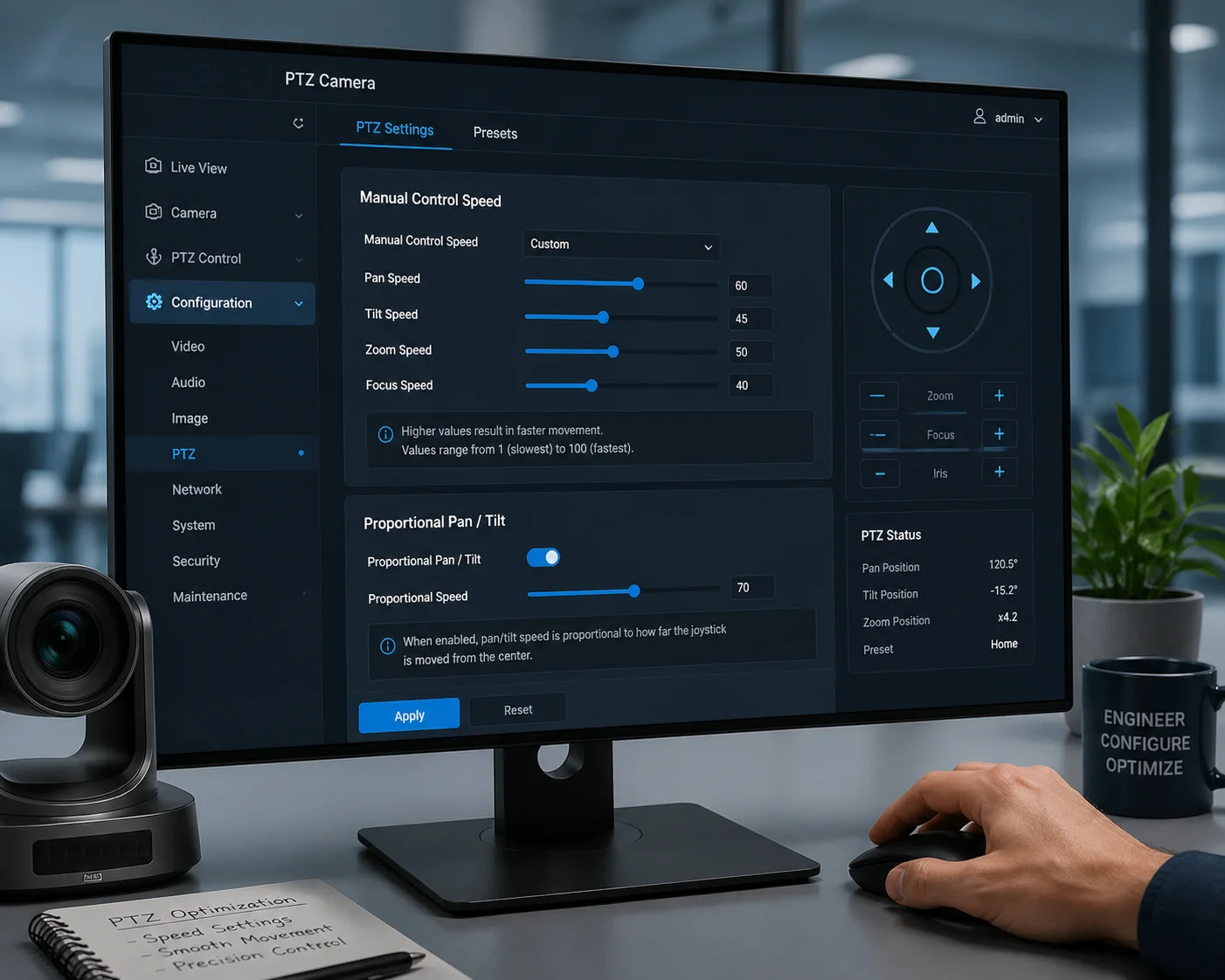
Yes. Most professional PTZ cameras allow setting a custom maximum speed for manual control through the web interface. The path is usually Configuration → PTZ → Basic Settings or Expert Mode. The operator sets the Max Speed value to 0.1°/s, so even a full joystick push only moves the camera at that speed.
Step-by-Step: Setting the Speed Limit
Here is how I do it on a typical professional PTZ camera:
- Open the camera’s web interface in a browser.
- Go to Configuration → PTZ → Basic Settings (or Expert Mode).
- Find the field labeled Manual Control Speed or Keyboard Sensitivity.
- Set the Max Speed value to 0.1°/s.
- Save and test.
After this change, even if the operator holds the direction key or pushes the joystick to the limit, the PTZ will not exceed 0.1°/s.
Enable Proportional Pan/Tilt
This is a feature I call the “secret weapon” for slow cruise. When Proportional Pan/Tilt is enabled, the PTZ automatically scales its movement speed based on the current zoom level. At 40x zoom, the camera knows the field of view is very narrow. So it limits the pan/tilt speed to a fraction of the normal range. This can bring the effective speed far below 0.1°/s at high zoom.
I always turn this on for clients who track targets at 300–800 meters. Without it, a small tap on the joystick at 40x zoom sends the target flying out of the frame.
Use Pattern Scan to Lock in a Perfect Slow Path
If I need a repeatable, perfectly constant 0.1°/s path, I do not rely on hand control. I use the Pattern Scan (巡迹) function:
- Go to PTZ → Pattern settings.
- Click Start Recording.
- Move the PTZ slowly along the path I want.
- Click Stop Recording and save.
- Call the pattern anytime with one click.
The PTZ replays the exact speed and direction I recorded. This removes all human inconsistency. It is very useful for perimeter scanning on construction sites or border fences.
Why Does My PTZ Skip or Stutter When I Try to Pan at the Slowest Speed?
I have spent hours troubleshooting this exact issue for clients. The camera seems to “jump” at low speed instead of gliding. It is one of the most common complaints I hear.
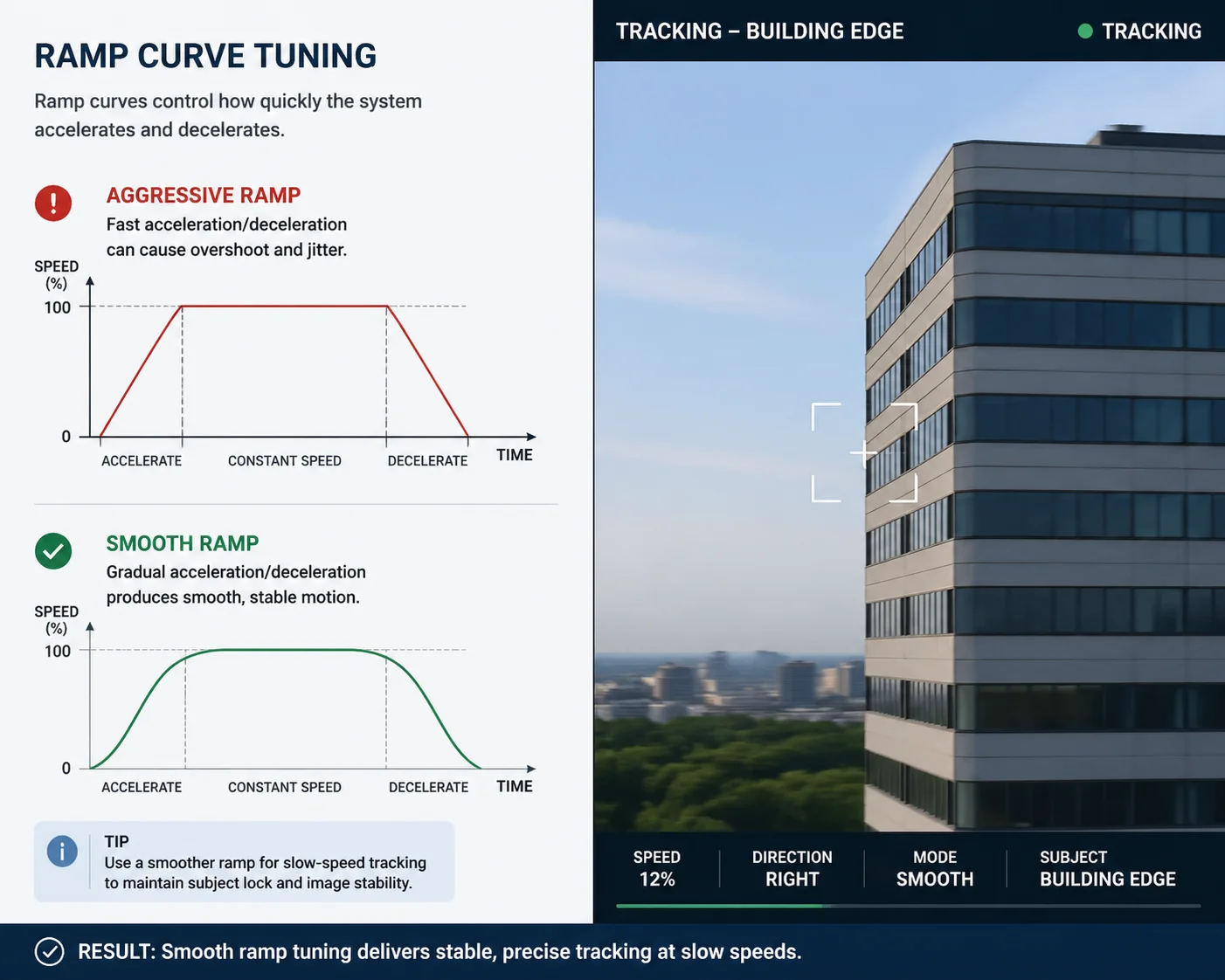
PTZ stutter at the slowest speed is usually caused by one of three things: the motor driver lacks micro-stepping, the control protocol sends coarse speed commands (only slow/medium/fast), or the PTZ acceleration curve is too aggressive, creating a jerky start-stop pattern instead of smooth continuous motion.
Root Cause 1: The Motor Cannot Do True Continuous Slow Speed
Some low-cost PTZ cameras fake slow speed. Instead of running the motor at a true 0.1°/s continuous rotation, they use “pulse mode.” The motor makes a tiny jump, stops, jumps again, stops. This looks like slow movement from far away. But at high zoom, the image clearly “ticks” across the screen.
I test for this by pointing the camera at a sharp horizontal line and panning at the lowest speed. If the line moves in smooth, even motion, the motor is doing real continuous rotation. If it jumps, the camera is using pulse mode. There is no software fix for this. The hardware must support true low-speed continuous drive.
Root Cause 2: The Control Protocol Is Too Coarse
ONVIF 4 and Pelco-D protocols support variable speed commands. But not all software platforms use the full speed range. Some VMS platforms only send three speed levels: slow, medium, and fast. If “slow” maps to 5°/s, the operator cannot get to 0.1°/s no matter what.
I always ask my clients to check the VMS settings. Look for a “speed step” or “speed resolution” option. The VMS should send a continuous speed value (0–100%), not just three fixed levels. If the VMS does not support this, I suggest switching to a controller that does, or using the camera’s own web interface for fine speed control.
Root Cause 3: Acceleration Is Too High
Even if the motor and protocol are fine, a high acceleration setting causes problems. When I press the direction key, the PTZ ramps up to the target speed. If the ramp is steep, the camera “snaps” to speed and then holds. This snap creates a visible jerk at the start of every movement.
The fix is simple. I go into the PTZ settings and find the Acceleration or Ramp Curve parameter. I set it to the lowest value. On Sony cameras, this is a number from 1 to 10. I use 2 or 3. On our Loyalty-Secu models, the setting is called PT Smoothness, and I set it to High. This makes the camera ease into motion gently, like a car pulling away from a stop sign instead of launching off a starting line.
Quick Troubleshooting Checklist
| Symptom | Likely Cause | Fix |
|---|---|---|
| Image “ticks” or “jumps” at lowest speed | Motor driver lacks micro-stepping | Upgrade to PTZ with 256-subdivision driver |
| Cannot go below 5°/s | VMS sends only 3 speed levels | Use web interface or a proportional joystick |
| Jerky start when pressing direction key | Acceleration / Ramp Curve too high | Set Ramp Curve to lowest value (2–3) |
| Overshoots target at high zoom | Proportional Pan/Tilt not enabled | Enable Proportional Pan/Tilt in PTZ settings |
| Wind vibration at 0.1°/s | Mechanical vibration at ultra-low speed | Enable EIS (Electronic Image Stabilization) |
A Note on Wind and EIS
I want to mention one more thing. At 0.1°/s, the PTZ is barely moving. Any external vibration, like wind hitting the housing or the pole swaying, can be more noticeable than the actual pan movement. I always recommend enabling EIS (Electronic Image Stabilization) 5 when operating at ultra-low speed outdoors. This keeps the center of the frame stable even if the housing shakes slightly. It is a small setting that makes a big difference in the final image quality.
Conclusion
To get true 0.1°/s slow cruise, confirm your PTZ motor supports it, lower the speed ceiling, tune the ramp curve, and use a proportional joystick.
1. Skaarhoj PTZ joystick controller expo curve configuration. ↩︎ 2. PTZOptics joystick speed customization for slow cruise. ↩︎ 3. Stepper motor microstepping for smooth low-speed motion. ↩︎ 4. ONVIF PTZ service speed control command specifications. ↩︎ 5. Electronic image stabilization for wind vibration reduction. ↩︎ 6. Proportional pan/tilt zoom-speed coupling explanation. ↩︎ 7. Trinamic StealthChop technology for ultra-smooth motor control. ↩︎ 8. Acceleration ramp curve adjustment for PTZ start/stop jerk. ↩︎ 9. Pelco-D variable speed command structure for PTZ. ↩︎ 10. Pattern scan recording for repeatable slow cruise paths. ↩︎