
I have seen too many integrators lose hours driving to remote sites just to pull footage from an SD card manually. That problem ends with Profile G1.
Yes, our industrial-grade 4G PTZ cameras fully support remote playback from the SD card via ONVIF Profile G. This means your VMS can search, retrieve, and replay edge-stored recordings without anyone visiting the site. Profile G also enables automatic gap-fill after network outages, so no footage is ever truly lost.
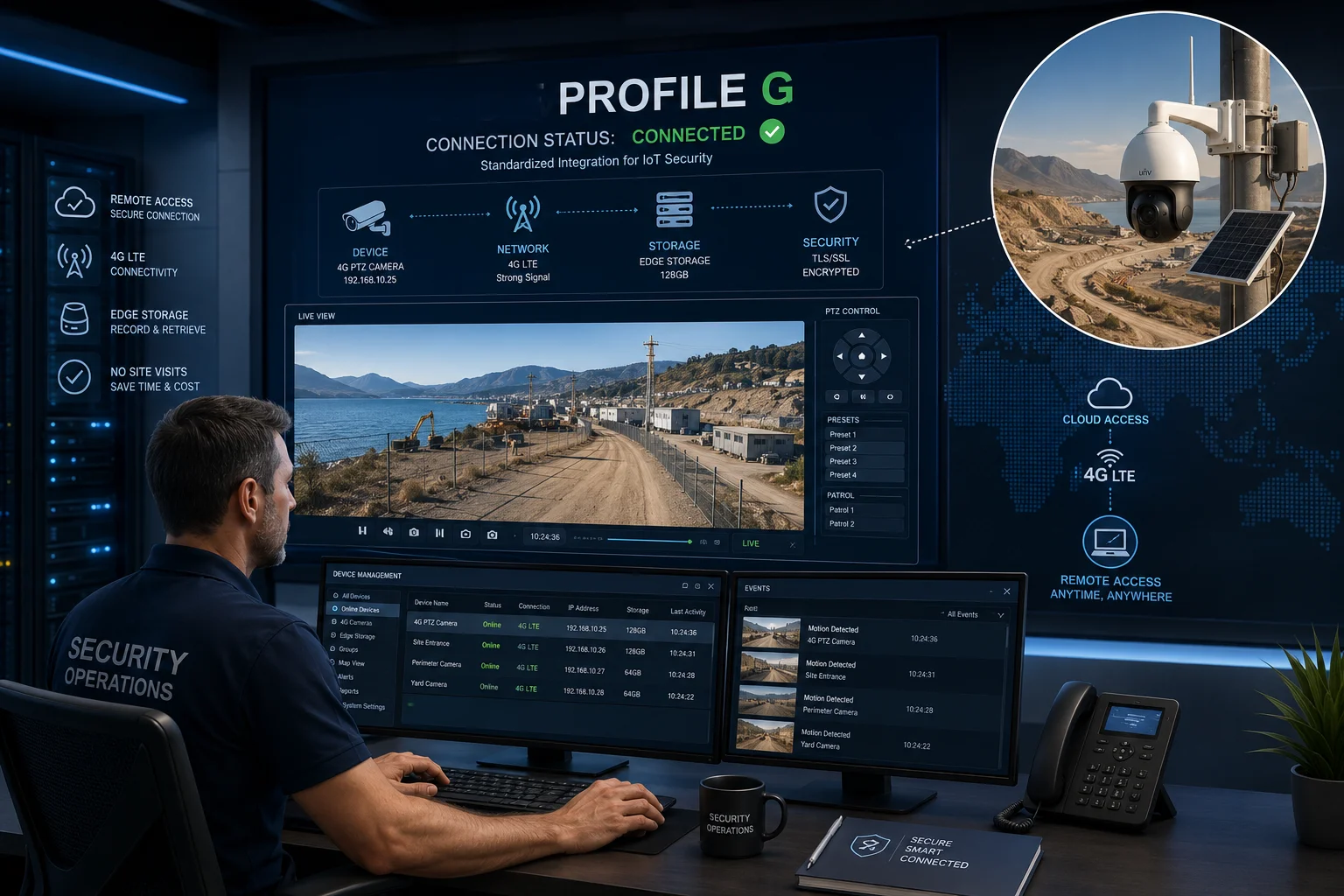
Profile G is not just a checkbox on a spec sheet. It is the backbone of edge storage2 in professional surveillance. Below, I will walk you through exactly how it works with our cameras, what pitfalls to avoid, and how to get the best performance over a 4G link.
Table of Contents
Can I Use My NVR’s Timeline to Scrub Through Recorded Footage Stored on the Camera’s Edge?
If you have ever stared at a blank timeline on your NVR knowing the camera recorded locally, you understand the frustration. The footage is there. You just cannot reach it.
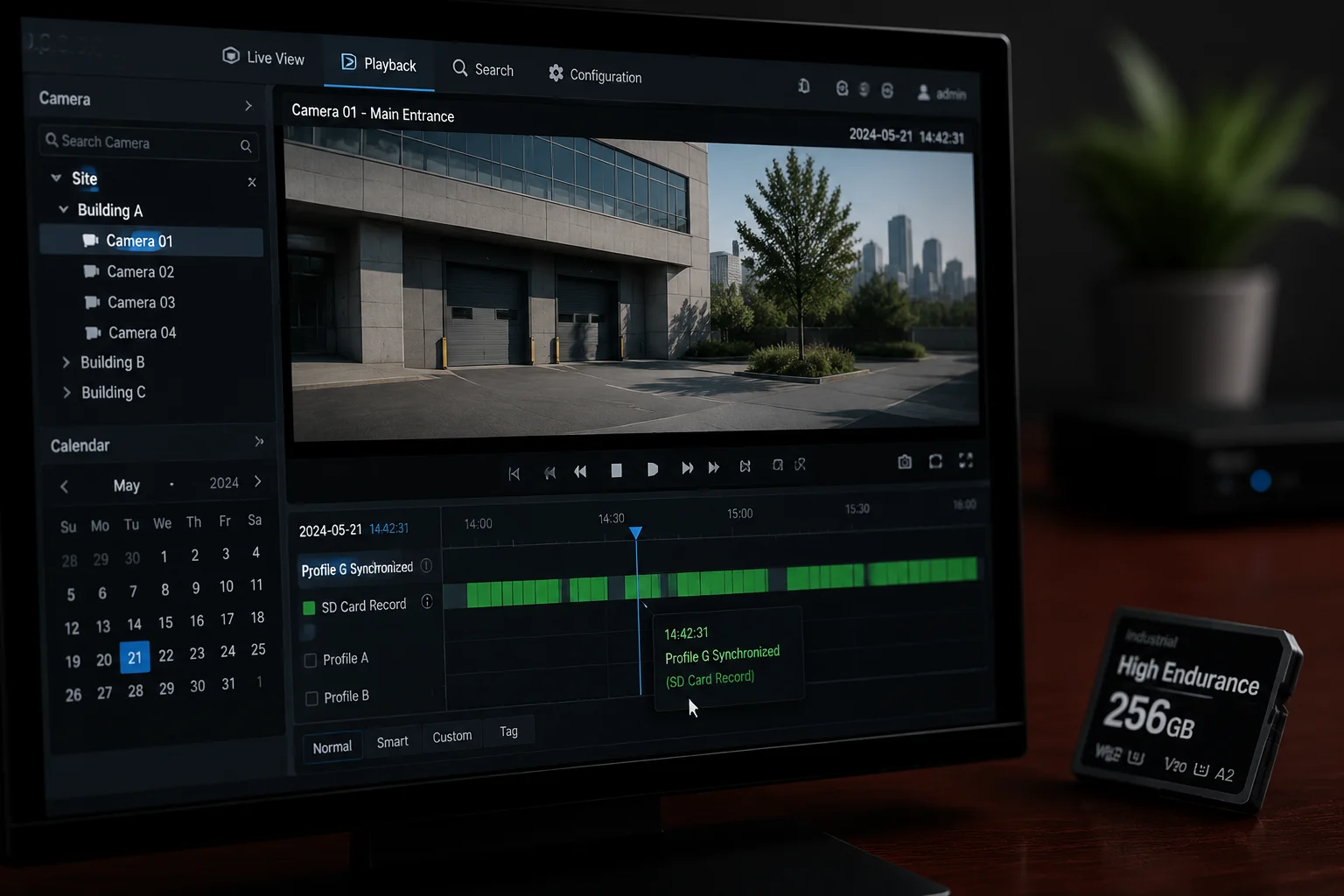
You can. When both the camera and your NVR or VMS support Profile G, the NVR’s timeline will display all recordings stored on the camera’s SD card. You can scrub, search by time range, and play back clips directly — just like locally stored footage on the NVR itself.
How the Timeline Discovery Works
When your NVR connects to our camera via ONVIF, it sends a GetRecordingSummary3 or FindRecordings request. The camera responds with a list of all available recording segments on the SD card. Your NVR then maps these segments onto its own timeline.
This is not magic. It is a structured handshake. The camera maintains an internal index database of every recorded file. Each entry includes a start time, end time, and track type (video, audio, or metadata). When the NVR asks “what do you have between 2:00 AM and 6:00 AM?”, the camera checks its index and replies with the exact segments.
Why the Index Matters More Than You Think
Here is where many deployments fail silently. If the SD card’s file index is corrupted — often caused by sudden power loss or a cheap card — the camera cannot respond to the NVR’s query. The timeline shows nothing. The footage exists on the card, but it is invisible to Profile G.
That is why we strongly recommend industrial-grade High Endurance SD cards4 formatted in exFAT5. These cards handle the constant read/write cycles of surveillance recording far better than consumer cards.
| Factor | Consumer SD Card | Industrial High Endurance SD Card |
|---|---|---|
| Write Cycles | ~1,000 | ~30,000+ |
| Power-Loss Protection | No | Yes |
| Operating Temp Range | 0°C to 32°C | -25°C to 85°C |
| Recommended for Profile G | No | Yes |
| Typical Lifespan (24/7 Recording) | 3–6 months | 2–3 years |
Time Sync: The Silent Killer
I cannot stress this enough. If the camera’s clock and the NVR’s clock are not synchronized, the timeline will look broken. The NVR asks for footage at 3:00 PM server time. The camera recorded it at 3:02 PM camera time. The result? The NVR thinks nothing was recorded during that window.
Always force NTP synchronization6 across all devices. Use a single, reliable NTP server. For North American deployments, time.nist.gov works well. Set the sync interval to no more than every 60 minutes. A 30-second drift is enough to cause search failures in Profile G.
Practical Tip for David’s Use Case
If you are deploying solar-powered cameras across remote Texas sites, you likely manage dozens of cameras from one central VMS. Make sure your VMS license tier actually includes Profile G edge playback. Some entry-level licenses — even from major vendors like Milestone — restrict this feature to higher tiers. Check before you deploy, not after.
Will the Profile G Connection Survive a Low-Bandwidth 4G Signal During Playback?
I have tested playback over 4G links that barely held 1 Mbps. It is not pretty, but it works — if you configure it correctly.
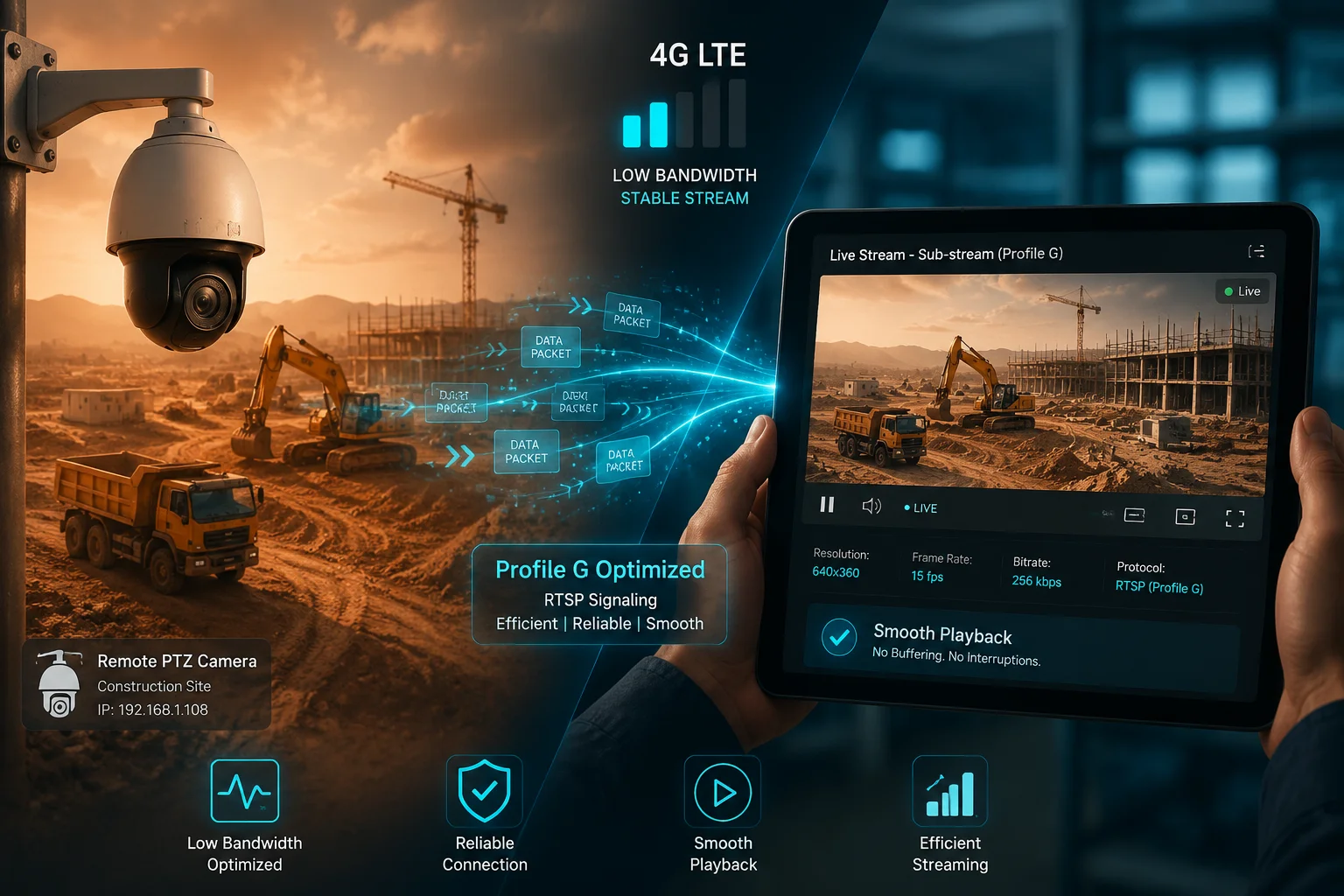
Yes, the Profile G connection will survive low-bandwidth 4G signals. Our firmware supports dual-stream playback, so you can choose the sub stream for smooth retrieval over weak connections. Profile G’s signaling overhead is minimal, and the actual video data adapts to available bandwidth.
Understanding the Bandwidth Math
Profile G playback is essentially an RTSP video stream7 triggered by an ONVIF command. The signaling part — the search queries, play/pause/stop commands — uses very little bandwidth. Usually less than 10 Kbps. The heavy part is the video stream itself.
Here is where dual-stream support becomes critical:
| Stream Type | Resolution | Bitrate | Minimum 4G Speed Needed |
|---|---|---|---|
| Main Stream | 1080p / 2MP | 4–6 Mbps | 6+ Mbps (stable) |
| Sub Stream | D1 / CIF | 256–512 Kbps | 0.5 Mbps |
| Main Stream | 4MP | 6–8 Mbps | 8+ Mbps (stable) |
On a typical 4G connection in a rural area, you might get 2–5 Mbps on a good day. That is enough for sub stream playback but risky for main stream. My recommendation: use the sub stream for quick review and timeline scrubbing. When you find the clip you need, schedule a main stream download during off-peak hours (more on that below).
Dealing With Latency and Jitter
4G networks have higher round-trip times (RTT) than wired connections. Typical RTT on 4G is 30–80 ms, but it can spike to 200+ ms in congested cells. Profile G’s trick play commands — fast forward, rewind, seek — all depend on timely signaling. If a seek command takes 200 ms to reach the camera and another 200 ms for the response, you will notice a visible delay when scrubbing the timeline.
Buffer Settings Are Your Friend
Most VMS platforms let you set a playback buffer size. For 4G deployments, I recommend setting this to at least 3–5 seconds. This absorbs jitter spikes without causing the playback to stutter or freeze. Yes, it adds a small delay when you first hit play. But it prevents the constant start-stop-start pattern that makes remote review painful.
What Happens When 4G Drops Completely?
The Profile G session will timeout. When the connection comes back, your VMS will need to re-establish the RTSP session. Most modern VMS platforms handle this automatically. The camera does not lose any data — it keeps recording to the SD card regardless of network status. The footage will be there when you reconnect.
How Do I Ensure the Video Files Are Indexed Correctly for Fast Searching via ONVIF?
I have debugged more “missing footage” tickets than I can count. Nine times out of ten, the footage is on the card. The index is just broken.
To ensure correct indexing, use an industrial-grade exFAT-formatted SD card, enable scheduled recording in the camera’s local settings, maintain strict NTP time sync, and avoid removing the card without first unmounting it. These four steps prevent the vast majority of Profile G search failures.
How the Camera Builds Its Index
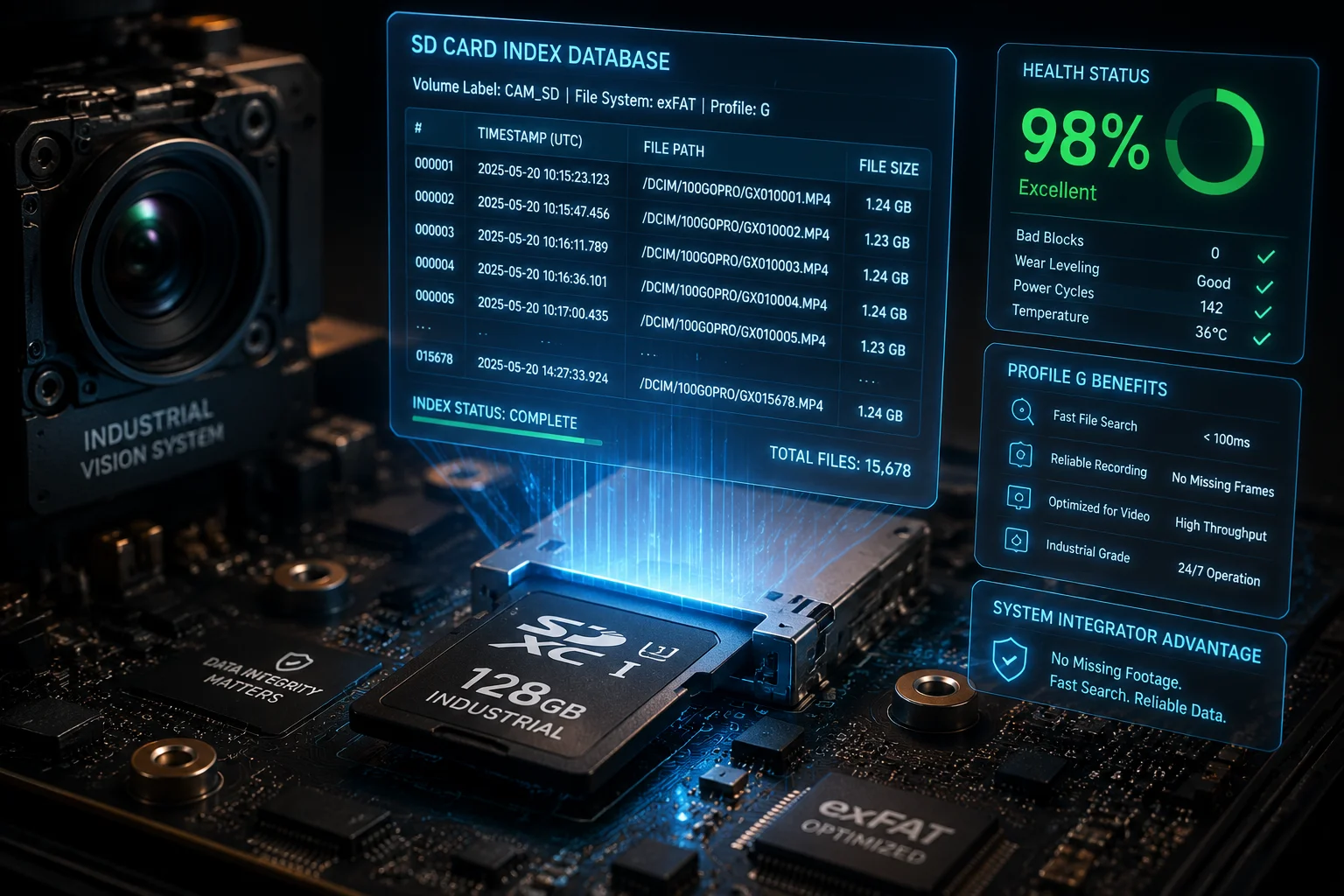
Every time the camera writes a video segment to the SD card, it also writes a corresponding index entry. This entry contains:
- Start timestamp (based on camera clock)
- End timestamp
- File path on the SD card
- Track type (video, audio, metadata)
- Recording type (continuous, event-triggered, alarm)
When your VMS sends a FindRecordings or GetRecordingSearchResults command, the camera reads this index — not the actual video files. That is why indexing speed matters. A healthy index on a 256 GB card with weeks of footage should respond in under 2 seconds. A corrupted index might take 30 seconds or simply return nothing.
The Four Rules of Reliable Indexing
Rule 1: Format the card inside the camera, not on a PC. Our firmware creates the correct directory structure and index tables during formatting. If you format on a PC, the camera may not recognize the partition layout.
Rule 2: Never pull the card while the camera is recording. This is the number one cause of index corruption. If you must remove the card, stop recording first, then use the web interface to safely unmount it.
Rule 3: Enable “overwrite when full” mode. When the SD card fills up, the camera needs to delete old files and update the index. If overwrite mode is disabled, the camera simply stops recording when the card is full — and some VMS platforms interpret this as “no recordings available.”
Rule 4: Monitor card health via Profile G metadata. Our cameras expose SD card health metrics through ONVIF. Your VMS can read storage capacity remaining, total read/write error count, and card status. Set up alerts in your VMS to flag any camera where the SD card shows errors or drops below 10% free space.
When to Suspect an Index Problem
| Symptom | Likely Cause | Fix |
|---|---|---|
| Timeline shows no recordings | Index corrupted or card not formatted | Reformat card in camera, re-enable recording |
| Timeline shows gaps that should not exist | NTP drift between camera and VMS | Force NTP sync, verify timezone settings |
| Playback starts but freezes mid-clip | Bad sectors on SD card | Replace card with industrial-grade unit |
| Search takes more than 10 seconds | Index bloat from months of use | Reformat card and restart recording cycle |
| VMS shows recordings but cannot play them | File fragments from power loss | Enable UPS or supercapacitor backup on camera |
A Note on File Formats
Our cameras record in standard .mp4 containers with H.264 or H.265 encoding. Profile G expects standard container formats. Some cameras from other vendors use proprietary .dav or .hik formats that require vendor-specific plugins. Our approach keeps things simple: standard files, standard protocols, maximum compatibility.
Does the Camera Support “Bulk Download” of Footage via Profile G During Off-Peak Hours?
Downloading hours of HD footage over 4G during business hours is a bad idea. It eats your data plan and slows down live monitoring. There is a better way.
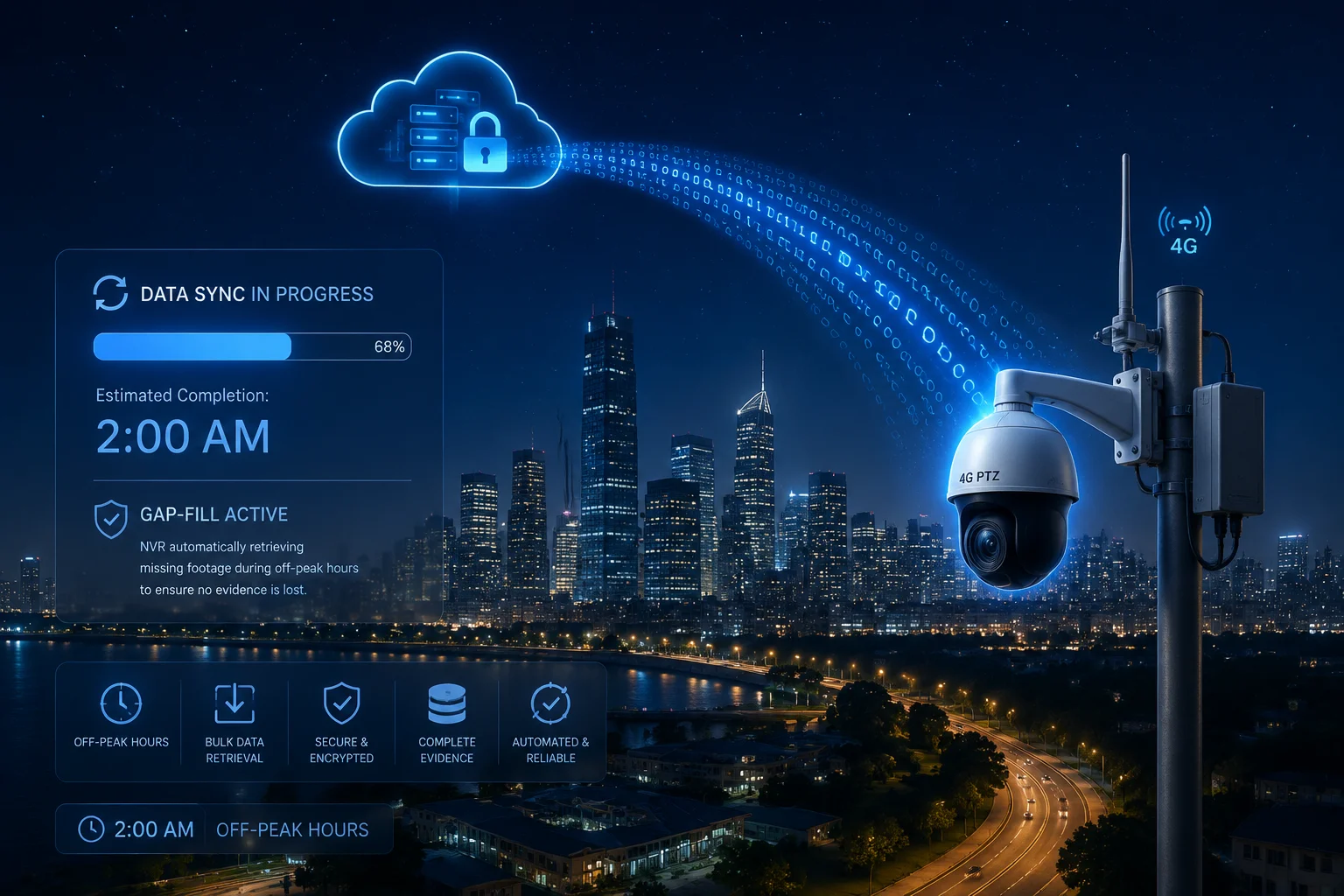
Yes, our cameras support bulk download of recorded footage via Profile G. You can configure your VMS to schedule large file transfers during off-peak hours — typically between midnight and 5 AM — when 4G network congestion is lowest and data costs may be reduced. This is the recommended approach for forensic-quality evidence retrieval over cellular links.
How Bulk Download Differs From Live Playback
Live playback via Profile G streams the video in real time. You watch it as it plays. Bulk download — sometimes called “seamless replication” or “edge-to-server sync” — is different. The VMS requests a specific time range and downloads the raw video files as fast as the connection allows. You do not need to watch it in real time. The VMS stores the downloaded files on its own server for later review.
This distinction matters because bulk download can use the full available bandwidth without worrying about playback smoothness. If your 4G link gives you 3 Mbps at 2 AM, the VMS will pull data at 3 Mbps continuously until the transfer is complete.
Setting Up Scheduled Sync
Most enterprise VMS platforms support scheduled edge sync8. Here is the general workflow:
- Define the sync window. Set start and end times (e.g., 00:00 to 05:00).
- Select cameras. Choose which cameras should sync during this window.
- Set priority. If you have 20 cameras sharing one VMS server, stagger the sync times to avoid overwhelming the server’s ingest capacity.
- Choose stream type. For forensic evidence, sync the main stream. For general review, the sub stream saves bandwidth and storage.
- Enable gap-fill mode9. This tells the VMS to automatically detect any gaps in its own recording timeline and pull only the missing segments from the camera’s SD card.
Gap-Fill: The Most Underrated Feature
Gap-fill is the real power of Profile G in 4G deployments. Here is the scenario: your 4G signal drops for 45 minutes during a thunderstorm. The camera keeps recording to the SD card. When the signal comes back, the VMS detects a 45-minute gap in its own timeline. It automatically sends a Profile G request to the camera: “Give me everything from 14:15 to 15:00.” The camera streams those files to the VMS. The gap disappears.
No manual intervention. No truck roll. No lost evidence.
For David’s Texas solar sites, this is not a nice-to-have. It is a project requirement. His end clients — whether they are oil field operators or municipal agencies — expect continuous recording. Gap-fill via Profile G delivers that promise even when the 4G link is unreliable.
Data Plan Considerations
Bulk downloading footage over 4G consumes data. A single camera recording at 2 Mbps generates roughly 900 MB per hour. If you need to sync 8 hours of missed footage, that is about 7 GB per camera. Multiply by 10 cameras and you are looking at 70 GB in one sync cycle.
Work with your cellular provider to get a data plan that supports off-peak bulk transfers. Some carriers offer discounted rates for overnight data usage. Also consider setting a daily data cap per camera in your VMS to prevent runaway costs if a camera goes offline for days and tries to sync everything at once.
Conclusion
Profile G turns your camera’s SD card into a fully accessible, remotely searchable archive. Pair it with NTP sync, industrial SD cards, and scheduled gap-fill — and your 4G deployment becomes as reliable as a hardwired system.
1. Official specification for ONVIF Profile G, which standardizes edge storage and remote playback. ↩︎ 2. Overview of edge storage concepts and benefits in surveillance systems. ↩︎ 3. ONVIF WSDL specification for the GetRecordingSummary command used to discover edge recordings. ↩︎ 4. Western Digital’s industrial SD card line designed for continuous recording and harsh conditions. ↩︎ 5. Microsoft exFAT file system specification, suitable for large SD cards in surveillance. ↩︎ 6. NTP FAQ explaining how time synchronization works and its importance for timestamp accuracy. ↩︎ 7. RFC 7826 for RTSP 2.0, the protocol used for streaming video in Profile G playback. ↩︎ 8. Honeywell knowledge base article on scheduling edge sync for remote storage devices. ↩︎ 9. Axis communications article explaining automatic gap-fill for edge storage recordings. ↩︎