
I’ve had clients lose contracts because they handed over raw surveillance footage with visible faces to an insurance company. That’s a compliance nightmare no one wants.
Yes, modern PTZ cameras and their companion software can automatically detect and blur faces in recorded footage before you export it as an MP4 file. The blurring can happen at the camera’s hardware level (ISP stage) or through the desktop client software, depending on your system setup and privacy requirements.
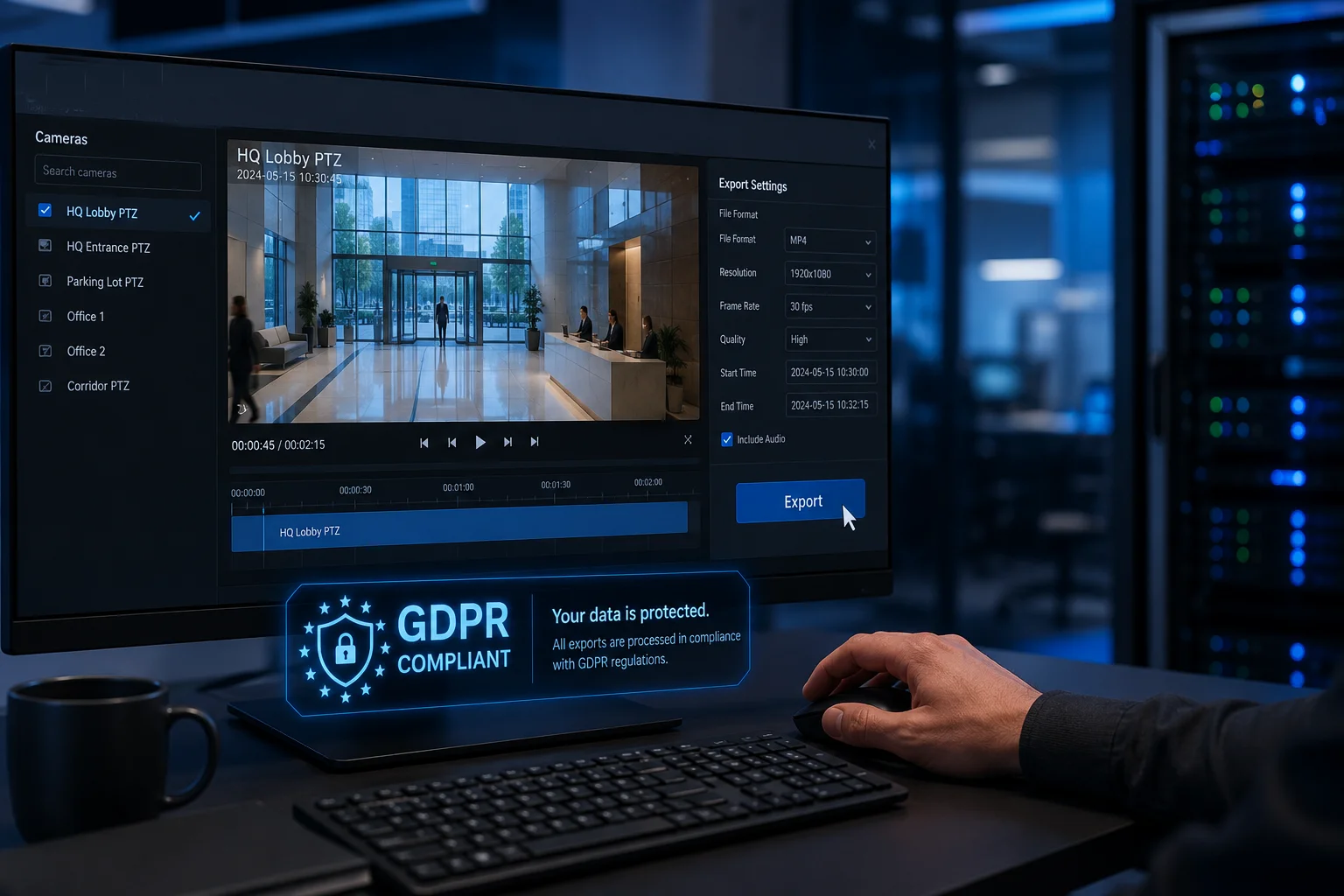
Below, I’ll walk you through exactly how this works, what options you have for selective blurring, and where the processing actually takes place. If you’re shipping footage to third parties, this matters more than you think.
Table of Contents
How Do I Generate a “Privacy-Compliant” Video Clip for My Insurance Company?
Insurance companies ask for footage all the time. But in North America and Europe, handing over a clip with random bystanders’ faces visible can put you on the wrong side of GDPR or state-level privacy laws.
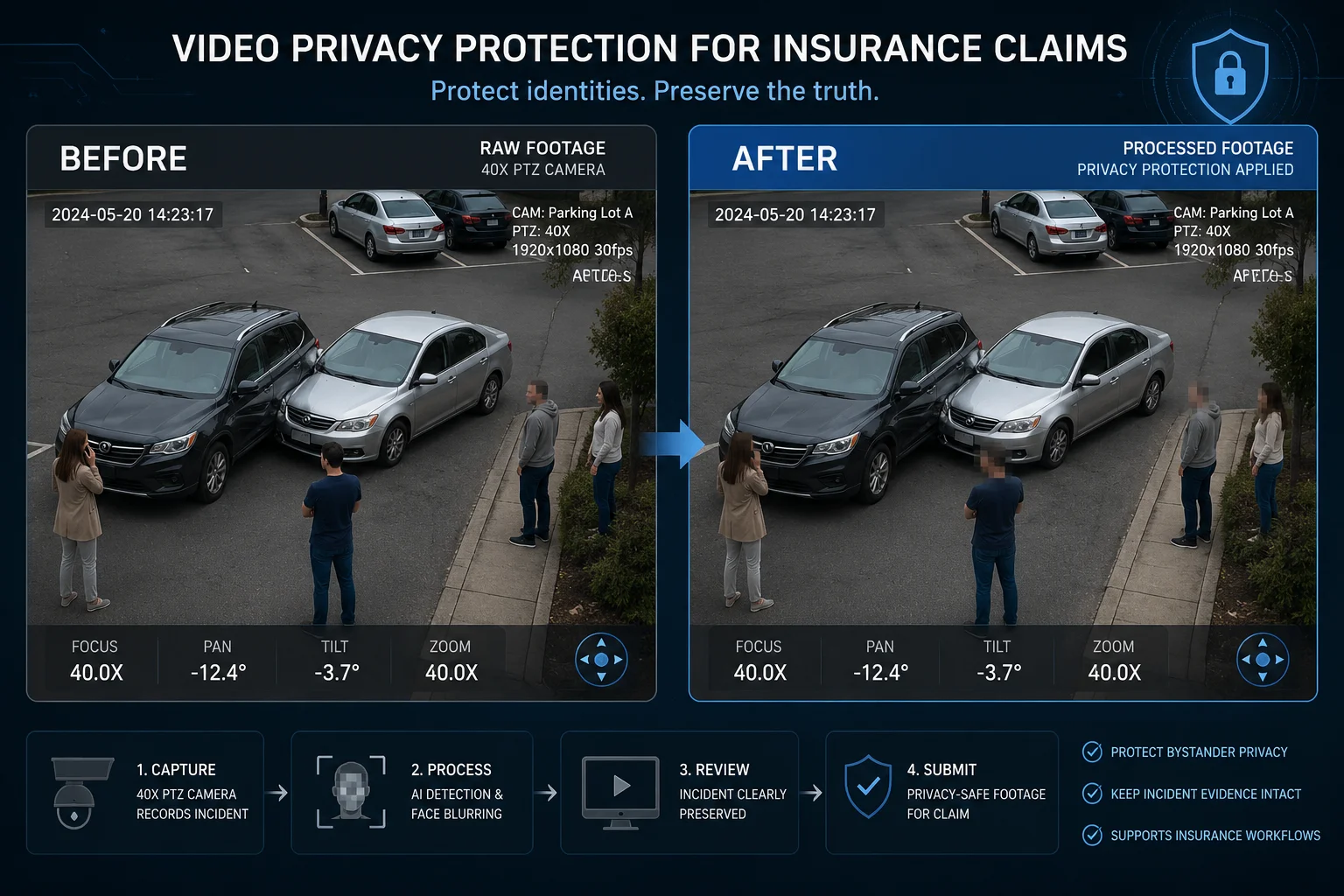
To generate a privacy-compliant clip, you export your recorded footage through the camera’s companion software, enable the auto-blur or privacy mask function during export, and the software processes each frame to obscure faces before writing the final MP4 file. The result is a clip that shows the incident clearly while protecting bystander identities.
Why Insurance Clips Need Special Treatment
When an insurance adjuster asks for video evidence, they need to see what happened. They don’t need to see every face in the background. In fact, if those faces are visible and identifiable, you might be violating privacy regulations. This is especially true in Canada (PIPEDA), the EU (GDPR), and several US states with biometric privacy laws like Illinois (BIPA).
The Export Workflow Step by Step
Here’s how the process typically works with a professional PTZ system:
- You open the desktop client or NVR interface.
- You select the time range of the incident.
- Before hitting “Export,” you enable the privacy filter option.
- The software scans each frame using an AI face-detection algorithm1.
- Detected faces get a Gaussian blur2 or mosaic overlay applied.
- The final MP4 is rendered with the blur baked in permanently.
What “Baked In” Actually Means
This is important. The blur is not a removable layer. Once the export is complete, the pixel data under the blur is gone. No one can reverse it. This is the same principle we use in our hardware-level ISP masking. The original pixel information is overwritten during the encoding process.
Compliance Checklist for Exported Clips
| Requirement | What It Means | How Our System Handles It |
|---|---|---|
| Face obscuration | All non-relevant faces must be hidden | AI auto-detection + blur at export |
| Incident visibility | The event itself must remain clear | Selective blur targets faces only |
| Irreversibility | Blur cannot be removed after export | Pixel-level overwrite during MP4 encoding |
| Audit trail | Proof that privacy was applied | Export log with timestamp and settings |
| Format compatibility | File must be playable by the adjuster | Standard H.264/H.2653 MP4 output |
A Note on Turnaround Time
Face detection on a 10-minute clip at 1080p takes roughly 2-4 minutes on a modern workstation. If you’re running a 4G solar PTZ in a remote location, you’ll want to download the footage first and process it locally. Running AI inference over a cellular connection is slow and eats your data plan.
Does the “Auto-Blur” Feature Recognize and Hide All Faces in the Exported MP4 File?
I get this question a lot from integrators who worry about edge cases. What about faces at odd angles? What about someone wearing a hat?
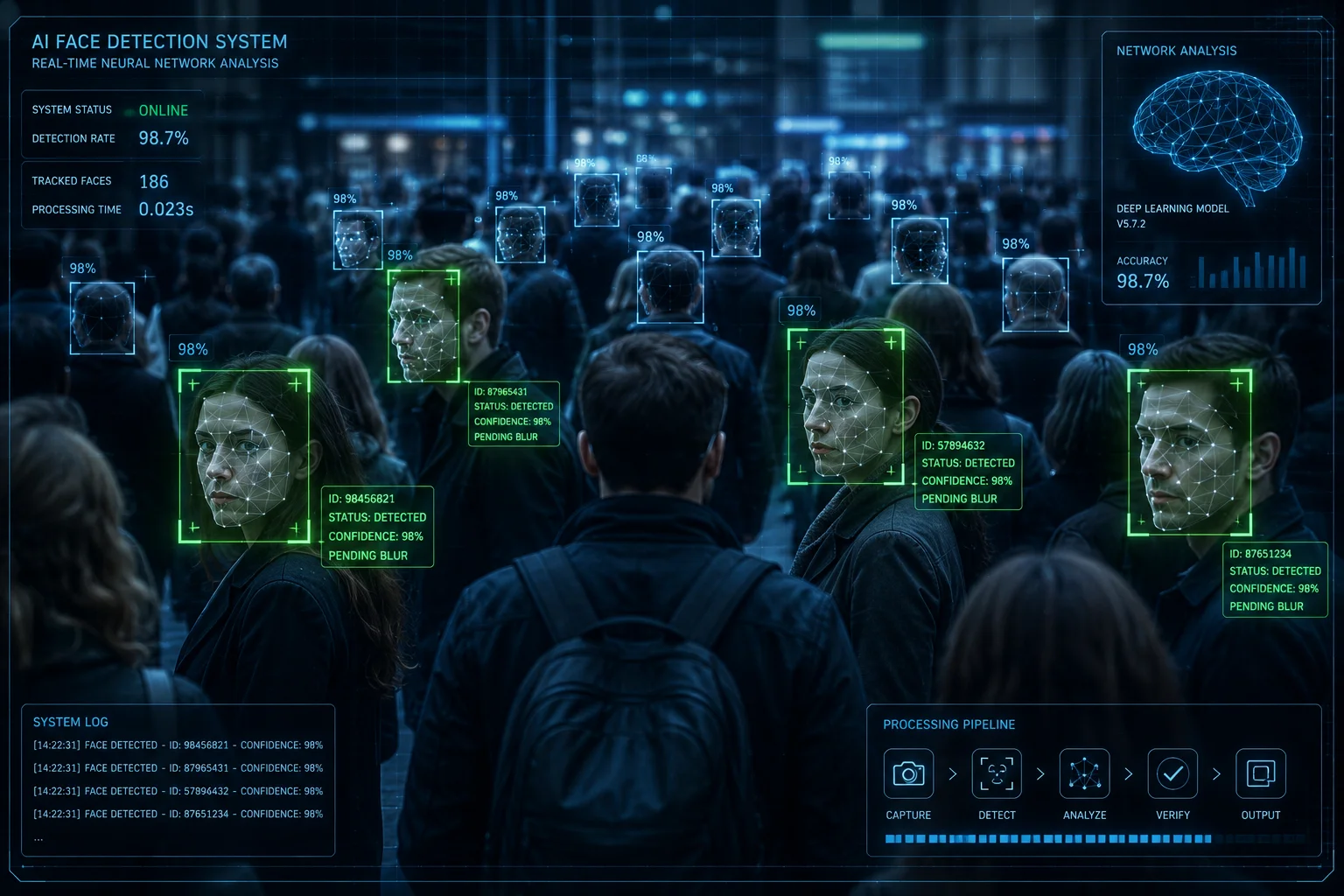
The auto-blur feature uses deep learning face detection that recognizes faces at multiple angles, distances, and lighting conditions. It catches the vast majority of faces, but no system is 100% perfect. Partial occlusions like sunglasses or masks can reduce detection accuracy, so a manual review before final export is always recommended for legal-grade footage.
How the Detection Algorithm Works
The face detection engine runs a convolutional neural network (CNN)4 trained on millions of face samples. It doesn’t just look for front-facing portraits. It detects faces in profile, at downward angles (common with elevated PTZ cameras), and even partially turned away.
Detection Rate by Scenario
| Scenario | Typical Detection Rate | Notes |
|---|---|---|
| Front-facing, good light | 98-99% | Best case scenario |
| Profile view (side angle) | 92-95% | Slightly lower but still reliable |
| Downward angle from PTZ | 90-94% | Common mounting position |
| Low light / IR mode | 85-90% | Reduced contrast affects accuracy |
| Partial occlusion (hat, mask) | 75-85% | May miss heavily covered faces |
| Fast motion blur | 80-88% | Depends on shutter speed settings |
What Happens When a Face Is Missed
If the algorithm misses a face, that face will appear unblurred in the exported file. For casual use, the auto-detection is more than enough. But if you’re submitting footage for a legal proceeding or an insurance claim where non-compliance could cost you money, I recommend a quick manual review.
Most companion software lets you pause the preview, manually draw a blur region over any missed face, and then continue the export. It adds a few minutes to your workflow, but it closes the gap between 95% and 100%.
Why 40X Zoom Changes the Game
Here’s something specific to high-magnification PTZ cameras. When you’re zoomed in at 38X or 40X, faces become very large in the frame. This actually makes detection easier. The algorithm has more pixel data to work with. But when you’re zoomed out at 1X on a wide scene, faces might only be 20-30 pixels across. At that size, detection drops off. The good news is that at 1X zoom, those faces are also too small for a human to identify, so the privacy risk is lower anyway.
My Recommendation
Set your export software to flag any frame where detection confidence is below 90%. Review those frames manually. This gives you the speed of automation with the safety net of human oversight.
Can I Choose to Only Blur “Unrecognized” Faces While Keeping My Staff’s Faces Clear?
This is the feature that separates professional-grade systems from consumer toys. You want your team visible for accountability, but strangers blurred for compliance.
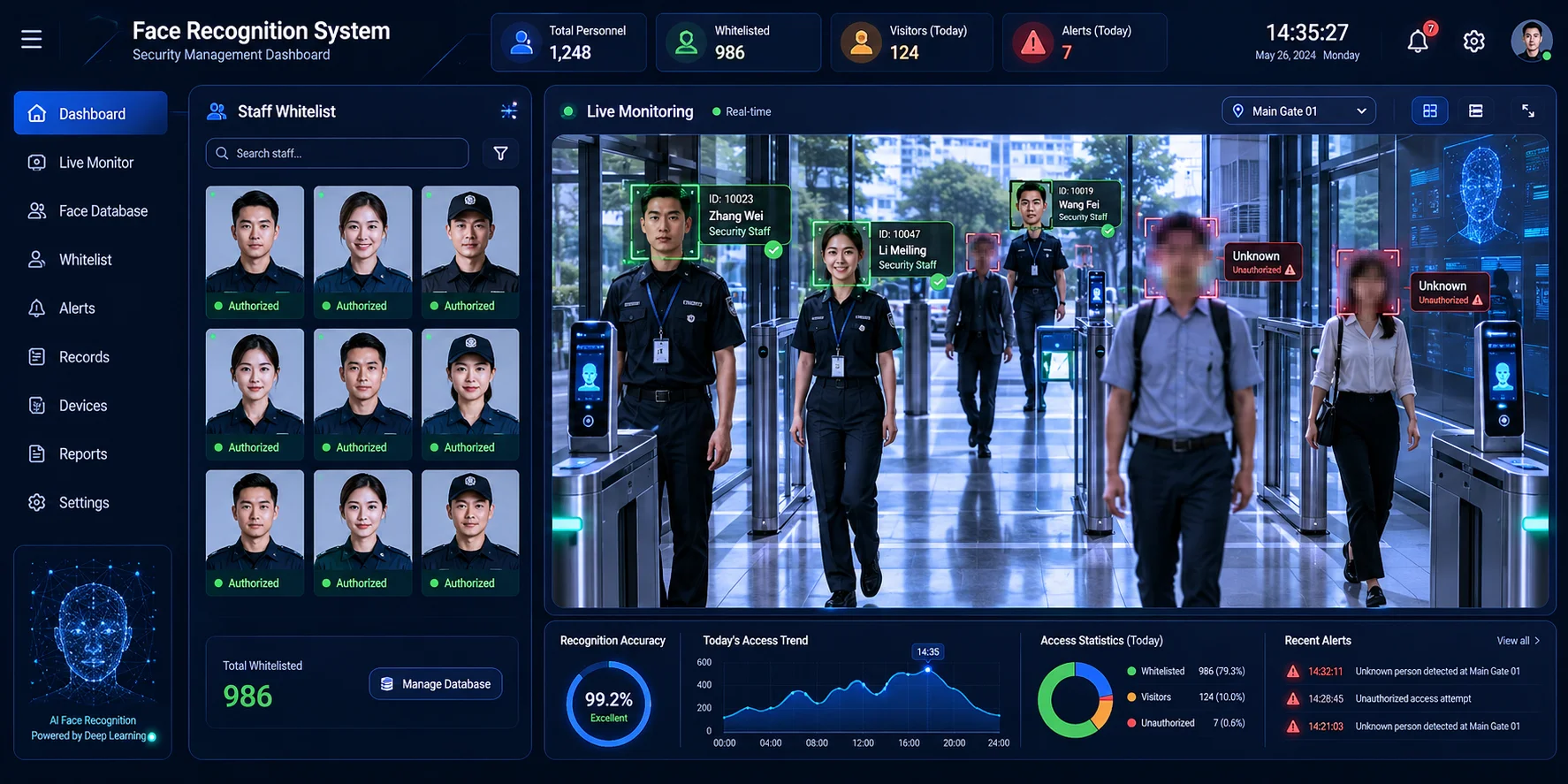
Yes, advanced PTZ software supports a “whitelist” mode where you enroll your staff’s faces into a recognition database. During export, the system compares each detected face against the whitelist. Matched faces stay clear. Unmatched faces get blurred. This gives you accountability for your team and privacy protection for everyone else in a single exported clip.
How the Whitelist System Works
You start by enrolling faces. This means uploading 3-5 clear photos of each staff member from different angles into the software’s face database. The system creates a mathematical representation (a face embedding8) for each person. During export, every detected face in the footage is compared against these stored embeddings.
Enrollment Best Practices
Getting good results depends on good enrollment data. Here’s what I tell my clients:
- Use photos taken in the same lighting conditions as the camera’s typical view.
- Include at least one front-facing shot and two profile shots.
- If staff wear hats or helmets on site, include a photo with that gear on.
- Update the database when staff change (new hires, departures).
- Keep the database under 200 faces for optimal processing speed.
The Matching Threshold
The software uses a similarity score between 0 and 1. A score above 0.85 typically means “this is the same person.” You can adjust this threshold:
- Higher threshold (0.90+): Fewer false matches, but might blur a staff member if the angle is bad.
- Lower threshold (0.75-0.85): Catches more staff faces, but might accidentally leave a stranger unblurred if they look similar to someone on your team.
For most deployments, 0.85 is the sweet spot. It balances accuracy with safety.
Privacy Implications of the Whitelist
Here’s something to think about. In some jurisdictions, maintaining a face recognition database of your employees requires their consent. In the EU under GDPR, biometric data9 is a special category. You need explicit, informed consent from each enrolled person. In Illinois under BIPA, same thing. Make sure your HR process includes this consent before you start enrolling faces.
Selective Blur vs. Full Blur: When to Use Each
| Use Case | Recommended Mode | Why |
|---|---|---|
| Insurance claim export | Full blur (all faces) | Safest legal position |
| Internal incident review | Selective blur (whitelist) | Need to identify staff involved |
| Law enforcement request | No blur (raw footage) | Usually covered by legal exemption |
| Public-facing demo reel | Full blur (all faces) | No exceptions for marketing use |
| Employee performance review | Selective blur (whitelist) | Staff visible, visitors protected |
Is the Face-Blurring Process Performed on the Camera or Through the PC Software?
This question matters because it affects security, speed, and flexibility. The answer depends on what type of blurring you need.
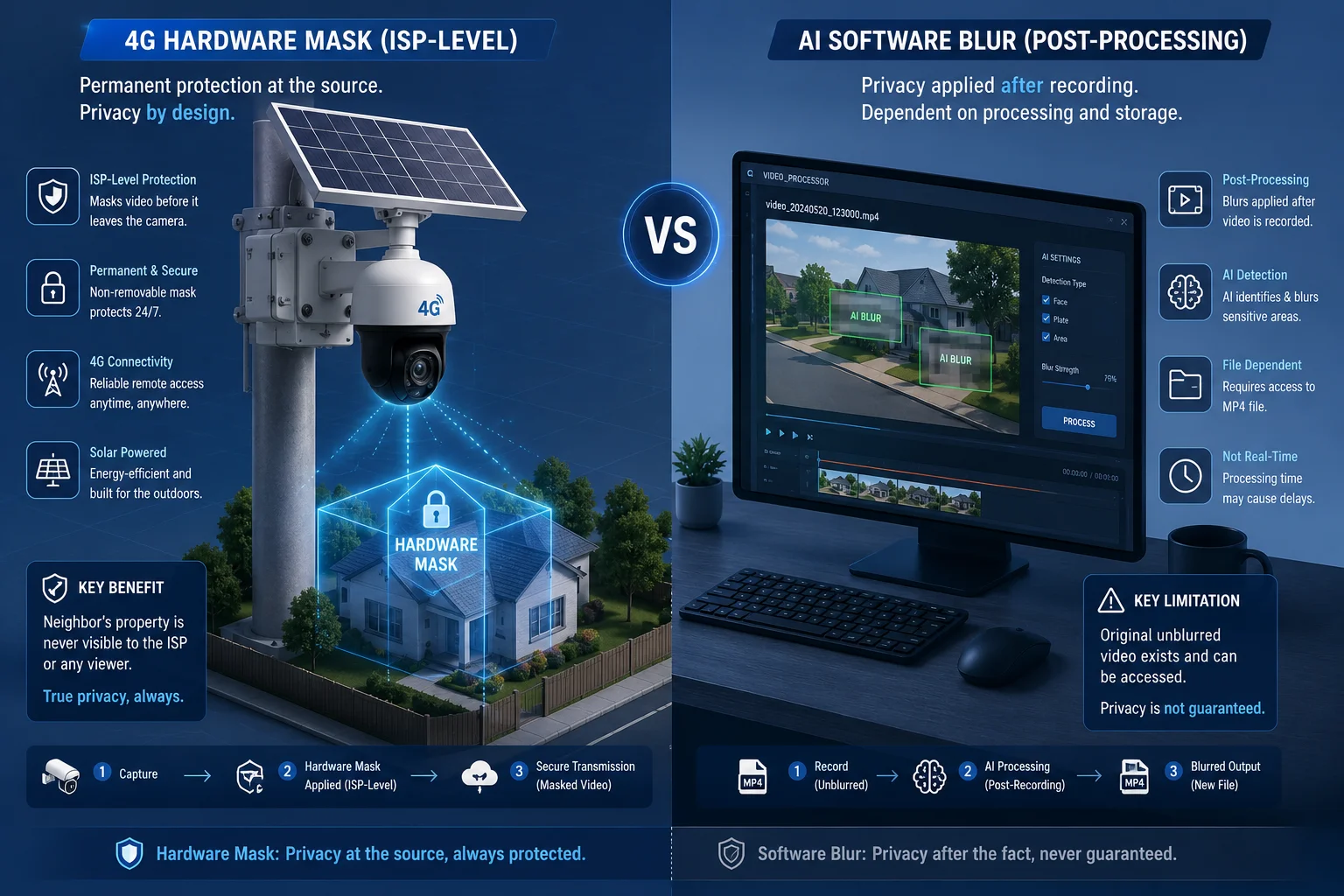
Face blurring can happen in two places: at the camera’s ISP (image signal processor) for real-time privacy masking of fixed zones, or through the PC companion software for AI-based face detection during export. Hardware-level masking is permanent and cannot be reversed by anyone. Software-level blurring gives you more flexibility but requires processing power on your workstation.
Hardware-Level Masking (On the Camera)
This is what we call ISP-stage masking7. The camera’s image processor applies a black or blurred overlay to specific regions before the video is ever encoded into a stream. This means:
- The masked area is gone. Permanently. Even if someone intercepts the RTSP stream6 directly, they see nothing under the mask.
- It works in real time with zero latency.
- It doesn’t require any PC or software to function.
- It’s ideal for fixed privacy zones like a neighbor’s window or a public road.
Our PTZ cameras support what I described earlier as 3D Dynamic Privacy Masking5. The mask locks to physical coordinates (Pan/Tilt/Zoom values), not screen pixels. When the camera rotates, the mask follows the real-world location it’s protecting.
Software-Level Face Blurring (On the PC)
This is the AI-powered approach used during export. The PC software:
- Downloads or accesses the recorded footage.
- Runs a face detection neural network on each frame.
- Applies blur to detected faces.
- Renders the final output file.
This method is more flexible. You can choose selective blurring, adjust blur intensity, review results before saving, and re-export with different settings. But it requires a capable workstation. A laptop with an integrated GPU will be slow. A desktop with a dedicated NVIDIA card will process footage much faster.
Why Both Methods Exist
They solve different problems:
- Hardware masking protects fixed zones 24/7 without any human intervention. It’s set-and-forget. Perfect for permanent privacy requirements.
- Software blurring handles dynamic, per-export decisions. It’s flexible and intelligent. Perfect for one-time exports where you need face-level precision.
Processing Speed Comparison
On a mid-range workstation (Intel i7, 16GB RAM, GTX 1660):
- 1080p footage at 25fps: roughly 3-5 minutes per 10-minute clip
- 4K footage at 25fps: roughly 8-12 minutes per 10-minute clip
- Adding whitelist comparison: adds about 20% more processing time
On the camera itself, hardware masking adds zero processing delay because it’s built into the encoding pipeline.
My Recommendation for Remote 4G Solar Sites
If you’re running a 4G solar PTZ in a remote location, here’s what I suggest:
- Set up hardware-level 3D privacy masks for any permanent zones (neighbor properties, roads, restricted areas). This protects you 24/7 without needing connectivity.
- When you need to export a specific clip for insurance or legal purposes, download the footage to your office workstation and run the AI face blur during export.
This two-layer approach gives you always-on compliance for fixed zones and intelligent, selective blurring for specific exports. It’s the setup most of my North American integrator clients use.
Conclusion
Face blurring on PTZ cameras works at two levels: hardware masks lock to physical coordinates for permanent protection, and software AI handles smart, selective blurring during export. Both methods produce irreversible results that keep you compliant. Choose the right tool for each situation, and you’ll never hand over a non-compliant clip again.
1. Overview of how AI detects human faces in images and video using machine learning. ↩︎ 2. Common image processing technique used to obscure faces by smoothing pixel data. ↩︎ 3. Video compression standards that ensure exported clips are widely compatible. ↩︎ 4. Deep learning architecture commonly used for image recognition and face detection. ↩︎ 5. Privacy masking that follows real-world coordinates as the PTZ camera moves, keeping sensitive zones hidden. ↩︎ 6. Protocol used to transmit live or recorded video over IP networks; hardware masking blocks it at the source. ↩︎ 7. Hardware-level masking applied by the camera’s image signal processor before video encoding. ↩︎ 8. Numerical vector representation of a face used for recognition and matching. ↩︎ 9. Special category of personal data under GDPR that includes face scans and requires explicit consent. ↩︎