
I’ve seen too many integrators lose hours digging through raw footage. They had smart cameras but no way to search by “person” or “car” on the backend. That’s a real problem.
Yes, identified human and vehicle metadata can be transmitted in real time to a backend VMS. The camera sends structured XML data through a separate RTP metadata stream alongside the video. This lets your VMS platform perform smart searches, filter by object type, and trigger automated actions — all without re-processing the video on the server side.
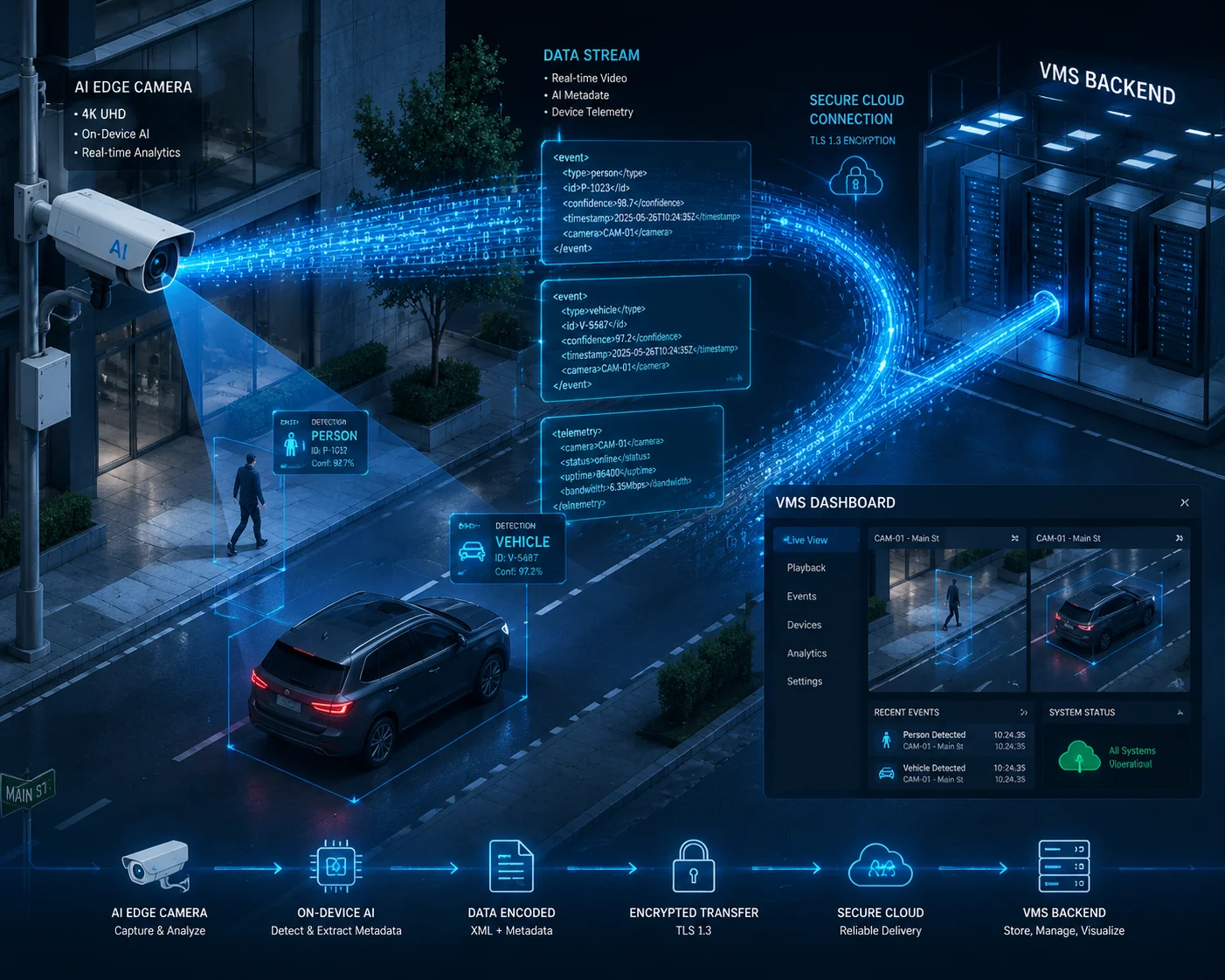
Below, I break down exactly how this works — from protocol standards to bandwidth costs over 4G. If you’re planning a distributed deployment with dozens or hundreds of remote sites, every detail here matters. Let’s get into it.
Table of Contents
Does the Camera Support ONVIF Profile M for Communicating AI Metadata to My VMS?
Many integrators assume that if a camera says “ONVIF compatible,” all smart features will just work on any VMS. I’ve learned the hard way that this is not true. The wrong profile means your metadata goes nowhere.
The most widely adopted standard for transmitting AI analytics metadata from a camera to a third-party VMS is ONVIF Profile T1, not Profile M. Profile T defines how analytics metadata — including human and vehicle classifications — is packaged and streamed over RTP. Profile M is newer and still has limited VMS support as of 2024. For reliable cross-brand deployments today, Profile T is your safest bet.
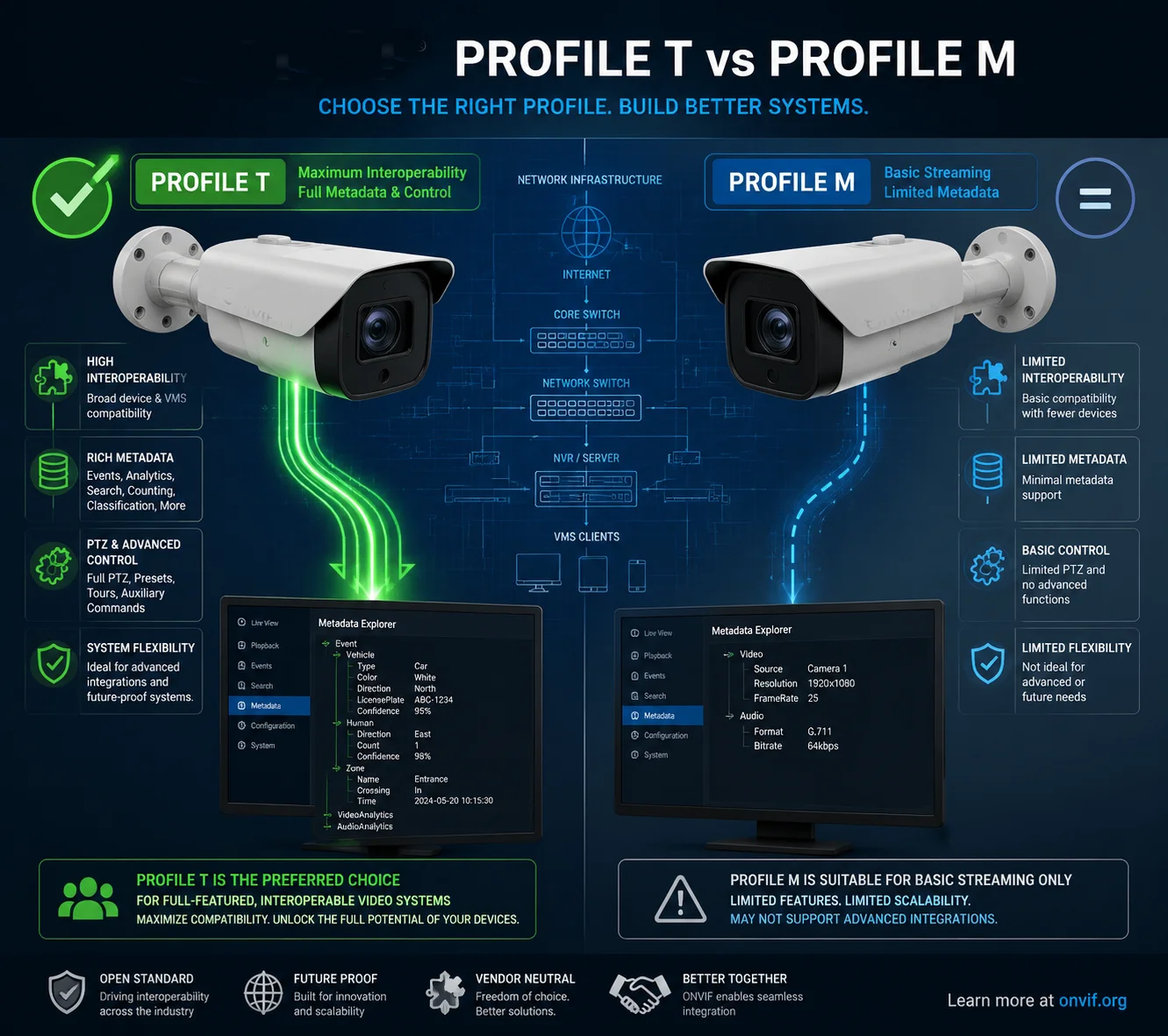
Why Profile T, Not Profile M?
Let me clear up a common confusion. ONVIF has multiple profiles. Each one covers a different set of features. Here’s a quick comparison:
| ONVIF Profile | Primary Purpose | Metadata Support | VMS Adoption (2024) |
|---|---|---|---|
| Profile S | Basic video streaming | No analytics metadata | Very high |
| Profile T | Advanced video + analytics | Yes — full XML metadata stream | High |
| Profile M | Analytics services + metadata | Yes — richer schema | Low to moderate |
Profile M was designed specifically for metadata and analytics. On paper, it’s the better choice. But in practice, most major VMS platforms — Milestone, Genetec, Avigilon — have mature support for Profile T. Profile M adoption is growing, but it’s not there yet.
So if you’re deploying cameras across multiple sites and connecting them to a third-party VMS, I always recommend confirming Profile T support first.
How Does Profile T Handle Metadata?
The process is straightforward:
- Edge AI processing. The camera’s onboard SoC chip runs the AI model. It detects humans, vehicles, and other objects in real time.
- XML packaging. The detection results — bounding box coordinates, object class (person, car, truck), confidence score — are wrapped into a structured XML format.
- RTP metadata stream. This XML data is sent as a separate RTP stream. It runs in parallel with your H.265 or H.264 video stream.
- Timestamp synchronization. Profile T ensures the metadata timestamps match the video timestamps exactly. When you play back a recording on your VMS, the bounding boxes align perfectly with the visual frame. No drift. No lag.
What About Private SDKs?
Here’s something I see a lot in the field. If you’re using a camera from one brand and an NVR or VMS from another brand, you might run into a wall. Many manufacturers — especially the large Chinese brands — default to their own private SDK protocols. Their cameras talk perfectly to their own NVRs. But when you try to connect them to Milestone or Blue Iris, the metadata doesn’t come through.
The fix is simple but easy to miss. You need to go into the camera’s network settings and manually enable the “ONVIF Analytics Service” option. On some firmware versions, this is turned off by default. Without it, the camera will stream video over ONVIF just fine, but the metadata channel stays closed.
At Loyalty-Secu, we enable this by default on all our PTZ cameras. Our engineering team tests every firmware release against Profile T compliance before it ships. If you’re working with a VMS like Milestone XProtect or Genetec Security Center, the metadata stream should appear automatically once you add the camera using the ONVIF driver.
A Quick Checklist Before You Deploy
Before you send cameras to a remote site, verify these three things:
- The camera firmware supports ONVIF Profile T (not just Profile S).
- The VMS driver version is recent enough to parse analytics metadata.
- The “ONVIF Analytics Service” toggle is turned on in the camera’s web interface.
This saves you a truck roll. And for sites in rural Texas or northern Canada, a truck roll can cost more than the camera itself.
Can My VMS Search the Metadata to Filter Recordings by Vehicle Type or Human Appearance?
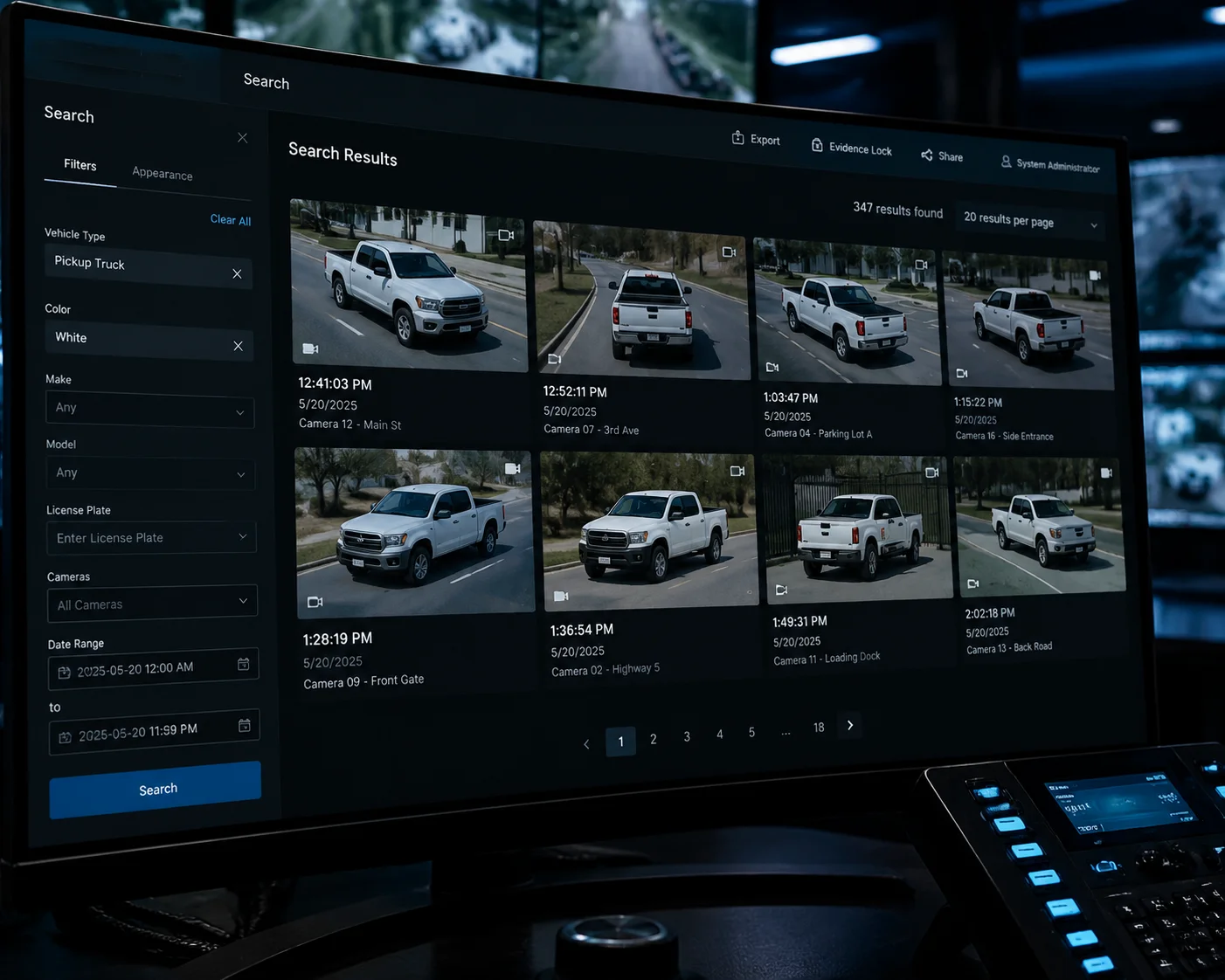
This is the question I hear most from system integrators. They don’t just want live alerts. They want to go back to last Tuesday at 3 AM and find every clip that contains a pickup truck. Without metadata search, that means watching hours of footage manually.
Yes, if your VMS supports analytics metadata ingestion, you can filter recorded footage by object type — such as human, car, truck, or two-wheeler. The camera transmits classification tags within the metadata stream. Your VMS indexes these tags and lets you run filtered searches across any time range. This turns hours of manual review into a 30-second query.
What Metadata Fields Can the Camera Send?
The metadata stream carries more than just “person detected.” Here’s what a well-configured AI camera can transmit to your backend:
| Metadata Field | Description | Example Value |
|---|---|---|
| Bounding Box | Pixel coordinates of the detected object | x:320, y:180, w:120, h:200 |
| Object Class4 | Type of detected object | Human, Car, Truck, Bicycle |
| Confidence Score5 | How certain the AI model is | 0.92 (92%) |
| Direction of Travel | Which way the object is moving | North, Southeast |
| Behavior Tag | Rule-based event label | Tripwire crossed7, Loitering8 |
| Extended Attributes6 | Advanced appearance details | Vehicle color: white, Helmet: yes |
How Does VMS Indexing Work?
When the VMS receives the metadata stream, it doesn’t just display it and throw it away. A good VMS will index every metadata event against the video timeline. Think of it like a search engine for your surveillance footage.
Here’s how the flow works in practice:
- The camera detects a white pickup truck entering a restricted zone at 2:47 AM.
- It sends an XML metadata packet with: object class = “truck,” color = “white,” behavior = “intrusion,” timestamp = 02:47:13.
- The VMS stores this metadata alongside the corresponding video segment.
- Later, an operator searches: “Show me all trucks between midnight and 6 AM on Camera 7.”
- The VMS returns a list of timestamped clips. Each clip starts a few seconds before the detection event.
This is what the industry calls Smart Search3 or Forensic Search. Without it, your operators are just staring at screens. With it, they become investigators.
What If My VMS Doesn’t Support Metadata Search?
Not all VMS platforms handle metadata equally. Some lower-end NVRs can receive the metadata stream and display live bounding boxes on screen. But they don’t index the data. So you get the live overlay, but no search capability.
If forensic search2 is important to your project — and for most commercial deployments, it is — you need to confirm that your VMS supports metadata-based recording search. Milestone XProtect Corporate and Genetec Security Center both support this. Blue Iris has more limited support, but it can still trigger recordings based on metadata events.
For our customers at Loyalty-Secu, I always recommend testing the full chain before a large rollout. We can ship a sample unit, you connect it to your VMS in the lab, and you verify that the search works the way you expect. This avoids surprises on site.
A Note on Extended Attributes
Extended attributes like vehicle color or clothing type depend heavily on the AI model running on the camera. Not every camera supports these. Our dual-lens AI tracking PTZ cameras run a more advanced model that can distinguish between sedans, SUVs, and trucks. But a basic bullet camera with entry-level AI might only tell you “vehicle” without further detail.
Always ask your supplier: What specific object classes does your AI model output? Don’t assume. Get the list in writing. If the spec sheet says “Human/Vehicle detection,” ask whether that means two classes or ten.
Is the Metadata Transmitted as an XML Overlay or a Separate High-Speed Data Stream?
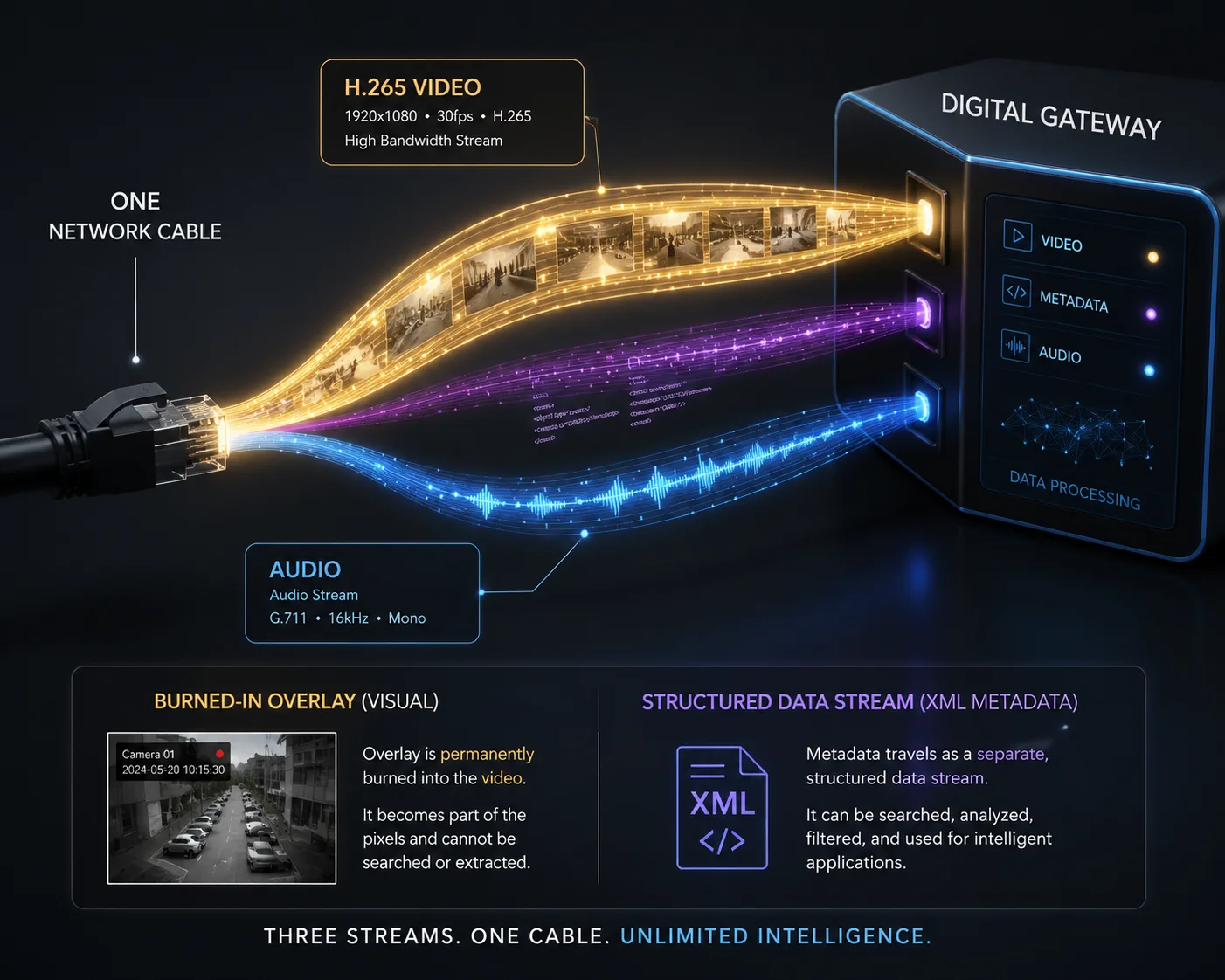
I’ve had customers confuse two very different things: the visual overlay you see on screen (the colored boxes drawn on the video) and the actual structured data stream. They look similar on a monitor, but they work in completely different ways. Getting this wrong can cause real problems.
The metadata is transmitted as a separate RTP data stream, not as a burned-in visual overlay. The XML-structured metadata travels in its own channel alongside the video stream. This means the VMS receives raw, machine-readable data that it can index, search, and act on — rather than just pixels painted onto the image.
Why This Distinction Matters
Let me explain why this is not just a technical detail. It has real consequences for your project.
If the bounding boxes are burned into the video (sometimes called “OSD overlay” or “smart codec overlay”), they become part of the image. You can see them during playback. But your VMS cannot read them. They’re just colored pixels. The VMS has no idea that a box on screen means “truck.” You lose all search capability. You lose all automation. You’re back to watching footage with your eyes.
If the metadata is sent as a separate RTP stream, the VMS receives structured data it can actually use. It can:
- Index events for forensic search.
- Trigger alarms or notifications based on object type.
- Forward metadata to a central command platform for multi-site analytics.
- Generate reports: “Camera 12 detected 347 vehicles and 89 pedestrians last week.”
How the Two Streams Travel Together
Here’s a simplified view of what leaves the camera:
| Stream | Protocol | Content | Bandwidth |
|---|---|---|---|
| Video Stream | RTP over RTSP (H.265) | Compressed video frames | 2–8 Mbps (varies) |
| Metadata Stream | RTP over RTSP (XML) | Object data, coordinates, classes | 10–50 Kbps |
| Audio Stream (optional) | RTP over RTSP (AAC/G.711) | Microphone audio | 32–128 Kbps |
Notice the bandwidth difference. The metadata stream is tiny compared to the video. This is critical for 4G deployments, which I’ll cover in the next section.
Configuring the Metadata Output
On most professional-grade cameras, you can configure the metadata output independently from the video stream. Here are the key settings to look for:
Enable Analytics Metadata
In the camera’s web interface, find the “Smart Event” or “AI Analytics” section. There should be a toggle for “Metadata Output” or “Analytics Stream.” Turn it on.
Choose the Stream Type
Some cameras let you choose between:
- ONVIF metadata stream — standard, interoperable, works with third-party VMS.
- Private SDK metadata — works only with the same brand’s NVR or software.
For cross-brand projects, always choose ONVIF.
Disable Burned-In Overlays (If Needed)
If you’re sending metadata to a VMS that draws its own bounding boxes, you might want to turn off the camera’s built-in visual overlay. Otherwise, you’ll see double boxes — one from the camera and one from the VMS. This looks messy and confuses operators.
At Loyalty-Secu, our firmware gives you separate controls for “Draw on Stream” and “Send Metadata.” You can enable one, the other, or both. This flexibility matters when you’re integrating with different VMS platforms across different projects.
Edge Cases to Watch For
There’s one scenario where burned-in overlays are actually useful: when you’re recording directly to an SD card inside the camera with no VMS at all. In that case, the visual overlay is the only way to see detection results during playback. For off-grid solar sites where the 4G link is unreliable, this can serve as a backup. The camera records locally with visible bounding boxes, and when the link comes back, it uploads the metadata stream to the VMS for indexing.
How Much Extra 4G Data Does the Continuous Metadata Stream Consume per Hour?
This is where the math gets real. I talk to integrators every week who are deploying solar-powered 4G cameras in places with no fiber, no Wi-Fi, and expensive cellular data plans. Every megabyte counts. They want to know: will the metadata stream blow up my data bill?
A continuous metadata stream typically consumes between 10 Kbps and 50 Kbps, which translates to roughly 4.5 MB to 22.5 MB per hour. Compared to an H.265 video stream at 2–4 Mbps (which uses 900 MB to 1.8 GB per hour), the metadata stream adds less than 2% to your total data usage. It is extremely lightweight and should not be a concern for 4G data budgets.

Breaking Down the Numbers
Let me put this in a table so you can see the comparison clearly:
| Data Type | Bitrate | Data per Hour | Data per 24 Hours |
|---|---|---|---|
| H.265 Video (1080p, medium quality) | 2 Mbps | ~900 MB | ~21.6 GB |
| H.265 Video (4MP, high quality) | 4 Mbps | ~1.8 GB | ~43.2 GB |
| Metadata Stream (low activity) | 10 Kbps | ~4.5 MB | ~108 MB |
| Metadata Stream (high activity) | 50 Kbps | ~22.5 MB | ~540 MB |
| Audio Stream (G.711) | 64 Kbps | ~28.8 MB | ~691 MB |
The metadata stream is a rounding error compared to the video. Even at 50 Kbps — which would mean a very busy scene with many detected objects — you’re looking at about half a gigabyte per day. That’s nothing.
The Real Savings: Event-Driven Streaming
Here’s where metadata becomes a money-saving tool, not just a cost. Many of our customers configure their systems like this:
- Default mode: The camera streams only a low-bitrate sub-stream (CIF or D1 resolution, ~256 Kbps) plus the metadata stream to the VMS. Total: about 300 Kbps.
- Event trigger: When the AI detects a human or vehicle, the camera switches to the high-definition main stream (1080p or 4MP) for 30–60 seconds.
- Return to default: After the event ends, it drops back to the low-bitrate stream.
This approach can cut your monthly 4G data usage by 80% to 90% compared to streaming full HD 24/7. The metadata stream is what makes this possible. Without it, the VMS wouldn’t know when to request the high-def stream.
MTU and Packet Size Considerations on 4G
There’s a technical detail that trips people up on cellular networks. The metadata XML packets can vary in size. On a quiet scene with one person, the packet is small — a few hundred bytes. But on a crowded scene with 30 or 40 detected objects, the XML payload can exceed 1400 bytes.
Most 4G networks have an MTU (Maximum Transmission Unit) of around 1400 to 1500 bytes. If a metadata packet exceeds the MTU, it gets fragmented. Sometimes, fragmented packets get dropped by the cellular gateway. The result: your VMS shows bounding boxes that flicker or disappear randomly.
The fix is simple. In the camera’s network settings, set the MTU to 1380 bytes. This gives enough headroom for the 4G overhead. At Loyalty-Secu, we set this as the default on all our 4G PTZ camera models. But if you’re using another brand, check this setting manually. It takes 10 seconds and can save you a very frustrating troubleshooting session on site.
Optimizing for Solar-Powered Sites
For solar-powered deployments, data efficiency directly affects your power budget too. Transmitting less data means the 4G modem draws less power. Less power draw means a smaller solar panel and battery. This cascading effect is why we designed our 4G solar PTZ systems around event-driven streaming from the start.
A typical configuration for a remote construction site or farm:
- Daytime (12 hours): Sub-stream + metadata only. Estimated data: ~200 MB. Estimated power for 4G modem: ~1.5W average.
- Nighttime (12 hours): Same configuration, but with fewer events. Estimated data: ~100 MB.
- Event bursts: Maybe 20 events per day, each triggering 60 seconds of HD streaming. Estimated data: ~600 MB.
- Daily total: Under 1 GB. Manageable on most 4G data plans.
This is the kind of system design that makes remote monitoring practical — not just technically possible, but economically viable.
Conclusion
Human and vehicle metadata flows from the camera to your VMS as a lightweight, searchable XML stream. It costs almost nothing in bandwidth but transforms how you search, automate, and manage surveillance across distributed sites.
1. Learn about the ONVIF Profile T standard for advanced video and analytics metadata streaming. ↩︎ 2. Discover how forensic search capabilities in VMS platforms allow rapid retrieval of recorded events based on metadata. ↩︎ 3. Explore how Smart Search in VMS software uses metadata to filter and locate specific video clips. ↩︎ 4. Review common object classes used in AI-based object detection such as human, car, truck, and bicycle. ↩︎ 5. Learn about confidence scores in machine learning models and how they indicate prediction certainty. ↩︎ 6. Understand extended metadata attributes such as vehicle color, clothing type, and helmet detection. ↩︎ 7. Find out how tripwire analytics create virtual boundaries that trigger events when crossed. ↩︎ 8. Read about loitering detection as a common video analytics behavior rule. ↩︎