
I have seen alarm photos pile up fast, and I know how painful slow searching can get when every second matters. I want a cleaner way.
Yes, many industrial PTZ cameras can auto-create daily or hourly FTP folders if the firmware supports date variables in the remote path. That lets me sort alarm images by time, keep folders light, and make cleanup much easier.
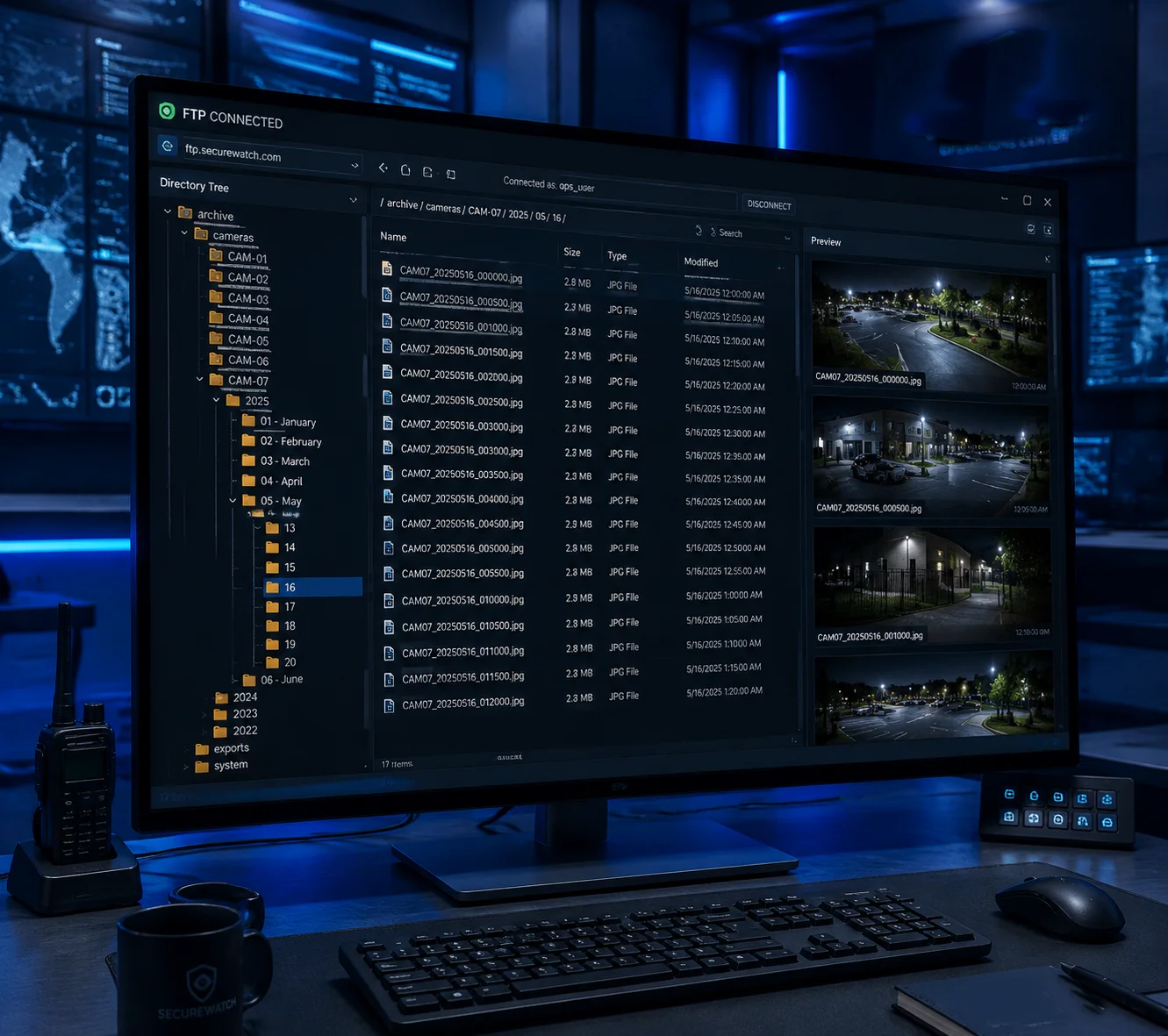
I do not want a folder full of thousands of files, because that turns simple review into a slow job. I also want my archive to stay easy to manage when the camera sends alerts all day.
Table of Contents
Does the firmware support the “Year-Month-Day/Hour” folder structure for easy navigation?
I have seen systems fail for a very small reason: the camera could upload images, but it could not build folders by time. That makes archive work messy.
Yes, if the firmware supports placeholders like %Y/%m/%d/%H1, the camera can create a folder tree by year, month, day, and hour. That makes navigation fast, reduces clutter, and helps me find alarm images without digging through one giant directory.
When I design a storage plan, I do not only ask if the camera can upload. I also ask how it names files, how it creates folders, and what happens when the path does not exist. These details matter because FTP archive systems fail in small ways. If the camera can make folders automatically, then I can separate each day or hour and keep each folder small. That also helps backup tasks, because my sync script3 can copy one day at a time instead of scanning one huge folder. I also need to check whether the FTP account has permission to create directories2. If it does not, the whole idea breaks even when the camera firmware looks ready. In real projects, I prefer a clear rule: one time-based folder per day for normal use, and one folder per hour when trigger volume is high. That gives me both order and speed. For my customers in farms, job sites, and remote yards, this simple setup saves time and lowers support calls.

Common folder patterns I use
| Pattern | Example path | Best use |
|---|---|---|
| Daily | /AlarmData/%Y-%m-%d/ | Medium alarm volume |
| Hourly | /AlarmData/%Y/%m/%d/%H/ | High alarm volume |
| Mixed | /AlarmData/%Y-%m-%d/%H/ | Simple but more detailed |
What I check before I rely on it
| Check point | Why it matters |
|---|---|
| Variable support | The camera must understand date placeholders |
| Create directory permission | FTP user must be able to make folders |
| File name uniqueness | Stops overwrite during fast trigger bursts |
| Time sync | Wrong camera time creates wrong folders |
How many thousands of images can be stored on my FTP server before the camera slows down?
I have heard people say, “It should handle a few thousand files, so it is fine.” I do not trust that answer, because the real problem starts sooner than many people expect.
The camera usually does not slow down because of the raw file count alone; it slows down when the folder gets too large for the FTP server, the file system, or the backup script to handle fast. In practice, I prefer to keep each folder small, often under a few hundred files, and then split the archive by day or hour. That way, I reduce directory load and keep search fast. If a camera stores images in one folder for weeks, the server can still work, but file listing, cleanup, and sync tasks often become slower. I also think about the type of server. A Linux VPS with a good file system4 can handle far more than a cheap shared host, but I still would not build a bad folder plan on purpose. For alarm images, the camera itself should not need to “scan” old files every time it uploads. The real slow point is usually on the server side when tools list or sort large directories. I also care about the naming pattern. If two images arrive in the same second, the file name should still stay unique5, or one file may fail or replace another. For my customers, I would rather use more folders than one giant archive. That gives better stability and makes future automation easier.
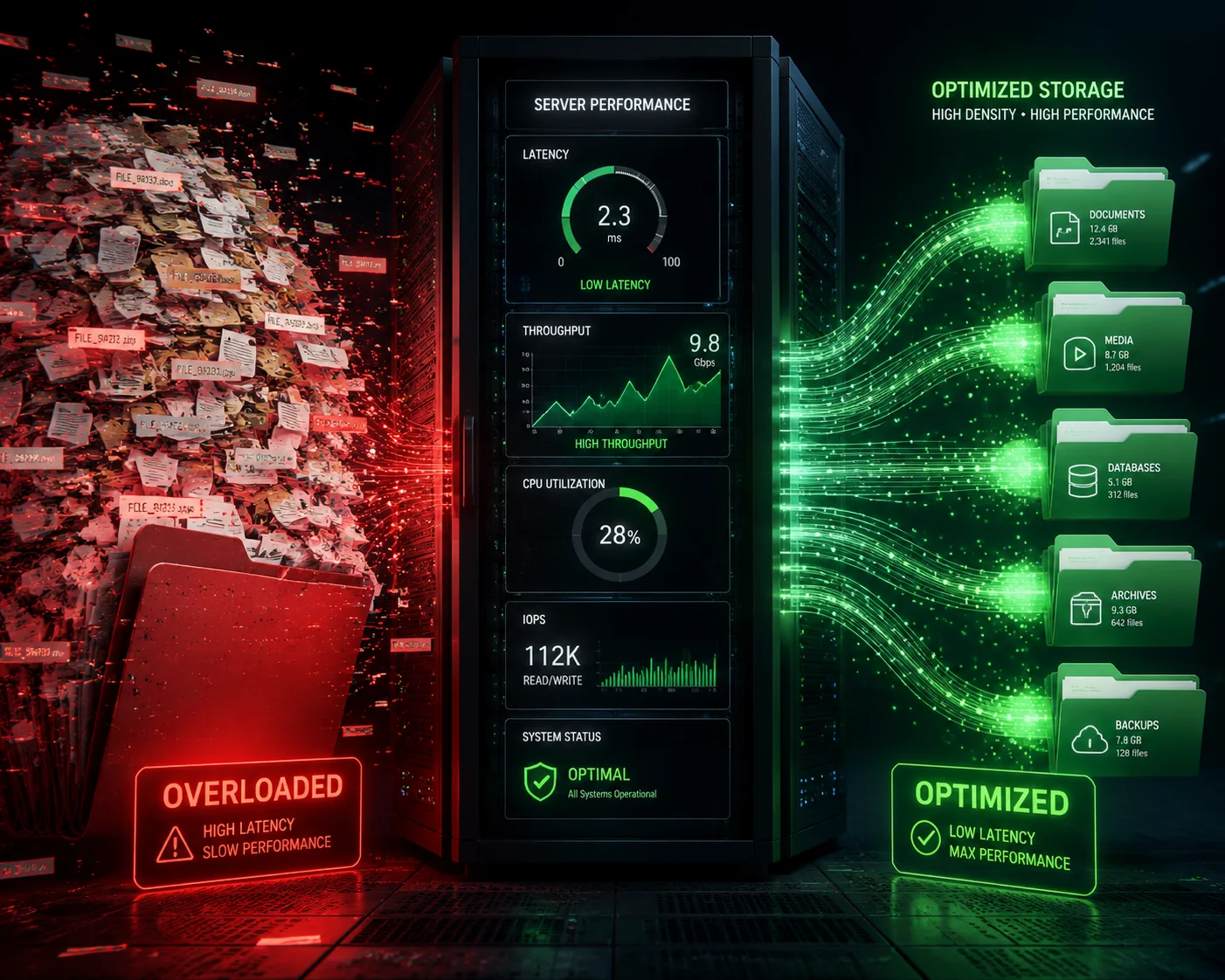
Practical size guidance
| Folder size | My view |
|---|---|
| 0–500 files | Safe for most systems |
| 500–2,000 files | Still okay, but watch server speed |
| 2,000–10,000 files | Better to split by day or hour |
| 10,000+ files | High risk for slow listing and cleanup |
What can cause slow performance
| Cause | Effect |
|---|---|
| One huge folder | Slow file list and search |
| Weak server storage | Delayed write and read speed |
| Bad cleanup script | Archive keeps growing |
| Duplicate file names | Upload errors or overwrite risk |
Can I set a limit on the number of images per folder to prevent directory load issues?
I like limits, because limits force order. Without a limit, the archive can grow in a way that looks fine at first and then becomes hard to manage later.
Some camera firmware can not set a direct “max files per folder” rule. In that case, I use time-based folders as a simple control method. If the camera makes a new folder every hour or every day, the image count stays naturally limited. If the firmware does support folder rotation, then I use it only when it is reliable. I do not want a setting that looks smart but breaks under load. The better plan is to make the server do part of the work. I can use a script or Cron job to move old folders to cold storage, compress them, or delete them after a set time6. That keeps the live archive small and fast. I also think about the use case. A job site with motion alerts every few minutes may only need daily folders. A highway or perimeter site with many triggers may need hourly folders. The point is not just to store files. The point is to keep the archive easy to query and easy to clean. When I talk with integrators, I tell them that folder limits are less about one magic number and more about system design. If the folder count and file count stay balanced, the FTP server stays healthy, and the camera can keep uploading without stress.
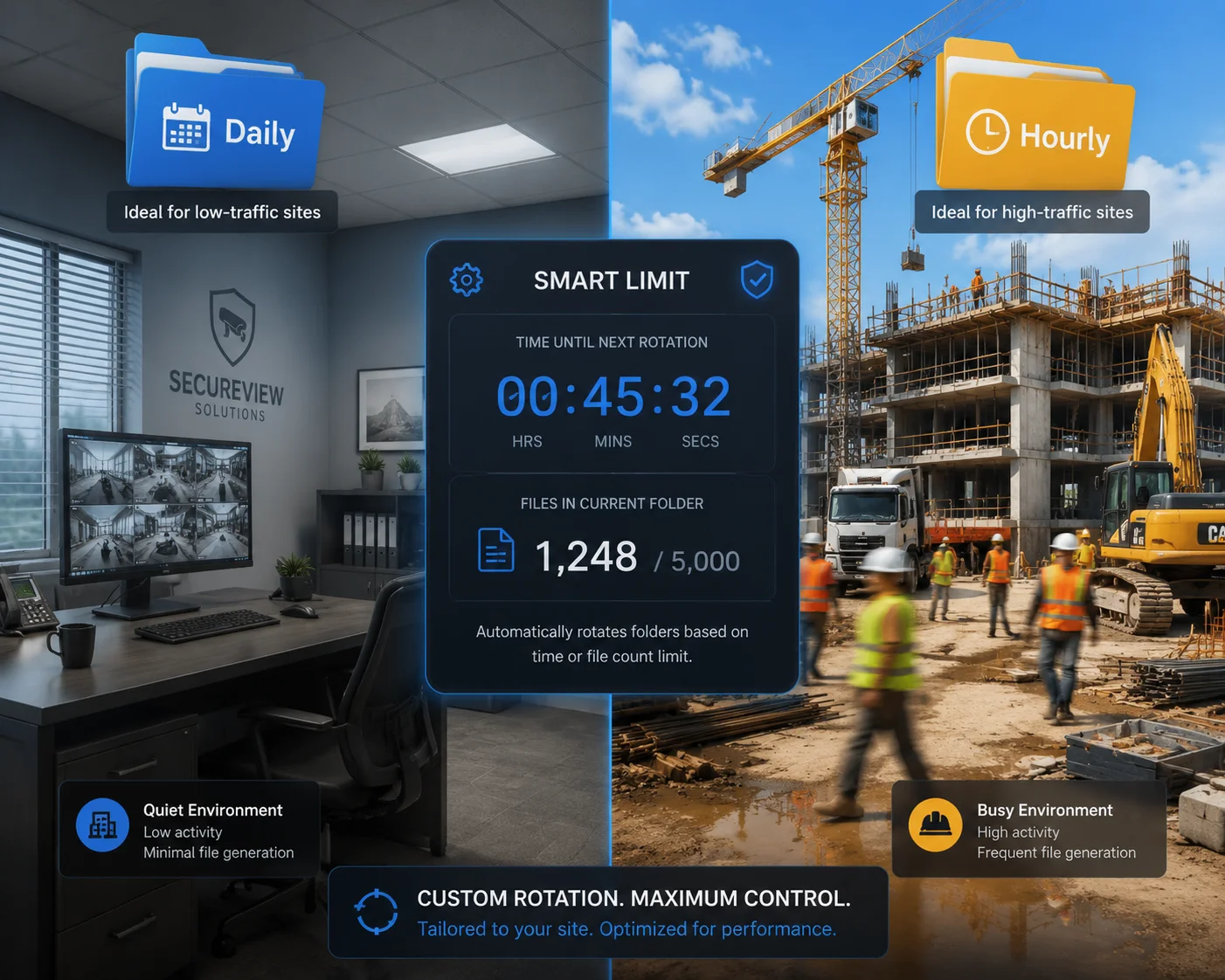
Ways I control folder growth
| Method | How it works | My opinion |
|---|---|---|
| Daily folders | One folder per day | Simple and strong |
| Hourly folders | One folder per hour | Best for heavy alerts |
| Server cleanup script | Remove old data on schedule | Very useful |
| Archive compression | Zip old folders | Good for long storage |
My preferred setup by site type
| Site type | Recommended folder plan |
|---|---|
| Small office | Daily folders |
| Construction site | Hourly folders |
| Farm or remote yard | Daily plus cleanup script |
| High alarm zone | Hourly plus server rotation |
Will the camera automatically overwrite the oldest folder on the FTP if it runs out of space?
I do not like to depend on automatic overwrite, because that can destroy the wrong evidence at the wrong time. I want the storage rule to be clear before the first alarm ever happens.
Most cameras do not safely manage FTP space by deleting the oldest folder on their own. Some devices may overwrite files in local storage or SD cards8, but FTP is usually better handled on the server side. If the FTP server runs out of space, uploads may fail, stop, or create partial files. That is why I prefer a server policy, not a camera guess. On the server, I can set retention rules, disk alerts, and cleanup tasks7. I can keep 30 days, 90 days, or 180 days, based on the project. I can also protect key folders from deletion if the site has legal or security rules. If I let the camera decide what to remove, I lose control of the archive. For B2B projects, that is risky because the customer may need proof after an incident. I also tell teams to monitor free space with alerts. If the disk gets close to full, the system should warn me before uploads fail. This is better than hoping the camera will save me. In my view, the camera should capture and send. The server should store, rotate, and clean. That split keeps the system stable and makes support easier.
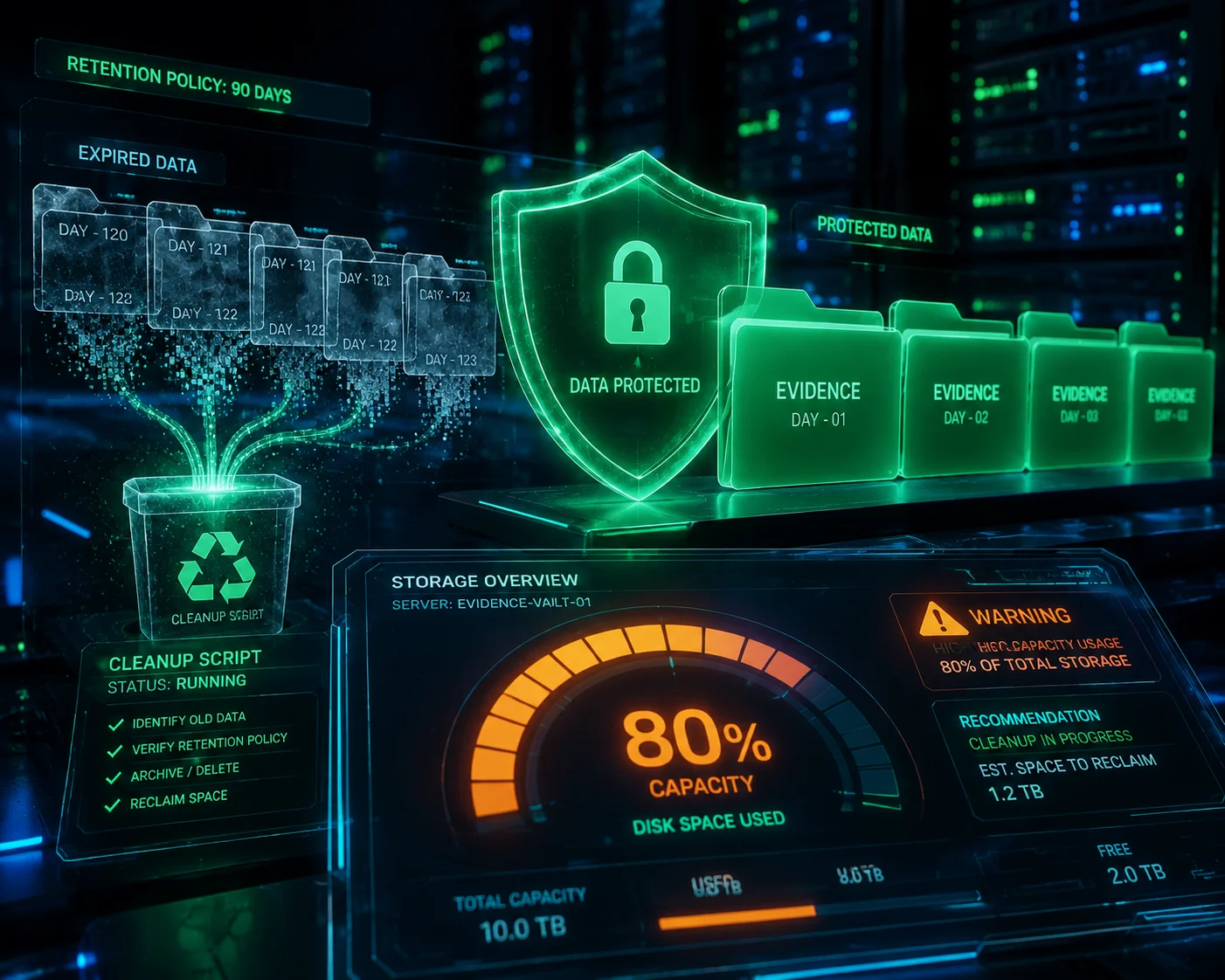
Storage behavior I expect
| Situation | Usual result |
|---|---|
| FTP disk full | Upload may fail |
| Camera local storage full | Local overwrite may happen |
| Server cleanup enabled | Old folders removed safely |
| No retention plan | Archive becomes risky |
Better retention strategy
| Rule | Benefit |
|---|---|
| Keep 30–180 days | Clear storage window |
| Use server-side cleanup | More control |
| Set disk alerts | Prevent surprise failures |
| Protect important folders | Keep evidence safe |
Conclusion
I prefer time-based FTP folders, unique file names, and server-side cleanup, because that keeps alarm archives fast, organized, and safer for real projects.
1. Date placeholders allow cameras to dynamically create time-based directory structures. ↩︎ 2. Without write and mkdir permissions, the camera cannot organize files into folders. ↩︎ 3. Automated scripts help copy or sync only the current day’s folder, improving performance. ↩︎ 4. A robust file system like ext4 or XFS handles large file counts better than older ones. ↩︎ 5. Using timestamps or UUIDs prevents overwrites when multiple alarms trigger in the same second. ↩︎ 6. A cron job can delete or compress old folders to keep the archive manageable. ↩︎ 7. Setting a retention period (e.g., 30–180 days) defines how long data is kept. ↩︎ 8. Local storage may overwrite oldest files when full; it differs from FTP behavior. ↩︎